Okwu mmalite
The Turtle Beach Stealth 600 is a wireless multiplatform gaming headset designed for use with PS5, PS4, Windows PCs, Steam Deck, and mobile devices. It features low-latency 2.4GHz wireless connectivity, Bluetooth 5.2, an 80-hour battery life, and an A.I. noise-reduction flip-to-mute microphone. The headset is equipped with 50mm Nanoclear drivers for immersive audio and offers extensive customization options through the Swarm II companion app.
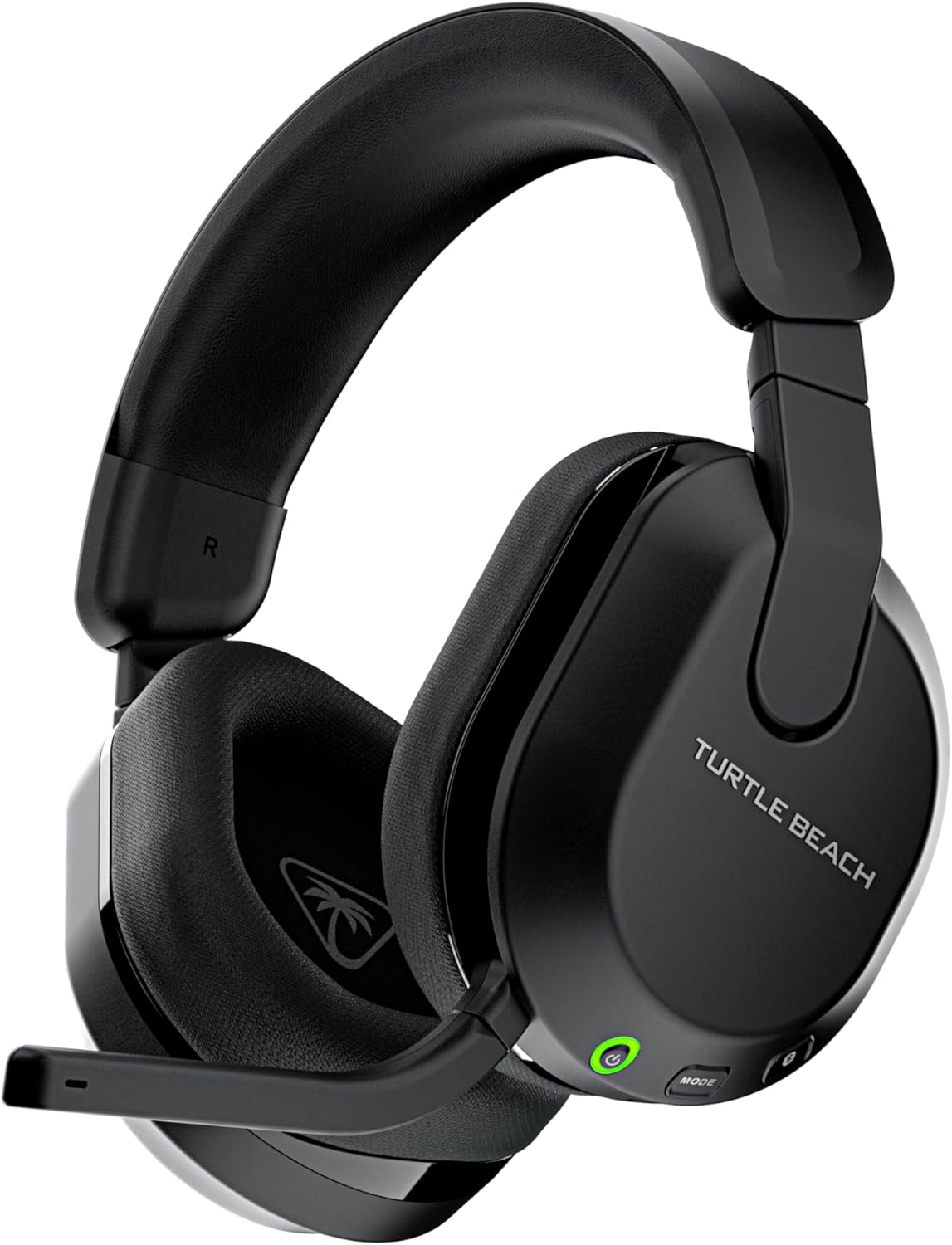
Image: The Turtle Beach Stealth 600 Wireless Multiplatform Gaming Headset, shown in black, highlighting its sleek design and integrated microphone.
Ihe ngwugwu
Chọpụta na ihe niile dị na ngwugwu gị:
- Turtle Beach Stealth 600 Wireless Gaming Headset
- Nnyefe ikuku ikuku USB
- 0.7m / 2.3ft Charging Cable (USB-A to USB-C)
- Ntuziaka mmalite ngwa ngwa

Image: An illustration showing the headset, USB wireless transmitter, USB-C charging cable, and quick start guide included in the product packaging.
Headset Controls and Features
The Stealth 600 headset is equipped with various controls and features for an optimized gaming experience:
- Bọtịnụ ike: Located on the left earcup, used to power the headset on or off.
- Bọtịnụ ụkpụrụ: Cycles through EQ presets or other mappable functions.
- QuickSwitch Button: Seamlessly switches between 2.4GHz wireless and Bluetooth connections.
- Wheel olu: Adjusts master game volume.
- Secondary Wheel: Mappable to control various functions like game/chat mix, mic monitoring, or Superhuman Hearing volume.
- Tụgharịa ka-o mechie igwe okwu: Integrated microphone that mutes when flipped up and unmutes when flipped down. Features A.I.-based noise reduction.
- Ọdụ ụgbọ mmiri USB-C: For charging the headset battery.
- 50mm Nanoclear Drivers: Deliver precise and immersive spatial audio.
- Memory Foam Ear Cushions: Wrapped in athletic-weave fabric for comfort, with ProSpecs glasses-friendly technology.

Foto: A nso nso view of the left earcup of the Stealth 600 headset, showing the power button, mode button, QuickSwitch button, and volume wheels.
Melite
2.4GHz Wireless Connection (PS5, PS4, PC, Steam Deck)
- Insert the USB Wireless Transmitter into an available USB port on your console or PC.
- Power on your Stealth 600 headset by holding the Power Button until the LED illuminates.
- The headset and transmitter will automatically pair. A solid LED on both indicates a successful connection.
- On PS5/PS4, ensure the audio output is set to the headset. On PC, select the headset as your default audio device.

Image: The USB Wireless Transmitter for the Turtle Beach Stealth 600 headset, featuring a green LED indicator.
Bluetooth Connection (Mobile Devices)
- Power on your Stealth 600 headset.
- Press and hold the Bluetooth button on the headset until the LED flashes blue rapidly, indicating pairing mode.
- On your mobile device, go to Bluetooth settings and select "Stealth 600" from the list of available devices.
- The headset LED will turn solid blue once paired.
- Use the QuickSwitch button to easily toggle between 2.4GHz wireless and Bluetooth audio sources.
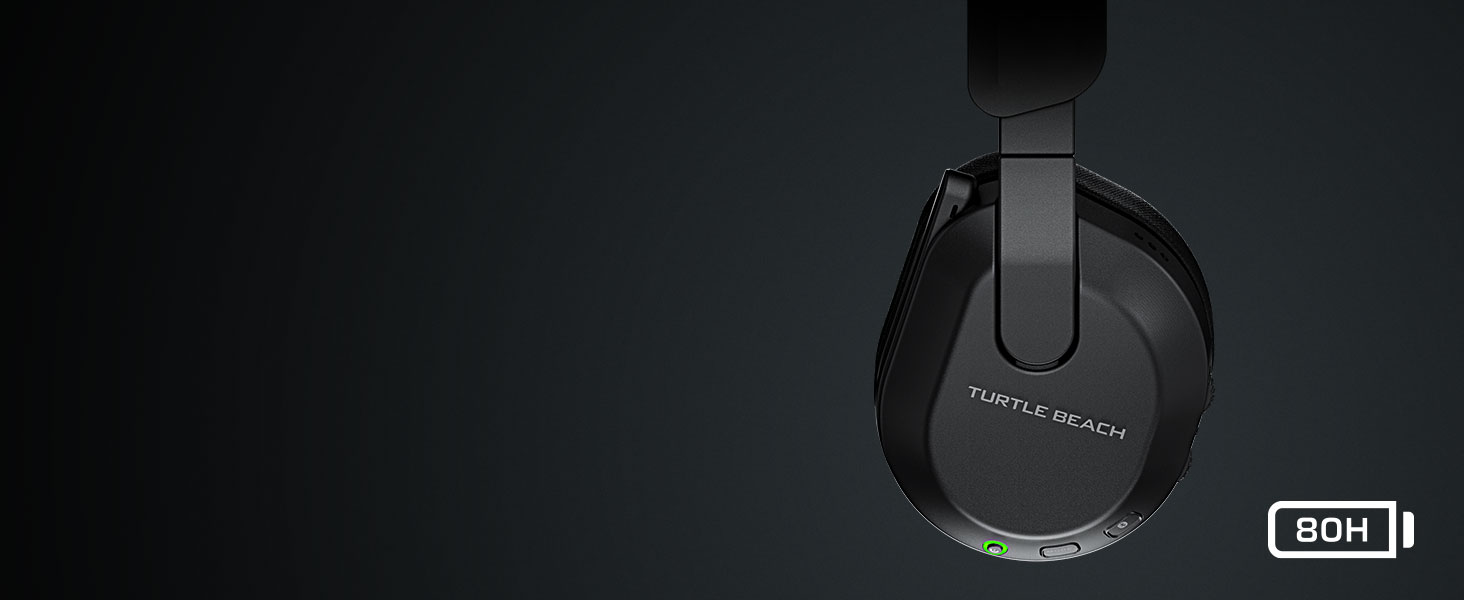
Image: A visual representation of the Stealth 600 headset connected wirelessly to a PC and via Bluetooth to a mobile phone, demonstrating its multiplatform capabilities.
Ntuziaka ọrụ
Ịchaji
Connect the supplied USB-A to USB-C charging cable from the headset's USB-C port to a USB port on your console, PC, or a USB wall adapter. The headset features quick charge capability. A full charge provides up to 80 hours of battery life.
Gbanyụọ/ Gbanyụọ
To power on, press and hold the Power Button until you hear an ascending tone and the LED illuminates. To power off, press and hold the Power Button until you hear a descending tone and the LED turns off.
Ọrụ igwe okwu
The integrated microphone is activated by flipping it down. To mute the microphone, flip it up until it clicks into place. The microphone features A.I.-based noise reduction for clear communication.
Image: A close-up of the Stealth 600 headset's flip-to-mute microphone, illustrating the A.I. noise reduction feature with sound wave graphics.
Ntọala ọdịyo
Press the Mode Button to cycle through four built-in audio presets: Bass Boost, Signature Sound, Treble Boost, and Vocal Boost. Custom presets can be configured via the Swarm II app.
Nleba anya igwe okwu na-agbanwe agbanwe
Adjust the level of your own voice heard through the headset using the secondary wheel (if mapped to this function) or through the Swarm II app. This helps prevent shouting during gameplay.
Remappable Controls
The secondary wheel and Mode button can be remapped to various functions using the Turtle Beach Swarm II app. This allows for personalized control over settings such as Game/Chat Mix, Variable Mic Monitoring, Superhuman Hearing volume, Bluetooth volume, Bass & Treble Boost levels, and Noise Gate Threshold.
Swarm II App Customization
The Swarm II companion app, available for PC, iOS, and Android, provides advanced customization options for your Stealth 600 headset. Through the app, you can:
- Access a 10-band audio EQ to create up to five custom audio presets.
- Adjust microphone sensitivity, noise gate, and monitoring levels.
- Program the mappable wheel and mode button to suit your preferences.
- Activate and adjust Turtle Beach's exclusive Advanced Superhuman Hearing sound setting.
- Update headset firmware to ensure optimal performance.
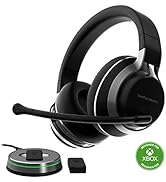
Image: A screenshot of the Turtle Beach Swarm II app interface, displaying audio equalization settings and other customization options.
Nlekọta
To ensure the longevity and optimal performance of your Stealth 600 headset, follow these maintenance guidelines:
- Nhicha: Jiri ákwà dị nro ma kpọọ nkụ hichaa ekweisi ahụ. Zere iji kemịkalụ siri ike ma ọ bụ ihe ndị na-emebi ihe.
- Nchekwa: Store the headset in a cool, dry place away from direct sunlight and extreme temperatures. The lay-flat design allows for convenient storage.
- Nlekọta batrị: For best battery health, avoid fully discharging the battery frequently. Charge the headset regularly, especially if not used for extended periods.
- Njikwa USB: Handle the charging cable with care to prevent damage.
Nchọpụta nsogbu
If you encounter issues with your Stealth 600 headset, refer to the following common solutions:
- Enweghị nsogbu ọdịyo/njikọ:
- Ensure the headset and USB Wireless Transmitter are properly paired (solid LED).
- Verify the headset is selected as the default audio output device on your console or PC.
- For PS5, navigate to System Settings > Network > Settings > Set Up Internet Connection. Hover over your Wi-Fi, press Options, and set Wi-Fi Frequency Bands to 5 GHz only to minimize interference with the headset's 2.4GHz wireless.
- Consider using a USB 3.0 extender for the wireless dongle to prevent overheating and improve signal stability, especially if the dongle is placed in a confined space.
- Ensure no other 2.4GHz devices are causing significant interference nearby.
- Igwe okwu anaghị arụ ọrụ:
- Ensure the microphone is flipped down to unmute.
- Check microphone settings in your console/PC audio settings and in the Swarm II app.
- Ogo ụda adịghị mma:
- Adjust EQ settings via the Mode button or the Swarm II app.
- Ensure the headset firmware is up to date using the Swarm II app.
- Batrị anaghị achaji:
- Gbalịa ọdụ ụgbọ USB dị iche ma ọ bụ eriri nchaji.
- Ensure the charging cable is securely connected to both the headset and the power source.
For further assistance, visit the official Turtle Beach support websaịtị.
Nkọwapụta
| Njirimara | Nkọwa |
|---|---|
| Njikọta | Ikuku 2.4GHz, Bluetooth 5.2 |
| Ndị ọkwọ ụgbọ ala | 50mm Nanoclear |
| Nzaghachi ugboro ugboro | 20Hz - 20kHz |
| Igwe okwu | Uni-Directional, Flip-to-Mute with A.I. Noise Reduction |
| Ear-cushion Material | Athletic Weave Fabric, Memory Foam |
| Batrị | Lithium Polymer na -akwụghachi ụgwọ |
| Ndụ batrị | Ruo awa iri abụọ |
| Ibu | 320 grams (11.3 ounces) |
| Nọmba nlereanya | TBS-3102-05 |
| UPC | 731855031023 |
| Ngwa dakọtara | PS5, PS4, Windows PCs, Steam Deck, Mobile Devices |
Akwụkwọ ikike na nkwado
Your Turtle Beach Stealth 600 Wireless Multiplatform Gaming Headset is covered by a manufacturer's warranty. Please refer to the warranty information provided with your product packaging for specific terms and conditions.
For technical support, frequently asked questions, and additional resources, please visit the official Turtle Beach support websaịtị: www.turtlebeach.com/pages/support


