1. Okwu mmalite
Thank you for choosing the Gosund SP111 Smart WiFi Plug. This device allows you to control your electronic appliances remotely via a smartphone application or voice commands, and to set schedules for automated operation. Please read this manual carefully before use to ensure proper installation and operation.
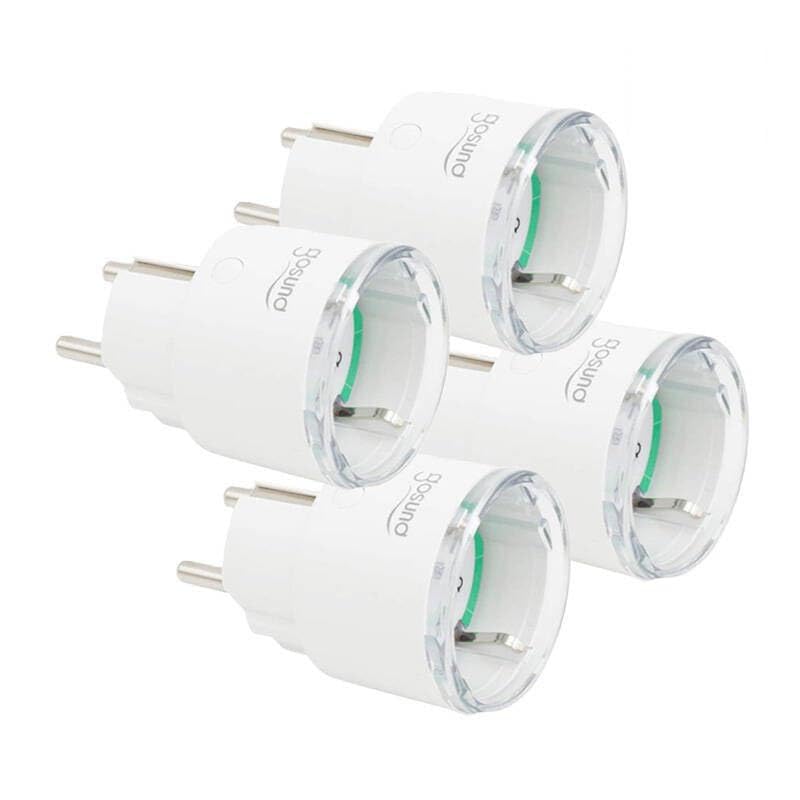
This image displays four white Gosund SP111 Smart WiFi Plugs. Each plug features a standard European Type F (Schuko) plug on one side and a corresponding socket on the other, with the Gosund logo printed on the side. A small indicator light and a button are visible on the top surface of each plug.
2. Ozi nchekwa
- Do not exceed the maximum load current of 16A or power of 3680W.
- Ewepụla ma ọ bụ gbanwee ngwaọrụ.
- Keep the device away from water, moisture, and high temperatures.
- Maka naanị ime ụlọ.
- Ensure the plug is fully inserted into the wall socket.
- Do not connect appliances that could cause a fire hazard if left unattended (e.g., irons, heaters).
3. Ihe ngwugwu
Ngwungwu ahụ gụnyere ihe ndị a:
- 4 x Gosund SP111 Smart WiFi Plugs
- Akwụkwọ ntuziaka onye ọrụ 1 x (akwụkwọ a)
4. Ngwaahịa gafereview
Familiarize yourself with the components of your Gosund SP111 Smart WiFi Plug:
- Bọtịnụ ike: Press to manually turn the plug on/off. Press and hold for 5 seconds to enter pairing mode.
- Ìhè ihe ngosi: Indicates the status of the plug (e.g., solid blue for ON, flashing blue for pairing mode, off for OFF).
- Type F (Schuko) Socket: For connecting your appliance.
- Type F (Schuko) Plug: For inserting into a wall outlet.
5. Nhazi
5.1 Budata ngwa
The Gosund SP111 Smart WiFi Plug works with the Tuya Smart or Smart Life app. Download the app from the App Store (iOS) or Google Play Store (Android).
- Chọọ maka "Tuya Smart" or "Smart Life".
- Wụnye ngwa ma debanye aha akaụntụ.
5.2 Tinye Ngwaọrụ
- Plug the Gosund SP111 Smart WiFi Plug into a wall outlet.
- The indicator light should flash rapidly (approximately twice per second), indicating it's in pairing mode. If not, press and hold the power button for 5 seconds until it flashes rapidly.
- Mepee ngwa Tuya Smart ma ọ bụ Smart Life.
- Pịa akara ngosi "+" dị n'akụkụ aka nri elu iji tinye ngwaọrụ.
- Select "Electrical Outlet" or "Socket (Wi-Fi)".
- Confirm that the indicator light is flashing rapidly.
- Enter your 2.4 GHz Wi-Fi network password (5 GHz Wi-Fi is not supported).
- Wait for the device to connect. Once connected, you can rename the plug.
6. .rụ ọrụ
6.1 Njikwa akwụkwọ ntuziaka
Press the power button on the plug to manually turn the connected appliance on or off.
6.2 Njikwa ngwa
- Gbanyụọ/ gbanyụọ: Tap the plug icon in the app to turn it on or off from anywhere.
- Ịhazi oge: Set timers or schedules for the plug to turn on or off automatically at specific times.
- Ngụgụ: Set a countdown timer for the plug to turn off after a set duration.
- Nleba anya ike: (If supported by the specific SP111 variant) View real-time and historical power consumption.
6.3 Njikwa olu
The Gosund SP111 Smart WiFi Plug can be integrated with voice assistants like Amazon Alexa and Google Assistant via the Tuya Smart or Smart Life app. Follow the instructions within the app to link your smart home assistant account.
- Example iwu:
- "Alexa, turn on [Plug Name]"
- "Hey Google, turn off [Plug Name]"
7. Nlekọta
- Kwupu ngwaọrụ ahụ tupu ihicha ya.
- Wipe the surface with a soft, dry cloth. Do not use liquid cleaners or abrasive materials.
- Chekwaa n'ebe dị jụụ, kpọrọ nkụ mgbe ọ naghị eji ya ogologo oge.
8. Nchọpụta nsogbu
| Nsogbu | Ngwọta |
|---|---|
| Plug cannot connect to Wi-Fi. |
|
| Ọkụ ihe ngosi agbanyụrụ. |
|
| Appliance connected to the plug does not turn on. |
|
9. Nkọwapụta
| Ụdị: | SP111-4 |
| Ntinye Voltage: | AC 230V, 50/60Hz |
| Ibu Ibu ugbu a: | 16A |
| Oke ike: | 3680W |
| Ụdị ikuku: | Wi-Fi 2.4GHz (802.11 b/g/n) |
| Nkwado ngwa: | Tuya Smart / Ndụ Smart |
| Okpomọkụ arụ ọrụ: | 0°C ruo 40°C (32°F ruo 104°F) |
10. Akwụkwọ ikike na nkwado
Gosund products are designed and manufactured to the highest quality standards. For warranty information and technical support, please refer to the official Gosund websaịtị ma ọ bụ kpọtụrụ onye na-ere ahịa gị. Debe nnata nzụta gị ka ihe akaebe nke ịzụrụ.
Maka enyemaka ọzọ, biko gaa na: www.gosund.com/support


