1. Okwu mmalite
This manual provides comprehensive instructions for the setup, operation, and maintenance of your A4tech FGK21C 2.4G Wireless Numeric Keypad. Please read this manual thoroughly before using the device to ensure proper functionality and longevity.
2. Ihe ngwugwu
Chọpụta na ihe niile dị na ngwugwu:
- A4tech FGK21C Wireless Numeric Keypad
- 2.4G USB nnata
- USB Type-C Nchaji USB
- Akwụkwọ ntuziaka (akwụkwọ a)
3. Ngwaahịa gafereview
The A4tech FGK21C is a 2.4G wireless numeric keypad designed for enhanced productivity, featuring ultra-slim keycaps, a rechargeable battery, and dual-mode Num Lock functionality. It is compatible with Windows operating systems.

Foto nke 3.1: N'ihu view of the A4tech FGK21C numeric keypad, showing all keys and the FSTYLER branding.

Foto nke 3.2: Ihu ihu view of the A4tech FGK21C numeric keypad, highlighting its ergonomic design.
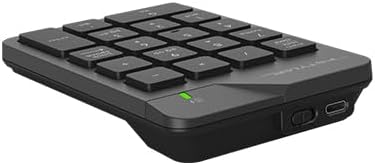
Foto nke 3.3: Akụkụ view of the A4tech FGK21C numeric keypad, displaying the USB Type-C charging port and the power switch.
4. Nhazi
4.1. Ịchaji ahụ ahụigodo
- Connect the supplied USB Type-C charging cable to the charging port on the keypad.
- Jikọọ nsọtụ nke ọzọ nke eriri ahụ na isi iyi ike USB (dịka ọmụmaatụ, ọdụ ụgbọ USB kọmputa, ihe nkwụnye mgbidi USB).
- The charging indicator light will illuminate. Once fully charged, the light may change color or turn off, depending on the keypad's design.
4.2. Connecting the Keypad
- Locate the 2.4G USB receiver. It is typically stored in a compartment on the keypad itself or included separately in the packaging.
- Plug the USB receiver into an available USB-A port on your computer. If your computer only has USB-C ports, use a USB-C to USB-A adapter (not included unless specified).
- Turn on the keypad using the power switch, usually located on the side or back of the device.
- The keypad should automatically connect to your computer. No additional drivers are typically required for Windows operating systems.
5. Ntuziaka ọrụ
5.1. Basic Keypad Usage
The numeric keypad functions like a standard 10-key pad. Simply press the desired number or operator keys to input data into your applications.
5.2. Dual Mode Num Lock
The FGK21C features a dual-mode Num Lock function. This means the Num Lock key on the keypad operates independently of your main keyboard's Num Lock. This allows you to use the numeric keypad for number input while your main keyboard's Num Lock is off, or vice-versa.
- Pịa Num Lock / Clear key once to activate or deactivate the numeric input mode.
- When Num Lock is active, the numeric keys (0-9) will input numbers.
- When Num Lock is inactive, the keys will function as navigation keys (e.g., Home, End, Pg Up, Pg Dn, Insert, Delete) as indicated by the secondary legends on the keycaps.
6. Nlekọta
6.1. Nhicha
To clean the keypad, gently wipe the surface with a soft, damp cloth. Avoid using harsh chemicals or abrasive materials, as these can damage the finish or keycap legends. Ensure the keypad is powered off before cleaning.
6.2. Nlekọta batrị
The keypad contains a built-in rechargeable lithium-ion battery. To prolong battery life:
- Zere ịchaji batrị ugboro ugboro.
- Store the keypad in a cool, dry place when not in use for extended periods.
- Charge the keypad regularly, even if not used daily.
7. Nchọpụta nsogbu
7.1. Keypad Not Responding
- Ensure the keypad is powered on.
- Lelee ma ọ bụrụ na e tinyere ihe nnata USB ahụ n'ime ọdụ ụgbọ USB na-arụ ọrụ nke ọma na kọmputa gị.
- Verify that the keypad's battery is charged. Connect it to a power source using the USB Type-C cable.
- Gbalịa itinye ihe nnata USB n'ọdụ ụgbọ mmiri USB dị iche.
- Malitegharịa ekwentị gị na kọmputa.
7.2. Njikọ Na-akwụsị Oge
- Ensure the keypad is within the effective range (up to 10-15 meters) of the USB receiver.
- Minimize obstructions between the keypad and the receiver, such as large metal objects.
- Avoid placing the receiver near other wireless devices that might cause interference (e.g., Wi-Fi routers, cordless phones).
7.3. Num Lock Not Working as Expected
- Remember that the keypad's Num Lock operates independently. Press the Num Lock / Clear key on the numeric keypad to toggle its state.
- Ensure the keypad is properly connected and powered on.
8. Nkọwapụta

Foto nke 8.1: Diagram showing the dimensions of the A4tech FGK21C numeric keypad (124mm width, 187mm length, 24mm thickness).
| Njirimara | Nkọwa |
|---|---|
| Aha Nlereanya | FGK21C |
| Ụdị | A4tech |
| Teknụzụ Njikọta | 2.4 GHz Wireless (USB-A, USB-C Adaptor) |
| Ngwa dakọtara | PC (Windows) |
| Nkọwa ahụigodo | Membrane, Ultra-Slim Keycaps |
| Atụmatụ pụrụ iche | Ergonomic, Rechargeable, Dual Mode Num Lock |
| Isi Iyi Ike | 1 Lithium Ion battery (included, built-in) |
| Ikuku iche | 10-15 mita |
| Ibu Ibu | 4.8 ounces |
| Akụkụ ngwugwu | 7.25 x 5.5 x 1.5 sentimita asatọ |
| Ụbọchị mbụ dị | Mee 23, 2024 |
9. Akwụkwọ ikike na nkwado
For warranty information and technical support, please refer to the documentation provided with your purchase or visit the official A4tech websaịtị. Debe ihe akaebe nke ịzụrụ maka akwụkwọ ikike.


