1. Okwu mmalite
This manual provides detailed instructions for the installation, operation, and maintenance of your Speco P8S10G 10-Port Gigabit Network Switch. Please read this manual thoroughly before using the device to ensure proper functionality and to prevent damage. This switch features 8 Power over Ethernet (PoE) ports and 2 Gigabit uplink ports, designed for reliable network connectivity and power delivery to compatible devices.
2. Ngwaahịa gafereview
The Speco P8S10G is a high-performance Gigabit network switch designed for various networking environments. It offers Power over Ethernet capabilities, allowing power and data to be transmitted over a single Ethernet cable to PoE-compatible devices such as IP cameras, VoIP phones, and wireless access points.
2.1 Nhazi Panel Ihu
The front panel of the switch features all network ports and status indicators.
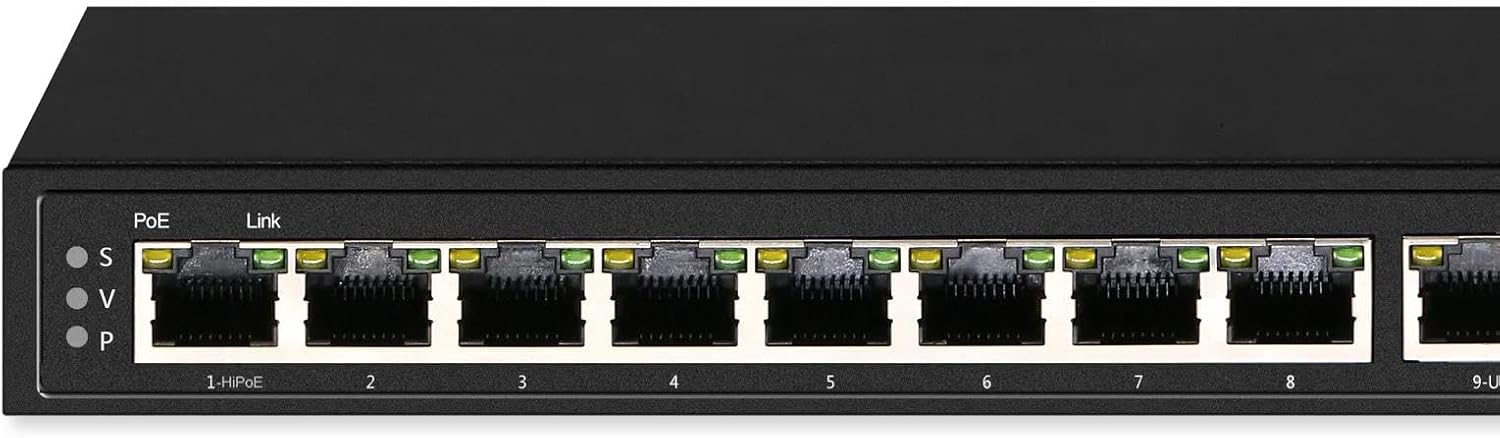
Foto nke 1: N'ihu view of the Speco P8S10G 10-Port Gigabit Network Switch. It displays eight PoE ports labeled '1-HiPoE' through '8', and two uplink ports labeled '9-UP' and '10-UP'. Each port has corresponding LED indicators for PoE and Link status. The left side shows 'PoE' and 'Link' indicators with 'S', 'V', 'P' labels, likely indicating different modes or statuses.

Foto nke 2: Another front view of the Speco P8S10G switch, highlighting the 'speco technologies' logo and 'Gigabit PoE Unmanaged Switch' text on the right side. This view also clearly shows the 10 network ports and their respective status LEDs.
2.2 Atụmatụ
- Ịrụ ọrụ Gigabit: All 10 ports (8 PoE, 2 Uplink) support Gigabit speeds.
- PoE Watchdog Mode: Continuously monitors for lost device connections and automatically resets the port when detected.
- Ụdị VLAN: Isolates each PoE port, connecting independently with cameras, computers, or other switches, while the uplink port connects to a router. This helps avoid signal interference and ARP spoofing.
- Oke ike: Maximum 30W power allocation per PoE port with built-in surge protection.
- Nzipu Ogologo Anya: Supports transmission up to 800ft (250m) at 10Mbps when using Cat6 cables.
3. Nhazi
Follow these steps to set up your Speco P8S10G network switch.
- Mepee ihe ntụgharị ahụ: Jiri nlezianya wepụ ngbanwe na ngwa niile na nkwakọ ngwaahịa. Chọpụta na akụrụngwa niile dị.
- Njikọ ike: Connect the provided power adapter to the switch's power input port and then plug it into a standard electrical outlet. The power LED indicator on the switch should illuminate.
- Njikọ Elu: Connect your router or main network device to one of the Uplink Ports (9-UP or 10-UP) using a standard Ethernet cable. The Link LED for the connected uplink port should illuminate.
- PoE Device Connection: Connect your PoE-compatible devices (e.g., IP cameras, access points) to the PoE Ports (1-HiPoE through 8) using Ethernet cables. The PoE LED and Link LED for each connected device should illuminate, indicating successful power and data connection.
- Non-PoE Device Connection (Optional): You can also connect non-PoE network devices to the PoE ports; however, they will only receive data, not power.
4. .rụ ọrụ
The Speco P8S10G is an unmanaged switch, meaning it operates automatically without requiring complex configuration. However, understanding its modes and indicators is crucial for optimal performance.
4.1 LED egosi
- Igwe ọkụ ọkụ: Indicates the power status of the switch. (Typically solid green when powered on).
- PoE LED (per port): Indicates Power over Ethernet status. (Typically solid green when PoE is supplied, blinking when negotiating, or off if no PoE device is connected or power is not supplied).
- Link/Act LED (per port): Indicates network link status and activity. (Solid green for a stable link, blinking green for data activity, off if no link).
4.2 VLAN mode
When VLAN mode is active, each PoE port is isolated from other PoE ports. This means devices connected to different PoE ports cannot directly communicate with each other. They can only communicate with devices connected to the uplink ports. This mode enhances security and reduces network broadcast storms, making it ideal for surveillance systems where cameras should only communicate with the NVR/router via the uplink.
4.3 PoE Watchdog Mode
The PoE Watchdog feature continuously monitors the connection status of PoE-powered devices. If a connected device becomes unresponsive or loses its network connection, the switch will automatically detect this and reset the corresponding PoE port. This can resolve issues with frozen IP cameras or other PoE devices without manual intervention, improving system reliability.
5. Nlekọta
Proper maintenance ensures the longevity and reliable operation of your network switch.
- Nhicha: Debe mgba ọkụ ahụ ka ọ dị ọcha na enweghị ntụ. Jiri akwa dị nro, kpọrọ nkụ maka nhicha. Ejila ihe nhicha mmiri ma ọ bụ ikuku ikuku.
- Igwe ikuku: Ensure adequate ventilation around the switch. Do not block the ventilation openings. Avoid placing the switch in enclosed spaces that can trap heat.
- gburugburu: Operate the switch within its specified temperature and humidity ranges. Avoid direct sunlight, excessive heat, and moisture.
- Njikwa USB: Organize network cables neatly to prevent strain on ports and to maintain good airflow.
6. Nchọpụta nsogbu
If you encounter issues with your Speco P8S10G switch, refer to the following common problems and solutions.
- Enweghị ike:
- Gbaa mbọ hụ na ejikọrọ ihe nkwụnye ọkụ ahụ na ngbanwe yana igwe eletrik na-arụ ọrụ.
- Lelee ma oghere ọkụ na-arụ ọrụ site na nkwụnye na ngwaọrụ ọzọ.
- Enweghị njikọ na Port:
- Verify that the Ethernet cable is properly connected at both ends.
- Gbalịa eriri Ethernet dị iche.
- Gbaa mbọ hụ na agbanyere ngwaọrụ ejikọrọ ma na-arụ ọrụ nke ọma.
- Check the cable length; exceeding recommended lengths can cause signal degradation.
- Ngwaọrụ PoE anaghị enweta ike:
- Confirm that the connected device is PoE-compatible.
- Check the PoE LED for the specific port. If it's off, the device might not be drawing power or is incompatible.
- Ensure the total power consumption of all PoE devices does not exceed the switch's maximum power budget.
- Nwaa ijikọ ngwaọrụ ahụ na ọdụ ụgbọ mmiri PoE dị iche.
- Nsogbu Arụmọrụ Netwọkụ:
- Lelee maka okporo ụzọ netwọkụ gabigara ókè ma ọ bụ loops.
- Ensure cables are Cat5e or Cat6 for optimal Gigabit performance.
- If VLAN mode is enabled, ensure your network configuration accounts for port isolation.
7. Nkọwapụta
| Nọmba nlereanya | P8S10G |
| Ụdị | Teknụzụ Speco |
| ọdụ ụgbọ mmiri | 8 x 10/100/1000Mbps PoE Ports, 2 x 10/100/1000Mbps Uplink Ports |
| Standardkpụrụ PoE | IEEE 802.3af/at compatible |
| Max. Power per PoE Port | 30W |
| Atụmatụ | PoE Watchdog, VLAN Mode, Surge Protection |
| Mbufe dị anya | Up to 800ft (250m) @ 10Mbps with Cat6 cable |
| UPC | 030519040853 |
8. Akwụkwọ ikike na nkwado
The Speco P8S10G 10-Port Gigabit Network Switch comes with a Akwụkwọ ikike nke afọ 2 from the date of purchase. This warranty covers defects in materials and workmanship under normal use. For technical support, warranty claims, or further assistance, please contact your authorized Speco Technologies dealer or visit the official Speco Technologies websaịtị maka ozi kọntaktị.

Foto nke 3: N'ihu view of the Speco P8S10G switch, featuring a prominent '2 Year Warranty' badge in the bottom right corner, indicating the product's warranty period.


