THOMSON Portable Karaoke PA System User Manual
Model: QY-K600
ika: THomson
1. Okwu mmalite
Daalụ maka ịzụrụasing the THOMSON Portable Karaoke PA System. This manual provides detailed instructions for the setup, operation, maintenance, and troubleshooting of your new device. Please read this manual thoroughly before use to ensure proper functionality and to maximize your enjoyment of the product.

Image: THOMSON QY-K600 Portable Karaoke Set with speaker and two microphones.
2. Ihe ngwugwu
Biko lelee ihe dị n'ime ngwugwu ka ị hụ na ihe niile dị na ọ dị mma.

Image: Diagram showing the speaker, two microphones, remote control, charging cable, and instruction manual included in the package.
- Portable PA Speaker Unit (x1)
- Igwe okwu ikuku (x2)
- Njikwa ime obodo (x1)
- USB-C eriri USB (x1)
- Akwụkwọ ntuziaka onye ọrụ (x1)
3. Ngwaahịa gafereview
3.1 Isi ngalaba

Image: The main speaker unit, two wireless microphones, and the remote control.
The main unit features dual 30W high-output drivers for powerful sound. It incorporates advanced DSP digital signal processing technology for balanced frequency response. The unit includes various input ports for versatile connectivity.

Foto: Zuru ezu view of the speaker's control buttons (mode, play/pause, volume) and rear ports (USB, DC in, AUX out).
3.2 Igwe okwu ikuku

Image: Close-up of a wireless microphone showing the DC 5V charging port, LED display, and power on/off button.
The system includes two wireless microphones with built-in rechargeable batteries. Each microphone features an LED display and a power button for easy operation. They are designed for high-quality sound capture.
3.3 Ime Remote

Image: The remote control with buttons for mute, volume, mode, echo, menu, EQ, pair, and reset.
The included remote control allows for convenient operation of the PA system, including volume adjustments, mode selection, EQ presets, and microphone echo/reverb control.
4. Nhazi
4.1 Ịchaji nkeji
Before first use, fully charge the main speaker unit. Connect the provided USB-C charging cable to the 'DC in' port on the speaker and to a compatible USB power adapter (not included). The charging indicator will show the charging status. A full charge takes approximately 3 hours.
4.2 Charging the Microphones
Each wireless microphone has a built-in rechargeable battery. Connect a USB-C cable (not included) to the charging port on the microphone. The LED display on the microphone will indicate charging status.
4.3 Njikọ Mbụ (Bluetooth)
Follow these steps to pair your device with the speaker via Bluetooth:
- Turn on the speaker unit. Press the 'Mode' button until the Bluetooth indicator (bt) flashes.
- On your smartphone, tablet, or PC, enable Bluetooth and search for available devices.
- Select "K600" from the list of devices to connect. Once connected, the Bluetooth indicator will stop flashing.
- To use the microphones, long-press the power button on each microphone until it turns on. They will automatically connect to the speaker.

Image: Visual guide showing how to switch the speaker to Bluetooth mode, connect via a smartphone, install a karaoke app, and power on the microphones.
5. Ntuziaka ọrụ
5.1 Gbanyụọ ma ọ bụ gbanyụọ
Press and hold the power button on the speaker unit to turn it on or off. For microphones, long-press their respective power buttons.
5.2 Njikọ Bluetooth
After initial pairing, the speaker will automatically attempt to connect to the last paired device when powered on. If not, manually select "K600" from your device's Bluetooth settings.
5.3 Njikọ AUX
Connect an audio device (e.g., CD player, TV, game console) to the 'AUX in' port on the speaker using a 3.5mm audio cable (not included). Press the 'Mode' button on the speaker or remote until 'AU' is displayed.
5.4 USB playback
Insert a USB memory stick containing MP3 or WAV audio files into the USB port on the speaker. The speaker will automatically switch to USB mode and begin playback. Use the remote control for track navigation.

Image: Diagram illustrating Bluetooth connection with smartphones/tablets/PCs, and wired connections (AUX) with CD players, game consoles, and TVs.
5.5 Microphone Usage and Effects
Once the microphones are powered on and connected, you can use them for karaoke or speech. Use the 'ECHO+' and 'ECHO-' buttons on the remote control to adjust the echo/reverb effect level. The 'M.VOL+' and 'M.VOL-' buttons control microphone volume.
5.6 EQ atọrọ
The speaker features 5 EQ presets to optimize sound for different music genres. Press the 'EQ' button on the remote control to cycle through the presets: Pop, Rock, Jazz, Classic, and Custom.
5.7 Portability and Applications

Image: A person placing the speaker into a backpack, and another person using the speaker outdoors while relaxing.
The compact and lightweight design makes the system highly portable. It is suitable for a wide range of indoor and outdoor activities, including:
- Home karaoke and entertainment
- Indoor lectures, presentations, and meetings
- Outdoor picnics, camping, and gatherings
- Sports festivals, cherry blossom viewing, and fireworks events
- Street performances, dance practice, and promotional activities
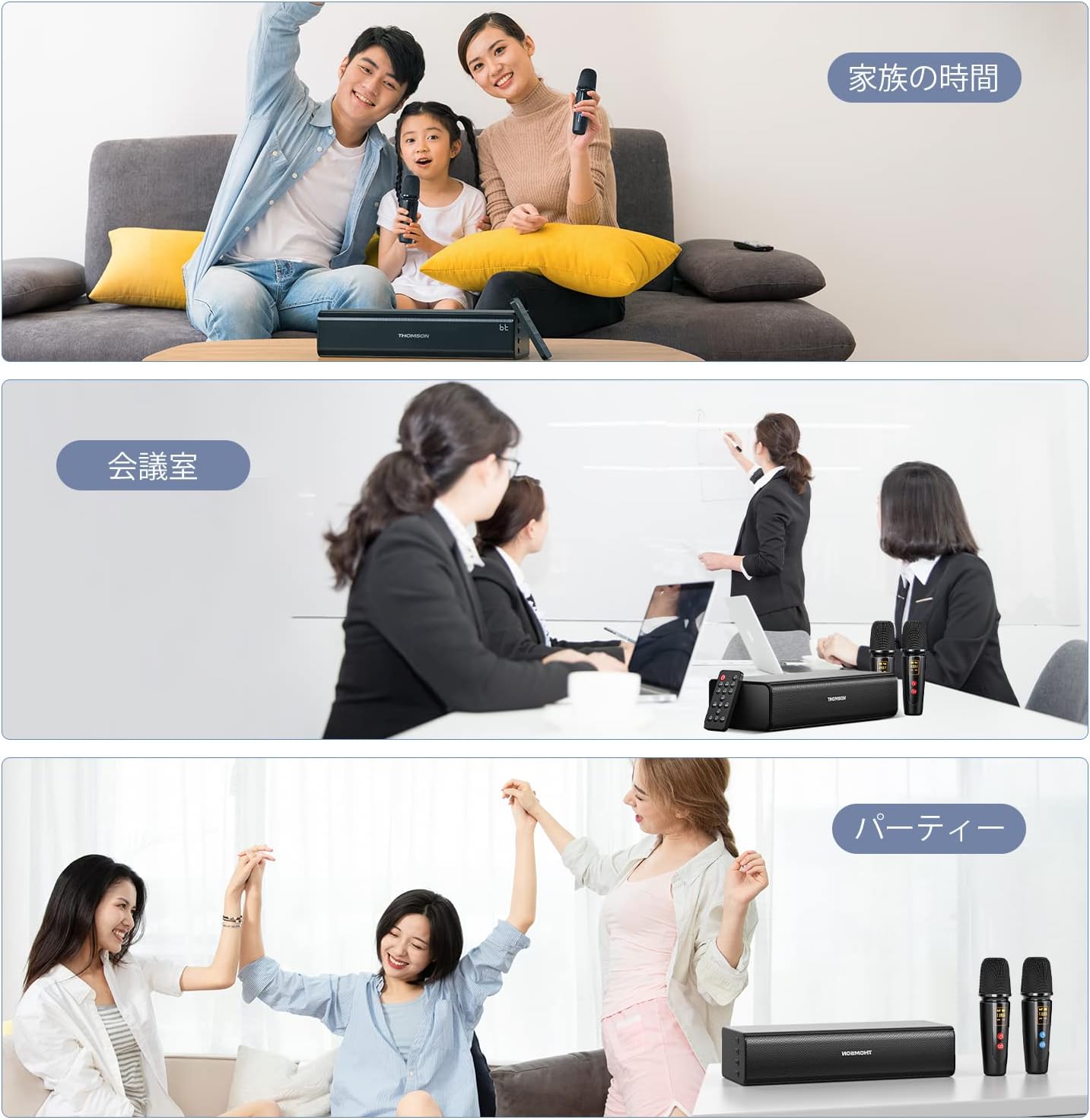
Image: Three panels depicting different usage scenarios: family time with karaoke, a business meeting, and a party.
6. Nlekọta
6.1 Nhicha
Wipe the speaker and microphones with a soft, dry cloth. Do not use abrasive cleaners or solvents, as they may damage the surface. Ensure no liquids enter the ports or openings.
6.2 Nchekwa
When not in use for extended periods, store the unit in a cool, dry place away from direct sunlight and extreme temperatures. It is recommended to fully charge the batteries every 3 months to maintain battery health.
7. Nchọpụta nsogbu
If you encounter any issues, please refer to the table below for common problems and their solutions.
| Nsogbu | Ngwọta |
|---|---|
| Enweghị ike | Ensure the unit is charged. Connect the USB-C charging cable and allow it to charge for at least 30 minutes before attempting to power on. |
| Enweghị ụda sitere na ọkà okwu | Check volume levels on both the speaker and the connected device. Ensure the correct input mode (Bluetooth, AUX, USB) is selected. |
| Igwe okwu anaghị arụ ọrụ | Ensure microphones are charged and powered on. Check microphone volume (M.VOL) on the remote. Ensure they are within range of the speaker. |
| Njikọ Bluetooth anaghị akwụsi ike | Ensure the speaker and device are within 15m (49 ft) and there are no major obstacles. Try unpairing and re-pairing the device. |
| Njikwa ime anya anaghị anabata | Hụ na enweghị ihe mgbochi ọ bụla n'etiti remote na speaker. Lelee batrị nke remote control. |
8. Nkọwapụta
| Njirimara | Uru |
|---|---|
| Nọmba nlereanya | QY-K600 |
| Ike mmepụta | 30W |
| Ụdị Bluetooth | 5.0 |
| Oke Bluetooth | Up to 15m (obstacle-free) |
| Ikike batrị Ọkà Okwu | 2500mAh |
| Oge Egwu Egwu | Ruo awa 12 (na olu 50%) |
| Karaoke Playback Time | Up to 6 hours (with 2 mics simultaneously) |
| Oge Nchaji | Ihe dị ka awa 3 (a na-akwụ ụgwọ zuru oke) |
| Supported Audio Formats (USB) | MP3, WAV |
| Akụkụ (Ọkà okwu) | 31.4 x 18.8 x 15.1 cm |
| Ibu | 1.61 n'arọ |
9. Akwụkwọ ikike na nkwado
9.1 Nkwenye mma
THOMSON provides the following quality assurance for this product:
- Initial Defect: Free exchange within 30 days of arrival.
- Akwụkwọ ikike ọkọlọtọ: 1-year manufacturer repair support.
9.2 Compliance Certification
This product has acquired the following compliance certifications: PSE, JATE, and Bluetooth SIG.
9.3 Nkwado ndị ahịa
For any inquiries or support requests, please contact us through your Amazon account:
Account Service > Order History > Seller Chat


