1. Ngwaahịa gafereview
The Logitech Zone 301 is an essential wireless Bluetooth headset designed for both work and leisure. It offers reliable connectivity with multipoint Bluetooth, allowing you to move freely up to 30 meters (98 feet) from your device. Equipped with dual noise-canceling microphones on an extended boom, it effectively suppresses background noise, ensuring clear communication. Enhanced speakers provide excellent audio quality for calls and other listening activities. The headset is also constructed with a minimum of 55% recycled plastic (excluding PWA, cables, and packaging), making it an environmentally conscious choice.
Atụmatụ igodo
- LogiTune Software Compatibility: Download LogiTune for advanced features, firmware updates, and customization of sidetone, mic level, and EQ.
- Igwe okwu na-akagbu mkpọtụ: Dual beamforming mics with noise-canceling algorithms reduce background sound for clear conversations in various environments.
- Impressive Audio: Features 30 mm dynamic audio drivers with fine-tuned diaphragm patterns for clear sound.
- Nnwere onwe ikuku: Enjoy a wireless range of up to 30 meters (98 feet) and seamless switching between computer and phone.
- Ndụ batrị agbatịkwuru: Provides up to 20 hours of listening time and 16 hours of talk time on a full charge. A 5-minute quick charge offers up to 1 hour of talk time.
- Nhazi dị mma: Lightweight at just 122 grams (4.3 oz), with enlarged earpads and a padded headband for all-day comfort.
- Replaceable Earpads: Earpads can be replaced to extend the headset's lifespan (sold separately).
- Ihe owuwu na-adịgide adịgide: Certified carbon neutral and made with certified post-consumer recycled plastic (Graphite: 55%, Off-white and Rose: 42%).
- Ndakọrịta sara mbara: Fully compatible with Windows 11, Mac, Chrome, Linux, iOS, iPadOS, and Android devices.

Figure 1.1: The Logitech Zone 301 Wireless Bluetooth Headset in Graphite, showcasing its sleek design and integrated microphone boom.

Figure 1.2: Detail of the dual noise-canceling microphones on the boom, designed to ensure clear voice transmission by suppressing background noise.

Figure 1.3: A user wearing the headset, highlighting the comfortable fit and the position of the microphone for optimal audio input.

Figure 1.4: The headset positioned on a desk, illustrating its wireless capability and connectivity to multiple devices like a laptop and smartphone.
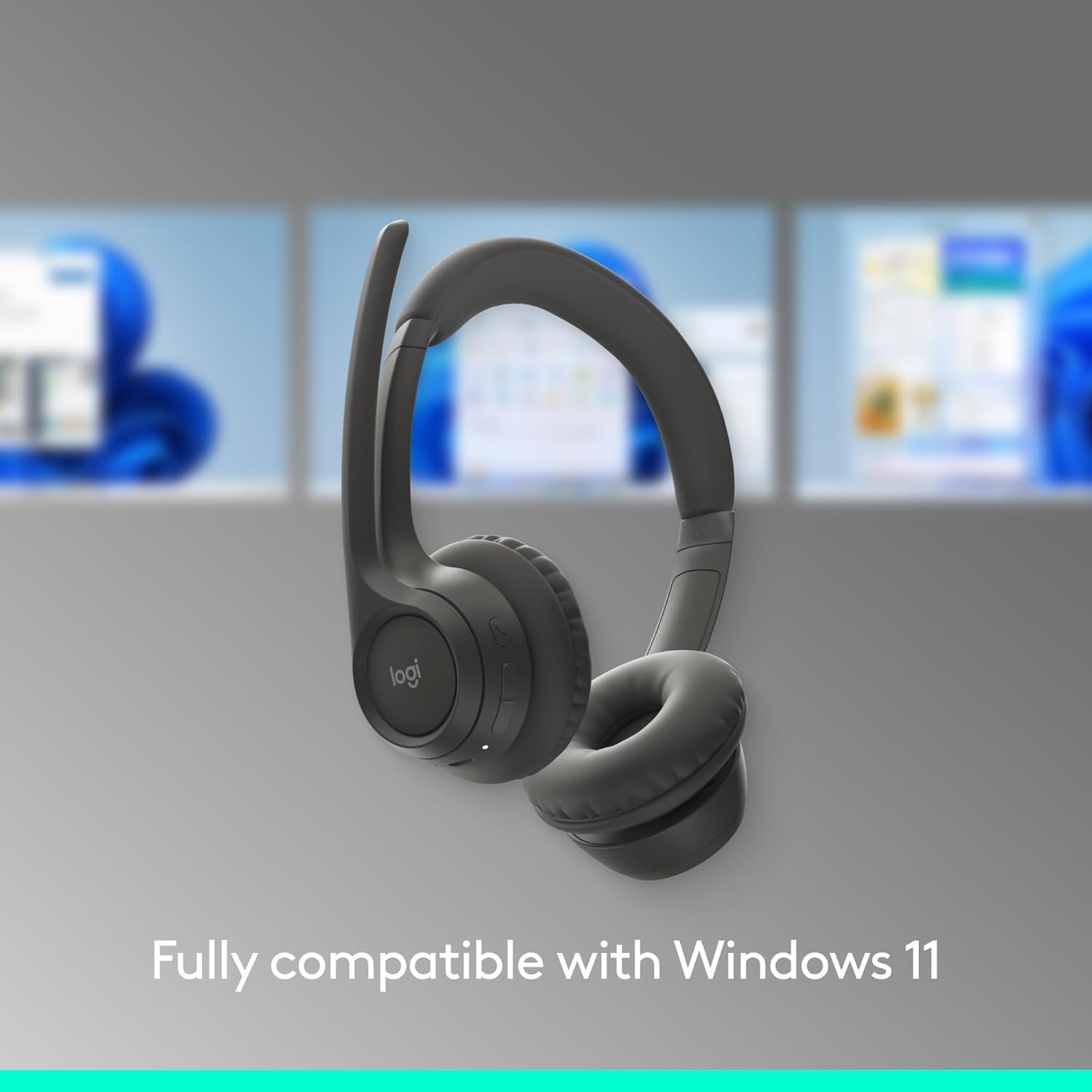
Figure 1.5: The headset shown with a background depicting the Windows 11 operating system, emphasizing its full compatibility.

Figure 1.6: An annotated diagram pointing out key features such as the 2 noise-canceling mics, padded headband, flip-to-mute function, on-ear controls, and USB-C charging port.

Figure 1.7: Visual representation of the headset's sustainable design, highlighting its use of recycled plastic, responsibly sourced packaging, and carbon-neutral certification.

Figure 1.8: A user wearing the headset, with an overlay indicating up to 20 hours of battery life and the quick charge feature providing 1 hour of talk time from a 5-minute charge.

Figure 1.9: The headset displayed on a stand, emphasizing its lightweight construction at just 122 grams (4.3 oz) for enhanced comfort.

Figure 1.10: The headset shown alongside a laptop running the LogiTune application, illustrating how users can customize settings for a personalized audio experience.
2. Ntuziaka Nhazi
2.1 Nchaji izizi
Before first use, fully charge your Logitech Zone 301 headset. Use the included USB-C charging cable to connect the headset to a power source (e.g., computer USB port or USB wall adapter). The LED indicator on the headset will show charging status.

Figure 2.1: The headset and its accompanying USB-C charging cable, which is used for initial charging and power.
2.2 Pairing with Devices (Bluetooth)
- Ike Na: Press and hold the Power button on the headset until the LED indicator lights up.
- Tinye Ụdị Mmakọ: Press and hold the Bluetooth pairing button (usually indicated by a Bluetooth icon) until the LED indicator flashes rapidly, indicating it's in pairing mode.
- Mee ka Bluetooth rụọ ọrụ na ngwaọrụ gị: On your computer, smartphone, or tablet, go to Bluetooth settings and ensure Bluetooth is enabled.
- Họrọ ekweisi: In the list of available Bluetooth devices, select "Logitech Zone 301" (or similar name).
- Kwenye njikọ: Once connected, the LED indicator on the headset will turn solid, and you will hear an audible confirmation.
2.3 Installing LogiTune Software
For enhanced features and customization, it is recommended to install the LogiTune software on your computer.
- Visit the official Logitech support websaịtị.
- Chọọ maka "LogiTune" and download the appropriate version for your operating system (Windows or macOS).
- Soro ntuziaka ihuenyo iji mezue nrụnye.
- Once installed, open LogiTune to access settings for sidetone, mic level, EQ, and firmware updates.
3. Ntuziaka ọrụ
3.1 Gbanyụọ ma ọ bụ gbanyụọ
- Ike Na: Press and hold the Power button for approximately 2 seconds until the LED indicator lights up and you hear a power-on tone.
- Gbanyụọ: Press and hold the Power button for approximately 3 seconds until the LED indicator turns off and you hear a power-off tone.
3.2 Njikwa olu
The volume buttons are located on the right earcup.
- Olu elu: Press the '+' button to increase listening volume.
- Olu ala: Press the '-' button to decrease listening volume.
3.3 Mute/Unmute Microphone (Flip-to-Mute)
The Zone 301 features a convenient flip-to-mute function for the microphone.
- Mechie: Flip the microphone boom arm upwards until it is parallel with the headband. You will hear an audible confirmation that the microphone is muted.
- Wepụ okwu: Flip the microphone boom arm downwards towards your mouth. You will hear an audible confirmation that the microphone is unmuted.
3.4 Njikwa oku
Use the multi-function button (often indicated by a phone icon) on the earcup for call control.
- Azịza/Kwụsị Oku: Pịa bọtịnụ ọtụtụ ọrụ otu ugboro.
- Jụ oku: Pịa ma jide bọtịnụ ọtụtụ ọrụ maka sekọnd 2.
- Play/Pause Audio: Press the multi-function button once when not on a call.
3.5 Ịgbanwe n'etiti ngwaọrụ
The Zone 301 supports multipoint Bluetooth, allowing connection to two devices simultaneously.
- To switch audio source, simply play audio on the desired connected device. The headset will automatically switch.
- If automatic switching does not occur, pause audio on the current device and initiate playback on the other.
Ọgụgụ 3.1: A zuru ezu view of the headset's on-ear controls, including volume buttons, multi-function button, and the USB-C charging port.
4. Nlekọta na nlekọta
4.1 Nhicha
- Use a soft, dry, lint-free cloth to clean the headset.
- Ejila ihe mkpocha abrasive, ihe mgbaze, ma ọ bụ aerosol sprays.
- Zere ịbanye mmiri n'ime oghere ọ bụla.
4.2 Earpad Replacement
The earpads on your Zone 301 headset are replaceable to extend the product's life. Replacement earpads can be purchased separately from Logitech's official websaịtị ma ọ bụ ndị na-ere ahịa ikike.
- Gently twist and pull the old earpads off the earcups.
- Align the new earpads with the earcup and press firmly, twisting slightly until they click into place.
4.3 Nlekọta batrị
- Chajie ekweisi ahụ mgbe niile, ọbụlagodi na ọ naghị adị ya ugboro ugboro, iji hụ na batrị dị mma.
- Avoid exposing the headset to extreme temperatures (hot or cold), as this can degrade battery performance.
- Chekwaa ekweisi n'ebe dị jụụ, kpọrọ nkụ mgbe ọ naghị eji ya.
5. Nchọpụta nsogbu
| Nsogbu | Ihe nwere ike ime | Ngwọta |
|---|---|---|
| Enweghị ọdịyo sitere na ekweisi | Headset not powered on; Not paired correctly; Volume too low; Incorrect audio output selected on device. | Ensure headset is powered on and charged. Re-pair the headset. Increase headset and device volume. Select Logitech Zone 301 as the audio output device in your system settings. |
| Igwe okwu anaghị arụ ọrụ | Microphone muted; Incorrect input device selected; Microphone boom not positioned correctly. | Ensure microphone boom is flipped down (unmuted). Select Logitech Zone 301 as the microphone input device in your system settings. Position the microphone closer to your mouth. |
| Cannot pair headset with device | Headset not in pairing mode; Device Bluetooth off; Interference; Device limit reached. | Put headset into pairing mode (rapidly flashing LED). Ensure Bluetooth is enabled on your device. Move closer to the device and away from other wireless devices. Try unpairing other devices from the headset or device. |
| Ndụ batrị dị mkpụmkpụ | Battery not fully charged; Old battery; High volume usage. | Ensure headset is fully charged before use. Battery life naturally degrades over time. Lower volume settings can extend battery life. |
| Audio cutting out or poor connection | Too far from device; Obstructions; Wireless interference. | Move closer to your connected device. Ensure there are no large obstructions (walls, metal objects) between the headset and device. Avoid using near other strong wireless signals (Wi-Fi routers, microwaves). |
6. Nka na ụzụ nkọwa
| Njirimara | Nkọwa |
|---|---|
| Aha Nlereanya | 981-001468 |
| Teknụzụ Njikọta | Ikuku (Bluetooth) |
| Teknụzụ nzikọrịta ozi ikuku | Bluetooth 5.3 |
| Oke Bluetooth | Ruo mita 30 (ụkwụ 98) |
| Ụdị ọkwọ ụgbọ ala ọdịyo | Ọkwọ ụgbọala dị ike |
| Nha ọkwọ ụgbọ ala ọdịyo | 30 millimeters |
| Oke ugboro ugboro | 100-20000 Hz |
| Mgbochi | 38 Ohm |
| Njikwa mkpọtụ | Nkagbu mkpọtụ mkpọtụ (igwe igwe) |
| Battery Life (Listening) | Ruo awa 20 |
| Ndụ Batrị (Oge Okwu) | Ruo awa 16 |
| Oge Nchaji | Approximately 2 Hours (for full charge) |
| Nchaji ngwa ngwa | 5 min charge for up to 1 hour talk time |
| Ibu Ibu | 122 grams (4.3 Ounces) |
| Akụkụ ngwaahịa | 2.6 x 6.6 x 6.8 sentimita asatọ |
| Ihe onwunwe | Plastic (minimum 55% recycled plastic for Graphite model) |
| Ntinye ntị | Na Ntị |
| Ụdị njikwa | Media Control, Touch, App |
| Ngwa dakọtara | Windows, Mac, Chrome, Linux, iOS, iPadOS, Android, Phone |
| Ngwa gụnyere | Headset, USB-C Charging Cable |
| UPC | 097855196989 |
7. Akwụkwọ ikike Ozi
Logitech products are designed with reliability in mind. The Logitech Zone 301 Wireless Bluetooth Headset typically comes with a limited hardware warranty. For specific warranty terms, duration, and conditions applicable to your region, please refer to the warranty card included with your product or visit the official Logitech webngalaba nkwado saịtị.
Optional protection plans may also be available for purchase, offering extended coverage beyond the standard manufacturer's warranty. Please check with your retailer or Amazon for details on available protection plans.
8. Nkwado ndị ahịa
For further assistance, technical support, or to access additional resources for your Logitech Zone 301 headset, please visit the official Logitech Support websaịtị:
Ebe ị nwere ike ịhụ:
- FAQs and knowledge base articles
- Driver and software downloads (including LogiTune)
- Nzukọ obodo
- Ozi kọntaktị maka nkwado ozugbo


