1. Okwu mmalite na gafereview
This manual provides comprehensive instructions for the setup, operation, and maintenance of your Maxview Alphatronics SL Line+ Smart TV. Designed for mobile use, this versatile television operates on both 12v and 240v power, making it ideal for motorhomes, caravans, trucks, and boats. It features a Full HD LED display, integrated DVD player, Wi-Fi, Bluetooth, and access to popular streaming services via WebOS.

Foto: N'ihu view of the Maxview Alphatronics SL Line+ Smart TV, highlighting its smart features and integrated DVD player.
Atụmatụ gụnyere:
- Full HD LED Smart TV with Freeview.
- WebOS for access to Netflix, Amazon Prime, Disney+, iPlayer, ITVX, Sky Store, YouTube, and more.
- Dual power compatibility (12v or 240v).
- Built-in DVD Player, Bluetooth, Wi-Fi, and Ethernet.
- Multiple connectivity options: 2 HDMI ports, USB Port, and AV connections.
2. Kedu ihe dị na Igbe ahụ
Biko lelee ọdịnaya nke ngwugwu gị megide ndepụta dị n'okpuru:
- Alphatronics TV (TVSL/22)
- Njikwa anya
- 240v Mains Lead
- Ihe nkwụnye ọkụ 12v
- Akwụkwọ ntuziaka (akwụkwọ a)

Image: The included remote control for the Maxview Alphatronics Smart TV.
3. Nhazi
3.1. Ntinye na ntinye
Choose a stable and flat surface for your TV. Ensure adequate ventilation around the unit. If mounting, refer to your specific wall mount instructions and ensure the mount is compatible with VESA standards for your TV size.

Foto: Example of the TV installed within a caravan interior.
3.2. Njikọ ike
The TV can be powered by either 12v DC or 240v AC.
- For 240v AC: Connect the supplied 240v Mains Lead to the TV's AC input and then to a standard wall socket.
- For 12v DC: Connect the supplied 12v Power Adapter to the TV's DC input and then to a 12v power source (e.g., vehicle's 12v socket).
Ensure the correct power source is used to prevent damage.
3.3. Ijikọ Mpụga Devices
The TV features various ports for connecting external devices:
- ọdụ ụgbọ mmiri HDMI (x2): For high-definition audio and video devices like satellite receivers, game consoles, or laptops.
- Ọdụ ụgbọ mmiri USB: Maka ijikọ ngwaọrụ nchekwa USB ka ọ kpọọ mgbasa ozi files.
- AV Connections: Maka ngwaọrụ ochie na-eji vidiyo mejupụtara na ọdịyo stereo.
- Antenna/Satellite Input: Connect your terrestrial antenna or satellite dish cable for Freeview or satellite TV reception.

Image: Rear panel of the TV displaying available connection ports.
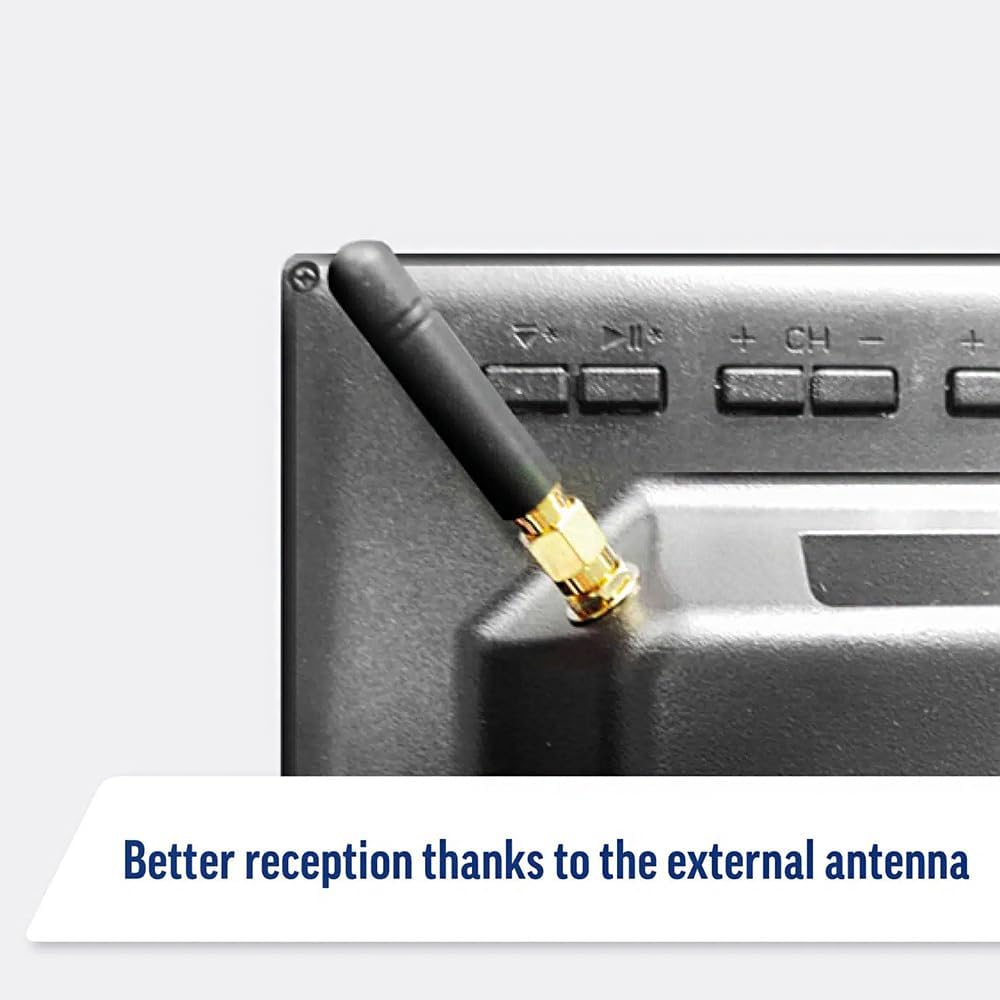
Image: Detail of the external antenna connection for improved signal reception.
3.4. Ọkachamara Mbido Mbido
Mgbe agbanyere mbụ, TV ga-eduzi gị na ọkachamara ntọlite mbụ. Nke a gụnyere:
- Nhọrọ asụsụ: Họrọ asụsụ nke masịrị gị.
- Njikọ netwọk: Connect to your Wi-Fi network or via Ethernet for internet access. This is crucial for Smart TV features.
- Nyocha ọwa: Scan for available Freeview or satellite channels.
- Time and Date Settings: Set the correct time zone and date.
4. Na-arụ ọrụ na TV
4.1. Njikwa ntọala
Use the supplied remote control to navigate the TV. Common functions include:
- Bọtịnụ ike: Turns the TV on/off or to standby.
- Elu elu/ala: Na-emezi ọkwa ọdịyo.
- Ọwa elu/ala: Na-agbanwe ọwa TV.
- Isi mmalite/ntinye: Selects the input source (HDMI, AV, TV, DVD).
- Bọtịnụ igodo nsoroụzọ (Igodo akụ, OK): Chọgharịa menus wee họrọ nhọrọ.
- Bọtịnụ ụlọ: Na-abanye na WebIhuenyo mbụ nke OS Smart TV.
- Bọtịnụ nweta ngwa ngwa: Dedicated buttons for Netflix and Amazon Prime Video for direct access.
4.2. Smart TV Features (WebOS)
Your Maxview Alphatronics TV runs on WebOS, providing a user-friendly interface for accessing a wide range of applications and content.
- Dashboard nke ụlọ: Pịa Ụlọ button to access the main dashboard, where you can find installed apps, input sources, and settings.
- Ụlọ ahịa ngwa: Download and install additional applications from the integrated app store.
- Ọrụ gụgharia: Easily access popular services like Netflix, Amazon Prime Video, Disney+, BBC iPlayer, ITVX, and YouTube.
- Ịkekọrịta ihuenyo: Share content from your smartphone or tablet to the TV screen.
Image: Using a smartphone as a remote control for the TV.
4.3. DVD Player Operation
The integrated DVD player allows you to enjoy your movie collection on the go.
- Insert a DVD disc into the slot on the side of the TV.
- The TV should automatically switch to the DVD input. If not, press the Isi mmalite/ Ntinye button on your remote and select "DVD".
- Use the remote control's playback buttons (Play, Pause, Stop, Fast Forward, Rewind) to control the DVD.
- To eject the disc, press the Eject button on the remote or the TV.
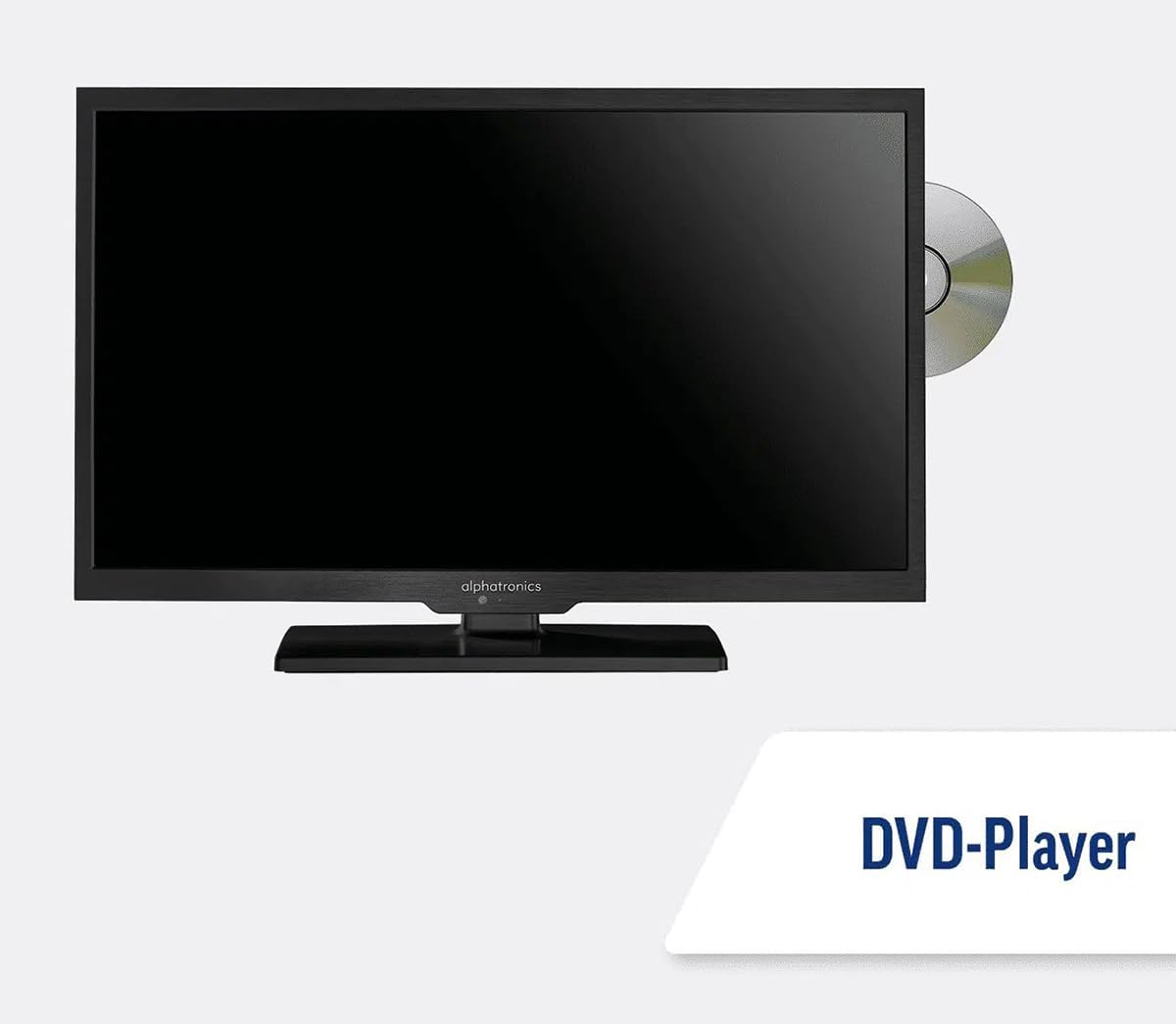
Image: The TV with a DVD disc being inserted into its built-in player.
5. Nlekọta
5.1. Nhicha
To clean the TV screen, gently wipe it with a soft, lint-free cloth. For stubborn marks, dampen the cloth slightly with water or a screen-cleaning solution. Do not spray liquid directly onto the screen. Clean the TV casing with a dry, soft cloth.
Ịkpachara anya: Always unplug the TV from the power source before cleaning.
5.2. Mmelite ngwanrọ
Your Maxview Alphatronics Smart TV supports automatic software updates via the internet. Ensure your TV is connected to a stable Wi-Fi or Ethernet network to receive the latest firmware and feature enhancements.
- To check for updates manually, navigate to the Ntọala menu on your TV, then look for Mmelite ngwanrọ or Ozi Sistemụ.
- Follow the on-screen prompts to download and install any available updates. Do not power off the TV during an update process.

Image: The TV screen indicating a software update in progress.
6. Nchọpụta nsogbu
Ọ bụrụ na ị hụ nsogbu na TV gị, biko lee nsogbu na ngwọta ndị a na-ahụkarị tupu ịkpọtụrụ onye na-akwado gị.
| Nsogbu | Ihe nwere ike ime | Ngwọta |
|---|---|---|
| Enweghị ike | Power cable disconnected; no power from outlet/source. | Check power connections. Ensure outlet/source is active. Try a different outlet. |
| Enweghị akara ngosi | Incorrect input selected; antenna/cable disconnected or faulty. | Pịa Isi mmalite/ Ntinye to select correct input. Check antenna/cable connections. Perform a channel scan. |
| Enweghị njikọ ịntanetị | Wi-Fi password incorrect; router issue; TV too far from router. | Re-enter Wi-Fi password. Restart your router. Move TV closer to router or use Ethernet. |
| DVD adịghị egwu | Disc dirty or scratched; incorrect input selected; region code mismatch. | Clean the disc. Ensure "DVD" input is selected. Check disc region compatibility. |
| Njikwa Remote anaghị arụ ọrụ | Batteries low/dead; obstruction between remote and TV; remote not paired (if Bluetooth). | Replace batteries. Remove obstructions. Re-pair remote if necessary (refer to TV settings). |
If the problem persists after trying these solutions, please contact Maxview nkwado ndị ahịa.
7. Nkọwapụta
| Njirimara | Nkọwa |
|---|---|
| Nọmba nlereanya | TVSL/22 |
| Nha ihuenyo | 22 inch (56 cm a na-ahụ anya) |
| Ngosipụta teknụzụ | Ikanam |
| Mkpebi | 1080p (HD zuru ezu) |
| Akụkụ ngwaahịa (D x W x H) | 12D x 58W x 38H centimita |
| Ntinye ike | 12v DC / 240v AC |
| Njikọta | Wi-Fi, Bluetooth, Ethernet |
| ọdụ ụgbọ mmiri | 2x HDMI, 1x USB, AV connections, Antenna/Satellite input |
| Atụmatụ pụrụ iche | Smart TV (WebOS), Built-in DVD Player |
| Akụkụ akụkụ | 16:9 |
| Onye nrụpụta | Alfatronic |
8. Akwụkwọ ikike na nkwado
Your Maxview Alphatronics SL Line+ Smart TV comes with a Akwụkwọ ikike nke afọ 3, providing peace of mind regarding your purchase. This warranty covers manufacturing defects and ensures reliable operation.
For warranty claims, technical support, or further assistance, please contact Maxview customer service. You can typically find contact information on the official Maxview websaịtị ma ọ bụ na nkwakọ ngwaahịa.
Please have your model number (TVSL/22) and proof of purchase ready when contacting support.
Note: No official product videos from the seller were found in the provided data to embed in this manual.


