1. Okwu mmalite
Thank you for choosing the Phomemo D30 Portable Bluetooth Label Maker. This compact and versatile device allows you to create custom labels directly from your smartphone, offering a convenient solution for organization at home, in the office, or on the go. This manual provides essential information for setting up, operating, and maintaining your D30 label maker to ensure optimal performance.
2. Ihe ngwugwu
Your Phomemo D30 Label Maker package includes the following items:
- 1x Green D30 Label Maker Machine
- 1x Green Case
- 4 Rolls of White Label Tape
- 1 Roll of Clear Label Tape
- 2 Rolls of Starry Pattern Label Tapes
- USB USB Nchaji USB 1x
3. Ntuziaka Nhazi
3.1 Ịchaji ngwaọrụ
Before first use, ensure your Phomemo D30 is fully charged. Connect the provided USB charging cable to the charging port on the device and a suitable power source. The indicator light will show charging status.
3.2 Ịwụnye Mpịakọta Aha
- Open the cover of the label maker by gently sliding the top part.
- Insert the label roll into the compartment, ensuring the printing side of the label faces upwards and the leading edge extends slightly out of the slot.
- Mechie mkpuchi ahụ nke ọma ruo mgbe ọ pịnyere aka n'ebe ọ dị.
3.3 Downloading and Connecting the App
- Scan the QR code in the instruction manual or search for "Print Master" in your smartphone's app store (iOS/Android).
- Install and open the "Print Master" app.
- Turn on your Phomemo D30 by pressing and holding the power button until the indicator light turns green.
- Kwado Bluetooth na ekwentị gị.
- Within the "Print Master" app, search for your D30 device and tap to connect. The app will automatically detect the label size.

4. Ntuziaka ọrụ
4.1 Designing Your Labels
The "Print Master" app offers a wide array of customization options:
- Ndebiri: Choose from 1000+ symbols, 60+ frames, and various fonts.
- Ọdịnaya: Easily add text, icons, tables, symbols, logos, barcodes, QR codes, images, and time stamps.
- Akụkụ dị elu: Insert data from Excel, use Scan, OCR, and Voice RECG for efficient label creation.
4.2 Mbipụta Aha
After designing your label in the app:
- Review the label preview to ensure it meets your requirements.
- Gbanwee ọnụọgụ nke mbipụta ma ọ dị mkpa.
- Tap the "Print" button in the app. The label maker will quickly print your design.
- Use the built-in cutter to neatly detach the printed label from the roll.


5. Atụmatụ igodo
- 2024 Upgrade Version: The D30 is significantly lighter and smaller than traditional label makers. It features a German thermal print head with 25% increased DPI, ensuring superior print clarity and smooth, hassle-free printing. Supports both continuous and fixed-length label tapes.
- Multiple Creative Functions & Convenient Label Templates: Access over 1000 symbols, 60+ frames, and a variety of fonts. Easily design labels with icons, text, tables, logos, barcodes, QR codes, images, time, and data from Excel.
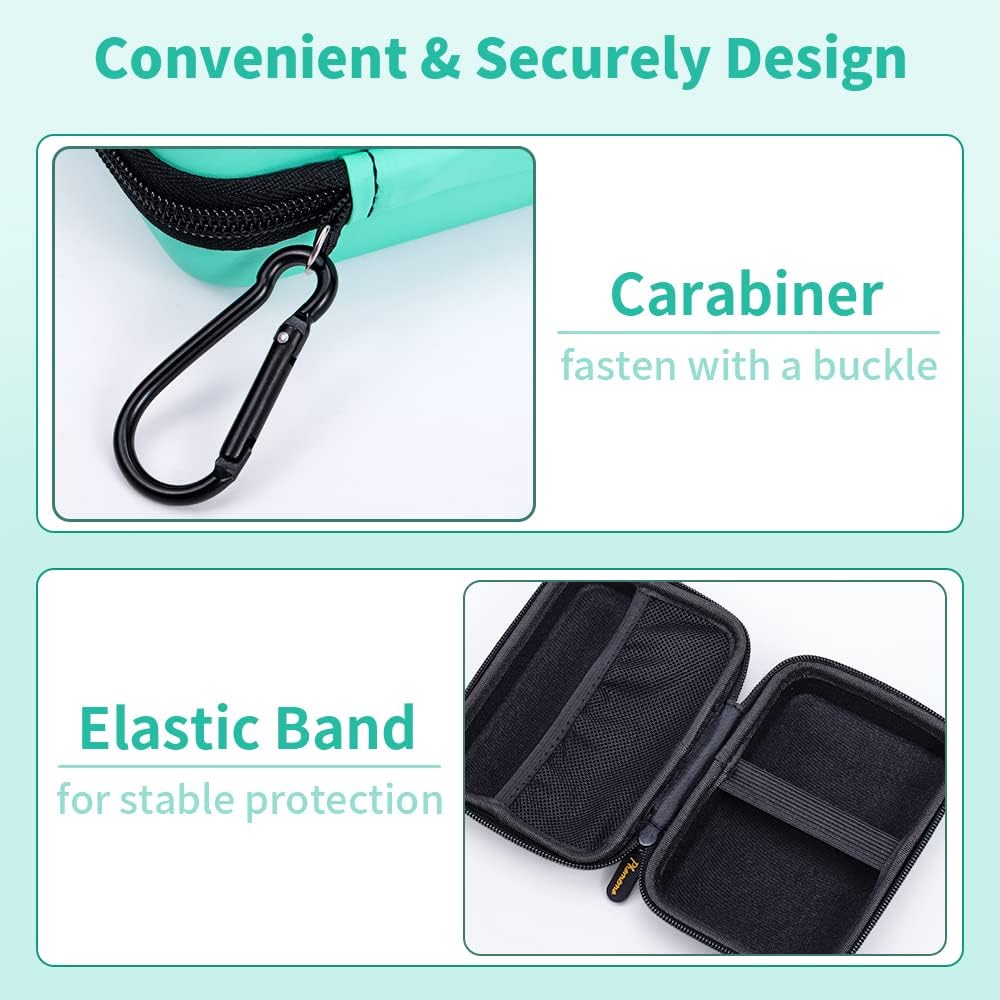
- Okwu Nchekwa: The included case is made of high-quality Nylon PU Synthetic material, offering water-proof, dust-proof, and crush-resistant protection for your D30 printer. An internal elastic strap secures the device.
- Reliable & Portable: Designed for convenience, the case includes a climbing buckle, allowing you to easily attach it to a bike, car, school bag, or bracket. Its compact size makes it ideal for both indoor and outdoor use without taking up much space.



6. Nkọwapụta
| Njirimara | Nkọwa |
|---|---|
| Ụdị | Phomemo |
| Aha Nlereanya | D30 |
| Teknụzụ Njikọta | Bluetooth |
| Teknụzụ obibi akwụkwọ | Thermal |
| Njirimara Pụrụ Iche | Enwere ike ibugharị |
| Mmepụta ngwa nbipute | Monochrome |
| Ngwa dakọtara | Smartphones |
| Mkpebi mbipụta ojii na ọcha kacha | 254 dpi |
| Mkpebi mbipụta Agba kacha | Approximately 25% higher than the previous version |
| Mgbasa ozi bipute | Akara aha |
| Usoro njikwa | Voice (via app features) |
| Nọmba Nlereanya ihe | D30 |
7. Nchọpụta nsogbu
- Igwe nbipute anaghị ejikọ site na Bluetooth: Ensure the printer is turned on and within range of your smartphone. Check your phone's Bluetooth settings to confirm it's enabled and the D30 is paired. Restart both the printer and the app if issues persist.
- Ọdịmma mbipụta na-adịghị mma: Verify that the label roll is inserted correctly and the printing side is facing up. Ensure the label maker's battery is sufficiently charged. Adjust the print density settings within the "Print Master" app.
- Labels not feeding correctly: Check for any obstructions in the label output slot. Ensure the label roll is properly seated and not jammed.
- App not recognizing label size: Make sure the label roll is correctly installed. The D30 uses RFID to automatically detect label size; ensure the label roll is a genuine Phomemo D30 compatible roll.
8. Nlekọta
- Na-ehicha isi mbipụta: Regularly clean the thermal print head with a soft, lint-free cloth lightly dampened with rubbing alcohol to prevent print quality degradation. Ensure the device is off before cleaning.
- Nchekwa: Store the label maker and label rolls in a cool, dry place away from direct sunlight and extreme temperatures to preserve label quality and device longevity.
- Nlekọta batrị: Iji mee ka batrị dị ogologo, zere iwepụ ike batrị ahụ mgbe niile. Chaji ya mgbe niile, ọbụlagodi na ọ naghị arụ ọrụ mgbe niile.
9. Akwụkwọ ikike na nkwado
The Phomemo D30 Label Maker comes with a standard manufacturer's warranty. For detailed warranty information, product support, or to purchase additional label rolls, please refer to the official Phomemo website or contact their customer service directly. Contact information can typically be found in the packaging or on the brand's official online store.


