1. Okwu mmalite
Thank you for choosing the Vandlion V22-64GB Voice Recorder. This manual provides detailed instructions on how to set up, operate, and maintain your device to ensure optimal performance. Please read this manual thoroughly before using the product.
The Vandlion V22-64GB is a compact and powerful digital voice recorder designed for clear audio capture in various environments. Key features include:
- Ikike Nchekwa: 64GB of internal storage for extended recording sessions.
- 7-Level Noise Reduction: Enhances audio clarity by minimizing background noise.
- Voice-Activated Recording (VAR): Automatically starts recording when sound is detected, conserving memory and battery.
- Ọrụ otu igodo: Simple and quick recording activation.
- Oge kacha ntaamped Recordings: Easy organization and retrieval of audio files.
2. Ihe ngwugwu
Biko lelee ngwungwu maka ihe ndị a:
- Vandlion V22-64GB Voice Recorder
- Igwe data
- Igwe ekweisi
- OTG adapters
- Akwụkwọ ntuziaka (akwụkwọ a)
3. Ngwaahịa gafereview
The Vandlion V22-64GB Voice Recorder is designed for portability and ease of use. Its compact metal casing ensures durability while providing a sleek appearance.

Image 3.1: Vandlion V22-64GB Voice Recorder in use. This image shows the compact size of the recorder, suitable for various recording environments like meetings or lectures.
The device features a simple ON/OFF/SAVE toggle switch for intuitive operation and a built-in microphone for 360-degree panoramic sound capture.

Image 3.2: The ON/REC and OFF/SAVE switch on the Vandlion V22-64GB Voice Recorder. This switch allows for quick initiation and saving of recordings.
4. Nhazi
4.1 Ịchaji ngwaọrụ
Before first use, fully charge the voice recorder. Connect the device to a computer's USB port or a USB wall adapter (not included) using the provided data cable. The indicator light will show charging status and turn off when fully charged.
- Connect the small end of the data cable to the recorder's charging port.
- Connect the standard USB end to a power source.
- Nchaji na-ewekarị awa 2-3.
4.2 Ike mbido
To power on the device, slide the ON/REC switch to the 'ON' position. The device will vibrate briefly or an indicator light will illuminate, indicating it is ready for operation.
5. Ntuziaka ọrụ
5.1 Ndekọ ndabere
The Vandlion V22-64GB features a simple one-key recording function:
- To start recording, slide the switch to the 'ON/REC' position. The device will begin recording within approximately 5 seconds.
- To stop recording and save the file, slide the switch to the 'OFF/SAVE' position. The recording will be saved automatically.
Ọdịda ọ bụla file is automatically timestamped for easy organization and retrieval when connected to a computer.
5.2 Voice-Activated Recording (VAR)
The voice-activated recording feature helps conserve battery life and memory by only recording when sound is detected. To enable and adjust VAR:
- Connect the recorder to a computer.
- Access the device's settings file (usually a configuration file or through dedicated software, refer to device's internal documentation if available).
- Adjust the sensitivity level for voice activation (typically 7 levels available). A higher sensitivity will trigger recording with softer sounds, while lower sensitivity requires louder sounds.
- Save the settings and disconnect the device. The VAR function will now be active.
5.3 Mbelata mkpọtụ
The recorder features 7-level noise reduction to improve audio clarity. This function is typically automatic, but its effectiveness can be influenced by recording environment and microphone placement.

Image 5.1: Illustration of the noise reduction capability of the Vandlion V22-64GB Voice Recorder. The image depicts how unwanted noise (red waves) is reduced, resulting in clearer audio (blue waves).
5.4 Nghaghachi
You can play back recordings directly from the device using the included headphones:
- Gbaa mbọ hụ na agbanyere ngwaọrụ ahụ.
- Connect the included headphones to the recorder's headphone jack.
- Use the controls on the headphone cable (if available) or the device's internal controls (if applicable, refer to specific model's internal documentation) to navigate and play audio files.

Image 5.2: The Vandlion V22-64GB Voice Recorder connected to earphones for direct audio playback. This feature allows listening to recordings without needing a computer.
Alternatively, connect the recorder to a computer to play back files using your computer's media player.
5.5 File Nlekọta
To manage your recorded files:
- Connect the voice recorder to your computer using the provided data cable.
- Ngwaọrụ ahụ ga-apụta dị ka draịvụ diski a na-ewepụ ewepụ.
- Open the drive to access your recorded audio files (typically in a folder like 'RECORD' or 'VOICE').
- You can copy, move, delete, or rename files as you would with any other files na kọmputa gị.
- Wepụ ngwaọrụ ahụ na kọmputa gị n'enweghị nsogbu ọ bụla tupu ị kwụpụ ya.
The included OTG adapters allow you to connect the recorder to compatible Android smartphones for file njikwa.
6. Nlekọta
- Nhicha: Jiri ákwà dị nro ma kpọọ nkụ hichaa ngwaọrụ ahụ. Ejila ihe nhicha mmiri ma ọ bụ ihe mgbaze.
- Nchekwa: Store the recorder in a cool, dry place away from direct sunlight, extreme temperatures, and humidity.
- Nlekọta batrị: Ka ịgbatị ndụ batrị ogologo, zere ịchaji batrị ugboro ugboro. Na-anya ngwaọrụ mgbe niile, ọbụlagodi na ọ naghị eji ya ogologo oge.
- Ndabere data: Na-echekwa ndekọ dị mkpa mgbe niile na kọmputa gị iji gbochie mfu data.
7. Nchọpụta nsogbu
| Nsogbu | Ihe nwere ike ime | Ngwọta |
|---|---|---|
| Ngwaọrụ anaghị agbanwu ọkụ. | Emechaala batrị ma ọ bụ ngwaọrụ dị ala. | Charge the device fully. Ensure the ON/REC switch is in the 'ON' position. |
| Enweghị ike ịdekọ. | Insufficient storage space or device not in recording mode. | Check available memory and delete unnecessary files. Ensure the switch is in the 'ON/REC' position. |
| Poor sound quality during recording. | Microphone obstructed, noisy environment, or incorrect VAR sensitivity. | Ensure the microphone is clear. Record in a quieter environment. Adjust VAR sensitivity if enabled. |
| Kọmputa amataghị ngwaọrụ. | Faulty USB cable, incorrect port, or driver issue. | Try a different USB cable or port. Restart your computer. Ensure the device is powered on when connecting. |
| Cannot hear playback through headphones. | Headphones not properly connected, volume too low, or corrupted file. | Ensure headphones are fully plugged in. Adjust volume. Try playing the file na kọmputa. |
8. Nkọwapụta
| Ụdị | Vandlion |
| Nlereanya | V22-64GB |
| Ike Nchekwa ebe nchekwa | 64 GB |
| Akụkụ ngwaahịa | 0.76 x 2.21 x 7.37 cm; 150 g (or 8 x 22 x 74 Millimeters) |
| Ngwaọrụ Akụrụngwa | USB 2.0 |
| Ngwa dakọtara | Igwe ntị |
| Ihe kpatara ụdị igwe okwu | Wuru n'ime |
| Jack ekweisi | 3.5 millimeters |
| Batrị gụnyere | Ee (Lithium Polymer) |
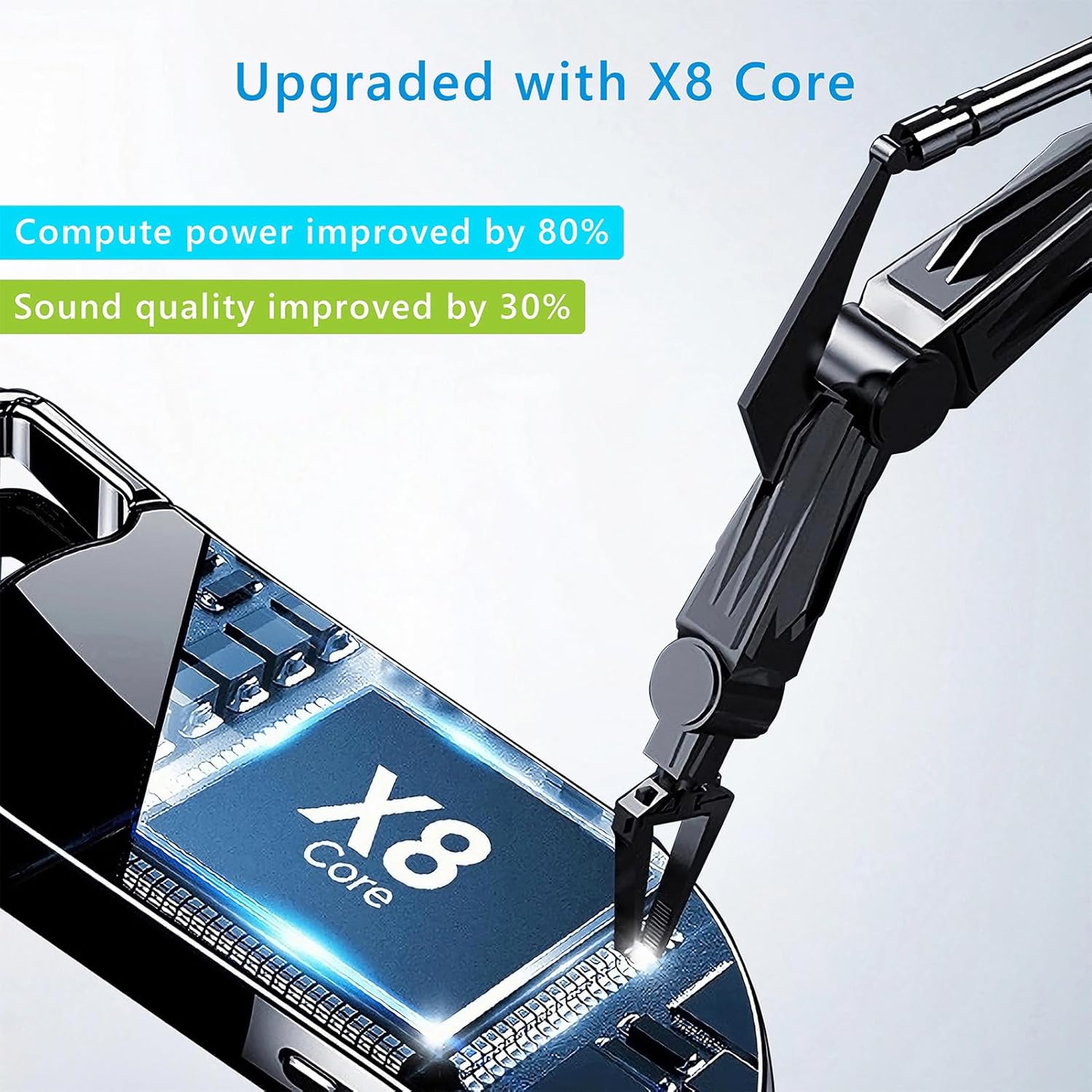
Image 8.1: Internal component view of the Vandlion V22-64GB Voice Recorder, showcasing the X8 Core. This illustrates the advanced processing unit within the device.
9. Akwụkwọ ikike na nkwado
For warranty information and technical support, please refer to the documentation provided with your purchase or contact Vandlion customer service through their official websaịtị ma ọ bụ ụlọ ahịa ebe ịzụrụ ngwaahịa ahụ.
Debe nnata nzụta gị dị ka ihe akaebe nke ịzụrụ maka nkwupụta ikike.


