1. Okwu mmalite na gafereview
The Codnida 2K Security Camera is a versatile outdoor/indoor surveillance solution designed to provide comprehensive monitoring with advanced features. This camera offers 2K resolution for clear imaging, 360° pan-tilt-zoom (PTZ) capabilities for wide coverage, and intelligent motion detection with PIR human detection to minimize false alarms. It supports 24/7 recording, two-way audio communication, and integrates with smart home systems like Alexa. This manual provides detailed instructions for setup, operation, and maintenance of your Codnida security camera.

Figure 1.1: Codnida 2K Security Camera with live view na ekwentị mkpanaaka.
2. Ihe ngwugwu
Biko chọpụta na ihe niile dị na ọ dị mma mgbe imepe ngwugwu:
- 1 x Codnida Q30S Surveillance Camera
- 1 x 3-meter USB Cable
- 1 x nkwụnye ọkụ
- 1 x Ntuziaka mmalite ngwa ngwa
- 1 x Pack of Screws for Installation
3. Ntuziaka Nhazi
3.1. Nwụnye anụ ahụ
Choose a suitable location for your camera, either indoors or outdoors. The camera is IP66 weatherproof, suitable for various environmental conditions. Use the provided screws to securely mount the camera to a wall or ceiling. Ensure the mounting surface is stable and can support the camera's weight.
3.2. Njikọ ike
Connect the provided 3-meter USB cable to the camera and then plug the power adapter into a standard electrical outlet. The camera will power on and initiate its startup sequence.
3.3. App Download and Setup
The Codnida camera operates via the CloudEdge application. Follow these steps to set up the app and connect your camera:
- Budata ngwa: Chọọ maka "CloudEdge" on the Apple App Store (for iOS devices) or Google Play Store (for Android devices) and download the application.
- Ndebanye aha akaụntụ: Open the CloudEdge app and follow the on-screen prompts to register a new account. If you already have an account, simply log in.
- Tinye ngwaọrụ: In the app, tap the "+" icon or "Add Device" to begin the camera pairing process.
- Njikọ Wi-Fi: Họrọ netwọk Wi-Fi 2.4GHz gị wee tinye paswọọdụ. Ihe dị mkpa: The camera only supports 2.4GHz Wi-Fi. Connection errors will occur if attempting to use a 5GHz network. Ensure your mobile device is also connected to the 2.4GHz network during setup.
- Nyochaa koodu QR: The app will display a QR code. Hold your camera approximately 15-20 cm (6-8 inches) in front of your phone screen until you hear a confirmation sound from the camera, indicating successful scanning.
- Nhazi zuru oke: Follow any remaining prompts in the app to name your camera and finalize the setup.

Figure 3.1: Visual guide for camera setup steps.
4. Ntuziaka ọrụ
4.1. PTZ Control (Pan, Tilt, Zoom)
The camera features 360° PTZ functionality, allowing you to remotely adjust its viewing angle. Use the directional controls within the CloudEdge app to pan (rotate horizontally up to 355°) and tilt (rotate vertically up to 90°) the camera lens. This helps eliminate blind spots and provides comprehensive coverage of your monitored area.

Figure 4.1: PTZ control range of the Codnida camera.
4.2. 24/7 Recording and Storage
The camera supports continuous 24/7 recording. You have two primary options for video storage:
- Nchekwa Kaadị TF: Insert a Micro SD card (16GB, 32GB, 64GB, or 128GB) into the camera's SD card slot. The camera will automatically begin recording to the card. (SD card not included).
- Optional Cloud Storage: Subscribe to the CloudEdge cloud storage service for secure, remote storage of your video footage. This allows for easy playback and access from anywhere.

Figure 4.2: Recording options for the Codnida camera.
4.3. Motion Detection and Alarm
The camera is equipped with advanced PIR human detection technology to accurately identify human movement and reduce false alarms. When motion is detected, the camera can trigger the following actions:
- Siren arụnyere n'ime ya: An audible alarm will sound from the camera.
- Motion-Activated Light Alarm: The camera's spotlights will illuminate.
- Puku ozi: You will receive real-time notifications on your mobile device via the CloudEdge app.
You can customize detection zones and sensitivity settings within the CloudEdge app to focus monitoring on specific areas and optimize performance.
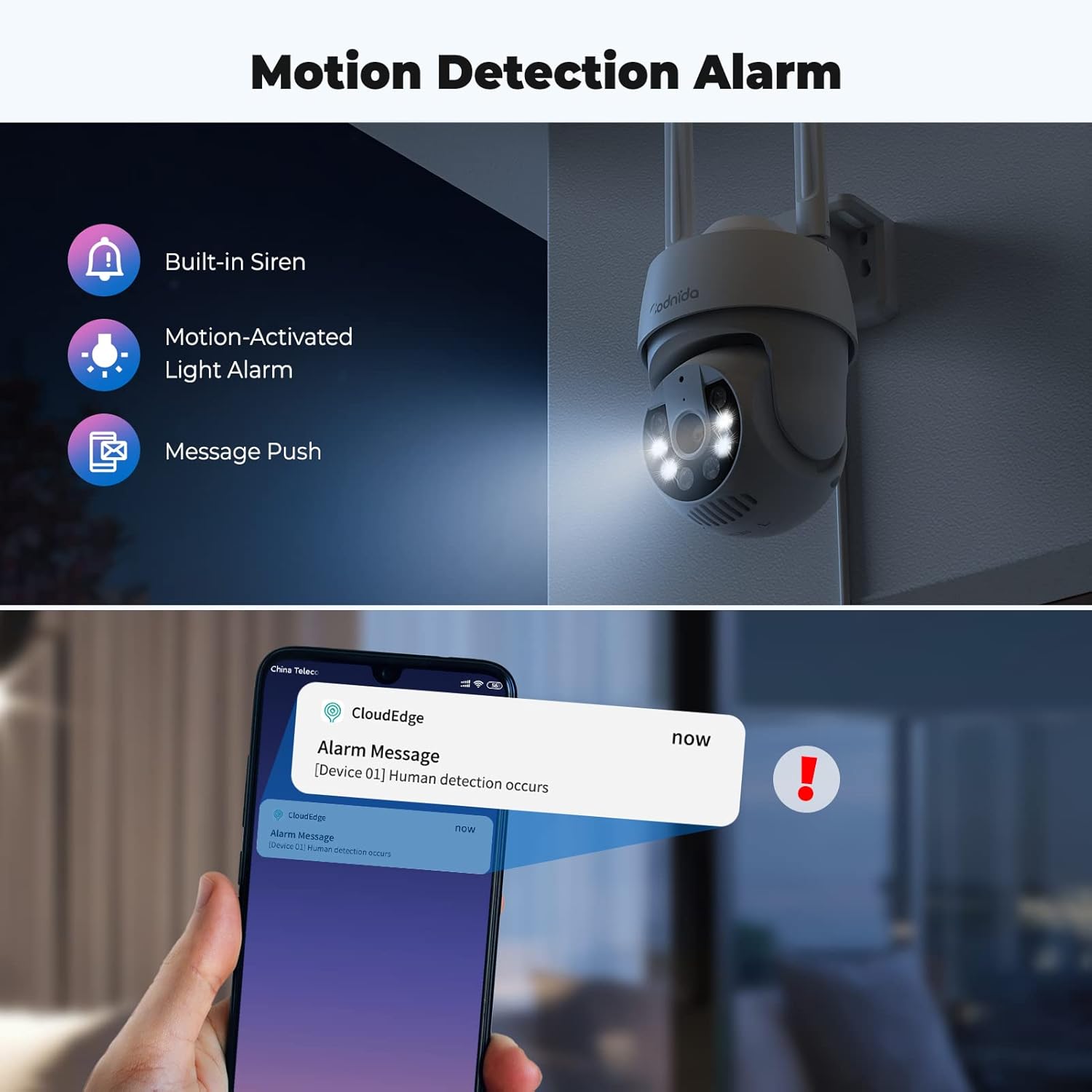
Figure 4.3: Motion detection and alarm capabilities.
4.4. Audio Ụzọ Abụọ
The integrated microphone and speaker allow for two-way audio communication. You can listen to the camera's surroundings and speak through the camera using the CloudEdge app. This feature is useful for communicating with visitors or deterring intruders.

Figure 4.4: Using the two-way audio feature.
4.5. AI Automatic Tracking
When motion is detected, the camera can automatically track the moving object within its field of view. This ensures that the subject remains in the frame, providing continuous surveillance of activity.

Figure 4.5: AI automatic tracking in action.
4.6. Ultra 2K Night Vision
The camera provides clear visibility even in low-light conditions. It features 2K resolution night vision with a distance of up to 10 meters. The built-in spotlights can be activated to provide color night vision, enhancing detail and clarity in the dark.
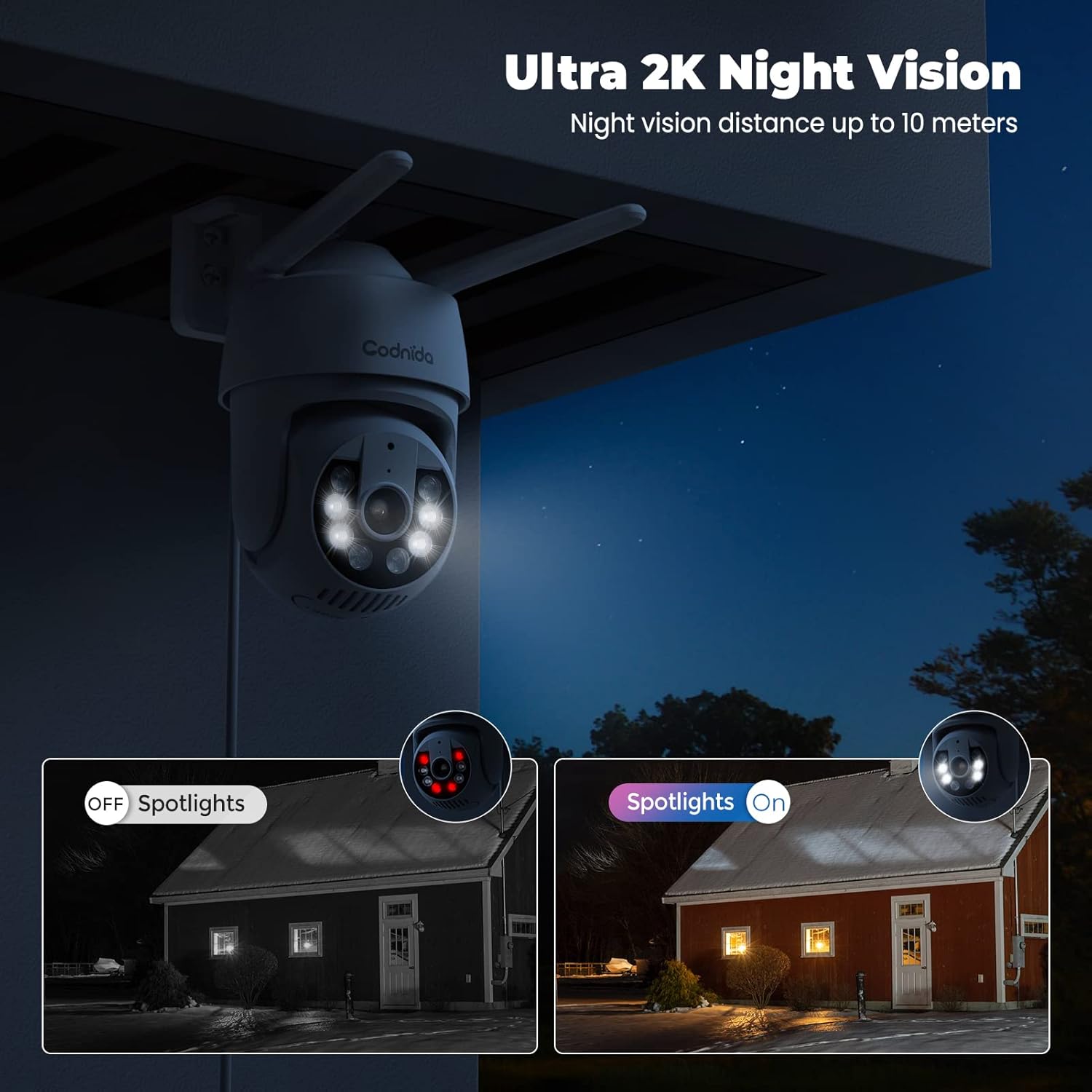
Figure 4.6: Night vision capabilities with and without spotlights.
5. Nlekọta
Regular maintenance helps ensure the longevity and optimal performance of your Codnida security camera:
- Nhicha: Jiri obere ihe dị nro hichaa anya igwefoto na ahụ ya mgbe ụfọdụ.amp ákwà iji wepụ uzuzu na unyi. Ejila kemịkalụ siri ike ma ọ bụ ihe nhicha na-eme ka ihe dị nro.
- Mmelite femụwe: Check the CloudEdge app regularly for available firmware updates. Keeping your camera's firmware updated ensures you have the latest features and security enhancements.
- Ịnye ọkụ: Ensure the power adapter and cable are not damaged and are securely connected.
- Nchekwa gburugburu: While the camera is IP66 weatherproof, extreme weather conditions (e.g., direct lightning strikes, prolonged submersion) should be avoided.
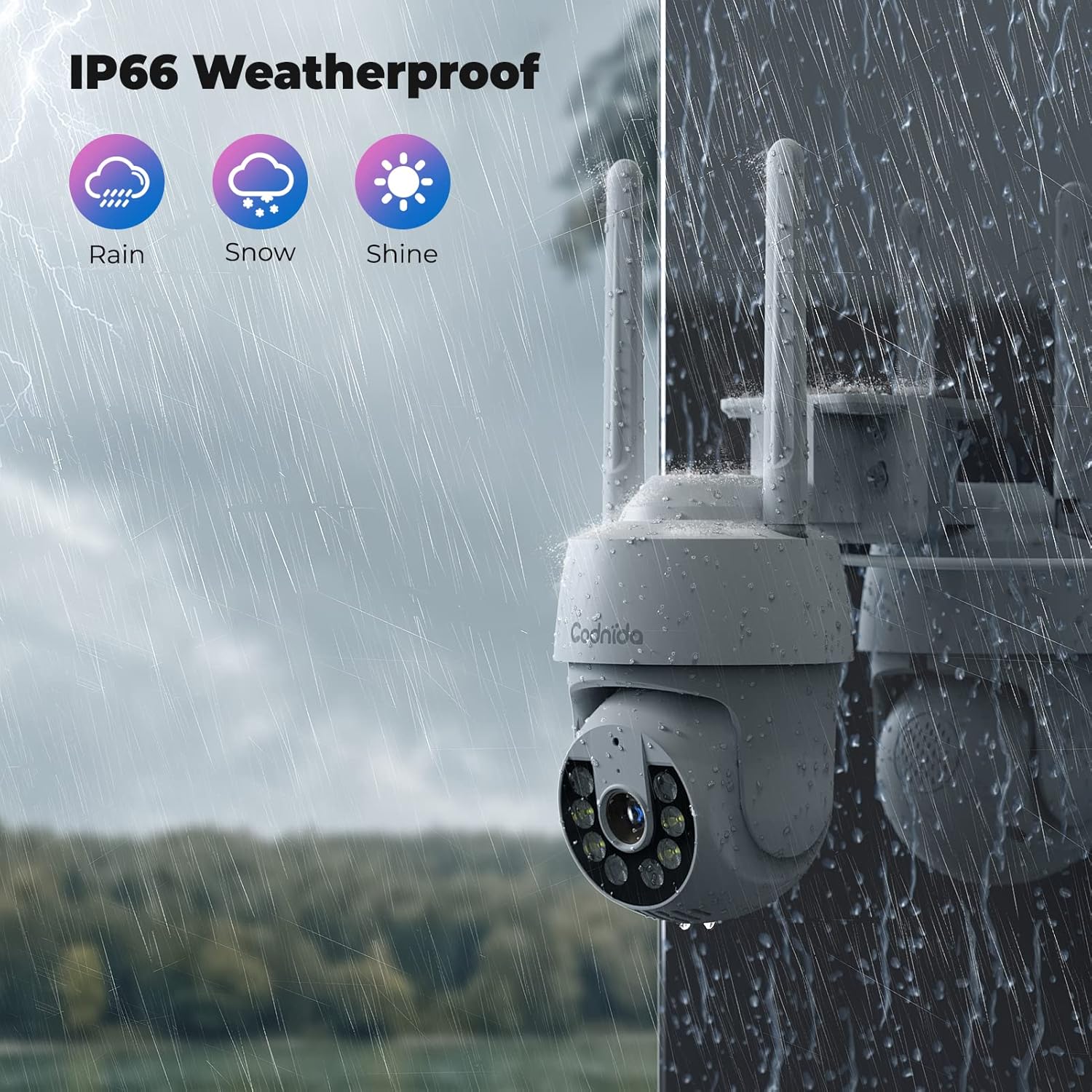
Figure 5.1: The camera's IP66 weatherproof rating ensures durability in various conditions.
6. Nchọpụta nsogbu
If you encounter issues with your Codnida camera, refer to the following common problems and solutions:
| Nsogbu | Ihe nwere ike ime | Ngwọta |
|---|---|---|
| Igwefoto anaghị ejikọ na Wi-Fi. | Incorrect Wi-Fi band (5GHz), wrong password, weak signal. | Ensure you are connecting to a 2.4GHz Wi-Fi network. Double-check the Wi-Fi password. Move the camera closer to the router or use a Wi-Fi extender. |
| Frequent false alarms. | High motion detection sensitivity, environmental factors (e.g., swaying trees, shadows). | Adjust the motion detection sensitivity in the CloudEdge app. Define specific detection zones to exclude areas with frequent irrelevant motion. |
| No recording to SD card. | SD card not inserted correctly, card full, card not formatted, incompatible card. | Ensure the SD card is inserted correctly. Format the SD card via the app. Check if the card is within the supported capacity (16-128GB). |
| Imagedị mma adịghị mma. | Lensi ruru unyi, obere bandwit, ọkụ adịghị mma. | Clean the camera lens. Ensure stable internet connection. Utilize the camera's spotlights for enhanced night vision. |
| Audio ụzọ abụọ anaghị arụ ọrụ. | Microphone/speaker disabled in app, volume too low, network issues. | Check audio settings in the CloudEdge app. Ensure your phone's volume is up. Verify stable network connection. |
For further assistance, please refer to the CloudEdge app's help section or contact Codnida customer support.
7. Nkọwapụta
| Njirimara | Nkọwa |
|---|---|
| Nlereanya | B0CSSQJSDS |
| Ụdị | Codnida |
| Mkpebi | 2K (Video capture resolution listed as 720p in some specs, but product title indicates 2K) |
| PTZ Range | Pan 355°, gbadaa 90° |
| Njikọta | Wi-Fi (naanị 2.4GHz) |
| Nhọrọ nchekwa | Micro SD Card (16-128GB), Cloud Storage (Subscription required) |
| Nchọpụta | PIR Human Detection, Motion Tracking |
| Audio | Audio Ụzọ Abụọ |
| Ọhụụ abalị | Infrared, Color Night Vision with Spotlights (up to 10 meters) |
| Ntụle ihu igwe anaghị egbochi ya | IP66 |
| Ngwa dakọtara | Tablet, Smartphone (via CloudEdge App), Works with Alexa |
| Ntinye ike | 10 Watt awa |
| Ibu Ibu | 610 grams |
| Akụkụ ngwugwu | 18.1 x 17.9 x 10.7 cm |
| Mba onye si | China |
8. Akwụkwọ ikike na nkwado
Codnida products are designed for reliability and performance. For information regarding warranty coverage, technical support, or service inquiries, please refer to the contact details provided in your product packaging or visit the official Codnida websaịtị. Biko dowe ihe akaebe nke ịzụrụ ihe maka akwụkwọ ikike.
