1. Okwu mmalite
The ZEBRONICS Pulse Wireless Mouse is designed for versatile and comfortable use across various devices. Featuring multi-connectivity options including dual Bluetooth and a 2.4GHz USB nano receiver, it offers seamless switching between systems. Its ergonomic design and 1200 DPI optical sensor ensure precise and smooth cursor control for enhanced productivity.

Foto 1.1: Elu view of the ZEBRONICS Pulse Wireless Mouse, showcasing ya slee nwa imewe na mpịakọta wheel.
2. Ihe ngwugwu
Biko chọpụta na ihe niile dị na ngwugwu gị:
- ZEBRONICS Pulse Wireless Mouse
- Onye nnata USB Nano
- Akwụkwọ ntuziaka onye ọrụ
3. Atụmatụ igodo
- Njikọ ọtụtụ: Supports dual Bluetooth and 2.4GHz wireless connections.
- Nke kacha mma: 1200 DPI optical sensor for accurate tracking.
- Nhazi Ergonomic: Comfortable and lightweight for extended use.
- 3 bọtịnụ: Standard left, right, and scroll wheel buttons.
- Removable USB Nano Receiver: Conveniently stored in the mouse's bottom panel.
- Ndakọrịta sara mbara: Works with desktop PCs, laptops, Mac OS, tablets, and more.
- Ịchekwa ike: Features an auto-shutoff function to conserve battery life.

Image 3.1: A visual summary of the mouse's key features, including its comfortable design, power switch, plug-and-play functionality, and high precision.
4. Ntuziaka Nhazi
4.1. Ntinye batrị
- Flip the mouse over to access the bottom panel.
- Chọta mkpuchi nchekwa batrị wee kụpee ya.
- Fanye otu batrị AA, na-ahụ polarity ziri ezi (+/-).
- Mechie mkpuchi nke batrị batrị nke ọma.
4.2. Connecting via 2.4GHz USB Nano Receiver
- Locate the USB nano receiver stored in the slot on the bottom of the mouse.
- Remove the receiver from its storage slot.
- Plug the USB nano receiver into an available USB port on your computer or laptop.
- Slide the power switch on the bottom of the mouse to the 'ON' position.
- The mouse should automatically connect. If not, press the connection toggle button on the bottom of the mouse to select the 2.4GHz mode (indicated by '2.4G').

Image 4.1: The underside of the mouse, highlighting the battery slot, nano receiver storage, power switch, and connection toggle button.

Image 4.2: The USB nano receiver plugged into a laptop, demonstrating the 2.4GHz wireless connection.
4.3. Ijikọ site na Bluetooth (BT1 / BT2)
- Ensure the mouse has a fresh battery and the power switch is in the 'ON' position.
- Press the connection toggle button on the bottom of the mouse to select either 'BT1' or 'BT2' mode. The corresponding LED indicator will blink.
- On your device (laptop, tablet, etc.), go to Bluetooth settings.
- Chọọ maka new devices. The mouse should appear as 'ZEB-PULSE' or similar.
- Select the mouse to pair. Once paired, the LED indicator will stop blinking and remain solid for a few seconds before turning off.
- You can pair a second device using the other Bluetooth channel (BT2) by repeating steps 2-5.
5. Ntuziaka ọrụ
5.1. Ọrụ ndị bụ isi
- Bọtịnụ aka ekpe: Ọrụ ịpị nke mbụ.
- Bọtịnụ aka nri: Ọrụ pịa nke abụọ (nchịkọta ọnọdụ).
- Mpempe akwụkwọ mpịakọta: Scroll up/down, and middle-click function.

Image 5.1: Illustration of the mouse's three buttons: left, right, and the scroll wheel/middle button.
5.2. Mgbanwe Ụdị Njikọ
To switch between the 2.4GHz wireless mode and Bluetooth modes (BT1, BT2), press the connection toggle button located on the bottom of the mouse. The mouse will cycle through the available modes, indicated by the corresponding LED.
5.3. Ntọala DPI
The ZEBRONICS Pulse mouse operates at a fixed 1200 DPI (Dots Per Inch), providing a balance of speed and precision suitable for general use. This setting ensures smooth and responsive cursor movement.

Image 5.2: Visual representation of the mouse's 1200 DPI precision for accurate tracking.
6. Nlekọta
- Nhicha: Jiri ákwà dị nro ma kpọọ nkụ hichaa òké ahụ. Zere iji kemịkalụ siri ike ma ọ bụ ihe ndị na-emebi ihe.
- Ngbanwe batrị: Replace the AA battery when the mouse performance degrades or it stops responding.
- Nchekwa: When not in use for extended periods, turn off the mouse to conserve battery life. Store the USB nano receiver in its dedicated slot on the mouse's bottom.
- gburugburu: Zere ikpughe òké ahụ n'ebe okpomọkụ dị oke elu, anwụ kpọmkwem, ma ọ bụ oke mmiri dị n'ime ya.
7. Nchọpụta nsogbu
7.1. Mouse Not Responding
- Ensure the mouse is turned 'ON'.
- Lelee batrị ahụ. Gbanwee ya ma ọ bụrụ na ọ dị mkpa.
- For 2.4GHz connection: Ensure the USB nano receiver is securely plugged into a working USB port and the mouse is in 2.4GHz mode.
- For Bluetooth connection: Ensure Bluetooth is enabled on your device and the mouse is in the correct BT1/BT2 mode. Try re-pairing the mouse.
- Try connecting the mouse to a different USB port or a different device to rule out port or device issues.
7.2. Erratic Cursor Movement
- Jiri ákwà dị nro ma kpọọ nkụ hichaa ihe mmetụta anya dị n'ala òké ahụ.
- Ensure you are using the mouse on a clean, non-reflective surface.
- Lelee maka ndabichi sitere na ngwaọrụ ikuku ndị ọzọ.
7.3. Difficulty Switching Modes
- Gbaa mbọ hụ na batrị nwere ike zuru oke.
- Press the connection toggle button firmly and observe the LED indicators to confirm mode changes.
8. Nkọwapụta
| Njirimara | Nkọwa |
|---|---|
| Ụdị | ZEBRONIKA |
| Nlereanya | Zeb-Pulse |
| Teknụzụ Njikọta | Wireless (2.4GHz, Dual Bluetooth) |
| Teknụzụ nchọpụta ngagharị | Ngwa anya |
| DPI | 1200 |
| Ọnụọgụ bọtịnụ | 3 |
| Isi Iyi Ike | Battery Powered (1x AA) |
| Ibu Ibu | 160 g |
| Akụkụ ngwaahịa | 16.6 x 9.5 x 0.1 cm |
| Ndakọrịta sistemụ arụmọrụ | Windows, Mac OS, etc. |
| Mba onye si | China |
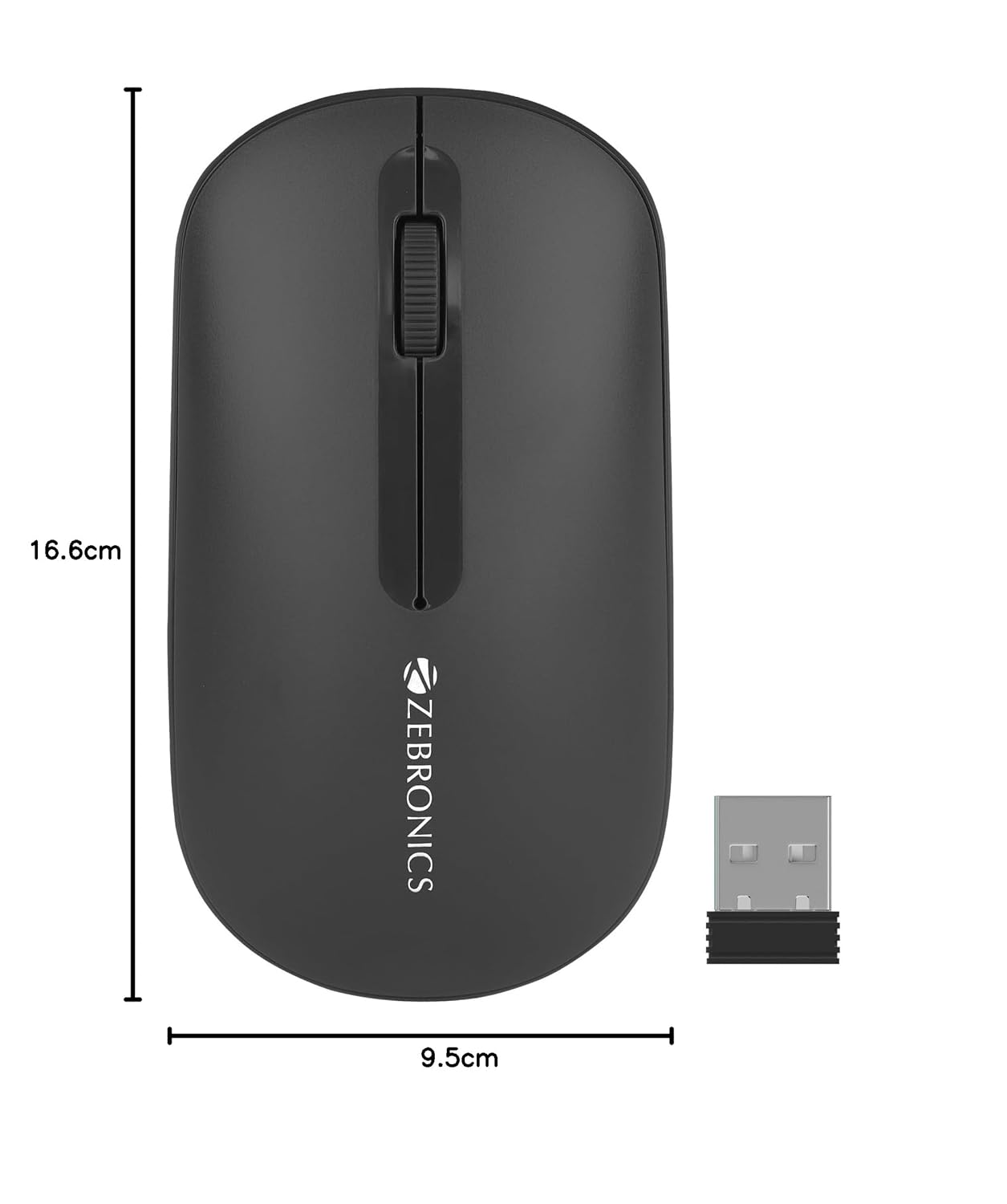
Image 8.1: Diagram showing the physical dimensions of the ZEBRONICS Pulse Wireless Mouse.
9. Akwụkwọ ikike & Nkwado
For warranty information, technical support, or service inquiries, please refer to the warranty card included with your product or visit the official ZEBRONICS websaịtị. Debe nnata nzụta gị dị ka ihe akaebe nke ịzụrụ maka nkwupụta ikike.
Official ZEBRONICS Websaịtị: www.zebronics.com


