1. Okwu mmalite
This manual provides comprehensive instructions for the setup, operation, and maintenance of your ENDGAME GEAR OP1 RGB Gaming Mouse. Designed for precision and performance, this mouse features a PixArt PAW3395 sensor, Kailh GX switches, and customizable RGB lighting.
2. Atụmatụ igodo
- RGB ọkụ: Customize with 3 LED modes, single color options, and RGB color cycle. Powered by the STM32 Arm Cortex M4 MCU for seamless performance.
- Precision Sensor: PixArt PAW3395 for 26,000 CPI, 650 IPS, and 50G. Motion-Sync feature for consistent data intervals, perfecting muscle memory.
- Kailh GX Switches: Exclusive switches rated for 80 million actuations, precise actuation point, and a crisp, defined click sensation for enhanced gaming control.
- Compact Claw Grip Design: The OP1 RGB is a light and compact design, weighing just over 50g (1.8 oz). With flatter sides for flexible finger placement and extended side walls to prevent accidental clicks, this mouse offers superior comfort and control.
- Uninterrupted Performance: No power-saving worries with Flex Cord 5.0 cable. Permanent data connection ensures the mouse is always ready for peak performance.
3. Ntuziaka Nhazi
Ihe ngwugwu 3.1
- ENDGAME GEAR OP1 RGB Gaming Mouse
- Flex Cord 5.0 Cable (attached)
- Pre-cut Grip Tape
- Extra Alternative PTFE Skates
- Screwdriver
- Rubber Cable Collar
- Akwụkwọ ntuziaka (akwụkwọ a)
3.2 Ijikọ òké gị
- Chọta ọdụ ụgbọ mmiri USB dị na kọmputa gị.
- Insert the USB connector of the OP1 RGB Gaming Mouse into the USB port.
- The mouse will be automatically detected by your operating system. Drivers will install automatically.
- For advanced customization and firmware updates, download the official ENDGAME GEAR software from the manufacturer's websaịtị.
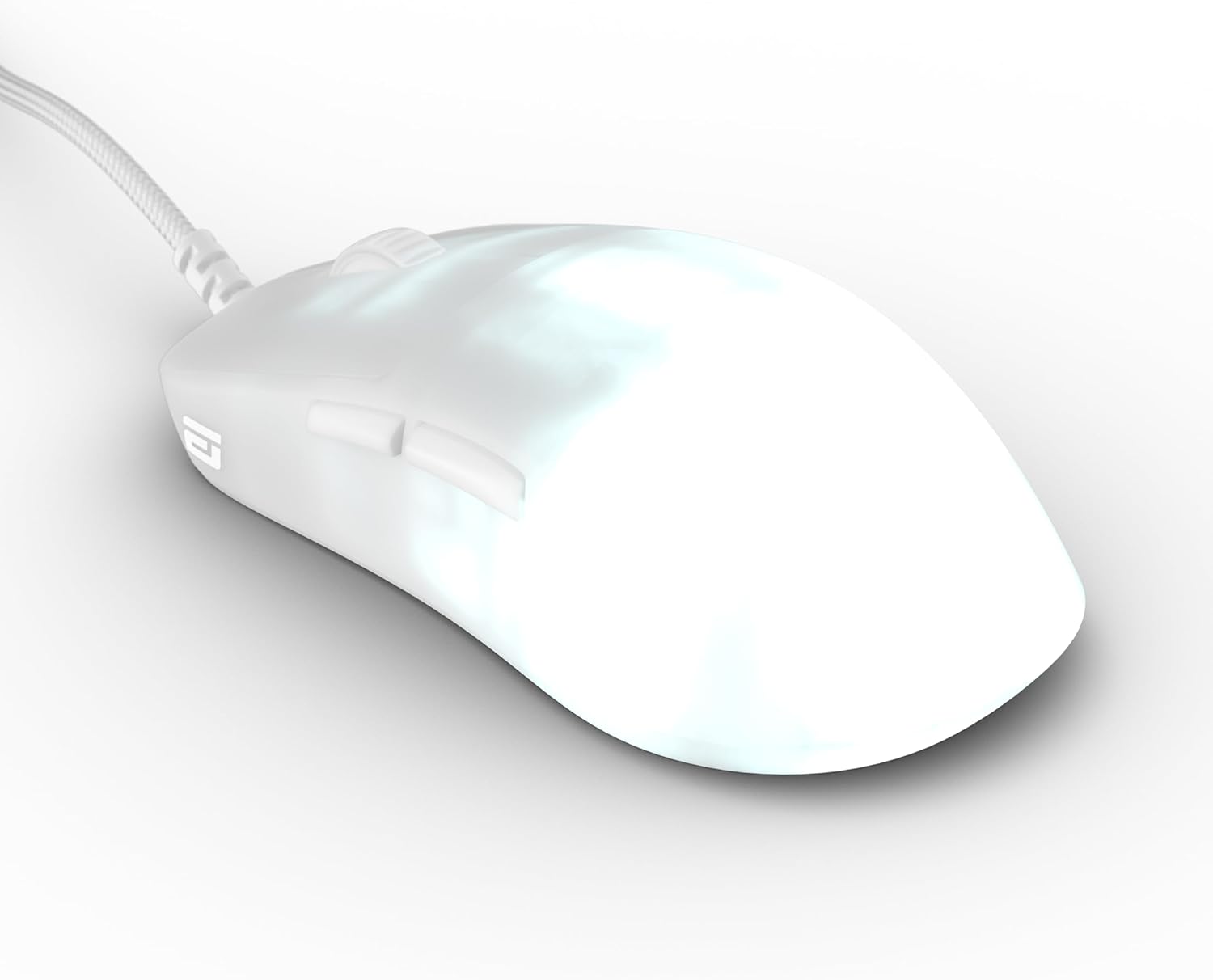
Figure 3.2.1: The ENDGAME GEAR OP1 RGB Gaming Mouse with its attached Flex Cord 5.0 USB cable.
4. Ntuziaka ọrụ
4.1 Basic Arụmọrụ
The OP1 RGB Gaming Mouse functions as a standard USB mouse. Move the mouse to control the cursor on your screen. The left and right click buttons perform primary and secondary actions, respectively. The scroll wheel allows for vertical scrolling and also functions as a middle click button.
Nhazi ọkụ 4.2 RGB
The OP1 RGB features customizable lighting. While specific controls are typically managed through the dedicated software, the mouse supports 3 LED modes (single color solid, single color breathing, RGB color cycle) and single color options. Adjust brightness and modes via the software for personalized aesthetics.
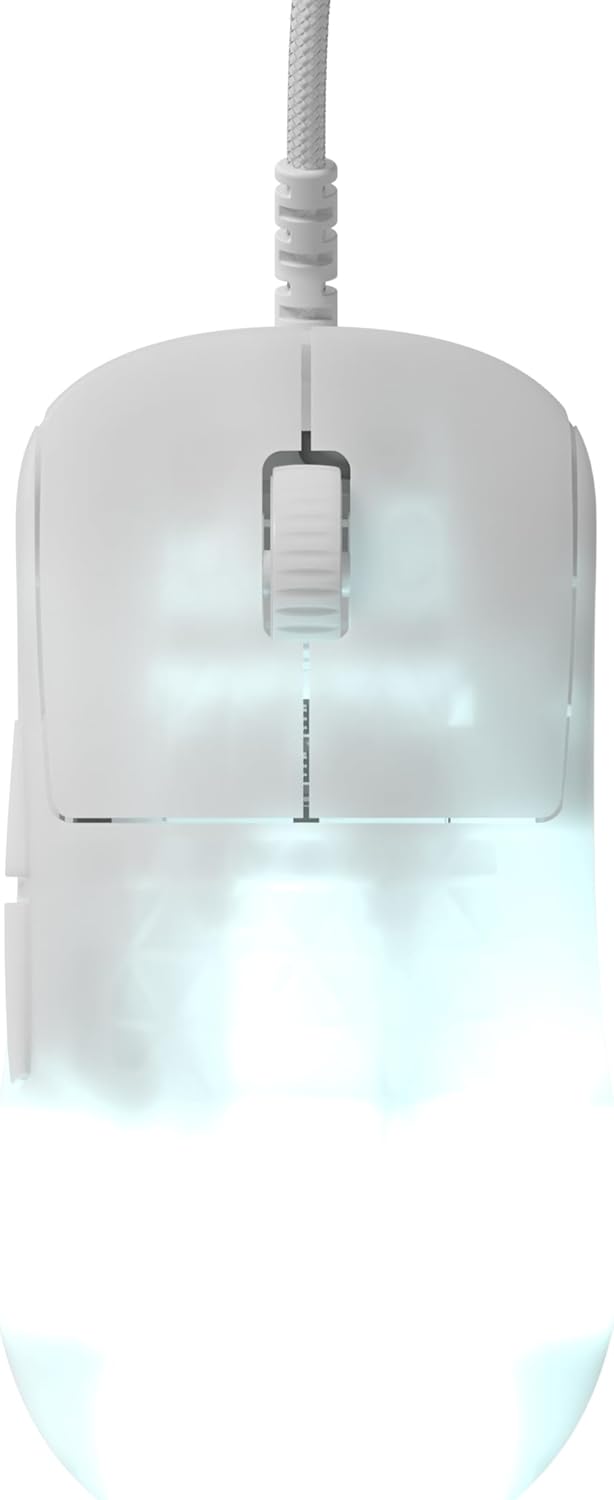
Foto 4.2.1: Top view of the mouse showcasing its RGB lighting capabilities.
4.3 Nhazi ngwanrọ
For full control over CPI settings, polling rate, button assignments, and advanced RGB effects, download and install the official ENDGAME GEAR software. This software allows you to fine-tune the mouse to your specific gaming and productivity needs.

Foto 4.3.1: Akụkụ view highlighting the programmable side buttons.
5. Nlekọta
5.1 Nhicha
Iji nọgide na-arụ ọrụ nke ọma ma na-adị mma, na-ehicha òké gị mgbe niile. Jiri ákwà dị nro ma kpọọ nkụ hichaa elu ya. Maka unyi siri ike, jiri obere d hichaa ya.amp A pụrụ iji ákwà nwere ncha dị nro mee ihe, na-eme ka mmiri ghara ịbanye n'ime òké ahụ. Zere ihe nhicha ma ọ bụ ihe mgbaze.
5.2 Nchekwa
When not in use, store the mouse in a clean, dry environment away from direct sunlight and extreme temperatures. Avoid tangling the Flex Cord 5.0 cable to prevent damage.
5.3 Replacing Mouse Skates
The OP1 RGB Gaming Mouse comes with high-quality PTFE skates for smooth gliding. If these wear down over time, replacement skates are included in the package. Carefully peel off the old skates and apply the new ones, ensuring they are firmly pressed into place. The bottom plate has accessible screws for maintenance or switch replacement.
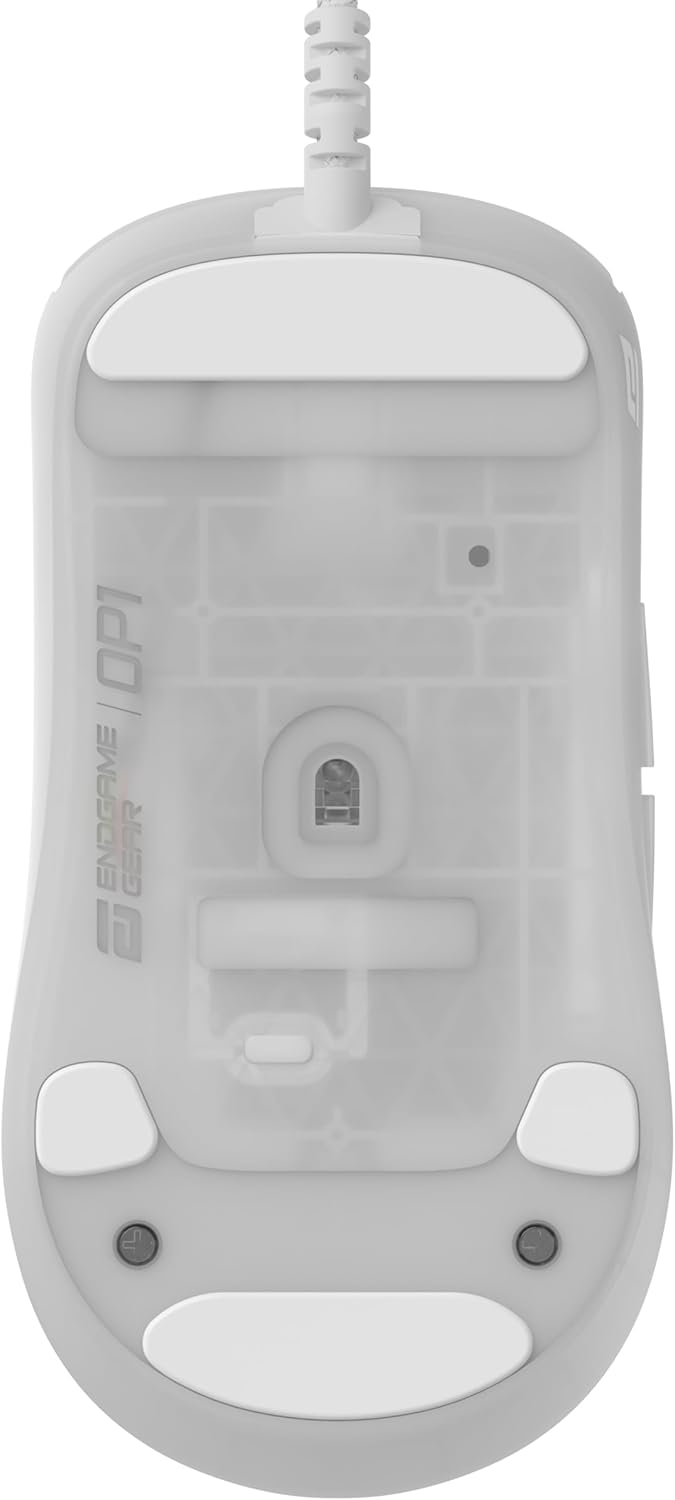
Figure 5.3.1: Underside of the mouse, showing the PTFE skates and sensor.
5.4 Swappable Main Button Switches
The OP1 RGB features a swappable main button switch design. This allows for effortless customization and replacement of switches. Use the included screwdriver to access the screws on the bottom plate and carefully replace the switches as needed. Optional switch packs are available from ENDGAME GEAR for further customization.
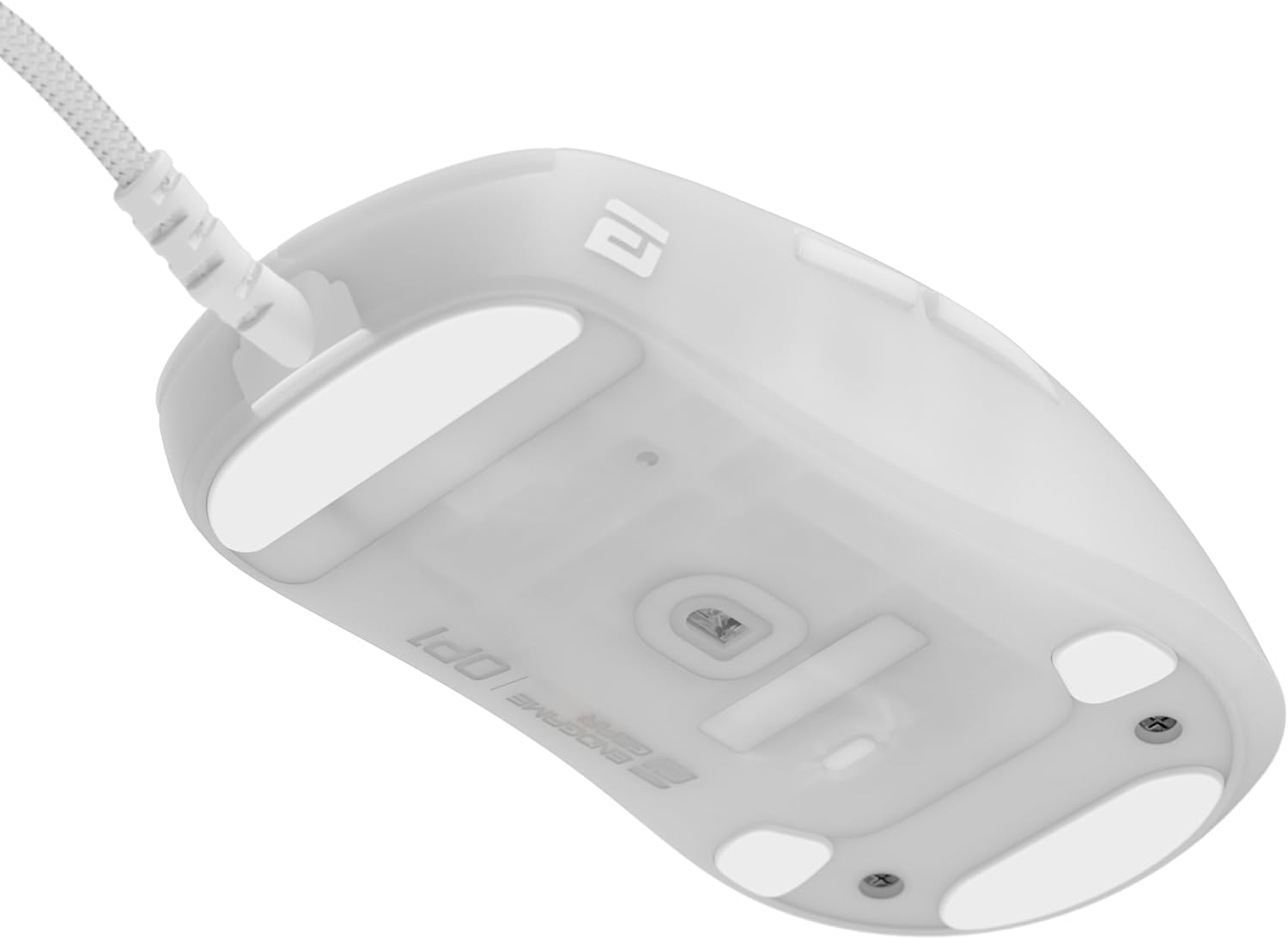
Ọgụgụ 5.4.1: Ime view demonstrating the swappable main button switch mechanism.
6. Nchọpụta nsogbu
| Nsogbu | Ihe nwere ike ime | Ngwọta |
|---|---|---|
| Òké anaghị aza | Njikọ USB rụrụ arụ, ọdụ ụgbọ USB adịghị mma, nsogbu ọkwọ ụgbọ ala. | Ensure the USB cable is securely plugged in. Try a different USB port. Restart your computer. Check Device Manager for driver issues. |
| Inconsistent tracking | Dirty sensor, unsuitable mouse pad surface, software settings. | Clean the optical sensor with a soft cloth. Use a clean, uniform mouse pad. Adjust CPI/DPI settings in the software. |
| RGB ọkụ anaghị arụ ọrụ | Software settings, firmware issue. | Check RGB settings in the ENDGAME GEAR software. Ensure the mouse firmware is up to date. |
| Buttons not clicking properly | Dust/debris under button, worn-out switch. | Attempt to dislodge any debris. If a switch is faulty, consider replacing it using the swappable switch feature. |
7. Nkọwapụta
| Njirimara | Nkọwa |
|---|---|
| Nlereanya | EGG-OP1-RGB-WF |
| Sensọ | Ihe mmetụta anya PixArt PAW3395 |
| Max CPI | 26,000 CPI |
| IPS kachasị elu | 650 IPS |
| Max osooso | 50G |
| Mgbanwe | Kailh GX Mechanical Switches (80 million actuations) |
| Njikọta | USB (Flex Cord 5.0) |
| Ibu | Ihe dị ka 50g (1.8 oz) |
| Ọkụ | RGB (3 LED modes, single color, RGB cycle) |
| Akụkụ | (Refer to Figure 7.1.1 for detailed dimensions) |
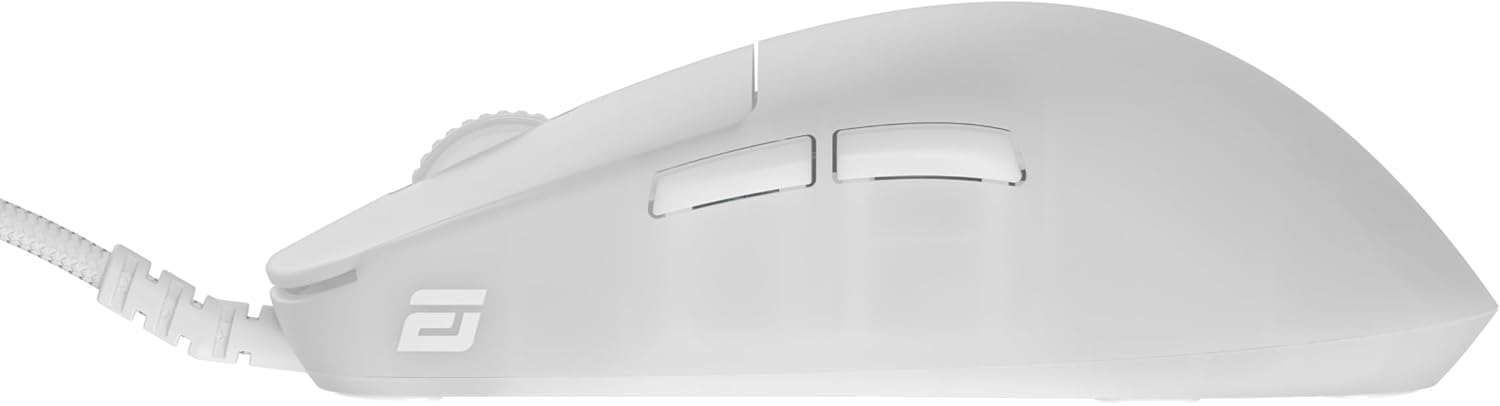
Figure 7.1.1: Detailed dimensions of the OP1 mouse shape compared to XM shape.
8. Akwụkwọ ikike na nkwado
ENDGAME GEAR products are manufactured to high quality standards. For warranty information and technical support, please visit the official ENDGAME GEAR websaịtị ma ọ bụ kpọtụrụ ndị ahịa ha ozugbo. Debe ihe akaebe nke ịzụrụ ihe maka akwụkwọ ikike.
Ndị ọchịchị Websaịtị: www.endgamegear.com


