Okwu mmalite
This manual provides detailed instructions for the setup, operation, and maintenance of your Prechen 10.1 inch Portable Touchscreen Monitor, Model HD-101. Please read this manual thoroughly before using the device to ensure proper functionality and to prevent damage.
Njirimara ngwaahịa
- Portable Touchscreen: This 10.1-inch monitor is compact and lightweight, designed for portability. The touchscreen functionality allows for intuitive navigation and interaction, enhancing productivity on the go.
- High-Resolution IPS Display: Features a 1920x1200 resolution with a 16:10 aspect ratio, delivering clear and vibrant visuals. IPS technology provides wide viewing angles and accurate color reproduction, suitable for various applications.
- Njikọta dị iche iche: Equipped with HDMI and USB-C ports, offering flexible connection options. It can be easily connected to Windows PCs, laptops, and gaming consoles like Xbox. Note: USB-C is for touch functionality and power.
- Ndị na-ekwu okwu ọnụ: Built-in speakers provide clear and dynamic audio, eliminating the need for external speakers during media consumption, gaming, or virtual meetings.
- Ugwu VESA dakọtara: The monitor supports VESA mounting standards, allowing for attachment to compatible stands or arms for customized workspace setups and comfortable viewakụkụ .
Melite
Ihe ngwugwu
Chọpụta na ihe niile dị na ngwugwu:
- Prechen 10.1 inch Portable Touchscreen Monitor
- HDMI USB
- USB-C na eriri USB-C
- USB-A to USB-C Cable (for power/touch)
- Ihe nkwụnye ọkụ
- Akwụkwọ ntuziaka (akwụkwọ a)
Ijikọ Monitor
- Njikọ ike: Connect the provided power adapter to the DC Power Port on the monitor and plug it into a power outlet. Alternatively, if your device supports power delivery, connect a USB-C to USB-C cable to the USB-C (Power & Touch) port for both power and signal.
- Njikọ vidiyo:
- HDMI: Connect one end of the HDMI cable to the HDMI port on the monitor and the other end to the HDMI output of your computer or device.
- USB-C (DisplayPort Alternate Mode): If your device supports DisplayPort Alternate Mode over USB-C, connect a USB-C to USB-C cable to the USB-C (Power & Touch) port on the monitor and your device. This single cable can provide video, power, and touch functionality.
- Ọrụ mmetụ: For touch functionality, ensure the USB-C (Power & Touch) port is connected to your device. If using HDMI for video, you will also need to connect a USB-A to USB-C cable from your device's USB-A port to the monitor's USB-C (Power & Touch) port.
- Mmepụta ọdịyo: If you wish to use external headphones or speakers, connect them to the 3.5mm Audio Port on the monitor.
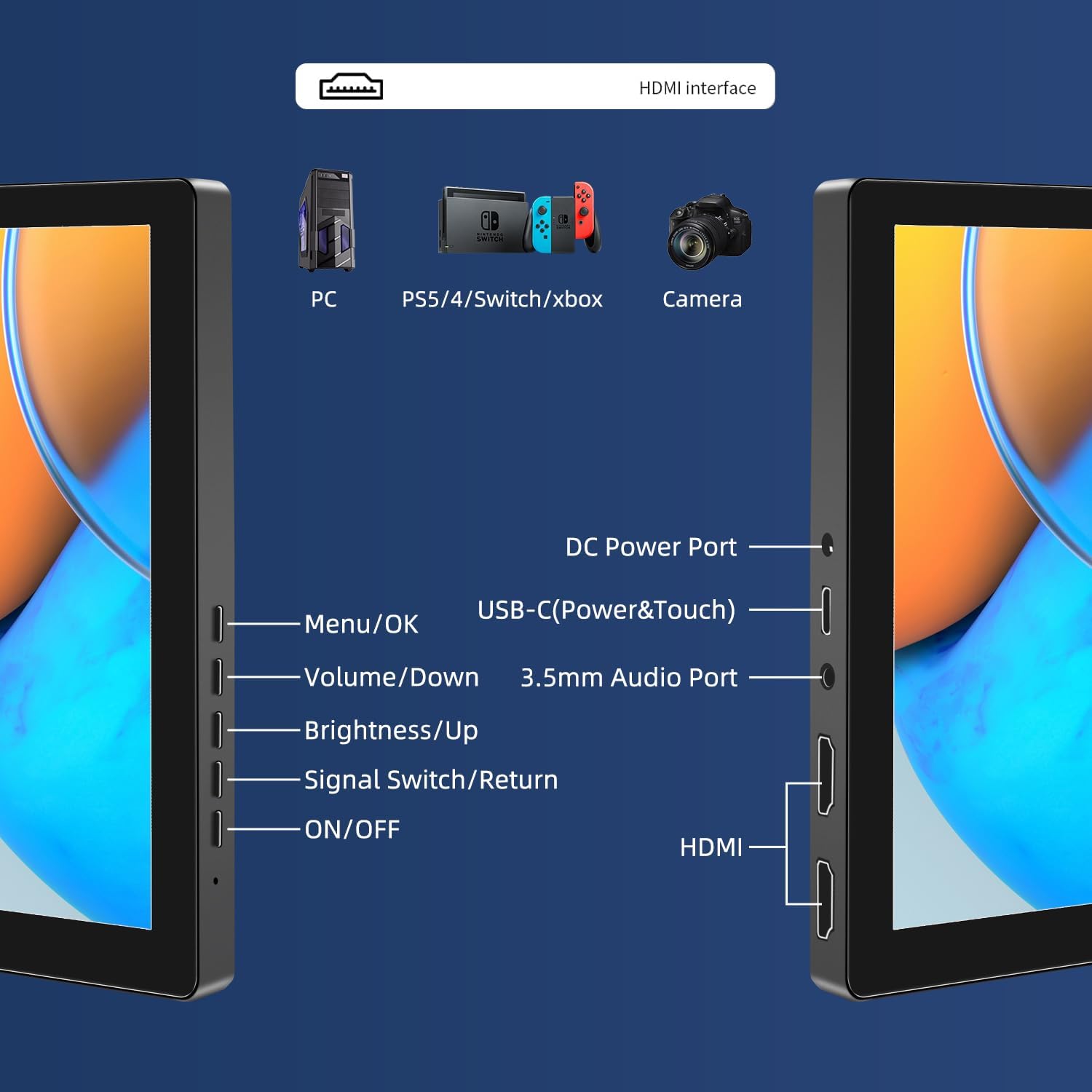
Foto: Ofeview of the monitor's ports including DC Power, USB-C (Power & Touch), 3.5mm Audio, HDMI, and control buttons.
Ntuziaka ọrụ
Ịgbanyụ/ Gbanyụọ
- To power on the monitor, press the Gbanye/ Gbanyụọ bọtịnụ.
- Iji gbanyụọ, pịa ma jide Gbanye/ Gbanyụọ button for a few seconds until the screen turns off.
Iji Ndabere Onyogho (OSD)
Nchịkọta OSD na-enye gị ohere ịgbanwe ntọala ngosipụta dị iche iche.
- Pịa NchNhr/OK pịa bọtịnụ iji mepee menu OSD.
- Jiri ihe Olu/ala na Icha ọkụ/Elu bọtịnụ iji lelee nhọrọ menu.
- Pịa NchNhr/OK ka ịhọrọ nhọrọ ma ọ bụ kwado ntọala.
- Pịa Signal Switch/Return button to go back to the previous menu or exit the OSD.
Adjusting Display Modes
The monitor supports multiple display modes when connected to a computer:
- Ụdị oyiri: Displays the same content on both your primary screen and the portable monitor.
- Gbatịkwuo ọnọdụ: Extends your desktop across both screens, providing more workspace.
- Second Screen Mode: Ọ na-eji naanị ihe ngosi dị mfe ibugharị.
These modes are typically configured through your operating system's display settings (e.g., Windows Display Settings, macOS System Preferences).
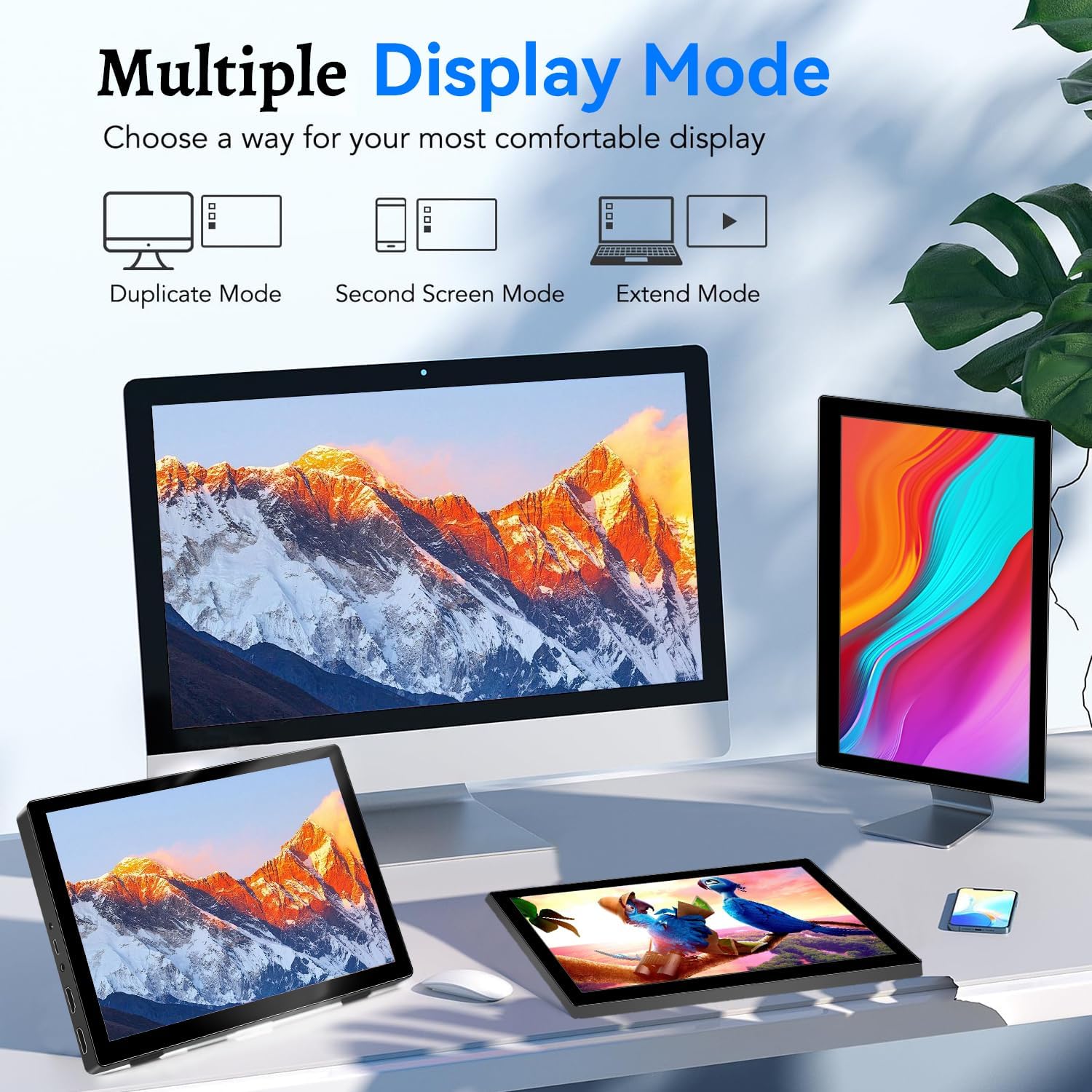
Image: Visual representation of Duplicate, Second Screen, and Extend display modes.
Using Touchscreen Functionality
The monitor supports 10-point touchscreen technology. Ensure the USB-C (Power & Touch) port is correctly connected to your device for touch input to function.

Foto: Examples of 10-point touchscreen gestures for interaction.
Nlekọta
- Na-ehicha ihuenyo: Jiri akwa dị nro na-enweghị ntụpọ dampened with water or a non-abrasive screen cleaner. Do not spray cleaner directly onto the screen.
- Na-ehicha Casing: Hichapụ ihe nleba anya casing na akwa dị nro, kpọrọ nkụ. Zere iji ncha siri ike ma ọ bụ ihe mgbaze.
- Nchekwa: When not in use, store the monitor in a cool, dry place, away from direct sunlight and extreme temperatures.
- Ijikwa: Avoid dropping or subjecting the monitor to strong impacts. Do not place heavy objects on top of the monitor.
Nchọpụta nsogbu
| Nsogbu | Ihe nwere ike ime | Ngwọta |
|---|---|---|
| Enweghị ngosi/ihuenyo ojii |
|
|
| Ihuenyo mmetụ anaghị aza |
|
|
| Enweghị ụda sitere na ndị ọkà okwu |
|
|
| Image quality issues (blurry, distorted) |
|
|
Nkọwapụta
| Njirimara | Nkọwa |
|---|---|
| Ụdị | Prechen |
| Nọmba nlereanya | HD-101 |
| Nha ihuenyo | 10.1 sentimita asatọ |
| Mkpebi | 1920 x 1200 (UXGA obosara) |
| Akụkụ akụkụ | 16:10 |
| Ụdị panel | IPS |
| Ọnụego ume ọhụrụ | 60 Hz |
| Oge nzaghachi | 1 ms |
| Njikọta | 1x HDMI, 1x USB-C (Power & Touch), 1x 3.5mm Audio Jack, 1x DC Power Port |
| Akụkụ (L x W x H) | 21.8 x 15.8 x 1.4 cm |
| Ibu | 990 grams |
| Onye nrụpụta | Shenzhen Kenowa Electronics Co., LTD |
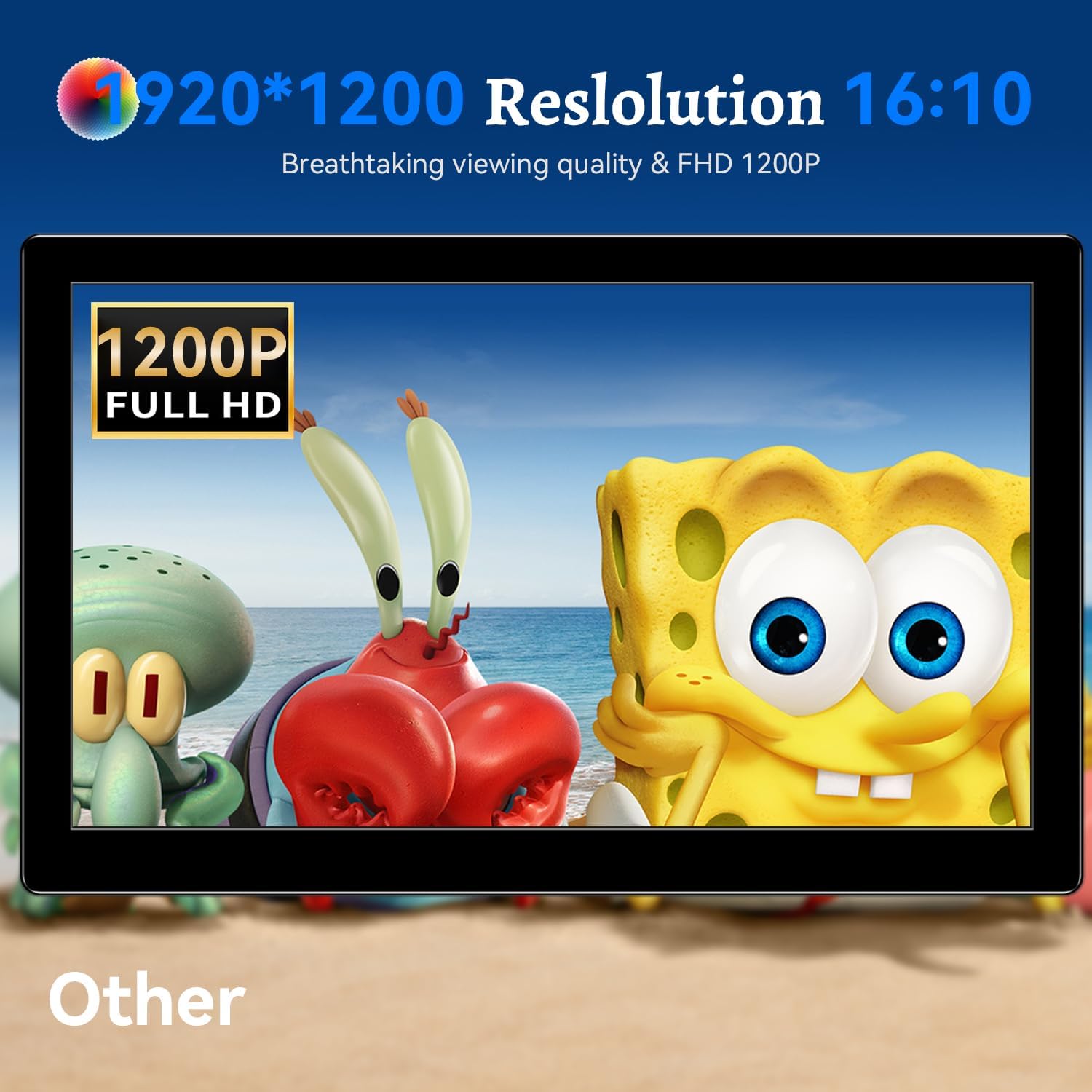
Foto: Ihe nleba anyaasing its 1920x1200 Full HD resolution.

Image: The monitor's IPS panel offering wide viewing angles and rich colors.
Akwụkwọ ikike na nkwado
For warranty information and technical support, please refer to the warranty card included with your product or contact Prechen customer service through their official website. Please have your model number (HD-101) and purchase details ready when contacting support.


