Ngwaahịa gafereview
The LC-M27-QHD-180 is a 27-inch (68.58 cm) PC monitor designed to deliver a high-quality visual experience. It features a QHD resolution of 2560 x 1440 pixels, providing sharp and detailed images. The IPS panel ensures an ultra-fast 1 ms response time, excellent color accuracy, and wide viewing angles. With a refresh rate of 180 Hz, content display is very fluid, making it suitable for fast-paced applications and gaming.
Key features include Adaptive Sync for smooth gameplay, Picture-by-Picture (PbP) and Picture-in-Picture (PiP) for multi-source viewing, and a height-adjustable stand with integrated cable management for ergonomic use. The monitor also supports a pivot feature, allowing it to be rotated 90 degrees for vertical document viewing.
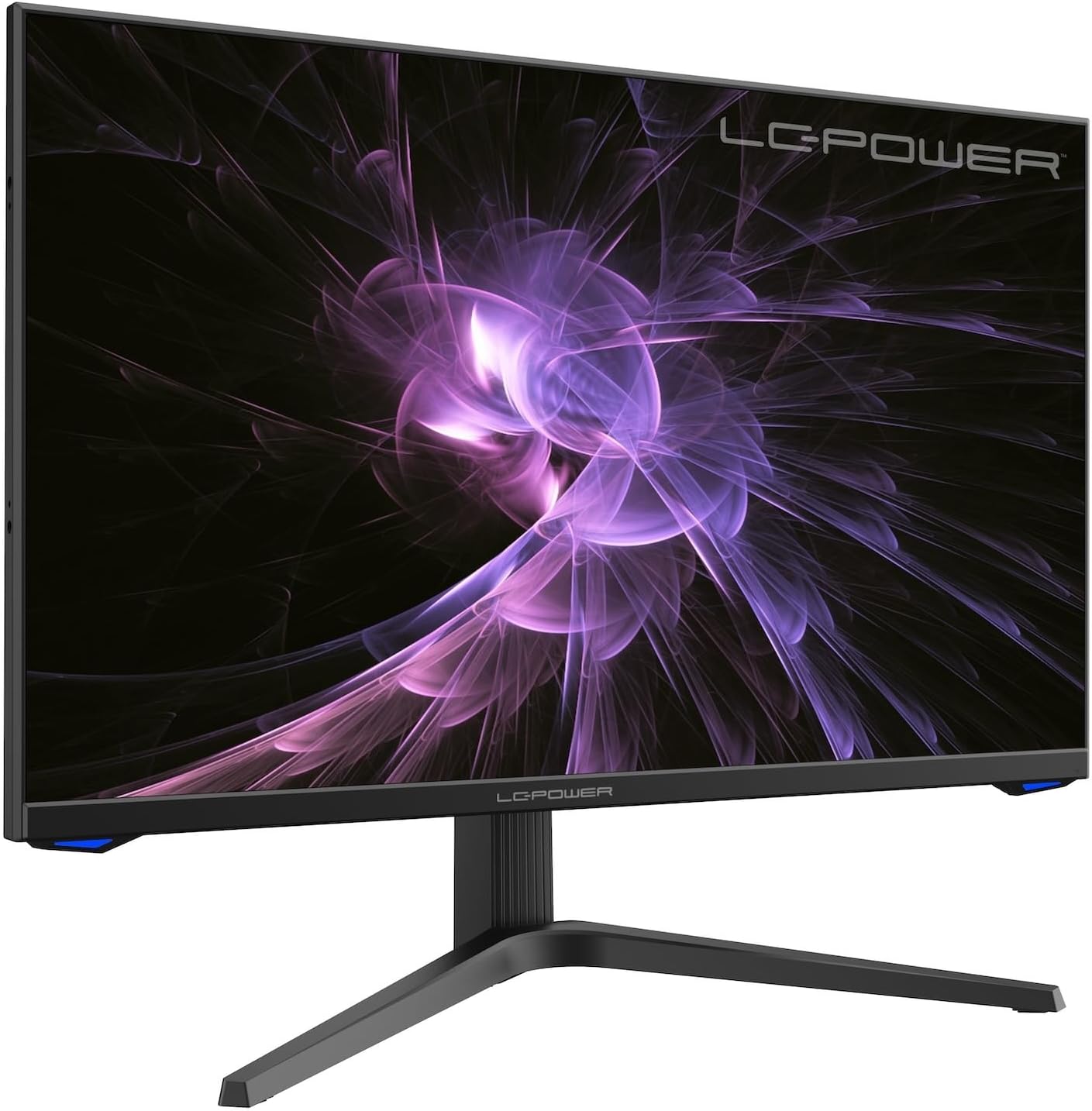
Foto: N'ihu view of the LC-M27-QHD-180 monitor, showcasing its display and sleek design.
Ntuziaka nhazi
1. Mwepu na ọdịnaya
Carefully remove all components from the packaging. Please verify that all items listed below are present:
- LC-M27-QHD-180 Monitor
- Nyochaa Ebe
- HDMI USB
- Ihe nkwụnye ọkụ
- Ihe mgbakwasa
- Akwụkwọ ntuziaka (akwụkwọ a)
2. Mgbakọ
Na-agbakwunye ntọala:
- Tinye ihuenyo nleba anya ihu n'elu ala dị nro ma dị ọcha iji gbochie ncha.
- Align the stand arm with the slot on the back of the monitor.
- Secure the stand arm to the monitor using the provided screws.
- Attach the base plate to the stand arm and tighten the screws.
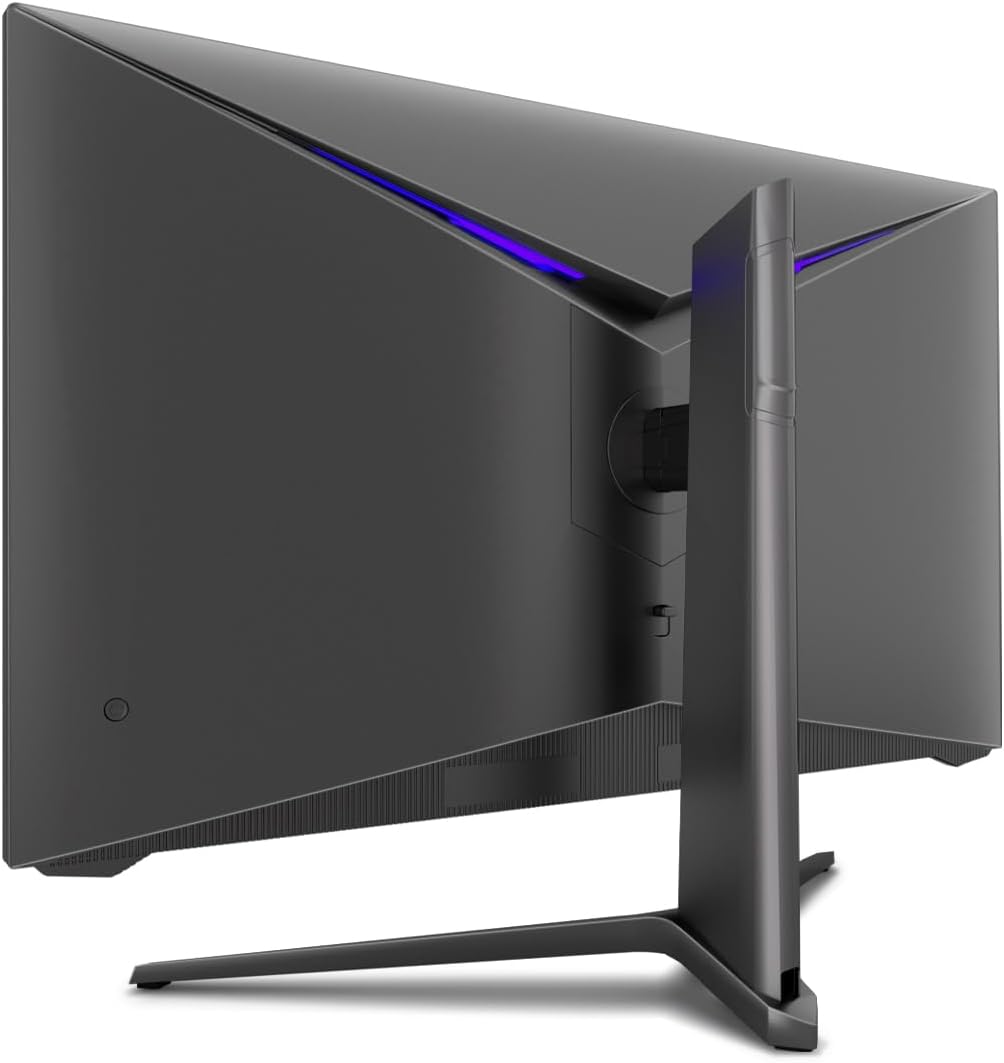
Foto: N'azụ view of the monitor, illustrating the stand assembly area and cable management design.
Nkwalite VESA: The monitor is VESA compatible. If you intend to use a VESA mount, remove the stand arm after assembly and attach your VESA mount according to its instructions.
3. Ijikọ Monitor
- Njikọ ike: Connect the power adapter to the monitor's power input and then plug the power adapter into a wall outlet.
- Njikọ vidiyo: Connect one end of the provided HDMI cable to the HDMI port on your computer's graphics card and the other end to an HDMI input port on the monitor.
- Gbaa mbọ hụ na njikọ niile echekwara.
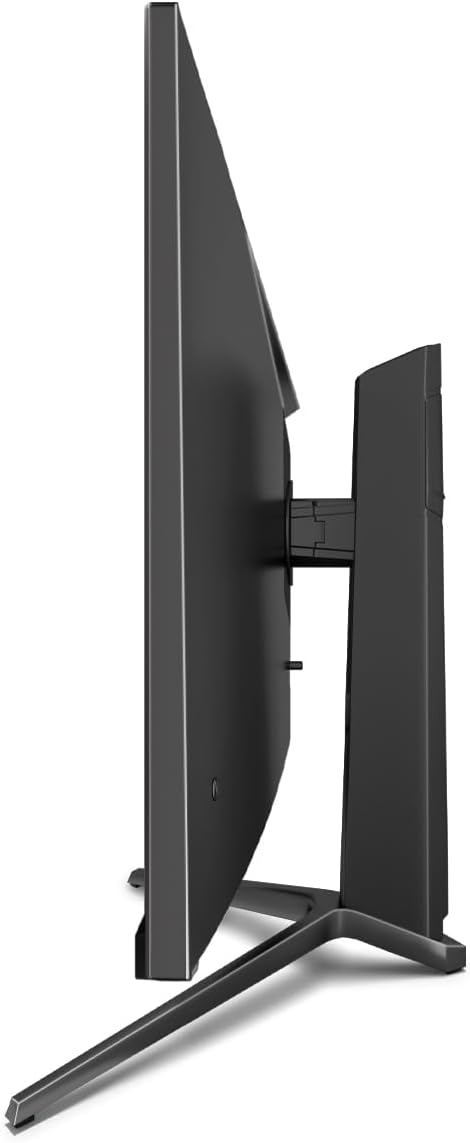
Foto: Akụkụ view of the monitor, showing its slim design and connectivity ports.
4. Ike izizi
Press the power button on the monitor. The power indicator light should illuminate. Your computer should automatically detect the new display. If not, adjust display settings in your operating system.
Ntuziaka ọrụ
Ngosipụta na ihuenyo (OSD) NchNhr
The monitor features an On-Screen Display (OSD) menu for adjusting various settings. Use the control buttons located on the monitor (typically on the back or bottom edge) to navigate the OSD menu.
Key Features and Settings
- Mmekọrịta na-agbanwe agbanwe: This technology synchronizes the monitor's refresh rate with your graphics card's frame rate, reducing screen tearing and stuttering for a smoother gaming experience. Enable this feature in your graphics card settings and on the monitor's OSD if applicable.
- Overdrive: Overdrive pre-calculates and accelerates specific pixels, significantly reducing response times for both black-and-white and color nuance changes, resulting in clearer motion.
- Ìhè na-acha anụnụ anụnụ dị ala: The Low Blue Light filter reduces the emission of harmful blue light from the screen, minimizing eye strain and fatigue during prolonged use. This feature can be adjusted via the OSD menu.
- Picture-by-Picture (PbP) / Picture-in-Picture (PiP):
- PbP: Allows you to display content from two different input sources side-by-side on the same screen.
- PiP: Displays the image from a second source as a smaller, scalable window (up to 25% of original size) that can be positioned anywhere on the main screen.
- FPS / RTS Modes: Dedicated display modes optimized for First Person Shooter (FPS) and Real-Time Strategy (RTS) games. These modes enhance visibility and provide a better gaming experience by adjusting display parameters.
- Njirimara pivot: The monitor can be rotated 90 degrees to a vertical (portrait) orientation. This is particularly useful for reading documents, coding, or web na -eme nchọgharị.

Image: Diagram illustrating the monitor's ability to pivot 90 degrees for vertical viewing.
Note: After physically rotating the monitor, you must adjust the display orientation settings within your operating system (e.g., Windows Display Settings) to match the new physical orientation.
- Height Adjustable Stand & Cable Management: The integrated stand allows for height adjustment to achieve an ergonomic viewing position. Cables can be neatly routed through the stand's built-in cable management system to maintain a tidy workspace.

Image: Close-up of the monitor's stand, highlighting the integrated cable management feature.
Nlekọta
Iji hụ na ogologo ndụ na arụmọrụ kacha mma nke nleba anya gị, soro ntuziaka mmezi ndị a:
- Na-ehicha ihuenyo: Gently wipe the screen with a soft, lint-free cloth specifically designed for electronics. For stubborn marks, lightly dampJiri mmiri ma ọ bụ ihe nhicha dị ọcha nke na-anaghị afụ ụfụ kpuchie ákwà ahụ. Efesala mmiri ozugbo na ihuenyo ahụ.
- Na-ehicha Casing: Jiri ákwà dị nro ma kpọọ nkụ hichaa ihe nlele ahụasing. Zere iji kemịkalụ siri ike ma ọ bụ ihe na-emebi emebi.
- Igwe ikuku: Gbaa mbọ hụ na egbochighị oghere ikuku na ihe nleba anya ka ọ ghara ikpo oke ọkụ.
- Gbanyụọ: Always power off the monitor and unplug it from the power outlet before cleaning or if it will not be used for an extended period.
- Zere ìhè anyanwụ kpọmkwem: Do not expose the monitor to direct sunlight or excessive heat.
Nchọpụta nsogbu
If you encounter issues with your LC-M27-QHD-180 monitor, please refer to the following common troubleshooting steps:
| Nsogbu | Ihe nwere ike ime | Ngwọta |
|---|---|---|
| Enweghị onyonyo na ihuenyo | Ekwentị anaghị agba ọkụ; eriri vidiyo ahụ gbapụrụ ma ọ bụ kwụpụ; ahọpụtara isi mmalite ntinye na-ezighi ezi. | Ensure power cable is securely connected and monitor is turned on. Check video cable connections (HDMI). Select the correct input source via the OSD menu. |
| Onyonyo na-agbagọ ma ọ bụ agbagọ | Ntọala mkpebi na-ezighi ezi; nsogbu eriri vidiyo. | Set the display resolution to 2560 x 1440 pixels in your computer's display settings. Try a different HDMI cable if available. |
| No sound (if monitor has speakers/audio out) | Audio cable not connected; volume too low; incorrect audio output selected on computer. | Ensure audio cable (if used) is connected. Adjust monitor volume via OSD. Select the monitor as the default audio output device in your computer's sound settings. |
| Ihuenyo na-amagharị | Refresh rate mismatch; faulty cable; graphics driver issue. | Ensure refresh rate is set to 180 Hz in display settings. Try a different video cable. Update your graphics card drivers. |
For more detailed troubleshooting or persistent issues, please consult the full user manual or contact LC-Power customer support.
Nkọwapụta
| Njirimara | Nkọwa |
|---|---|
| Nọmba nlereanya | LC-POWER (LC-M27-QHD-180) |
| Nha ihuenyo | 27 sentimita (68.58 cm) |
| Mkpebi | QHD Wide 1440p (2560 x 1440 pixels) |
| Akụkụ akụkụ | 16:9 |
| Ọnụego ume ọhụrụ | 180 Hz |
| Oge nzaghachi | 1 ms |
| Ụdị panel | IPS |
| Ihu Ihuenyo | Flach (Flat) |
| Akụkụ ngwaahịa (L x W x H) | 28.74 x 18.9 x 8.66 sentimita asatọ |
| Ibu Ibu | 17.73 pound |
| Onye nrụpụta | Ike LC |
| ASIN | B0CQJNV3YR |
| Ụbọchị mbụ dị | Mee 31, 2024 |

Image: EU Energy Label for the LC-M27-QHD-180 monitor. For more details, scan the QR code or visit eprel.ec.europa.eu/qr/1758049.
Akwụkwọ ikike na nkwado
The LC-M27-QHD-180 monitor is manufactured by LC Power.
- General Warranty: The product comes with a 3-year general warranty from the date of purchase.
- Guaranteed Availability of Spare Parts: Spare parts are guaranteed to be available for 7 years from the date of placing the product on the market.
- Guaranteed Product Support: Product support is guaranteed for 7 years.
For technical support, warranty claims, or service inquiries, please contact LC-Power customer support through their official channels. Refer to the packaging or the brand's official websaịtị maka ozi kọntaktị kpọmkwem.


