Okwu mmalite
This user manual provides comprehensive instructions for the installation, operation, and maintenance of your Kolink Unity Arena Mid-Tower PC Case. Please read this manual carefully before beginning assembly to ensure proper setup and to maximize the performance and longevity of your system. Keep this manual for future reference.
Ngwaahịa gafereview
The Kolink Unity Arena is a mid-tower PC case designed for high-performance gaming systems. It features a borderless glass side panel for an unobstructed view of internal components and comes with four pre-installed Kolink Umbra X ARGB/PWM fans for efficient cooling and customizable lighting. The spacious interior supports E-ATX motherboards and large graphics cards up to 420mm, including NVIDIA RTX 40 series. It also accommodates up to three radiators for advanced liquid cooling solutions and includes a dedicated half PSU shroud for clean cable management.

Foto: Ihu-akaekpe view of the Kolink Unity Arena PC case, showcasing the borderless glass side panel and three pre-installed RGB fans on the front.
- Nhazi Ụlọ Elu etiti: Optimized for a balance of size and component compatibility.
- Borderless Glass Panels: Provides an uninterrupted view of your internal hardware.
- Extensive Hardware Support: Compatible with E-ATX motherboards and GPUs up to 420mm, including NVIDIA RTX 40 series.
- Ọjụjụ Dị Elu: Supports up to three radiators and includes four pre-installed Kolink Umbra X ARGB/PWM fans.
- Dedicated PSU Shroud: A half power supply shroud helps maintain a clean and organized interior.
Nkọwapụta
| Ụdị | Kolink |
| Aha Nlereanya | Unity Arena |
| Nọmba nlereanya | UNITYARENABLK |
| Agba | Nwa |
| Ụdị ikpe | Mid Tower |
| Ihe onwunwe | Alloy Steel |
| Ndakọrịta Motherboard | ATX gbatịrị |
| Atụmatụ pụrụ iche | RGB Lighting, Pre-installed Fans |
| Ngwa dakọtara | High-performance gaming components |
| Eji akwadoro | Ịgba egwu |
| Ụdị Nkwanye Ike | Ugwu ala |
| Usoro jụrụ oyi | Ikuku |
| Nha Fans | 120 millimeters |
Ntọala na nwụnye
Follow these steps to properly set up and install your components into the Kolink Unity Arena PC case.
1. Mwepu na Nkwadebe
- Carefully remove the PC case from its packaging.
- Debe igbe ahụ n'elu elu kwụsiri ike ma dịkwa larịị.
- Identify the accessory box, which contains screws, zip ties, and other small parts.
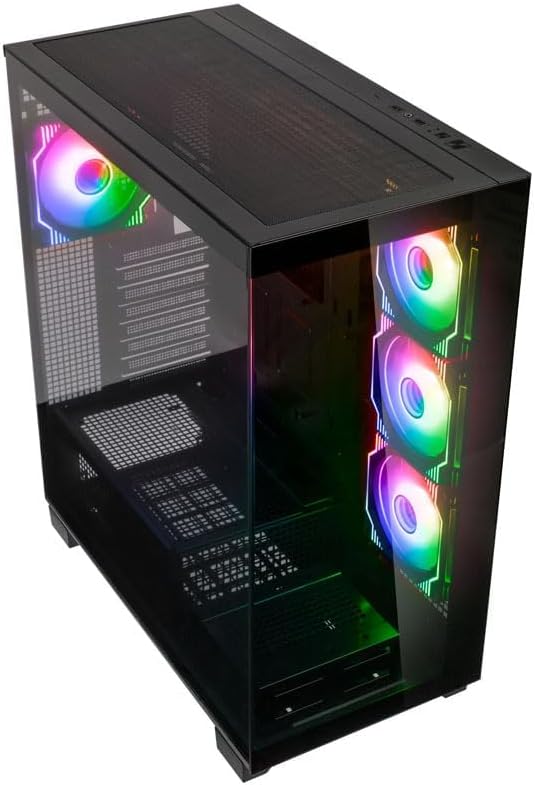
Foto: N'elu-ihu n'akụkụ akụkụ view of the Kolink Unity Arena PC case, highlighting the top ventilation and the illuminated RGB fans visible through the front glass panel.
2. Removing Panels
- Glass Side Panel: The borderless glass side panel is typically secured with thumbscrews at the rear. Unscrew these and carefully slide or lift the panel off. Place it on a soft, non-abrasive surface to prevent scratches.
- Solid Side Panel: The solid right-side panel (behind the motherboard tray) is also usually secured with thumbscrews. Remove these to access the cable management area.
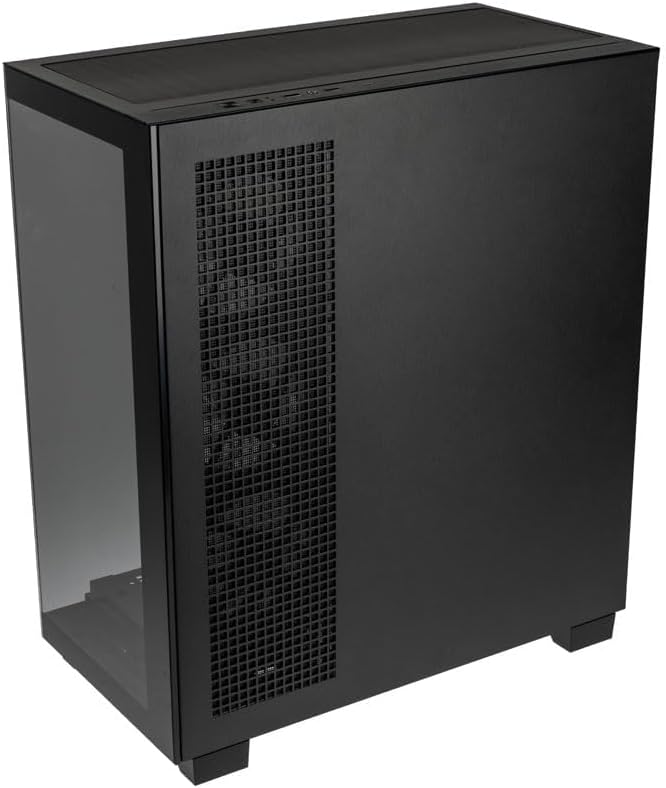
Foto: N'azụ-aka nri view of the Kolink Unity Arena PC case, showing the solid right side panel and the rear exhaust fan area.
3. Nwụnye motherboard
- Install the I/O shield (if not pre-attached to your motherboard).
- Align your E-ATX or smaller motherboard with the standoffs inside the case.
- Jiri skru kwesịrị ekwesị site na ngwa mgbakwunye ahụ kechie motherboard ahụ.

Foto: Ime ụlọ view of the Kolink Unity Arena PC case from the front, displaying the motherboard tray, the three front-mounted fans, and the PSU shroud at the bottom.
4. Nwụnye kaadị eserese (GPU).
- Wepu ihe mkpuchi oghere PCIe dị n'azụ ikpe ahụ.
- Tinye kaadị eserese gị n'ime oghere PCIe bụ isi na motherboard.
- Secure the GPU with screws. The case supports GPUs up to 420mm in length.
5. Storage Device Installation (HDDs/SSDs)
Refer to the case's internal layout for specific drive bay locations and mounting mechanisms. Typically, 2.5" SSDs mount on the back of the motherboard tray, and 3.5" HDDs are installed in a drive cage near the PSU shroud.
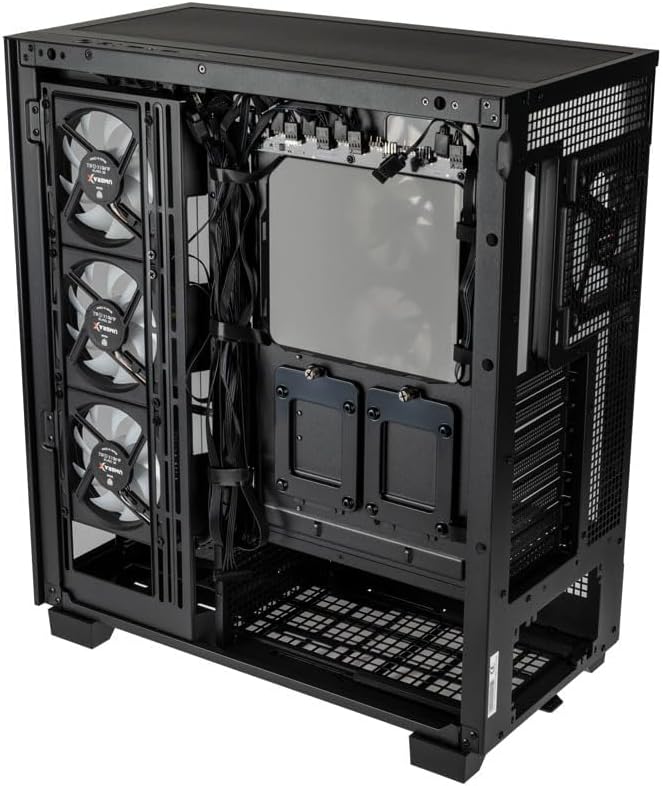
Foto: N'azụ ime view of the Kolink Unity Arena PC case, focusing on the cable management area behind the motherboard tray and drive mounts.
6. Nrụnye Ike Ike (PSU).
- Mount your ATX power supply into the dedicated half PSU shroud at the bottom rear of the case.
- Secure it with screws from the rear of the case.
7. Nwụnye Fan na Radiator
- The case comes with four pre-installed Kolink Umbra X ARGB/PWM fans.
- Additional fans or radiators can be installed at the top, front, or rear depending on your cooling needs. The case supports up to three radiators.

Foto: Close-up of the three pre-installed Kolink Umbra X fans mounted at the front of the Kolink Unity Arena PC case, highlighting their design.
8. Connecting Front I/O
Connect the front panel cables (USB, audio, power switch, reset switch, LED indicators) to the corresponding headers on your motherboard. Refer to your motherboard manual for exact header locations.

Foto: Close-up of the top I/O panel of the Kolink Unity Arena PC case, featuring USB ports, audio jacks, and power/reset buttons.
9. Njikwa USB
Jiri ihe e ji kpụọ eriri na ebe e ji ejikọta eriri ndị dị n'azụ tray motherboard hazie eriri ndị ahụ. Nke a na-eme ka ikuku na ịma mma dịkwuo mma.
Ntuziaka ọrụ
Na-agbanye ike
Once all components are installed and connected, ensure the power supply switch is in the 'ON' position. Press the power button on the front I/O panel to start your system.
Njikwa ọkụ RGB
The pre-installed Kolink Umbra X fans feature ARGB lighting. The case includes a built-in controller with a SATA power input. Connect this controller to your power supply. If your motherboard does not support ARGB control, you can typically manage the lighting effects using the reset button on the front I/O panel, which often doubles as an RGB mode switch when connected to the case's controller.
Nlekọta
Ndozi mgbe niile na-enyere aka hụ na ịrụ ọrụ kacha mma ma gbatịa ndụ nke akụrụngwa PC gị.
- Ihe nzacha uzuzu: The Kolink Unity Arena case is equipped with dust filters. Periodically remove and clean these filters (e.g., top, front, bottom) to prevent dust buildup inside the case. Use compressed air or wash them gently with water and allow them to dry completely before reinstallation.
- Ime nhicha: With the system powered off and unplugged, carefully open the side panels and use compressed air to remove dust from internal components, especially heatsinks and fan blades.
- Nhicha fan: Gently clean the blades of the pre-installed fans with a soft brush or compressed air to maintain efficient airflow.
Nchọpụta nsogbu
Ọ bụrụ na ị na-enwe nsogbu n'oge mgbakọ ma ọ bụ mgbe ị gachara, tụlee usoro nchọpụta nsogbu ndị a:
- Sistemụ anaghị arụ ọrụ:
- Gbaa mbọ hụ na ejikọrọ eriri ọkụ ahụ na PSU na oghere mgbidi.
- Hụ na mgbanwe PSU dị n'ọnọdụ 'ON'.
- Check all power connections to the motherboard (24-pin ATX, 8-pin CPU) and GPU.
- Confirm the front panel power switch cable is correctly connected to the motherboard header.
- Ndị Fans anaghị agba ọsọ / RGB anaghị arụ ọrụ:
- Lelee njikọ ike fan na motherboard ma ọ bụ onye njikwa fan.
- Ensure ARGB cables are properly connected to the motherboard's ARGB header or the case's integrated controller.
- If using the case's controller, verify it is receiving SATA power.
- Enweghị mmepụta ihe ngosi:
- Ensure your monitor cable is connected to the graphics card, not the motherboard's integrated graphics port (unless you are using integrated graphics).
- Tinyegharịa kaadị eserese ahụ n'ime oghere PCIe ya.
- Check GPU power connections.
Akwụkwọ ikike na nkwado
For warranty information, please refer to the documentation provided with your purchase or contact your retailer. Kolink's official website may also provide details regarding product support and warranty terms.
- Nnweta akụkụ mapụtara: Information unavailable.
- Mmelite Ngwanrọ A Na-ekwe Nkwa Ruo: Information unavailable.
For technical assistance or further inquiries, please visit the official Kolink support websaịtị ma ọ bụ kpọtụrụ ngalaba ọrụ ndị ahịa ha.


