1. Okwu mmalite
The SingularXYZ Sfaira ONE Plus is a compact and highly efficient RTK GNSS survey equipment designed for professional surveying applications. It features a built-in IMU (Inertial Measurement Unit) allowing for up to 60° tilt surveying, significantly increasing operational efficiency. This device tracks multiple satellite constellations including GPS, BDS, GLONASS, Galileo, and QZSS, ensuring accurate and reliable positioning data.
Its pocket-size portability and long 16-hour battery life make it suitable for extensive fieldwork. The Sfaira ONE Plus integrates seamlessly with Android-based field surveying software, providing a comprehensive solution for various surveying tasks.

Image: The SingularXYZ Sfaira ONE Plus RTK GNSS receiver, shown with its packaging, USB-C cable, power adapter, and a smartphone displaying the SingularPad software interface.
2. Kedu ihe dị na Igbe ahụ
Mgbe ị meghere ngwugwu ahụ, hụ na ihe niile dị na ya gụnyere:
- Sfaira ONE Plus GNSS Receiver (1 unit)
- USB-Type C Cable (1 unit)
- SingularPad Software (1 unit - typically provided via USB drive or download link)
- Quick Start Guide & Card
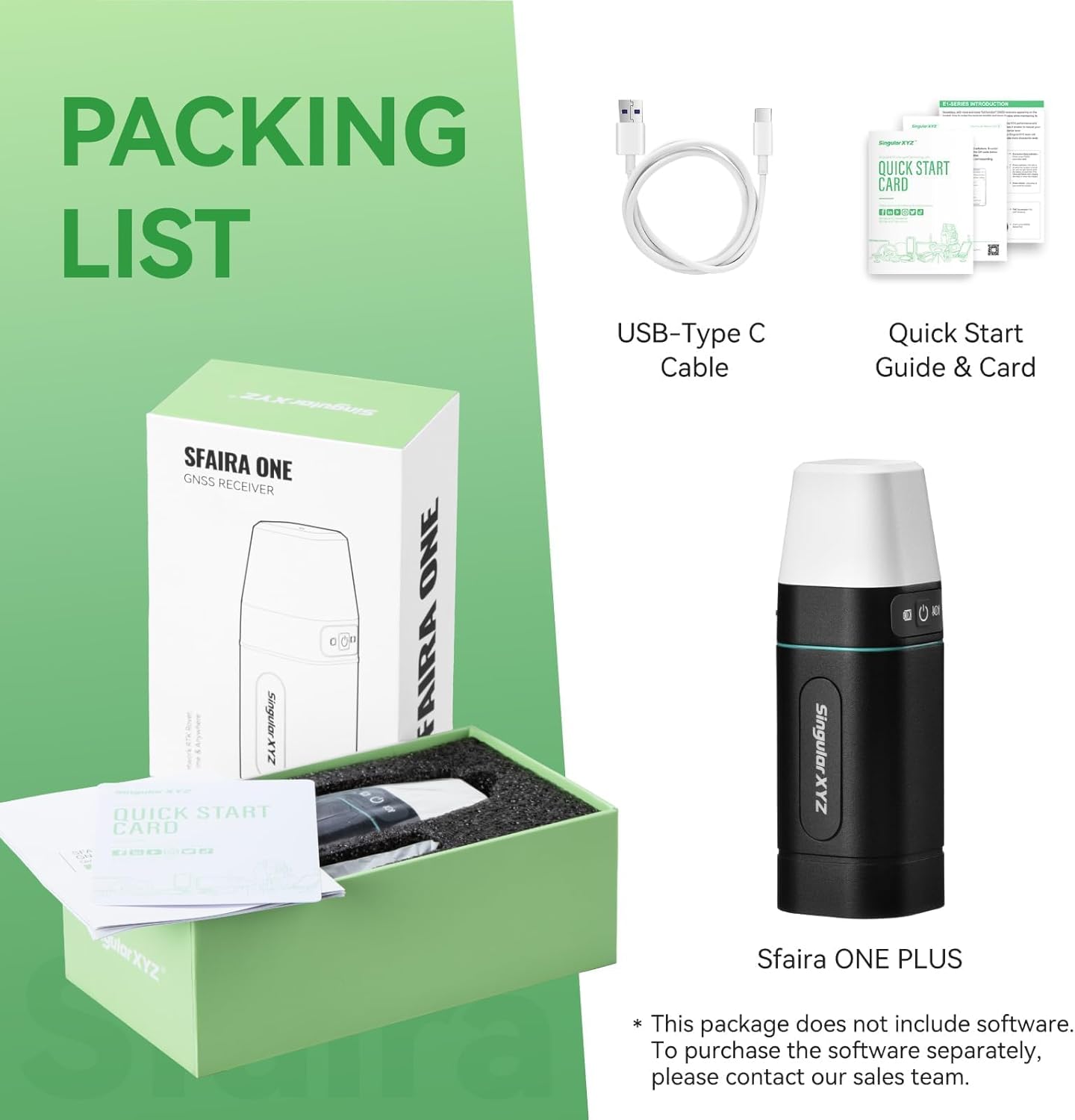
Image: A visual representation of the Sfaira ONE Plus packaging contents, including the receiver, USB-C cable, and quick start guide.
3. Atụmatụ igodo
- 60° Tilt Surveying: The built-in IMU allows for surveying with the pole tilted up to 60 degrees, eliminating the need for perfect vertical alignment and significantly increasing efficiency. This feature is immune to magnetic interference.
- Multi-Constellation GNSS Support: Tracks signals from GPS, BDS, GLONASS, Galileo, and QZSS satellite systems for robust and accurate positioning.
- Kọmpat na ibugharị: Designed for ease of transport and use in various field conditions.
- Ndụ batrị agbatịkwuru: Provides up to 16 hours of continuous operation on a single charge.
- Fast Initialization: The tilt IMU function initializes quickly, typically within 5 seconds, by shaking the pole.

Image: A diagram demonstrating the 60-degree tilt surveying capability of the Sfaira ONE Plus, highlighting its built-in IMU and fast initialization.

Foto: Examples of the Sfaira ONE Plus being used in challenging environments such as dense forests, near building corners, and areas with glass multi-path interference, demonstrating its strong anti-interference capabilities.
4. Ngwa
The accurate coordinate, elevation, distance, and azimuth data provided by the Sfaira ONE Plus make it suitable for a wide range of professional applications, including but not limited to:
- Land Surveying
- GIS (Geographic Information Systems)
- Mine Surveying
- Topographic Survey
- Cadastral Survey
- Road Stakeout
- Robotics

Image: The Sfaira ONE Network RTK Rover depicted in various application settings, such as urban construction, mountainous terrain, and open landscapes, illustrating its versatility.
5. SingularPad Field Surveying Software
The Sfaira ONE Plus operates in conjunction with the SingularPad field surveying software, an Android-based application. This software can be installed on smartphones, data collectors, and tablets, offering a flexible and powerful interface for your surveying needs. Software updates are regularly provided and available for free to all users.
5.1. Njirimara ngwanrọ
SingularPad supports a wide array of surveying functions:
- Nchọpụta ihe
- Detail Survey
- CAD Mapping
- CAD Stakeout
- Road Stakeout
- Surface Stakeout
- Layer Editing
- Ngụkọta Olu
- Perimeter and Area Calculation
- Nhazi obodo
- Survey Range Settings

Image: A screenshot of the SingularPad software interface on a smartphone, displaying various surveying functions and a map view.
5.2. Nwụnye ngwanrọ
The necessary software is typically provided on a USB drive. Copy and install it onto your Android phone, tablet, or data collector before proceeding with the configuration and operation of the Sfaira ONE Plus.

Image: A SingularXYZ branded USB drive next to a smartphone displaying the SingularPad software, indicating the method of software installation.
5.3. Akwadoro File Ụdị
The SingularPad software supports a wide range of file formats for import and export, ensuring compatibility with various surveying workflows and other software platforms. Common supported formats include:
- XLS (Microsoft Excel Spreadsheet)
- CSV (Comma Separated Values)
- NCN (Nikon Coordinate File)
- DXF (Drawing Exchange Format)
- CSX (Carlson Survey Exchange)
- DAT (Data File)
- HTML (HyperText Markup Language)
- SHP (ESRI Shapefile)
- CRD (Coordinate File)
- KML (Keyhole Markup Language)
- PXY (Point XY File)
- KMZ (Keyhole Markup Language Zipped)
- GPX (GPS Exchange Format)
- JPG (JPEG Image)
- TXT (Plain Text File)

Image: A circular diagram illustrating the various supported file formats for import and export within the SingularPad software.
6. Ntuziaka Ntọala na Ọrụ
This section outlines the general steps to set up and operate your Sfaira ONE Plus for surveying tasks. For detailed instructions, refer to the SingularPad software manual.
6.1. Work Mode: RTK Rover + CORS Account
The Sfaira ONE Plus typically operates as an RTK Rover, receiving corrections from a CORS (Continuously Operating Reference Station) account. A CORS account is not included with the product and must be purchased from your local CORS provider.

Image: A diagram illustrating the components of an RTK Rover setup, including the GPS rover, range pole, data controller/phone/tablet, and the connection to a CORS account.
6.2. Ndenye Malite Guide
Follow these steps to begin surveying with your Sfaira ONE Plus:
- Step 1: Device Connection via Bluetooth
Connect the Sfaira ONE Plus receiver to your Android phone, tablet, or data collector via Bluetooth. Ensure Bluetooth is enabled on both devices and pair them through the SingularPad software.

Image: A sequence of screenshots demonstrating the process of connecting the Sfaira ONE Plus to a mobile device via Bluetooth within the SingularPad application.
- Step 2: Create a New Project & Set Coordinate Systems
Within the SingularPad software, create a new project. Configure the project settings, including selecting the appropriate coordinate system for your survey area. You can choose from predefined projections or define custom ones.

Image: A series of screenshots guiding the user through creating a new project and setting up coordinate systems in the SingularPad software.
- Step 3: Log in to RTK Correction Service Account (CORS Account)
Access the Rover settings in SingularPad. Configure the data link to use your phone's internet connection or connect to your RTK base station in GSM mode. Enter your CORS account details (server IP, port, username, password) to receive RTK corrections. Select the appropriate MountPoint from your account.

Image: Screenshots detailing the process of logging into an RTK correction service (CORS) account within the SingularPad application.

Image: A screenshot showing the selection of a MountPoint within the SingularPad software for RTK correction services.
- Step 4: Initialize Tilt IMU Function & Start Surveying
Once connected and receiving corrections, initialize the tilt IMU function by gently shaking the survey pole for approximately 5 seconds. This calibrates the IMU for accurate tilt compensation. Verify that the RTK status changes to "FIXED" in the software, indicating a stable and accurate solution. You can also view the number of satellites being tracked. With a FIXED solution, you can begin your surveying tasks with centimeter-level accuracy.

Image: Screenshots illustrating how to check the RTK status for a "FIXED" solution and access the surveying functions within the SingularPad software.

Image: A comprehensive flowchart outlining the quick start process for Sfaira ONE surveying, from project creation to data export.
7. Nkọwapụta
| Njirimara | Nkọwa |
|---|---|
| Ibu Ibu | 2.2 pound |
| Akụkụ ngwaahịa | 1.9 x 1.9 x 5.8 sentimita asatọ |
| Nọmba Nlereanya ihe | Network GPS Rover |
| Aha Nlereanya | Sfaira one Plus |
| Batrị | 1 batrị lithium polymer chọrọ (gụnyere) |
| Ndụ batrị | Awa 16 |
| Display Size (for connected device) | 2.32 sentimita asatọ |
| Iwu olu | Touchscreen (via connected device) |
| Teknụzụ Njikọta | Bluetooth |
| Ụdị map | Worldwide (via SingularPad software) |
| Ụdị nkwụnye | Ugwu Panel |
| Operating System (for software) | Android |
| Onye nrụpụta | SingularXYZ |
| Ụbọchị mbụ dị | Ọgọst 30, 2023 |
8. Nlekọta
Proper maintenance ensures the longevity and optimal performance of your Sfaira ONE Plus GNSS receiver. Follow these general guidelines:
- Nhicha: Jiri nwayọ hichaa ngwaọrụ ahụ mgbe niile, damp ákwà. Zere iji kemịkalụ siri ike ma ọ bụ ihe ndị na-emebi ihe nke nwere ike imebi casing ma ọ bụ sensọ.
- Nchekwa: When not in use, store the device in a cool, dry place, away from direct sunlight and extreme temperatures. Ensure the battery is charged to approximately 50% for long-term storage.
- Nlekọta batrị: Avoid fully discharging the battery frequently. Charge the device using only the provided USB-Type C cable and a compatible power adapter.
- Nyocha anụ ahụ: Periodically inspect the device for any signs of damage, such as cracks, loose connections, or debris in ports.
- Mmelite ngwanrọ: Keep the SingularPad software updated to the latest version to benefit from performance improvements and new features.
9. Nchọpụta nsogbu
This section provides general guidance for common issues. For more specific problems, refer to the SingularPad software's help section or contact technical support.
- Device Not Connecting via Bluetooth:
- Ensure the Sfaira ONE Plus is powered on and within range.
- Verify Bluetooth is enabled on your mobile device.
- Try restarting both the Sfaira ONE Plus and your mobile device.
- Check if the device is already paired with another mobile device.
- No RTK Fixed Solution:
- Confirm your CORS account details (IP, port, username, password) are correctly entered in SingularPad.
- Hụ na ekwentị mkpanaaka gị nwere njikọ ịntanetị kwụsiri ike.
- Check the status of your CORS service.
- Ensure clear sky visibility for the GNSS receiver. Obstructions can affect signal reception.
- IMU Tilt Function Not Initializing:
- Ensure you are shaking the pole sufficiently for about 5 seconds as instructed.
- Verify that the IMU function is enabled in the SingularPad software settings.
- Software Crashing or Freezing:
- Ensure your SingularPad software is the latest version.
- Clear the app cache on your Android device.
- Ensure your Android device meets the minimum system requirements for the software.
10. Akwụkwọ ikike Ozi
The SingularXYZ Sfaira ONE Plus RTK GNSS Survey Equipment comes with a Akwụkwọ ikike onye nrụpụta afọ 1. Akwụkwọ ikike a na-ekpuchi ntụpọ dị na ngwa na arụ ọrụ n'okpuru ojiji nkịtị. Biko dowe ihe akaebe nke ịzụrụ ihe maka akwụkwọ ikike.
For detailed warranty terms and conditions, please refer to the documentation included with your product or contact SingularXYZ customer support.
11. Nkwado nka na ụzụ
Should you require technical assistance or have questions regarding your Sfaira ONE Plus, SingularXYZ offers comprehensive support:
- Akwụkwọ ntuziaka onye ọrụ: Refer to the detailed manual included in the product package.
- Nkwado email: Contact SingularXYZ technical support via email for assistance.
- Ndị ọchịchị Websaịtị: Gaa leta SingularXYZ websaịtị for product information, FAQs, and contact details.
- Video Conference Guidance: SingularXYZ also offers video conference guidance to help users get started and resolve issues.
- Vidio nkuzi: Access tutorial videos for easy setup and operation.
12. Videos ngwaahịa
The following videos provide visual demonstrations of the Sfaira ONE Plus and its features. Please note these are short preview vidiyo.
Video: A short demonstration of the Sfaira ONE Plus in operation, highlighting its compact design and ease of use in the field.
Vidiyo: Mkpebi dị mkpirikpiview of the Sfaira ONE Plus's key features, including its multi-constellation GNSS support and IMU capabilities.
Video: A quick look at the SingularPad software interface, showcasing some of its surveying functions and user-friendly design.
Video: A short clip demonstrating the tilt surveying feature in action, showing how the IMU allows for accurate measurements without vertical alignment.
Video: A brief visual summary of the Sfaira ONE Plus's benefits for professional surveyors, emphasizing efficiency and accuracy.


