1. N'eluview
The JOBY Fly X Mini Drone is a compact quadcopter designed for ease of use and aerial photography. It features a 6-axis gyroscope for stable flight, one-button takeoff and landing, and the ability to perform 360-degree flips. Equipped with an HD camera, it captures 720p video and JPEG images, transmitting footage via Wi-Fi to a compatible smartphone.

Image 1.1: The JOBY Fly X Mini Drone, showcasing its compact design and integrated camera.
2. Kedu ihe dị na Igbe ahụ
Gbaa mbọ hụ na akụrụngwa niile dị tupu ịmalite na nhazi:
- JOBY Fly X Mini Drone nwere igwefoto HD
- Njikwa anya
- 2 x Lithium Ion Batteries (for drone)
- Igwe nchaji USB
- Mapụtara propeller
- Akwụkwọ ntuziaka (akwụkwọ a)
3. Nhazi
3.1 Ntinye batrị na Nchaji
- Batrị Drone: Locate the battery compartment on the drone. Carefully insert one of the provided Lithium Ion batteries. Ensure it is securely connected.
- Ịchaji: Connect the drone battery to the USB charging cable. Plug the USB cable into a compatible USB power source (e.g., computer, wall adapter). The indicator light on the cable will show charging status. Charge until fully indicated.
- Batrị njikwa: Open the battery compartment on the remote control. Insert the required batteries (not specified in product data, typically AA or AAA, refer to physical product for exact type).
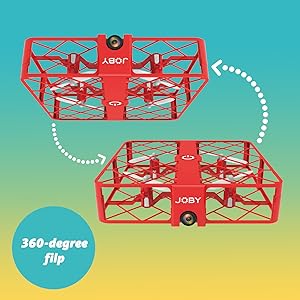
Image 3.1: Drone with its battery compartment open for installation.
3.2 Ngwa nwụnye na njikọ Wi-Fi
To utilize the HD camera and view ndu footage, download the dedicated drone control application on your smartphone (compatible with iPhone/Android). Refer to the packaging or a QR code on the drone for the specific app name.
- Power On Drone: Press the power button on the drone. The indicator lights will flash.
- Jikọọ na Wi-Fi: On your smartphone, go to Wi-Fi settings and connect to the drone's Wi-Fi network (usually named something like "JOBY_DRONE_XXXX").
- Mwepụta ngwa: Open the drone control app. You should see the live camera feed from the drone.
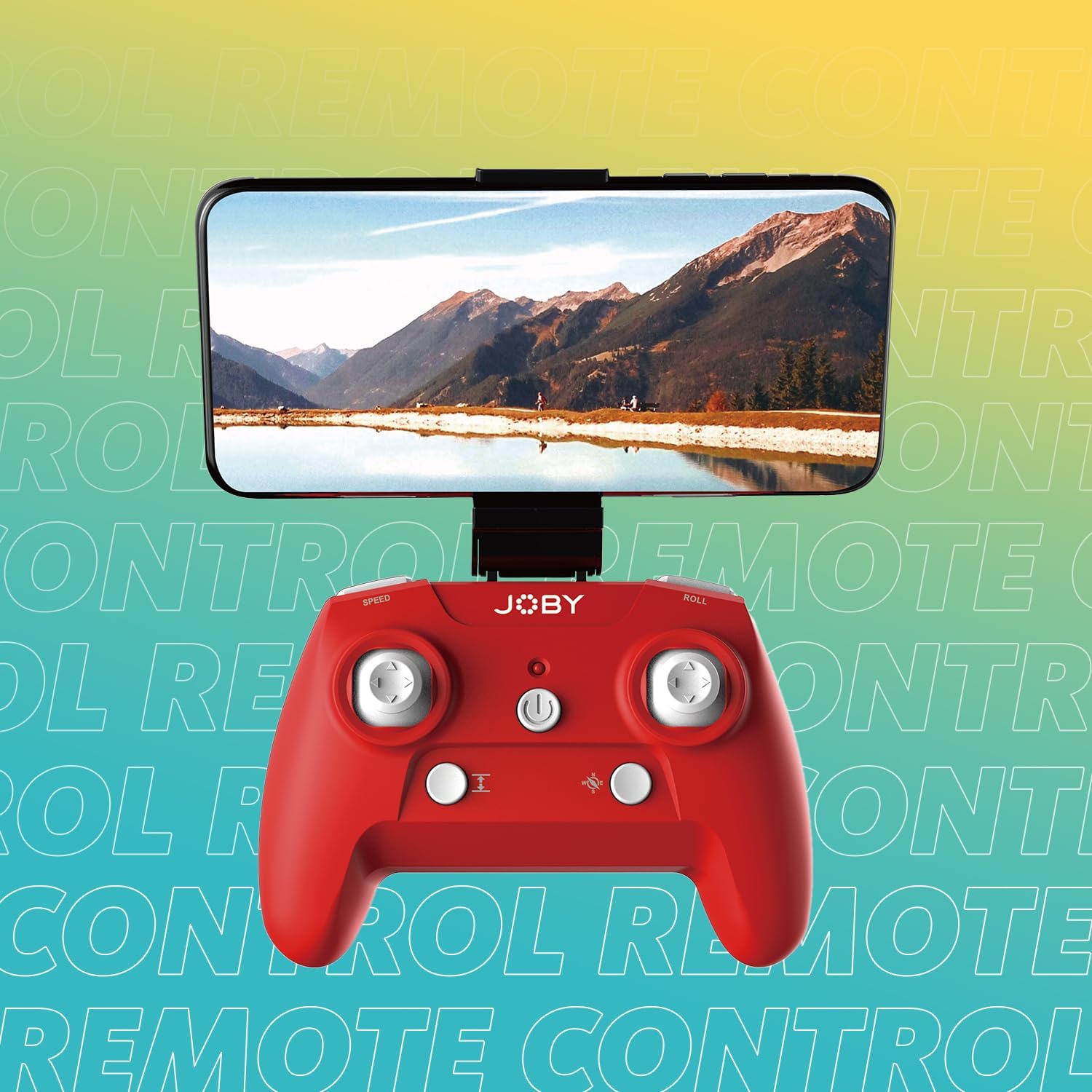
Image 3.2: Remote control with a smartphone attached, showing the live camera view.
4. Ntuziaka ọrụ
4.1 Ike na ijikọ
- Power On Drone: Press the power button on the drone. The lights will flash, indicating it's ready for pairing.
- Njikwa Ike: Pịa bọtịnụ ike na njikwa anya.
- Na-ejikọta: Push the left joystick (throttle) all the way up, then all the way down. The drone's lights will stop flashing and become solid, indicating successful pairing.
4.2 Ịkwaga na Ịda
- One-Button Takeoff: After pairing, press the dedicated one-button takeoff/landing button on the controller. The drone will automatically ascend to a stable hovering height.
- Ndabere Otu-Bọtịnụ: Press the same one-button takeoff/landing button during flight, and the drone will automatically descend and land.
- Throw to Launch: For experienced users, the drone can be gently tossed into the air after pairing, and it will automatically stabilize.
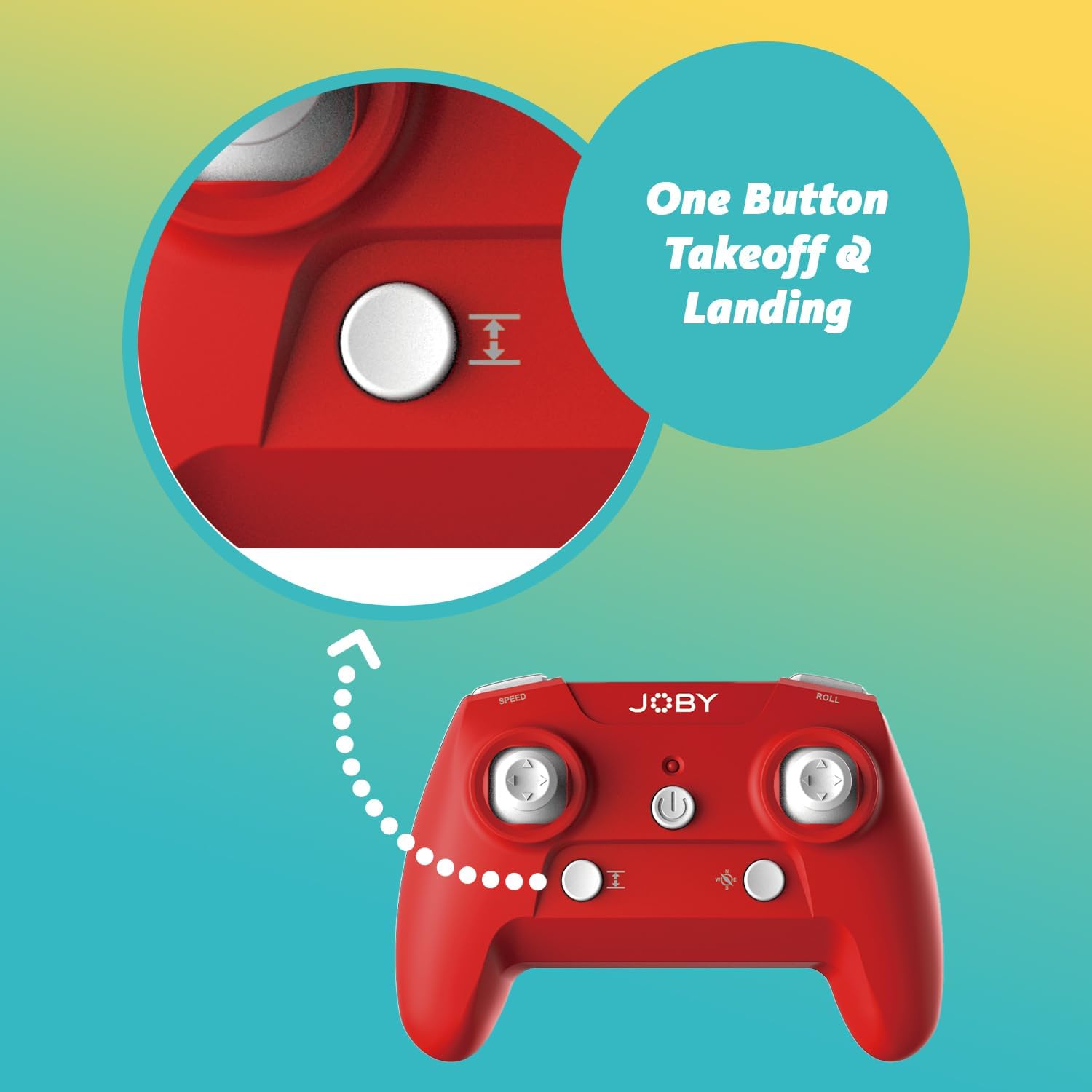
Image 4.1: Remote control highlighting the one-button takeoff/landing button.
4.3 Njikwa Ụgbọelu
Use the joysticks on the remote control to maneuver the drone:
- Joystick akaekpe (Trottle): Up/Down for ascend/descend; Left/Right for yaw (rotate).
- Joystick aka nri (Ntuziaka): Up/Down for forward/backward; Left/Right for left/right strafe.
Atụmatụ 4.4 Pụrụ Iche
- 360-Degree Flip: Press the dedicated "Flip" button on the controller, then push the right joystick in the desired direction to perform an aerial flip.
- Mberede: In case of an emergency, activate the emergency landing function (refer to controller button layout for specific button) to quickly bring the drone down safely.

Image 4.2: Visual representation of the 360-degree flip feature.
4.5 Igwefoto arụ ọrụ
The integrated HD camera captures 720p video and JPEG images. Control camera functions via the smartphone app:
- ese foto: Tap the camera icon in the app to take a still photograph.
- Ndekọ vidiyo: Tap the video icon to start recording. Tap again to stop.
- ViewMgbasa ozi: Access recorded photos and videos directly through the app's gallery.
Image 4.3: Detail of the drone's HD camera.
4.6 Vidiyo nkuzi
Video 4.4: This video demonstrates the unboxing, battery installation, pairing process, and various flight maneuvers of the JOBY Fly X Mini Drone, including indoor and outdoor flight examples.
5. Nlekọta
Regular maintenance ensures optimal performance and longevity of your drone:
- Nyocha igwe ihe Regularly check propellers for damage (cracks, bends). Replace any damaged propellers using the spare parts provided.
- Nhicha: Use a soft, dry cloth to clean the drone body and camera lens. Avoid using harsh chemicals or liquids.
- Nlekọta batrị: Store batteries in a cool, dry place. Do not overcharge or completely drain batteries. Remove batteries from the drone and controller during extended periods of non-use.
- Nchekwa: Store the drone in a safe place, away from direct sunlight and extreme temperatures.
6. Nchọpụta nsogbu
- Drone Anaghị arụ ọrụ: Gbaa mbọ hụ na chajịrị batrị zuru oke yana itinye ya nke ọma.
- Onye njikwa anaghị aza: Check controller batteries. Ensure the drone and controller are properly paired (refer to Section 4.1).
- Ụgbọelu Na-adịghị Akwụsi Ike: Perform a calibration (refer to the app or controller instructions for calibration steps). Check propellers for damage or obstructions.
- No Camera Feed/Poor Quality: Ensure your smartphone is connected to the drone's Wi-Fi network. Check for app updates. Ensure the camera lens is clean.
- Oge Njem Dị Mkpirikpi: Batteries may not be fully charged or may be nearing the end of their lifespan.
7. Nkọwapụta
| Njirimara | Nkọwa |
|---|---|
| Ụdị | Joby |
| Aha Nlereanya | Fly X Mini |
| Nọmba Nlereanya ihe | JB01966-BWW |
| Akụkụ | 5.12"L x 5.12"W x 1.18"H |
| Ibu Ibu | 2.24 ounces |
| Mkpebi ịse vidiyo | 720p |
| Mkpebi mmepụta vidiyo | 1280x720 pikselụ |
| Usoro Nseta vidiyo | MP4 |
| Ụdị onyonyo akwadoro | JPEG |
| Teknụzụ Njikọta | Wi-Fi |
| Teknụzụ njikwa anya | Wi-Fi |
| Oke kacha | 100 ụkwụ (ihe dị ka mita 30) |
| Batrị | 2 batrị lithium ion (gụnyere) |
| Ihe onwunwe | Plastic |
| Ọkwa nka | Onye mbido |
8. Akwụkwọ ikike na nkwado
For warranty information and customer support, please refer to the official Joby websaịtị ma ọ bụ kpọtụrụ ndị ahịa ha ozugbo. Debe ihe akaebe nke ịzụrụ ihe maka akwụkwọ ikike ọ bụla.
Ị nwere ike ịga na Joby Store on Amazon maka ozi ngwaahịa ọzọ na akụrụngwa nkwado.


