1. Okwu mmalite na gafereview
This manual provides instructions for the Manhattan Spanish Layout Wireless Keyboard and Optical Mouse Combo, Model 180955. This combo is designed to enhance your productivity and comfort with its reliable wireless connectivity and ergonomic features.
Enjoy comfortable and easy typing with the standard ergonomic keyboard design. The adjustable tilt mechanism provides comfortable typing positions, and the keyboard boasts a lifespan of 10,000,000 keystrokes. The optical mouse offers adjustable DPI settings (800/1200/1600) for precise control.
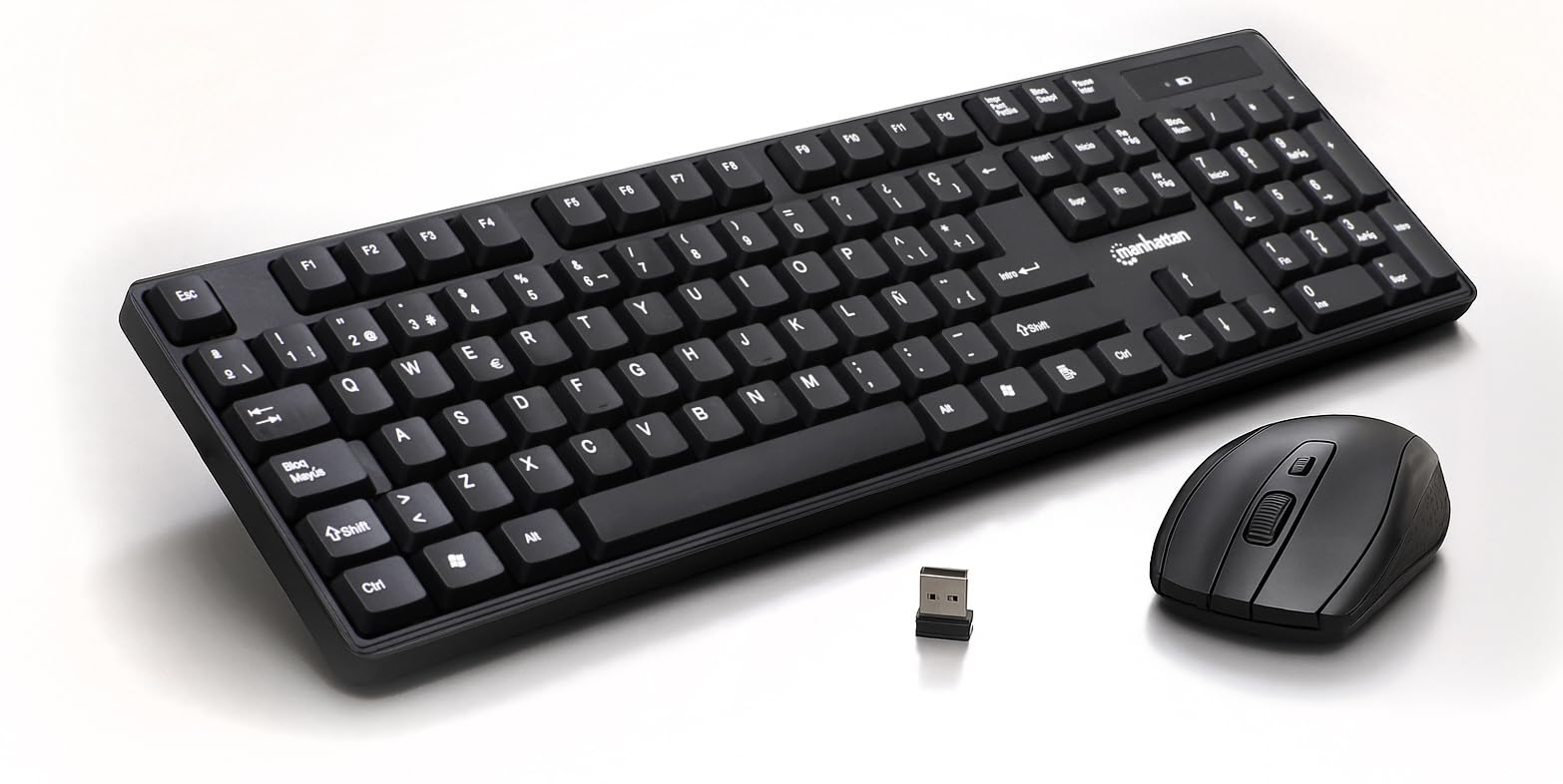
Figure 1: Manhattan Spanish Layout Wireless Keyboard and Mouse Combo
2. Ihe ngwugwu
Chọpụta na ihe niile dị na ngwugwu gị:
- Manhattan Spanish Layout Wireless Keyboard
- Manhattan Wireless Optical Mouse
- USB 2.4 GHz Receiver
- 2 AAA Batteries (for keyboard)
- 1 AA Battery (for mouse)
3. Nhazi ntuziaka
- Wụnye batrị:
- For the keyboard: Open the battery compartment on the underside of the keyboard and insert 2 AAA batteries, ensuring correct polarity.
- For the mouse: Open the battery compartment on the underside of the mouse and insert 1 AA battery, ensuring correct polarity.
- Jikọọ eriri USB: Locate an available USB port on your computer (laptop or desktop). Insert the 2.4 GHz USB receiver into the port.
- Ike Na Ngwaọrụ:
- For the keyboard: Locate the ON/OFF switch, usually on the top right edge or underside, and slide it to the 'ON' position.
- For the mouse: Locate the ON/OFF switch on the underside of the mouse and slide it to the 'ON' position.
- Njikọ akpaaka: The keyboard and mouse should automatically connect to your computer. No additional drivers are typically required for most operating systems.

Figure 2: Easy Setup with Batteries and USB Receiver
4. Ntuziaka ọrụ
4.1 Ọrụ ahụigodo
- Mpịnye ọkọlọtọ: Use the full-size Spanish layout keyboard for all your typing needs.
- Ahụigodo ọnụọgụ: The dedicated numeric keypad on the right allows for efficient data entry.
- Igodo mgbasa ozi: Utilize the function keys (F1-F12) for quick access to multimedia controls (e.g., volume, play/pause) and other shortcuts.
- Tilt nwere ike idozi: Flip out the integrated foldable supports on the underside of the keyboard to adjust the typing angle for maximum comfort.

Figure 3: Full-Size 104-Key Spanish Layout Keyboard

Figure 4: Keyboard LED Indicators and Numeric Keypad

Figure 5: Adjustable Tilt Legs for Ergonomic Typing
4.2 arụ ọrụ òké
- Obere eji: The optical mouse features standard left, right, and scroll wheel buttons.
- Ndozi DPI: Use the DPI button (often located near the scroll wheel) to cycle through 800, 1200, and 1600 DPI settings to adjust cursor sensitivity.

Figure 6: Wireless Optical Mouse with Adjustable DPI
5. Atụmatụ
- Ikuku Njikọ: 2.4 GHz RF wireless technology with a range of up to 25 feet.
- Spanish Layout: Full-size keyboard with a dedicated numeric keypad and Spanish character set.
- Nhazi Ergonomic: Comfortable typing experience with adjustable tilt legs.
- Njikwa ike akpaaka: Conserves battery life by entering sleep mode when idle.
- Ihe owuwu na-adịgide adịgide: Keyboard designed for a lifespan of 10,000,000 keystrokes.
- Adjustable Mouse Sensitivity: Optical mouse with 800/1200/1600 DPI settings.
- Ndakọrịta sara mbara: Works with most computer operating systems including Windows XP/Vista/7/8.1/10 and Mac OS.
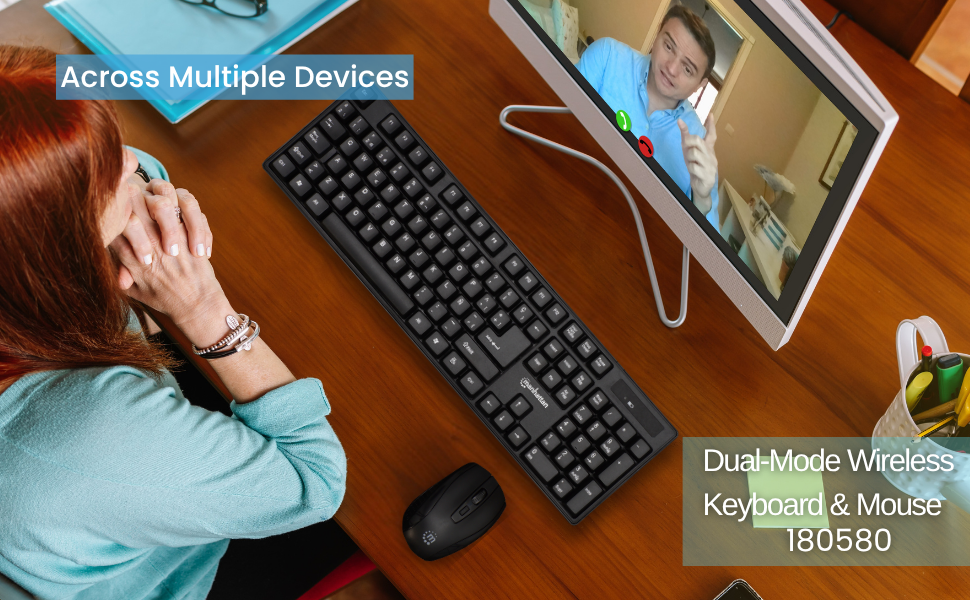
Figure 7: Maximum Compatibility with various Operating Systems
6. Nlekọta
- Nhicha: Jiri ákwà dị nro ma kpọrọ nkụ hichaa elu nke ahụigodo na òké. Maka nhicha miri emi, jiri obere d hichaa elu nke ahụigodo na òké.amp cloth can be used, ensuring no liquid enters the device.
- Ngbanwe batrị: Replace batteries when performance degrades. Refer to Section 3.1 for battery installation.
- Nchekwa: When not in use for extended periods, turn off both the keyboard and mouse to conserve battery life. Store in a cool, dry place.
7. Nchọpụta nsogbu
- Enweghị njikọ/anaghị aza:
- Hụ na e tinyere ihe nnata USB n'ime ọdụ ụgbọ USB na-arụ ọrụ na kọmputa gị nke ọma.
- Check that both the keyboard and mouse are switched 'ON'.
- Replace the batteries in both devices with fresh ones.
- Bugharịa ahụigodo na òké nso na ihe nnata USB iji wepụ nsogbu dị na oke.
- Gbalịa itinye eriri USB n'ọdụ ụgbọ mmiri USB dị iche na kọmputa gị.
- Lagging/Delayed Response:
- Belata anya dị n'etiti ngwaọrụ na ihe nnata USB.
- Avoid using the devices near strong electromagnetic interference sources (e.g., other wireless devices, large metal objects).
- Mwụlikwa/Mmegharị ihe nrụgharị òké:
- Hụ na ejiri òké ahụ mee ihe n'elu dị ọcha, nke na-anaghị egosipụta ìhè.
- Adjust the DPI setting of the mouse to a lower sensitivity if needed.
8. Nkọwapụta
- Akụkụ ngwaahịa: 17.32 x 5.12 x 0.87 sentimita asatọ
- Ibu ihe: 1.25 pound
- Onye nrụpụta: MANHATTAN
- Teknụzụ Njikọta: RF (2.4GHz)
- Ntọala kiiboodu: Spanish
- Keyboard Lifespan: 10,000,000 mkpịsị ugodi
- Òké DPI: Adjustable 800/1200/1600
- Batrị: 2 AAA (keyboard), 1 AA (mouse)
- Agba: Nwa
- Ihe: Plastic
- Ngwa dakọtara: Laptọọpụ, PC
- OS dakọtara: Windows XP/Vista/7/8.1/10, Mac OS
9. Akwụkwọ ikike na nkwado
This Manhattan product comes with a 3-afọ akwụkwọ ikike when purchased from the manufacturer or an authorized dealer. For technical support, troubleshooting assistance, or warranty claims, please contact your authorized dealer or visit the official MANHATTAN websaịtị maka akụrụngwa nkwado.
10. Ngwaahịa gafereview Vidiyo
Lelee ngwaahịa gọọmentị aview video for a visual guide to the features and functionality of the Manhattan Wireless Keyboard and Mouse Combo.
Vidiyo 1: Ngwaahịa gafereviewVidiyo a na-enye nkọwa zuru okeview of a wireless keyboard and mouse combo, demonstrating its features and ease of use.


