1. Okwu mmalite
The FLYINGVOICE FTA5102E2 is a high-performance Analog Telephone Adapter (ATA) designed to facilitate the transition from traditional analog telephony to Voice over IP (VoIP) for small to medium businesses (SMBs). This device offers robust features for reliable and cost-effective communication.

Figure 1: FLYINGVOICE FTA5102E2 Analog Telephone Adapter. This image shows the top-front view of the black adapter with green indicator lights for FXS1, FXS2, WAN, LAN1, LAN2, and PWR.
Atụmatụ gụnyere:
- Cost-Effective VoIP Solution: Supports dual SIP lines, T.38, T.30, and G.711 fax standards, reducing communication expenses.
- Arụmọrụ emelitere: Features a 38% faster processing CPU and double the flash memory for improved stability and advanced VoIP functionalities.
- Simple Deployment: Operates as a stand-alone device, requiring no PC for internal calls, ensuring straightforward setup and integration.
- Ndakọrịta sara mbara: Supports SIP V2 protocol, ensuring compatibility with most VoIP service providers.
- Njikọ na-agbanwe agbanwe: Equipped with 2 FXS ports for analog phones/fax machines and 2 LAN ports for network devices.
Video 1: Introduction to the FLYINGVOICE FTA5102E2 High-performance 2 FXS VoIP Adapter. This video provides an overview of the adapter's features and capabilities.
2. Ihe ngwugwu
Chọpụta na ihe niile dị na ngwugwu gị:
- 1x FLYINGVOICE FTA5102E2 Analog Telephone Adapter
- 2x RJ11 Cables
- 1x Ntuziaka nwụnye ngwa ngwa
- 1x Ihe nkwụnye ọkụ
- 1x RJ45 Ethernet USB

Figure 2: Contents of the FTA5102E2 package. This image displays the FTA5102E2 adapter along with two RJ11 cables, a quick installation guide, a power adapter, and an RJ45 Ethernet cable.
3. Ntọala na nwụnye
Follow these steps to set up your FTA5102E2 adapter:
- Jikọọ na netwọk:
Connect one end of the provided RJ45 Ethernet cable to the WAN port (blue) on the back of the FTA5102E2 and the other end to your router or modem's LAN port.
Ọgụgụ 3: N'azụ view of the FTA5102E2 showing the FXS, WAN, LAN, RST, and DC ports. The WAN port is highlighted in blue.
- Connect Analog Devices:
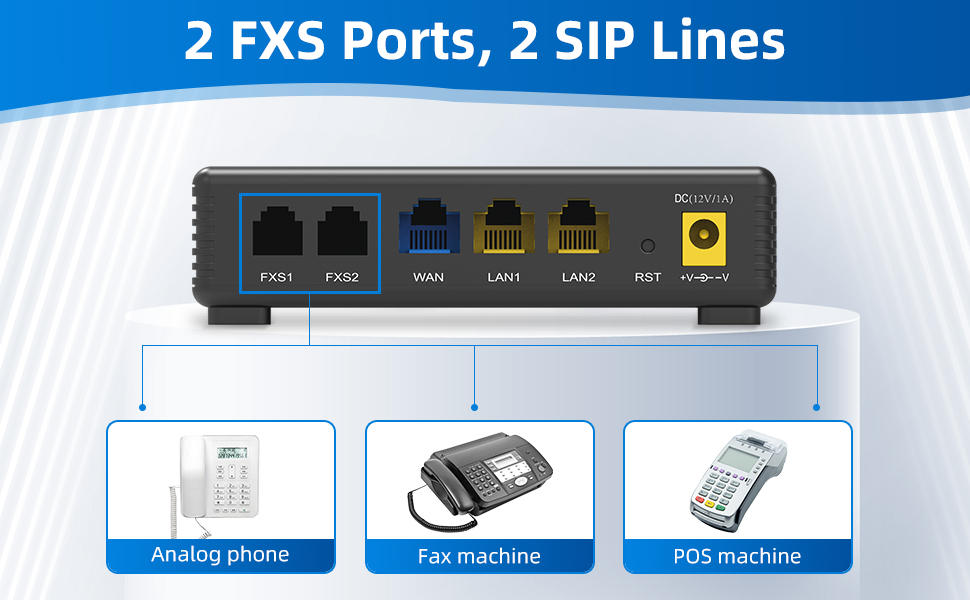
Connect your analog phone(s) or fax machine(s) to the FXS1 and/or FXS2 ports (black) on the back of the FTA5102E2 using the RJ11 cables.
Ọgụgụ 4: N'azụ view of the FTA5102E2 showing the FXS ports. These ports are used to connect analog phones, fax machines, or POS machines.
- Connect LAN Devices (Optional):
If needed, connect additional network devices like computers or printers to the LAN1 and LAN2 ports (yellow) using Ethernet cables.

Ọgụgụ 5: N'azụ view of the FTA5102E2 highlighting the LAN ports. These ports can be used to connect devices such as computers, printers, or IPTVs.
- Ike Na:
Connect the power adapter to the DC 12V/1A port on the back of the FTA5102E2 and then plug it into a power outlet. The PWR indicator light on the front panel will illuminate.
Ihe ndetu dị mkpa:
The FTA5102E2 is compatible with most VoIP service providers. However, it is NOT compatible with AT&T, Verizon, Magic Jack, Ooma, or Google Voice. Please verify compatibility with your service provider if they are not listed.
4. Ntuziaka ọrụ
4.1 Ịkpọ na ịnata oku
Once the adapter is successfully configured with your VoIP service provider, you can use your connected analog phone as usual:
- Ka ịkpọ oku: Pick up the handset, wait for the dial tone, and dial the desired phone number.
- Iji nweta oku: The phone will ring. Pick up the handset to answer.
4.2 Three-Way Conference
The FTA5102E2 supports 3-way conference calls. Consult your VoIP service provider's specific instructions for initiating a three-way conference, as the exact dialing sequence may vary.

Figure 6: Illustration of a three-way audio conference call, demonstrating the adapter's capability to support multiple participants.
4.3 Fax Over IP (FoIP)
The FTA5102E2 supports T.38, T.30, and G.711 fax standards, allowing you to send and receive faxes over your VoIP connection using a connected fax machine.

Figure 7: Visual representation of the adapter supporting T.38 and T.30 fax protocols, indicating its compatibility with fax machines for reliable fax over IP.
5. Nlekọta
To ensure optimal performance and longevity of your FTA5102E2 adapter:
- Keep the device in a cool, dry place, away from direct sunlight and excessive heat.
- Avoid exposing the device to water or high humidity.
- Jiri akwa dị nro hichaa mpụta. Ejila ihe nhicha mmiri ma ọ bụ ikuku ikuku.
- Ensure proper ventilation by not blocking the vents on the device.
- Periodically check for firmware updates from the FLYINGVOICE websaịtị iji hụ na atụmatụ kachasị ọhụrụ na ihe nchekwa nchekwa.
5.1 Njikwa anya
The FTA5102E2 supports advanced management protocols such as TR-069 and SNMP, allowing for unified deployment and centralized management by network administrators.

Figure 8: Depiction of easy management capabilities, showing a desktop and laptop with "TR-069" and "SNMP" displayed, indicating support for these remote management protocols.
6. Nchọpụta nsogbu
If you encounter issues with your FTA5102E2, refer to the following common problems and solutions:
| Nsogbu | Ihe nwere ike ime | Ngwọta |
|---|---|---|
| No dial tone on analog phone. |
|
|
| Enweghị ike ịkpọ ma ọ bụ nata oku. |
|
|
| Poor call quality (choppy audio, echo). |
|
|
If the issue persists, please refer to the official FLYINGVOICE support resources or contact your VoIP service provider.
7. Nkọwapụta
| Njirimara | Nkọwa |
|---|---|
| Nọmba nlereanya | FTA5102E2 |
| FXS ọdụ ụgbọ mmiri | 2 |
| Ahịrị SIP | 2 |
| ọdụ ụgbọ mmiri Ethernet | 1x WAN, 2x LAN (10/100 Mbps) |
| Nkwado faksị | T.38, T.30, G.711 |
| Oku ọgbakọ | 3-ụzọ |
| Management Protocols | TR-069, SNMP |
| Akụkụ (L x W x H) | 4.72 x 3.15 x 1.26 sentimita asatọ |
| Ibu | 14.4 ounces |
| Agba | Nwa |
| Ntinye ike | DC 12V/1A |
8. Akwụkwọ ikike na nkwado
For warranty information and technical support, please refer to the official FLYINGVOICE websaịtị ma ọ bụ kpọtụrụ ndị ahịa ha ọrụ. Debe akwụkwọ nnata ịzụrụ maka akwụkwọ ikike.
You can also find additional resources and a PDF user guide at the following link: