1. Okwu mmalite
The FLYINGVOICE FTA5120 is a high-performance 2 FXO VoIP adapter designed to provide reliable voice communication and data connectivity. This device integrates multiple functions, including support for two Public Switched Telephone Network (PSTN) lines, high-performance Network Address Translation (NAT) routing, and the ability to function as a small network switch.
Atụmatụ gụnyere:
- 2 FXO Ports: Connects to two PSTN lines for traditional telephone services.
- High-Performance NAT Routing: Manages network traffic efficiently.
- Small Switch Functionality: Provides internal Internet access for connected devices.
- Caller Identification (SAS): Supports call type identification to manage toll calls.
- Stand-alone Operation: Functions independently without requiring a PC for internal calls.
- Ndakọrịta sara mbara: Based on SIP V2 protocol, ensuring compatibility with most service providers.
- Njikwa dị mfe: Equipped with advanced management protocols such as SNMP and TR069 for unified deployment and centralized management.
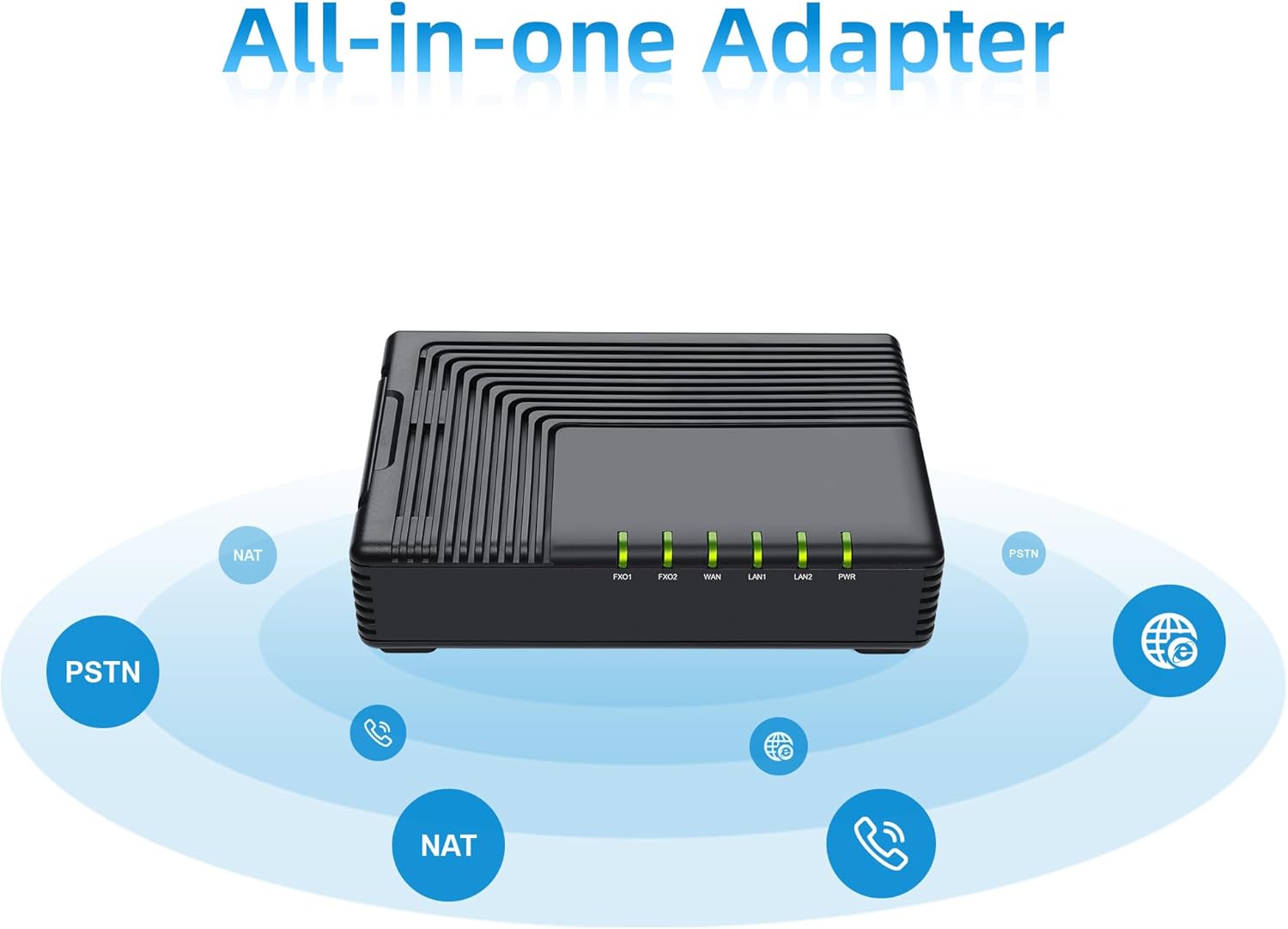
Figure 1: The FLYINGVOICE FTA5120 functions as an all-in-one adapter, supporting PSTN calls and network routing.

Figure 2: The FTA5120 operates as a stand-alone device, enabling convenient and flexible Internet calls without a connected PC.
2. Ntuziaka Nhazi
Follow these steps to set up your FTA5120 VoIP adapter:
- Njikọ Ike: Connect the provided power adapter to the DC 12V/1A port on the rear panel of the FTA5120 and plug it into a power outlet. The Power LED on the front panel should illuminate.
- Connect to Network (WAN): Connect an Ethernet cable from your broadband modem or router to the blue WAN port on the FTA5120. The WAN LED should light up, indicating network activity.
- Jikọọ na netwọkụ mpaghara (LAN): If you wish to connect local devices (e.g., computers, switches) to the FTA5120 for Internet access, use Ethernet cables to connect them to the yellow LAN1 or LAN2 ports. The corresponding LAN LEDs will indicate activity.
- Connect to PSTN Lines (FXO): Connect your analog telephone lines (from your telephone wall jacks) to the FXO1 and FXO2 ports on the FTA5120. These ports allow the adapter to interface with traditional phone services.
- Nhazi izizi: Nweta ngwaọrụ web-based management interface by typing its IP address into a web browser on a computer connected to the LAN port. Refer to the device's default IP address and login credentials provided in the separate Quick Installation Guide or on the device label.

Figure 3: Rear panel of the FTA5120 showing FXO1, FXO2, WAN, LAN1, LAN2, RST, and DC 12V/1A ports.
3. Ntuziaka ọrụ
Once the FTA5120 is set up and configured, you can begin using its features:
- Ịkpọ na ịnata oku: The FTA5120 allows you to make and receive calls over your connected PSTN lines. Ensure your analog phones are connected to the appropriate FXS ports (if available on a different model, this model has FXO for PSTN connection).
- Caller Identification (SAS): The device supports SAS (Stand-Alone Survivability) and call type identification. This feature can identify toll calls, and with proper configuration, internal lines can be prevented from receiving charged calls. This enhances call management and cost control.
- NAT Routing: The high-performance NAT routing function enables efficient management of network traffic, ensuring smooth data flow for all connected devices.
- Small Switch Functionality: Utilize the LAN ports to connect multiple devices to your network, effectively expanding your local network capabilities.
- SIP V2 Compatibility: The FTA5120 is compatible with most SIP V2 service providers, offering flexibility in choosing your VoIP service.
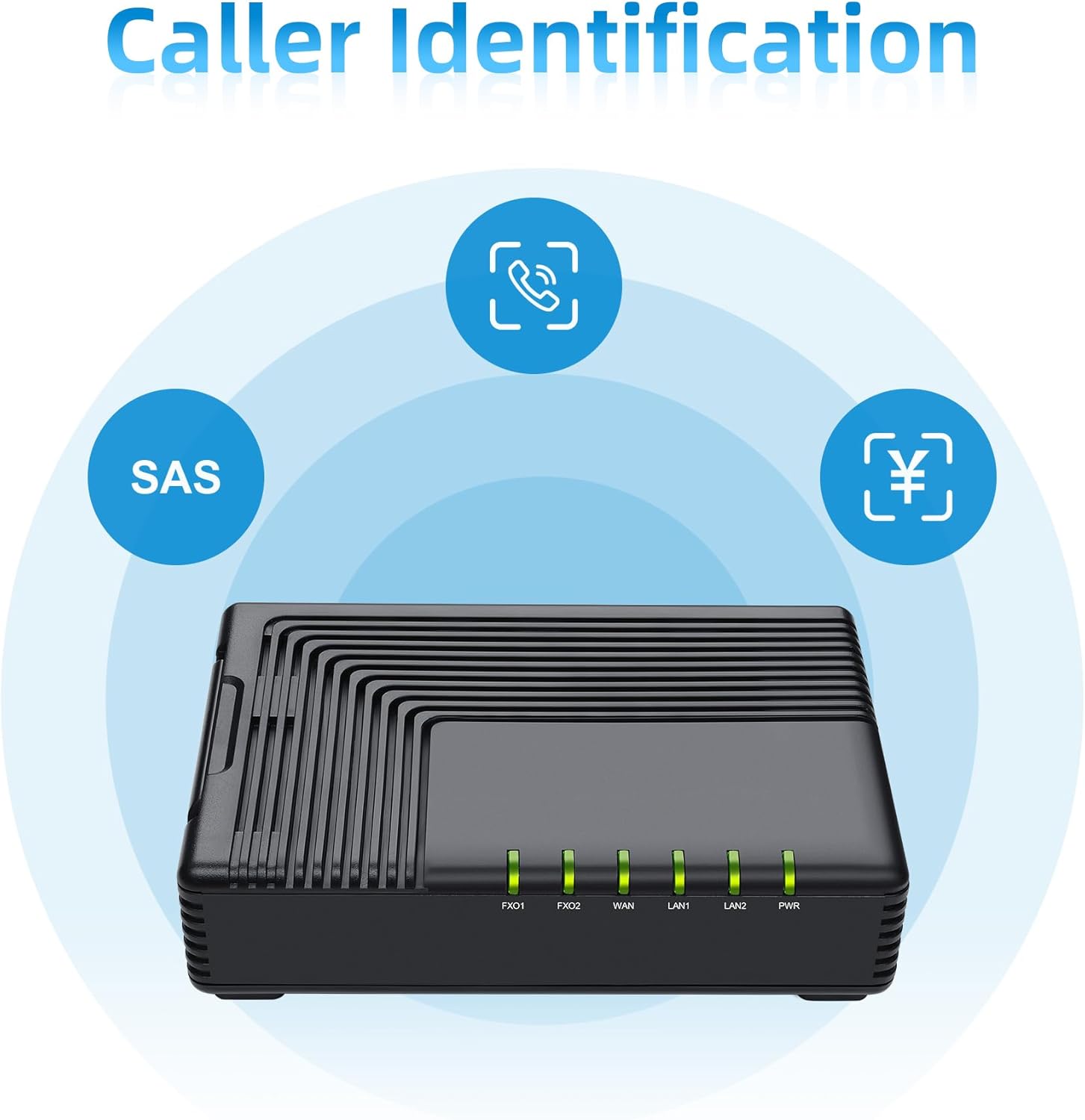
Figure 4: The FTA5120's caller identification feature, including SAS, helps manage incoming calls.

Figure 5: The FTA5120 supports SIP V2 for broad compatibility with VoIP service providers.

Figure 6: The FTA5120 features easy management through TR069 and SNMP protocols.
4. Nlekọta
To ensure the longevity and optimal performance of your FTA5120 adapter, consider the following maintenance tips:
- Debe Ọcha: Regularly wipe the device with a soft, dry cloth. Avoid using liquid cleaners or abrasive materials.
- Igwe ikuku: Ensure the device is placed in a well-ventilated area to prevent overheating. Do not block the ventilation slots.
- Mmelite femụwe: Periodically check the FLYINGVOICE official website for firmware updates. Keeping the firmware updated can improve performance, add new features, and enhance security.
- Ọnọdụ gburugburu: Operate the device within recommended temperature and humidity ranges. Avoid exposure to extreme temperatures, direct sunlight, or moisture.
5. Nchọpụta nsogbu
If you encounter issues with your FTA5120, try the following troubleshooting steps:
- Enweghị ike:
- Gbaa mbọ hụ na ejikọrọ ihe nkwụnye ọkụ ahụ na ngwaọrụ yana oghere ọkụ na-arụ ọrụ.
- Nyochaa na ntinye ọkụ na-arụ ọrụ.
- Enweghị njikọ netwọkụ:
- Check that Ethernet cables are securely connected to the WAN and LAN ports.
- Verify your modem/router is working correctly and providing Internet access.
- Restart the FTA5120 by unplugging and re-plugging the power adapter.
- Enweghị ike ịkpọ/nata oku:
- Ensure PSTN lines are properly connected to the FXO ports.
- Verify your VoIP service provider settings are correctly configured in the device's web interface.
- Check the status of the FXO LEDs on the device.
- Tọgharia ngwaọrụ: If issues persist, you may need to reset the device to factory defaults.
- Locate the RST button on the rear panel (often a small pinhole).
- With the device powered on, use a paperclip or similar pointed object to press and hold the RST button for approximately 5-10 seconds until the LEDs flash.
- Ịdọ aka ná ntị: Resetting the device will erase all custom configurations. You will need to reconfigure it after a reset.
6. Nkọwapụta
| Njirimara | Nkọwa |
|---|---|
| Nọmba nlereanya | FTA5120 |
| Akụkụ ngwaahịa | 4.72 x 3.15 x 1.26 sentimita asatọ |
| Ibu Ibu | 14.4 ounces |
| Ngwaọrụ Akụrụngwa | Ethernet |
| Agba | Nwa |
| Protocol Njikọ Data | Ethernet |
| Onye nrụpụta | ỤFỌDỤ NA-efe efe |
7. Product Video Overview
Video 1: An introduction to the FLYINGVOICE FTA5120 High-performance 2 FXO VoIP Adapter, highlighting its features and connectivity options.
8. Akwụkwọ ikike na nkwado
For warranty information and technical support, please refer to the documentation included with your product or visit the official FLYINGVOICE website. Contact information for customer service is typically available on the manufacturer's support pages.


