1. Okwu mmalite
Thank you for choosing the ZEBRONICS K4000MW Wireless Keyboard. This manual provides essential information for setting up, operating, maintaining, and troubleshooting your new keyboard. The K4000MW offers versatile connectivity options, including 2.4 GHz wireless and dual Bluetooth, making it compatible with a wide range of devices such as laptops, desktops, tablets, and smartphones. Its compact design and integrated multimedia keys enhance productivity and user convenience.

Foto 1: Elu-ala view of the ZEBRONICS K4000MW Wireless Keyboard, showcasing its compact layout and black finish.
2. Nhazi
Ihe ngwugwu 2.1
- ZEBRONICS K4000MW Wireless Keyboard
- USB Nano Receiver (for 2.4 GHz connection)
- Akwụkwọ ntuziaka onye ọrụ
2.2 Ntinye batrị
- Chọta ebe batrị dị n'okpuru ala ahụigodo.
- Mepee mkpuchi nke batrị batrị.
- Insert the required batteries (not specified in JSON, typically AA or AAA) according to the polarity markings.
- Mechie mkpuchi nke batrị batrị nke ọma.
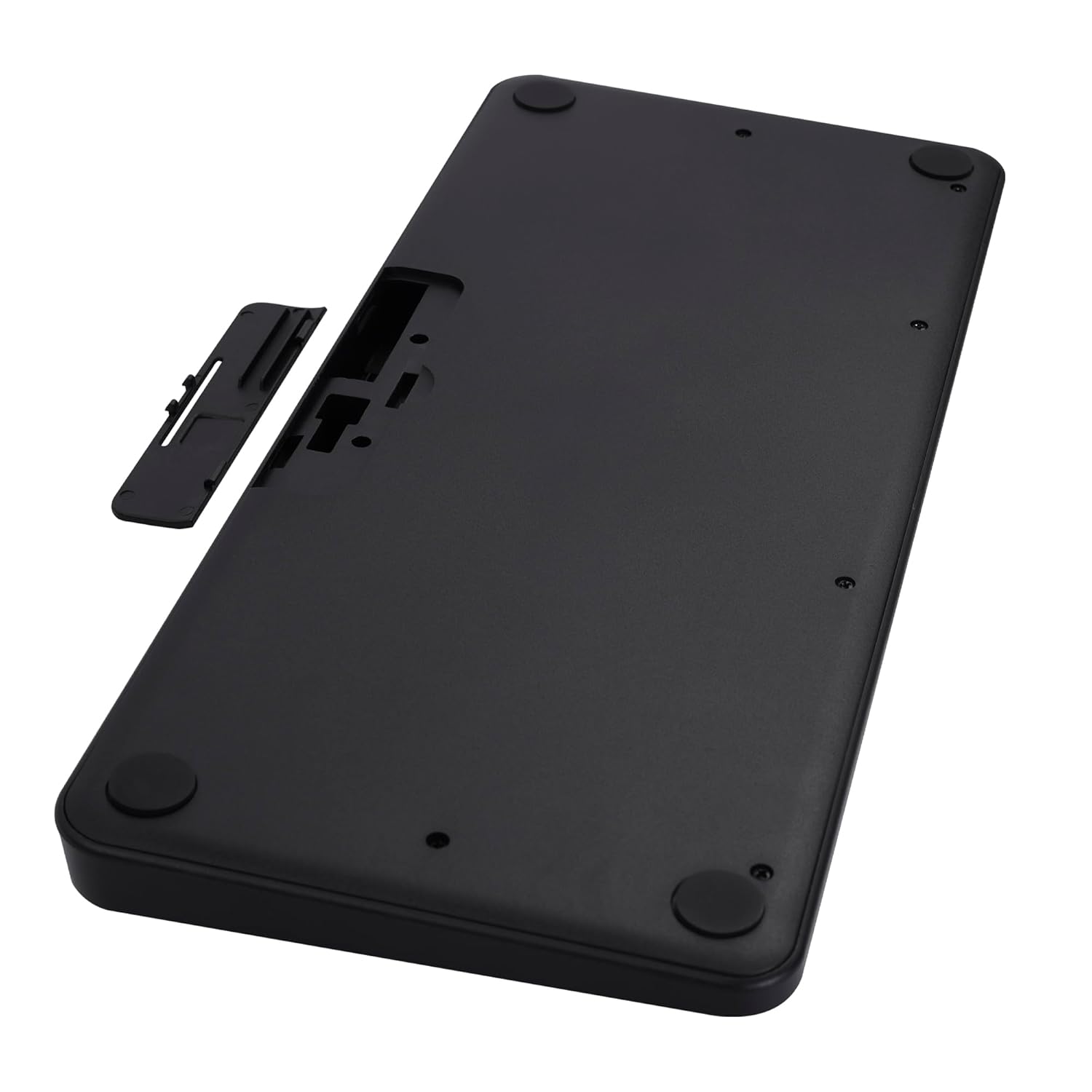
Image 2: The underside of the keyboard, showing the battery compartment and the slot for the USB nano receiver.
2.3 Ijikọ site na 2.4 GHz Wireless
- Remove the USB nano receiver from its storage slot in the battery compartment.
- Plug the nano receiver into an available USB port on your computer or compatible device.
- The keyboard should automatically connect. The 2.4G LED indicator on the keyboard will illuminate briefly to confirm connection.
2.4 Jikọọ site na Bluetooth
The keyboard supports up to two Bluetooth connections (BT1 and BT2).
- Pairing for BT1:
a. Pịa ma jide Fn + BT1 keys simultaneously for 3-5 seconds until the BT1 LED indicator starts blinking rapidly.
b. On your device (laptop, tablet, smartphone), enable Bluetooth and search for available devices.
c. Select "ZEB-K4000MW" from the list of devices to pair.
d. Once paired, the BT1 LED indicator will stop blinking and remain solid for a few seconds. - Pairing for BT2:
a. Follow the same steps as for BT1, but press and hold Fn + BT2 igodo.
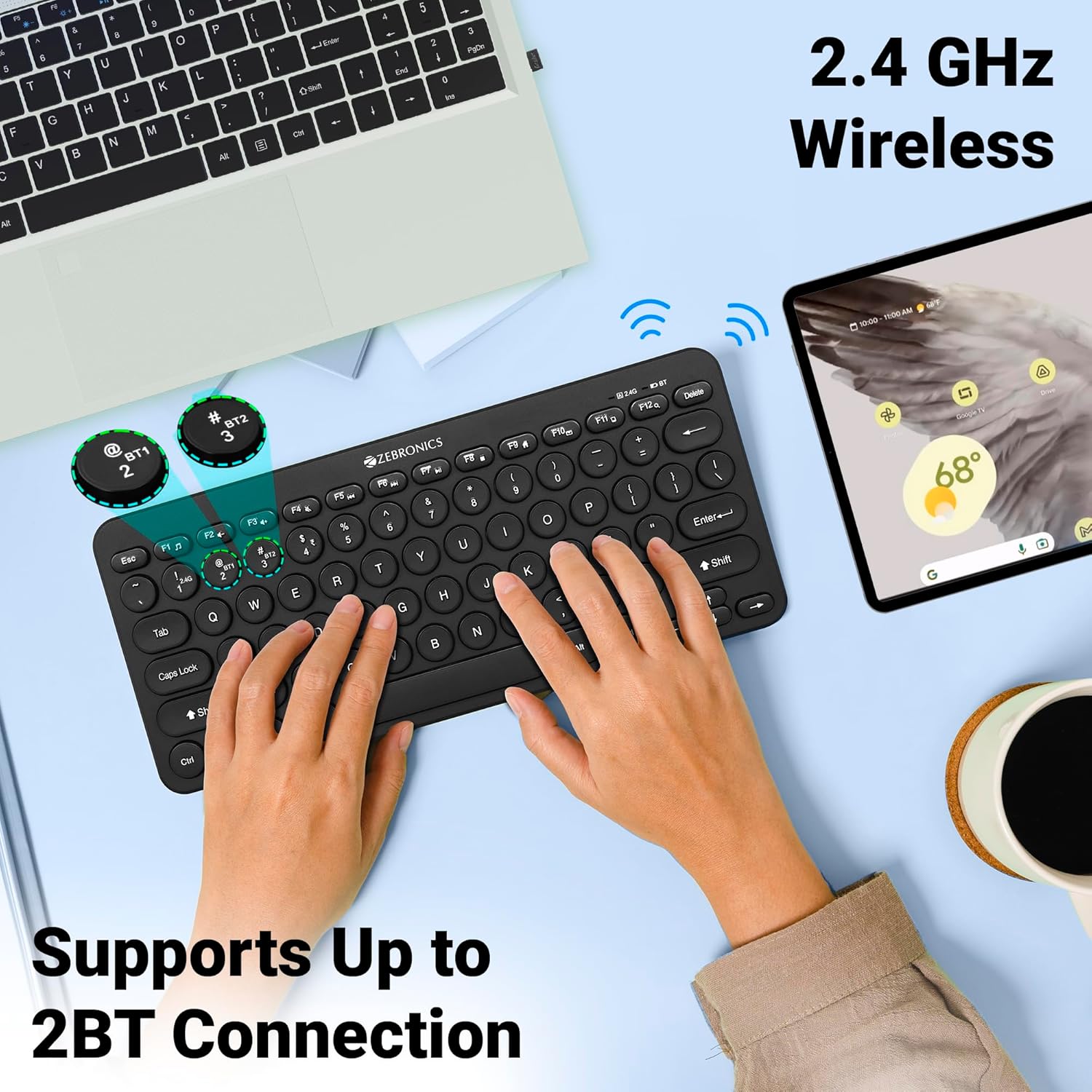
Image 3: The keyboard in use, highlighting the 2.4 GHz wireless and dual Bluetooth connection capabilities with LED indicators.
2.5 Ịgbanwe n'etiti ngwaọrụ
Ka ịgbanwee n'etiti ngwaọrụ ejikọrọ:
- Pịa Fn + 2.4G to switch to the device connected via the 2.4 GHz nano receiver.
- Pịa Fn + BT1 to switch to the device paired with Bluetooth 1.
- Pịa Fn + BT2 to switch to the device paired with Bluetooth 2.
3. Na-arụ ọrụ ahụigodo
3.1 Mpịnye isi
The keyboard features 78 UV-coated keys designed for comfortable and efficient typing. The layout includes standard alphanumeric keys, function keys, and navigation keys.
3.2 igodo mgbasa ozi
The keyboard integrates 12 multimedia keys (F1-F12) for quick access to media controls and other functions. To use these functions, press the Fn igodo n'otu oge yana igodo ọrụ achọrọ.
- Fn+F1: Ihe ọkpụkpọ mgbasa ozi
- Fn+F2: Mpịakọta ọnụ
- Fn+F3: Elu elu
- Fn+F4: Ogbi
- Fn+F5: Egwu gara aga
- Fn+F6: Gwuo/kwụsịtụ
- Fn+F7: Track na-esote
- Fn+F8: Kwụsị
- Fn+F9: Web Ihe nchọgharị
- Fn+F10: Email
- Fn+F11: Kọmputa m
- Fn+F12: Ihe mgbako
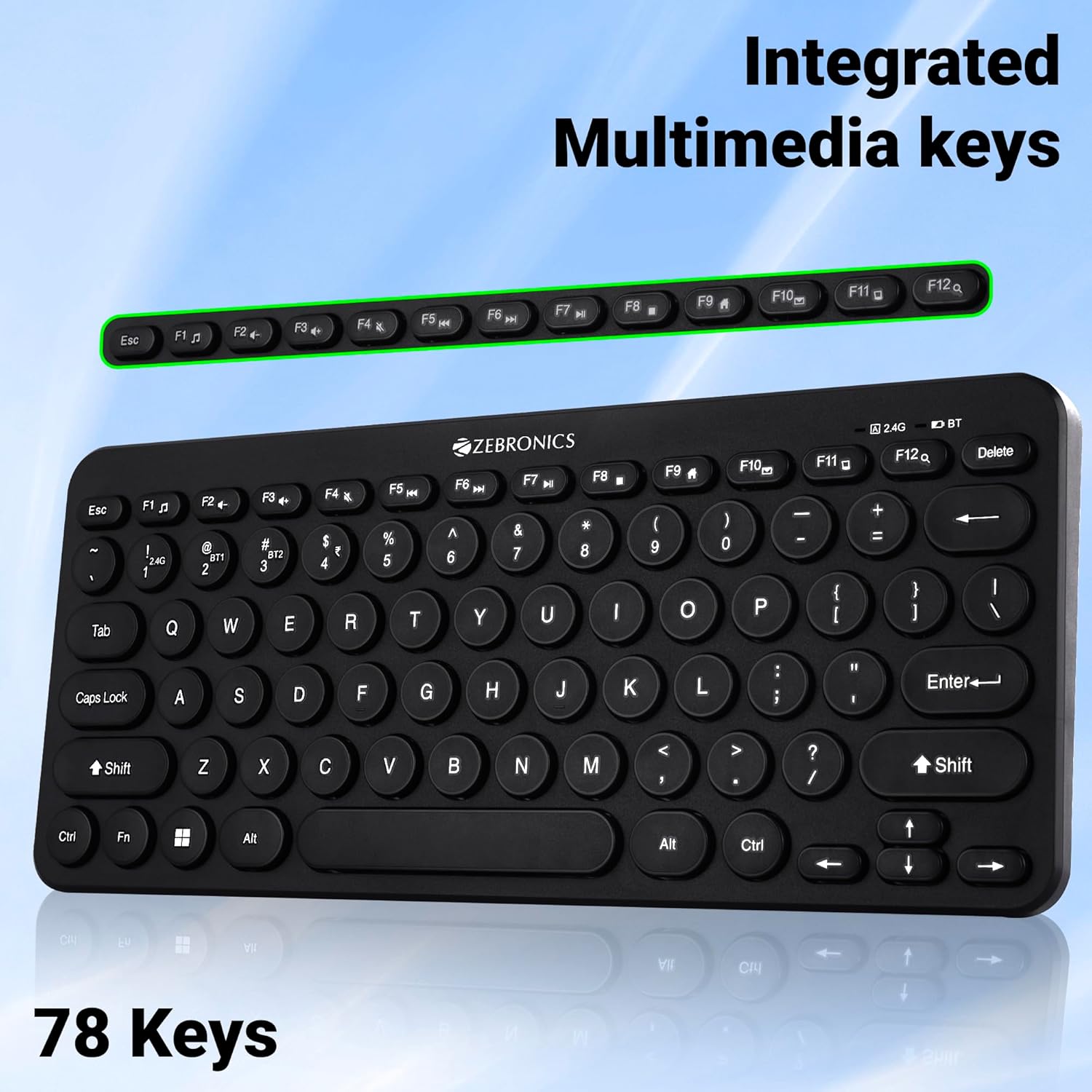
Image 4: The keyboard with the row of function keys (F1-F12) highlighted, indicating their integrated multimedia capabilities.
3.3 Rupee Key
The keyboard includes a dedicated Rupee key, indicating regional inclusivity for users.
3.4 LED egosi
The keyboard features LED indicators to provide status information:
- 2.4G LED: Indicates 2.4 GHz wireless connection status.
- BT1/BT2 LED: Indicates Bluetooth connection status for BT1 or BT2.
- LED mkpọchi mkpuchi: Illuminates when Caps Lock is active.
- LED batrị dị ala: Flashes or changes color to indicate low battery power.
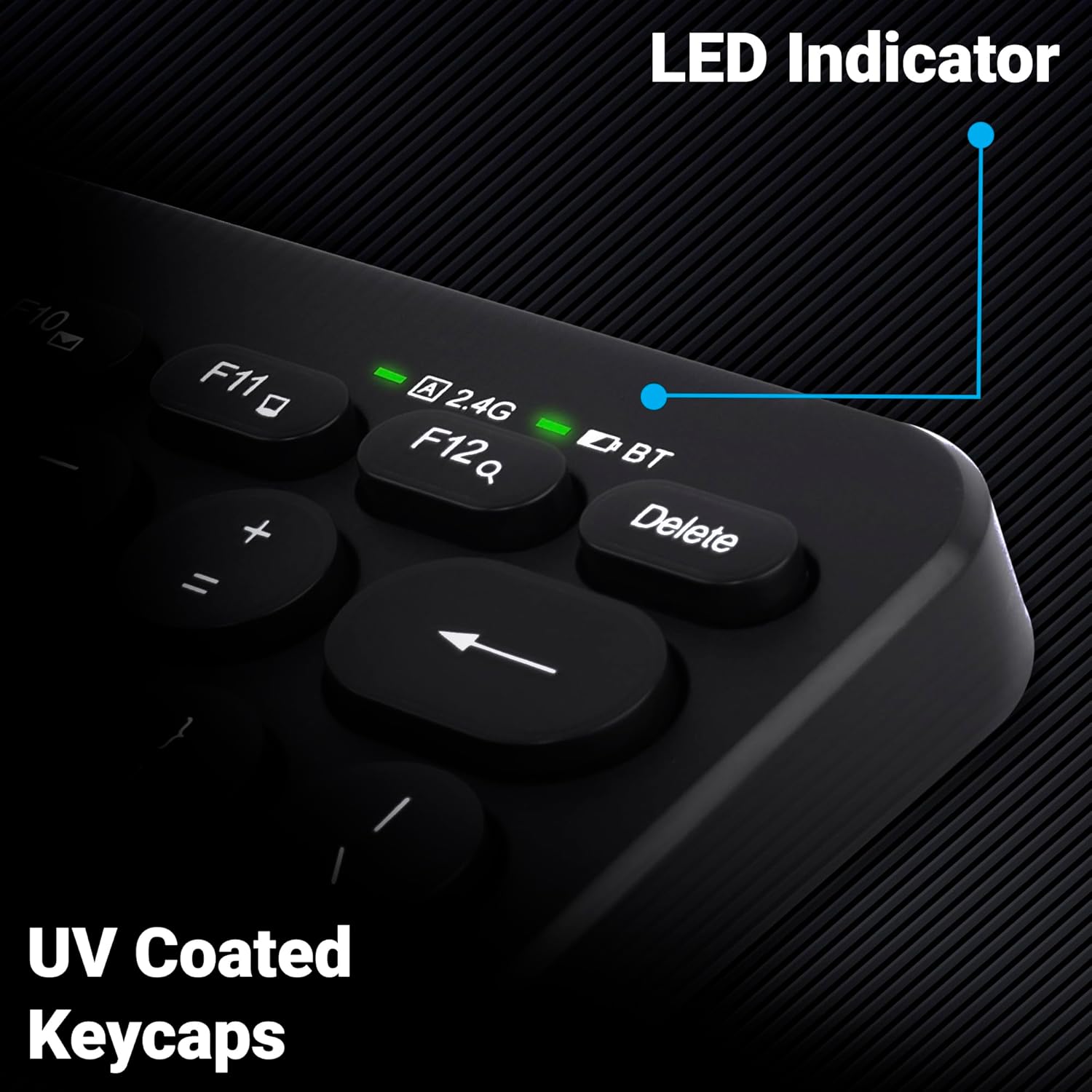
Foto 5: nso nso view of the keyboard's top right corner, showing the LED indicators for 2.4G, BT, and Caps Lock, along with the UV-coated keycaps.
3.5 Ngwa ndakọrịta
The K4000MW keyboard is designed for broad compatibility, integrating seamlessly with:
- Laptọọpụ
- Desktọpụ
- Mbadamba ụrọ
- Smartphones
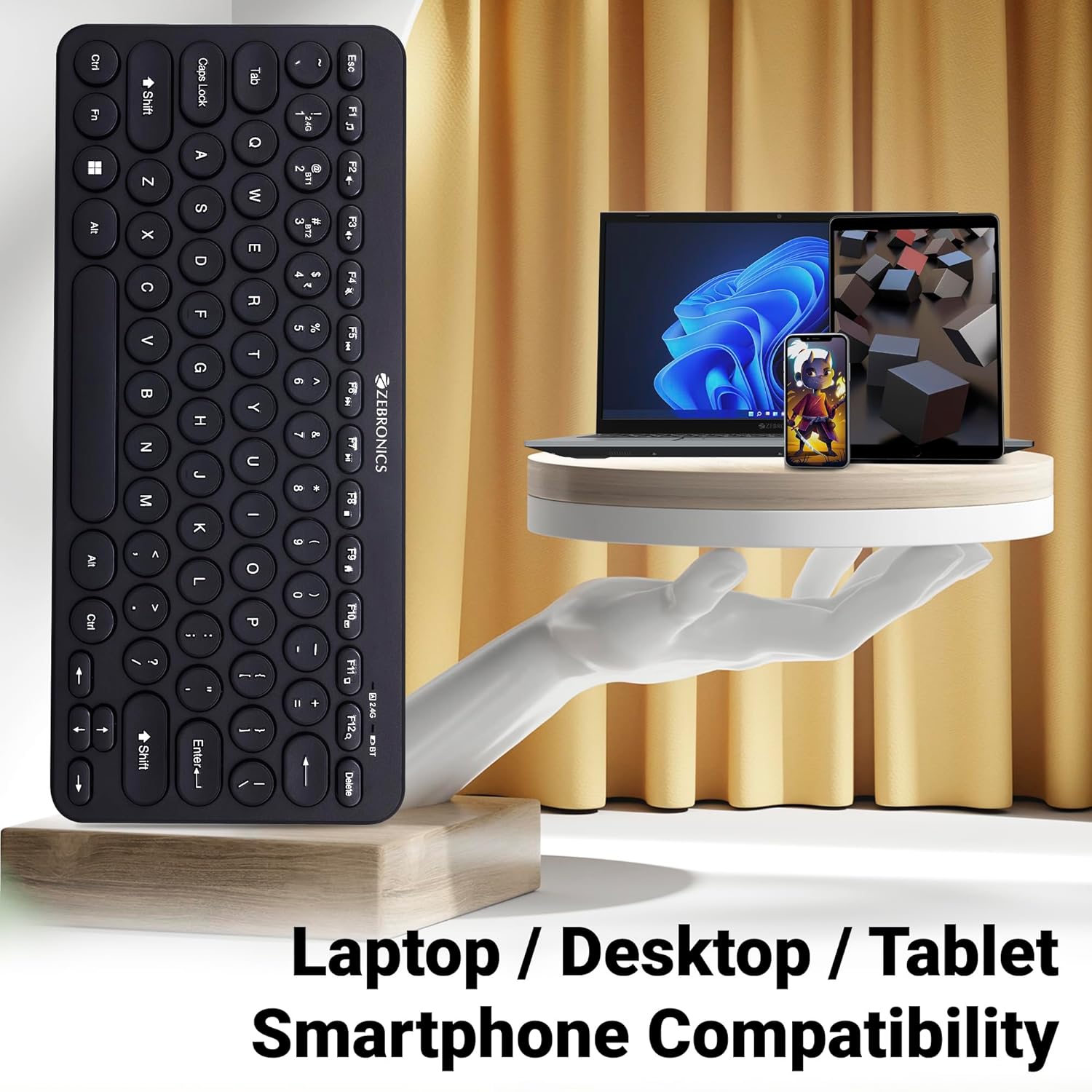
Image 6: The keyboard positioned next to a laptop, tablet, and smartphone, illustrating its multi-device compatibility.
4. Nlekọta
4.1 Nhicha
- Jiri ákwà dị nro ma kpọọ nkụ hichaa elu nke ahụigodo ahụ.
- Maka unyi isi ike, ntakịrị dampen akwa na mmiri ma ọ bụ a nwayọọ ihicha ngwọta. Zere oke mmiri mmiri.
- Do not use harsh chemicals or abrasive cleaners, as these can damage the keycaps and finish.
- Jiri ikuku abịakọrọ wepụ uzuzu na irighiri ihe n'etiti igodo.
4.2 Nlekọta batrị
- Replace batteries when the low battery indicator illuminates to ensure uninterrupted operation.
- If the keyboard will not be used for an extended period, it is recommended to remove the batteries to prevent leakage.
- Store the keyboard in a cool, dry place.
5. Nchọpụta nsogbu
5.1 Ahụigodo anaghị azaghachi
- Lelee batrị: Gbaa mbọ hụ na etinyere batrị nke ọma ma nwee ụgwọ zuru oke. Dochie ma ọ dị mkpa.
- Lelee njikọ: Verify that the 2.4 GHz nano receiver is securely plugged into the USB port, or that the Bluetooth connection is active and paired.
- Gbanwee ọwa: If using Bluetooth, ensure you are on the correct BT1 or BT2 channel.
- Tinyegharịa Bluetooth: If connection issues persist, try unpairing and re-pairing the keyboard with your device.
- Ntinye aka: Move the keyboard closer to the receiver/device and away from other wireless devices that might cause interference.
5.2 Keys Not Working or Lagging
- Igodo dị ọcha: Gbaa mbọ hụ na ọnweghị ihe mkpofu etinyere n'okpuru igodo.
- Ọkwa batrị: Low battery can sometimes affect key responsiveness. Replace batteries.
- Ntinye aka: Wireless interference can cause lag. Try moving closer to the receiver/device.
- Ndakọrịta ngwaọrụ: Ensure your device's operating system is compatible with the keyboard.
5.3 Bluetooth Disconnection Issues
- Ogologo: Ensure the keyboard is within the effective range of your Bluetooth device.
- Ntinye aka: Other Bluetooth or wireless devices nearby can cause disconnections.
- Device Bluetooth Driver: Update your device's Bluetooth drivers to the latest version.
- Tinyegharịa ụzọ: Wepụ ahụigodo ahụ na ndepụta Bluetooth nke ngwaọrụ gị wee jikọta ya ọzọ.
6. Nkọwapụta
| Njirimara | Nkọwa |
|---|---|
| Ụdị | ZEBRONIKA |
| Aha Nlereanya | K4000MW |
| Teknụzụ Njikọta | 2.4 GHz Wireless, Bluetooth (Dual BT) |
| Ọnụọgụ igodo | 78 |
| Multimedia Igodo | 12 Integrated Multimedia Keys |
| Ụdị igodo | UV-Coated |
| Atụmatụ pụrụ iche | Rupee Key, LED Indicator (Battery, Connectivity, Caps Lock) |
| Nhazi | Slim & Minimalist |
| Ngwa dakọtara | Desktop, Laptop, Tablet, Smartphone |
| Sistemụ nrụọrụ | Windows 10 (and other compatible OS) |
| Isi Iyi Ike | Akwanyere batrị |
| Akụkụ ngwaahịa (LxWxH) | 29.4 x 13.4 x 3 cm |
| Ibu Ibu | 320 g |
7. Akwụkwọ ikike na nkwado
7.1 Ozi akwụkwọ ikike
For specific warranty terms and conditions, please refer to the warranty card included with your product or visit the official ZEBRONICS websaịtị. Debe nnata nzụta gị dị ka ihe akaebe nke ịzụrụ maka nkwupụta ikike.
7.2 Nkwado ndị ahịa
If you encounter any issues or have questions regarding your ZEBRONICS K4000MW Wireless Keyboard, please contact ZEBRONICS customer support through their official websaịtị ma ọ bụ ozi kọntaktị enyere na nkwakọ ngwaahịa gị.


