1. Okwu mmalite
Welcome to the user manual for the Radxa Rock 5A Single Board Computer. The Radxa Rock 5A is a high-performance, compact computing platform designed for a wide range of applications, from embedded systems and IoT devices to multimedia centers and development projects. Featuring the powerful Rockchip RK3588S 8-core CPU, an integrated GPU, and a Neural Processing Unit (NPU), it offers robust processing capabilities, 8K HDMI output, and versatile connectivity options including Gigabit Ethernet with Power over Ethernet (PoE) support.
This manual provides essential information for setting up, operating, maintaining, and troubleshooting your Radxa Rock 5A. Please read it thoroughly to ensure proper use and to maximize the potential of your device.

Figure 1.1: Radxa Rock 5A Single Board Computer (Top View)

Figure 1.2: Radxa Rock 5A Single Board Computer (Angled View)
2. Atụmatụ igodo
The Radxa Rock 5A boasts a range of powerful features designed for high-performance computing and versatile applications:
- Rockchip RK3588S Processor: An 8-core CPU providing robust processing power.
- 6TOPs NPU: Integrated Neural Processing Unit for AI and machine learning applications.
- ARM Mali G610 MP4 GPU: High-performance graphics processing unit for demanding visual tasks and 8K video output.
- LPDDR4x RAM: Available in configurations up to 32GB for efficient multitasking and data handling.
- HDMI up to 8K Output: Supports ultra-high-definition video output for immersive visual experiences.
- M.2 E Key Connector: For expanding connectivity, typically used for Wi-Fi 6 modules.
- USB 3.0 OTG / HOST: Versatile USB ports for connecting peripherals and data transfer.
- Gigabit Ethernet with PoE Support: Provides high-speed wired network connectivity and power delivery over Ethernet.

Figure 2.1: Radxa Rock 5A Key Features Overview
3. Njirimara akụrụngwa
Familiarize yourself with the various ports and components on your Radxa Rock 5A board:
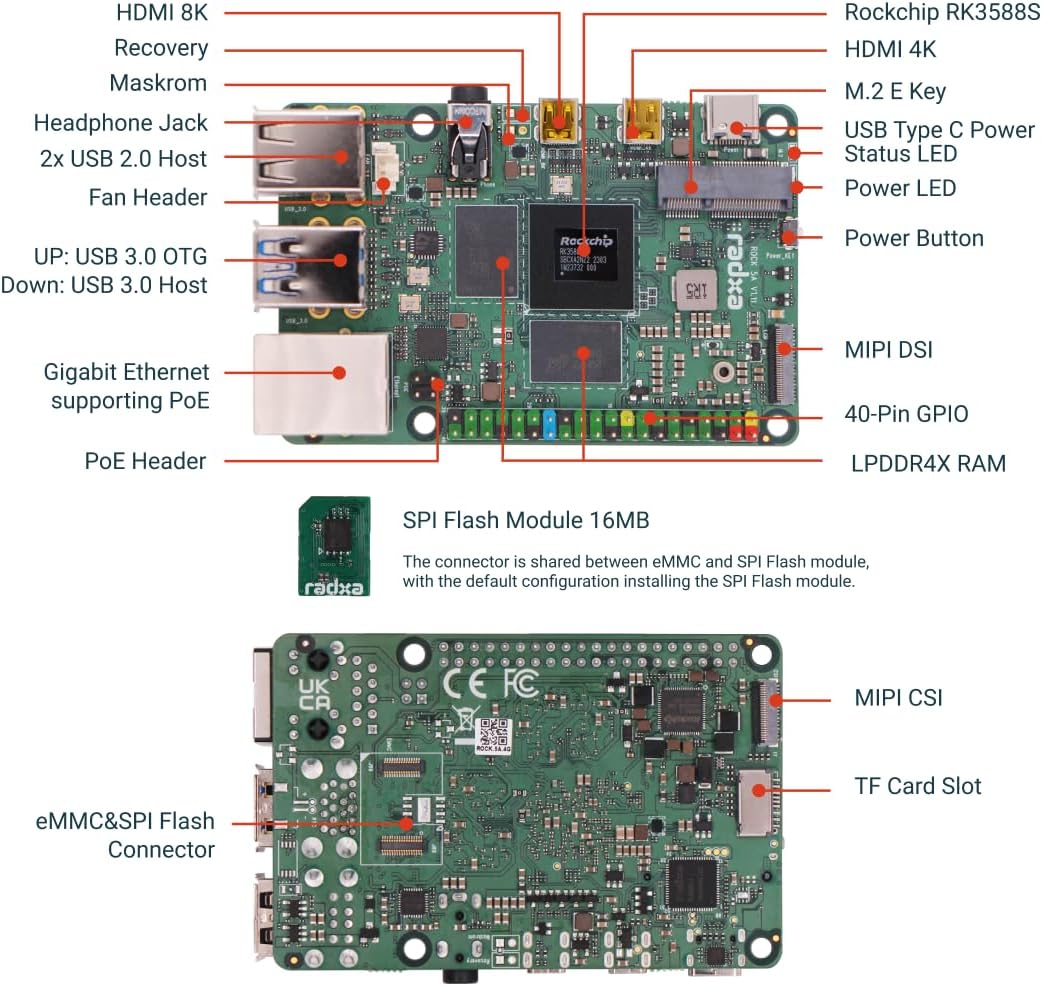
Figure 3.1: Radxa Rock 5A Component Diagram (Top and Bottom)
- Rockchip RK3588S: The main processor.
- LPDDR4X RAM: Onboard memory modules.
- ọdụ ụgbọ mmiri HDMI: For video output (up to 8K and 4K).
- ọdụ ụgbọ mmiri USB: USB 2.0 Host, USB 3.0 OTG/Host for peripherals.
- gigabit Ethernet: RJ45 port for network connection, with PoE support.
- M.2 E Key Connector: For expansion modules like Wi-Fi/Bluetooth.
- 40-Pin GPIO: General Purpose Input/Output pins for connecting external hardware.
- USB Type-C Power: Ntinye ike isi.
- Oghere TF Kaadị: For microSD card storage.
- eMMC/SPI Flash Connector: For internal storage or SPI flash modules.
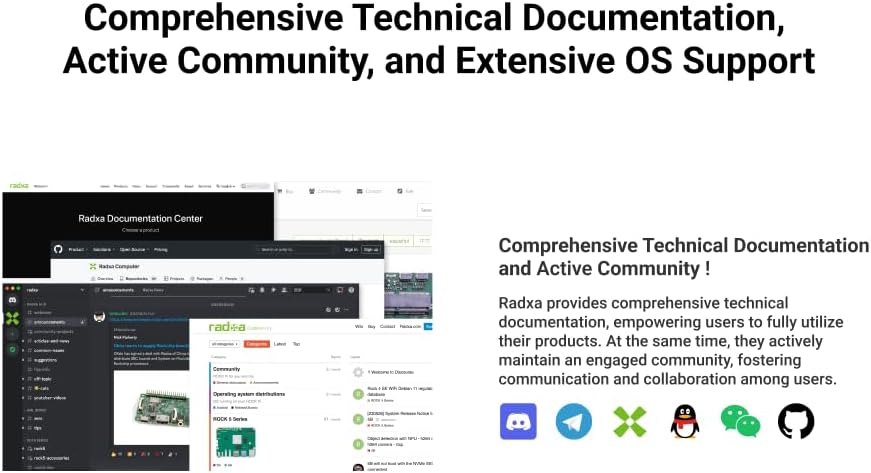
Figure 3.2: SPI Flash Module and eMMC/SPI Flash Connector
The SPI Flash Module (16MB) shares its connector with the eMMC. The default configuration allows for installing the SPI Flash module.
4. Ntuziaka Nhazi
Follow these steps to set up your Radxa Rock 5A:
- Prepare Storage:
Install an operating system (OS) onto a microSD card or an eMMC module. You will need a separate computer to flash the OS image onto your chosen storage medium. Refer to the official Radxa documentation for supported operating systems and flashing instructions.
- Ngwa njikọ:
- Connect a monitor to one of the HDMI ports.
- Connect a USB keyboard and mouse to the USB 2.0 or USB 3.0 ports.
- (Optional) Connect an Ethernet cable to the Gigabit Ethernet port for network access. If using PoE, ensure your network switch supports it.
- (Optional) Connect any other desired peripherals such as a fan to the fan header, or an M.2 E Key module.
- Insert Storage:
Insert the prepared microSD card into the TF Card Slot or connect the eMMC module to its dedicated connector.
- Tinye Ike:
Connect a compatible USB Type-C power adapter to the USB Type-C Power port. The board should power on automatically, or you may need to press the Power Button.
- Boot mbụ:
Allow the system to boot up. The first boot may take longer as the OS initializes. Follow any on-screen prompts to complete the OS setup.

Figure 4.1: Radxa Rock 5A Single Board Computer (Bottom View)
5. Ntuziaka ọrụ
Once your Radxa Rock 5A is set up and running, you can interact with it like any other computer. The specific operating procedures will depend on the operating system you have installed.
- OS Interaction: Use the connected keyboard and mouse to navigate the graphical user interface (GUI) of your chosen OS (e.g., Android, Ubuntu, Debian).
- Ahịrị iwu: For advanced users, access the command line interface (CLI) via a terminal application for direct system control.
- Nweta netwọkụ: Utilize the Gigabit Ethernet port for internet access, file sharing, and remote management (e.g., SSH).
- Multimedia: Leverage the 8K HDMI output and GPU for high-resolution video playback and gaming.
- Mmepe: The 40-Pin GPIO header allows for interfacing with sensors, actuators, and other electronic components for custom projects.

Figure 5.1: Gaming Performance with ARM Mali-G610 MP4 GPU

Figure 5.2: Triple NPU Core Capabilities
Figure 5.3: High-Intensity Computing Performance
6. Nlekọta
Proper maintenance ensures the longevity and optimal performance of your Radxa Rock 5A:
- Debe ya ọcha: Regularly clean the board with a soft, dry brush or compressed air to remove dust and debris. Avoid using liquids.
- Gbaa mbọ hụ na ikuku ikuku dị mma: Operate the board in a well-ventilated area. If using a case, ensure it has adequate airflow. Consider adding a fan for sustained high-load operations.
- Ịnye ọkụ: Always use a stable and compatible USB Type-C power supply. Unstable power can damage the board.
- Mmelite ngwanrọ: Keep your operating system and installed software up to date to benefit from performance improvements, bug fixes, and security patches.
- Jiri Nlekọta Aka: Avoid dropping the board or subjecting it to physical shocks. Handle it by the edges to prevent static discharge damage to components.
- Njikwa okpomọkụ: Avoid exposing the board to extreme temperatures or humidity.
7. Nchọpụta nsogbu
Nke a bụ ụfọdụ okwu nkịtị na ngwọta ha nwere ike ime:
| Nsogbu | Ihe kpatara/ Ngwọta nwere ike ime |
|---|---|
| Board does not power on. |
|
| Enweghị mmepụta vidiyo. |
|
| OS does not boot. |
|
| Network connectivity issues. |
|
For more detailed troubleshooting, refer to the official Radxa documentation and community forums.
8. Nkọwapụta
| Njirimara | Nkọwa |
|---|---|
| Nhazi | Rockchip RK3588S (8-core CPU) |
| NPU | 6TOPs |
| GPU | ARM Mali G610 MP4 |
| RAM | LPDDR4X (4GB variant) |
| Ọsọ ebe nchekwa | 2133 MHz |
| Mmepụta vidiyo | HDMI up to 8K Output |
| Njikọta | Gigabit Ethernet with PoE Support, USB 3.0 OTG / HOST |
| Mgbasawanye | M.2 E Key Connector, 40-Pin GPIO |
| Nkwado nchekwa | TF Card Slot, eMMC/SPI Flash Connector |
| Ntinye ike | USB Ụdị-C |
| Ibu Ibu | 1.6 ounces |
| Akụkụ ngwugwu | 3.35 x 2.28 x 0.67 sentimita asatọ |
| Ngwa gụnyere | Board Body |
| Mba onye si | China |
9. Nkwado na akụrụngwa
Radxa provides comprehensive technical documentation and an active community to support users:
- Akwụkwọ gọọmentị: Visit the Radxa Documentation Center for detailed guides, tutorials, and technical specifications.
- Nzukọ ogbe: Engage with other users and developers on the Radxa community forums to ask questions, share projects, and find solutions.
- OS Nkwado: Radxa collaborates with third-party OS organizations, offering extensive open-source OS options.

Figure 9.1: Radxa Documentation and Community Support

Figure 9.2: Extensive Open-Source OS Support
10. Akwụkwọ ikike Ozi
Specific warranty details for the Radxa Rock 5A Single Board Computer are typically provided at the point of purchase or on the official Radxa website. Please refer to the warranty policy provided by your retailer or Radxa directly for information regarding coverage, duration, and claims procedures.
Generally, warranties cover manufacturing defects under normal use conditions. Damage resulting from improper handling, unauthorized modifications, or use of incompatible accessories may void the warranty.


