Okwu mmalite
The Rapoo MT760 is a versatile multi-device wireless mouse designed for enhanced productivity across various platforms. It supports both Bluetooth 5.0 and 2.4GHz multi-mode connections, allowing seamless switching between up to four devices. Featuring 11 programmable buttons, adjustable DPI settings up to 4000, and an ergonomic design, this mouse is built for comfort and efficiency in diverse computing environments.
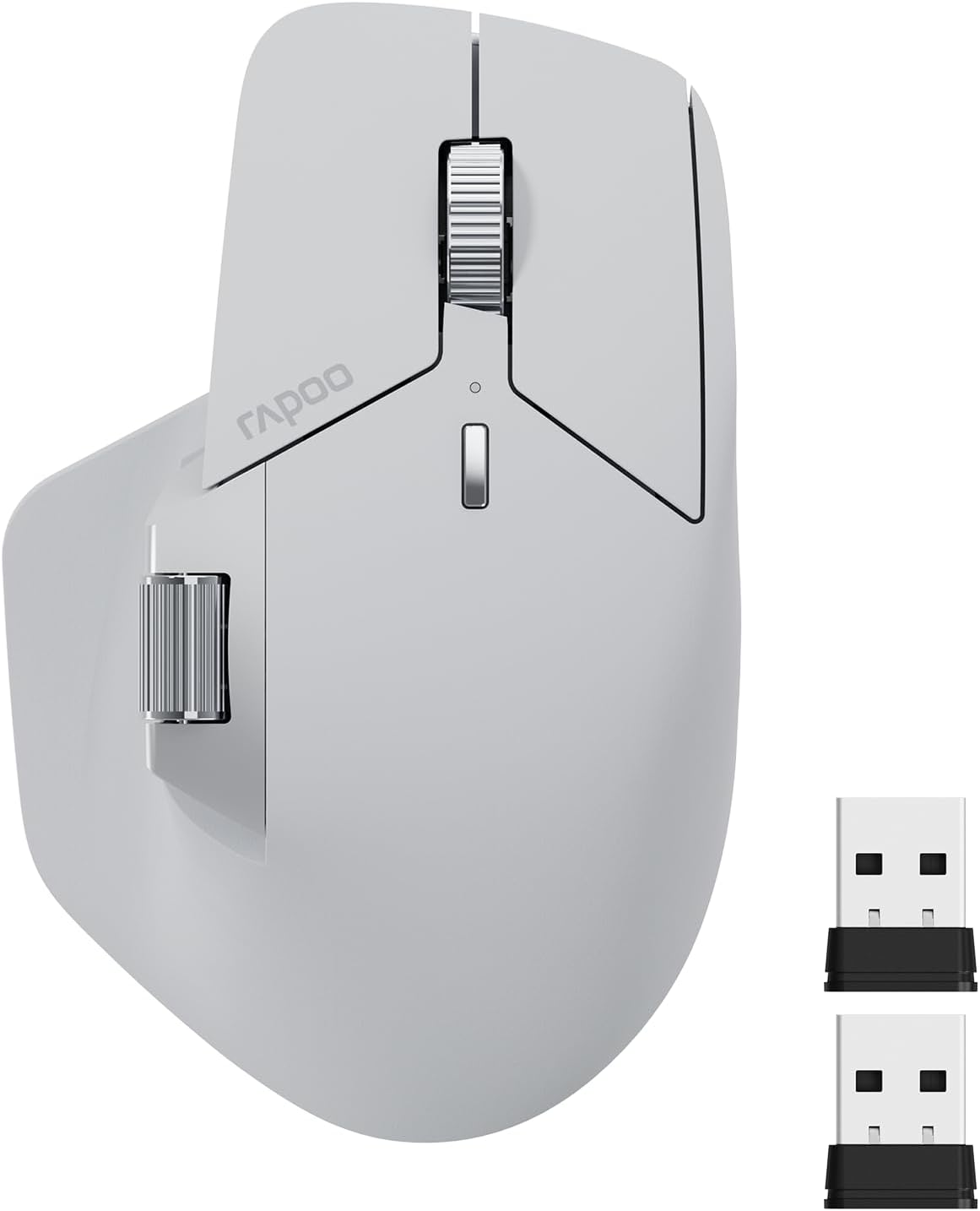
Image: The Rapoo MT760 Multi-Device Wireless Mouse in light grey, shown with its two USB dongles.
Kedu ihe dị na Igbe ahụ
- 1 x Igwe ikuku ikuku
- 1 x USB-C Charging Cable (USB-A to USB-C)
- 2 x USB Dongles
- 1 x Akwụkwọ ntuziaka onye ọrụ
Melite
Connecting via 2.4GHz USB Dongle
- Insert one of the provided USB dongles into an available USB port on your computer.
- Gbanwee òké site na iji ọkụ ọkụ dị na ala.
- The mouse should automatically connect to the dongle. If not, press the device switching button on the bottom of the mouse to select the 2.4G channel (indicated by a specific LED color/pattern, refer to the mouse's LED indicator guide).
Ijikọ site na Bluetooth 5.0
- Gbanwuo òké.
- Press the device switching button on the bottom of the mouse to select one of the Bluetooth channels (e.g., BT1, BT2, BT3). The corresponding LED indicator will blink.
- On your device (computer, laptop, tablet, or smartphone), go to Bluetooth settings.
- Chọọ maka new devices and select "Rapoo MT760" from the list.
- Soro mkpali na ihuenyo ọ bụla iji mezue usoro njikọta.

Image: Illustration showing the steps to download the mouse driver and pair the mouse, including wired mode, disconnecting wired, and pressing buttons for pairing.
Ntuziaka ọrụ
Mgbanwe ọtụtụ ngwaọrụ
The Rapoo MT760 mouse can connect to up to four devices simultaneously (one 2.4GHz USB dongle connection and three Bluetooth connections). Use the device switching button on the bottom of the mouse to quickly switch between connected devices with a single click.
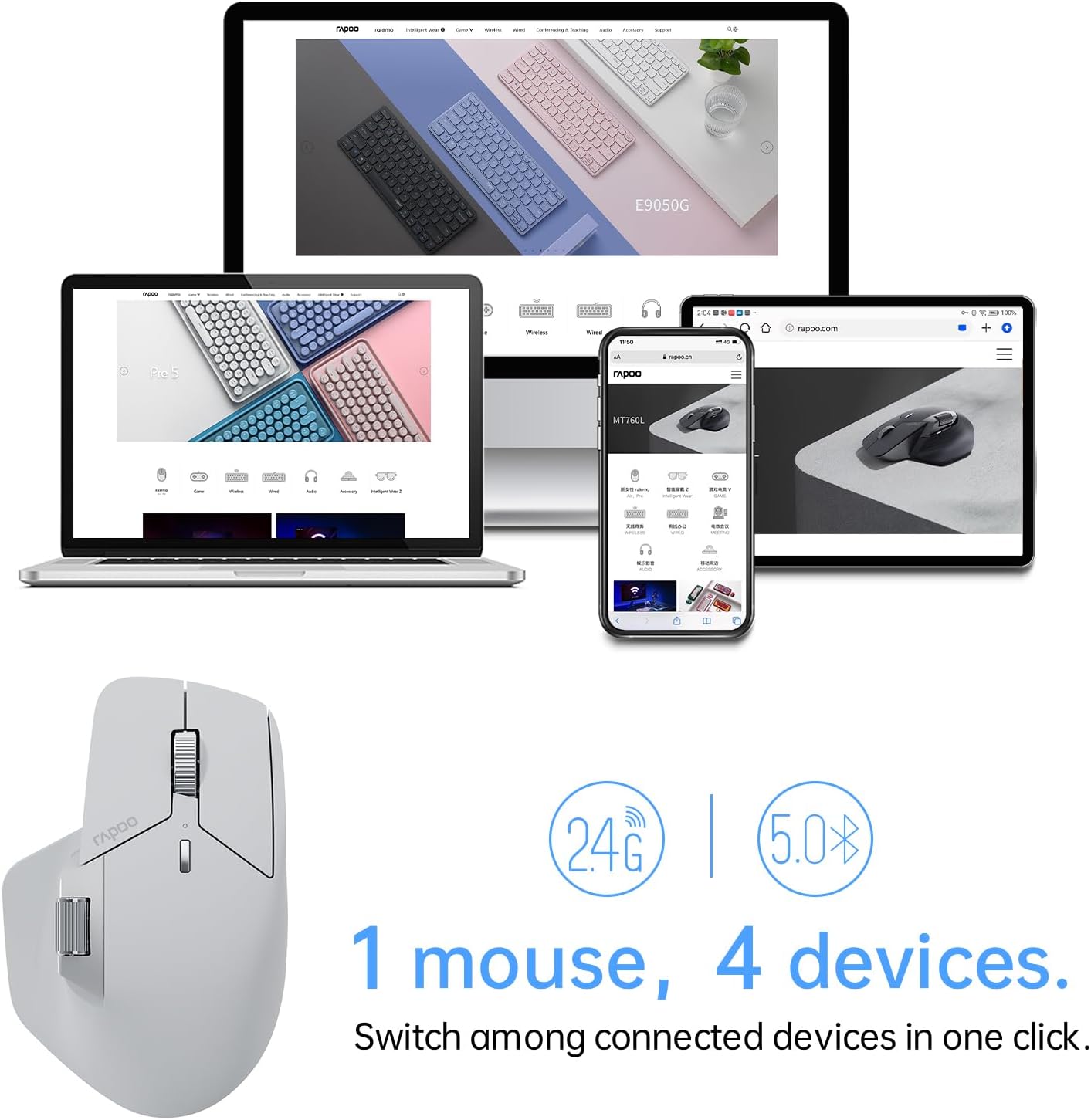
Image: A Rapoo MT760 mouse shown with a laptop, desktop monitor, smartphone, and tablet, illustrating its ability to connect to four devices.
Na-emezi DPI (Mmetụta)
The mouse features 7 adjustable DPI levels: 800, 1000, 1200, 1600, 2400, 3200, and 4000. Press the DPI button (usually located near the scroll wheel) to cycle through these sensitivity settings. You can also fine-tune DPI values in 50-interval increments using the dedicated mouse driver software.

Image: A diagram showing the Rapoo MT760 mouse and an arc indicating the 7 preset DPI values from 800 to 4000.
Bọtịnụ enwere ike ime
The MT760 mouse is equipped with 11 programmable buttons. These buttons can be customized using the Rapoo driver software to assign shortcuts, media keys, or macros, enhancing workflow and productivity. Refer to the software interface for detailed customization options.

Image: An illustration of the Rapoo MT760 mouse highlighting and labeling its 11 programmable buttons, including left/right click, scroll wheels, forward/back, and DPI switch.
M+ Cross-Computer Technology
This feature allows you to seamlessly use and control multiple computers by simply moving the cursor to the edge of your screen. The mouse will automatically switch between screens, enabling you to transfer text, images, and files n'etiti ngwaọrụ. Mara: This function requires the mouse driver to be installed on all participating computers, and all computers must be connected to the same Wi-Fi or Ethernet network.

Image: A diagram showing a Rapoo MT760 mouse connecting two computers, illustrating the M+ Cross-Computer Technology for seamless cursor movement and file transfer (e.g., Ctrl+C to Ctrl+V).
Ergonomic imewe
The Rapoo MT760 features an ergonomic bow-back design with thumb support, providing a comfortable palm grip. This design helps position your hand more naturally, reducing strain during long periods of use. It is designed to fit various grip styles and hand sizes, particularly beneficial for users with larger hands.

Image: A hand demonstrating the comfortable ergonomic grip on the Rapoo MT760 mouse.
Ndakọrịta n'elu
The mouse adapts a high-performance laser sensor, providing finer and more accurate tracking. It works effectively on most surfaces, including wood, cloth, leather, resin, and paper, eliminating the need for a mouse pad in many scenarios.
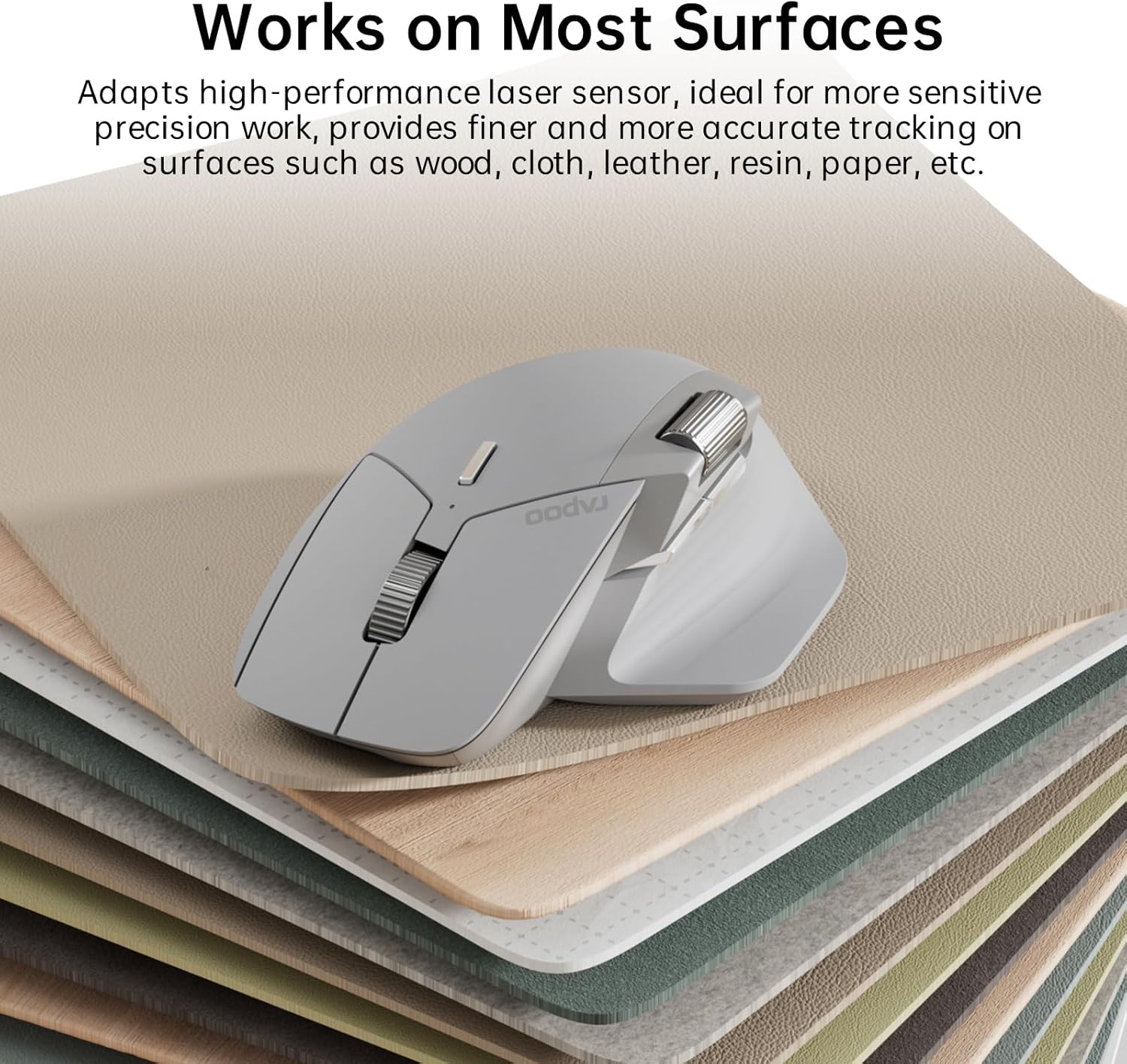
Image: The Rapoo MT760 mouse resting on a stack of different material samples, illustrating its compatibility with various surfaces.
Nlekọta
Ịchaji òké
The Rapoo MT760 is equipped with an 800mAh Li-Po battery and supports USB-C quick charging. Connect the provided USB-C charging cable to the mouse and a power source (e.g., computer USB port, USB wall adapter). A full charge can last up to 90 days, though battery life may vary based on usage frequency and device conditions.
The mouse is also wireless charging enabled. It works with most Qi wireless charging mouse pads, allowing for continuous wireless charging during use. Note that the P3 Wireless Charging Module needs to be purchased separately.

Image: The Rapoo MT760 mouse on a charging pad, highlighting Qi wireless charging, 800mAh Li-Po battery, and USB-C fast charging features.
Nhicha
Iji hichaa òké, jiri akwa dị nro, kpọrọ nkụ. Maka unyi isi ike, ntakịrị damp cloth with mild soap can be used, ensuring no liquid enters the device. Avoid using harsh chemicals or abrasive materials.
Nchọpụta nsogbu
- Òké anaghị ejikọ: Ensure the mouse is turned on and fully charged. Verify that the correct device channel (2.4G, BT1, BT2, BT3) is selected. For 2.4G, ensure the USB dongle is securely plugged in. For Bluetooth, ensure Bluetooth is enabled on your device and the mouse is in pairing mode. Try re-pairing the mouse.
- Cursor na-adịghị agbanwe agbanwe ma ọ bụ na-adịghị aga: Check the surface the mouse is on; some highly reflective or uneven surfaces may affect tracking. Clean the optical sensor on the bottom of the mouse. Ensure the battery is not low.
- Bọtịnụ anaghị aza: Check if the buttons are physically obstructed. If using programmable buttons, ensure the Rapoo driver software is installed and the button assignments are correct. Try restoring factory settings via the driver software if issues persist.
- M+ Cross-Computer Technology not working: Confirm that the mouse driver is installed on all computers you wish to use this feature with. Ensure all computers are connected to the same local network (Wi-Fi or Ethernet).
Nkọwapụta
| Njirimara | Nkọwa |
|---|---|
| Nọmba nlereanya | MT760 |
| Teknụzụ Njikọta | Bluetooth 5.0, 2.4GHz Radio Frequency |
| Ọkwa DPI | 800/1000/1200/1600/2400/3200/4000 (Adjustable) |
| Bọtịnụ enwere ike ime | 11 |
| Ụdị batrị | 800mAh Li-Po (Rechargeable) |
| Ndụ batrị | Up to 90 days (varies with usage) |
| Nchaji ọdụ ụgbọ mmiri | USB-C |
| Nchaji ikuku | Enabled (requires separate Qi module) |
| Akụkụ ngwaahịa | 4.85 x 2.13 x 0.1 sentimita (125 x 81 x 47 mm) |
| Ibu Ibu | 3.88 ounces (110g) |
| Ndakọrịta | Windows, Mac OS, Android |

Image: Technical drawing of the Rapoo MT760 mouse showing its dimensions and indicating compatibility with Windows, Mac OS, and Android.
Akwụkwọ ikike na nkwado
For warranty information and technical support, please visit the official Rapoo website or contact their customer service. As the designer and manufacturer, Rapoo is committed to providing quality products and support to its customers.
Ị nwere ike ịchọta ozi ndị ọzọ na nkọwa kọntaktị na Rapoo Brand Store on Amazon.


