1. Okwu mmalite
This manual provides detailed instructions for the FREEWOLF RK-K8 Wireless Mechanical Gaming Keyboard. Please read this manual thoroughly before using the product to ensure proper operation and to maximize your user experience.
Akụkụ ndị bụ isi:
- Triple-Mode Connectivity: Supports Type-C wired, 2.4GHz wireless, and Bluetooth 5.0 connections.
- Hot-Swappable Switches: Compatible with most 3-pin mechanical switches for customization.
- Gasket Mounted Structure: Enhances typing feel and reduces hollow sound.
- Customizable Rainbow Backlight: Features 18 backlight effects.
- Long-Lasting Battery: Equipped with a 4000mAh battery.
- 96% Layout: 100-key design that saves space while retaining essential keys.
- Wide Compatibility: Supports Windows and Mac operating systems.
2. Ihe ngwugwu
Biko chọpụta na ihe niile dị na ngwugwu gị:
- 1 x FREEWOLF RK-K8 Mechanical Keyboard
- 1 x USB Receiver (2.4Ghz)
- 1 x Type-C to USB-A Braided Coiled Cable
- 1 x Onye na-adọba mkpịsị ugodi
- 1 x Mgbanwe Puller
- 2 x Original Switches (spare)
- Akwụkwọ ntuziaka onye ọrụ 1 x (akwụkwọ a)

Image 2.1: Contents of the FREEWOLF RK-K8 package, showing the keyboard, coiled USB-C cable, USB 2.4G receiver, keycap puller, switch puller, and two spare switches.
3. Ntọala na Njikọ
3.1 Ịchaji ahụigodo
Before first use, it is recommended to fully charge the keyboard. Connect the provided Type-C cable to the keyboard's Type-C port and the USB-A end to a power source (e.g., computer USB port, USB wall adapter). The keyboard features a 4000mAh battery.
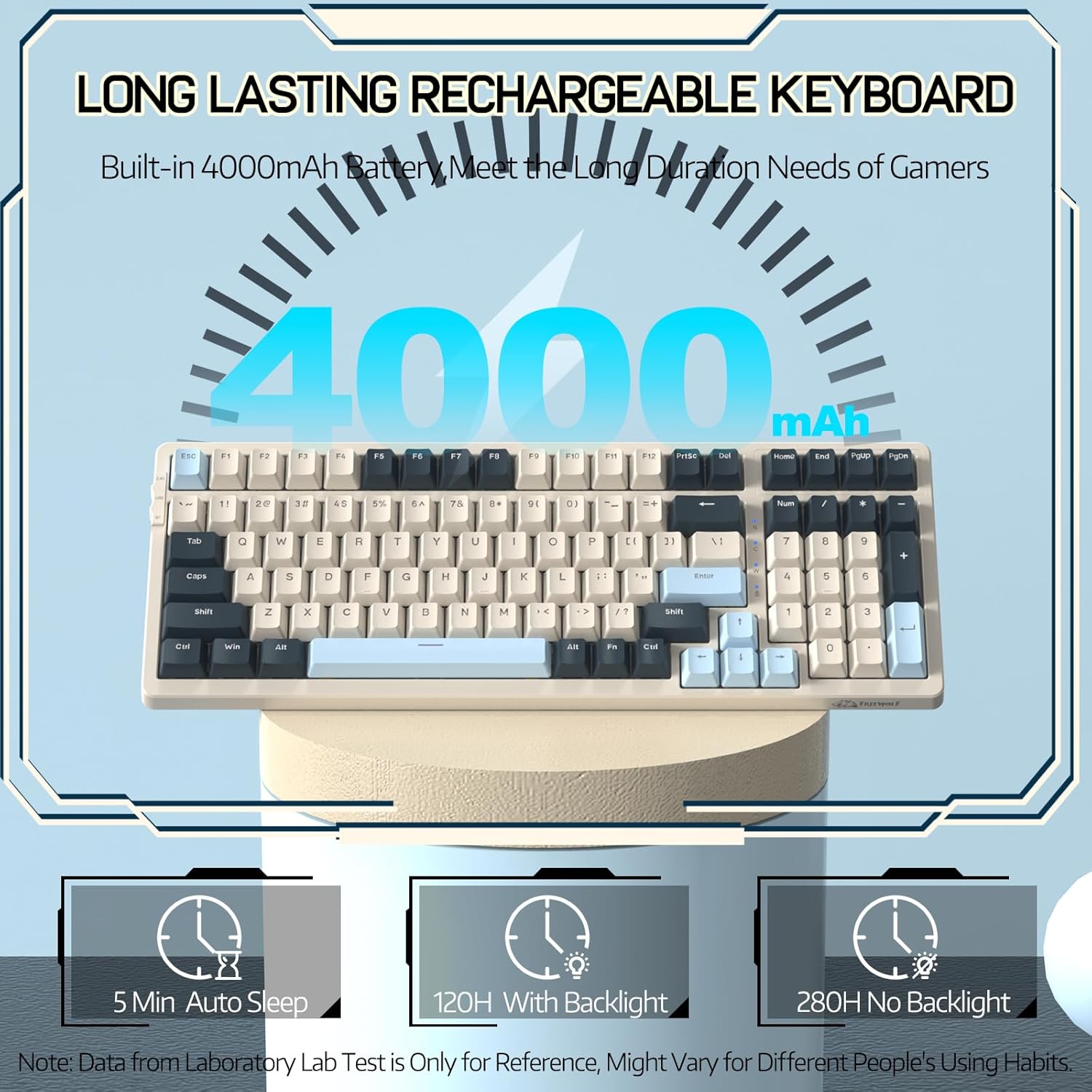
Image 3.1: The keyboard's 4000mAh battery capacity, indicating extended usage time.
3.2 Ụdị njikọ
The RK-K8 keyboard supports three connection modes: Wired, 2.4GHz Wireless, and Bluetooth 5.0.

Image 3.2: Visual guide for switching between 2.4G wireless, wired, and Bluetooth connection modes.
3.2.1 Ụdị Waya
- Connect the provided Type-C coiled cable to the keyboard's Type-C port.
- Connect the USB-A end of the cable to your computer's USB port.
- Ensure the mode switch on the keyboard is set to "USB" (or wired mode indicator).
- Sistemụ gị ga-amata ahụigodo ahụ na akpaghị aka.

Image 3.3: The Type-C to USB-A braided coiled cable, featuring a metal aviation connector for wired connection.
Ọnọdụ Ikuku 3.2.2 2.4GHz
- Locate the 2.4GHz USB receiver, typically stored in a slot on the keyboard.
- Tinye eriri USB n'ọdụ ụgbọ mmiri dị na kọmputa gị.
- Toggle the mode switch on the keyboard to "2.4G".
- Ahụigodo kwesịrị jikọọ na akpaghị aka.
3.2.3 Ọnọdụ Bluetooth 5.0
Igodo ahụ na-akwado ijikọ na ngwaọrụ Bluetooth atọ.
- Toggle the mode switch on the keyboard to "BT".
- Ka ịbanye ọnọdụ njikọta, pịa ma jide FN + Q, FN + W, ma ọ bụ FN + E for 3-5 seconds. The corresponding key's backlight will flash rapidly, indicating it's ready to pair.
- On your device (PC, Mac, tablet, phone), open Bluetooth settings and search for "RK-K8" or a similar device name.
- Select the keyboard to pair. Once connected, the backlight on the chosen key (Q, W, or E) will stop flashing and remain steadily lit.
- Ka ịgbanwee n'etiti ngwaọrụ Bluetooth ejikọtara, pịa pịa FN + Q, FN + W, ma ọ bụ FN + E.
3.3 ndakọrịta sistemụ
The RK-K8 keyboard is compatible with both Windows and Mac operating systems. Use the appropriate FN key combinations for specific functions on each system.
Vidiyo nke 3.1: Mwepuview of the FREEWOLF K8 mechanical keyboard, showcasing its features including customizable keycaps, lighting effects, hot-swappable design, compact layout, and multi-device compatibility across Windows, Mac, and mobile devices.
4. Ọrụ
Njikwa ọkụ azụ 4.1
The RK-K8 features 18 customizable rainbow backlight effects.
- FN + |: Switch between 18 backlight effects.
- FN + ↑ / ↓: Gbanwee nchapụta azụ azụ.
- FN + ← / →: Adjust the flowing speed of dynamic backlight effects.
- FN + X: Turn on/off backlight.
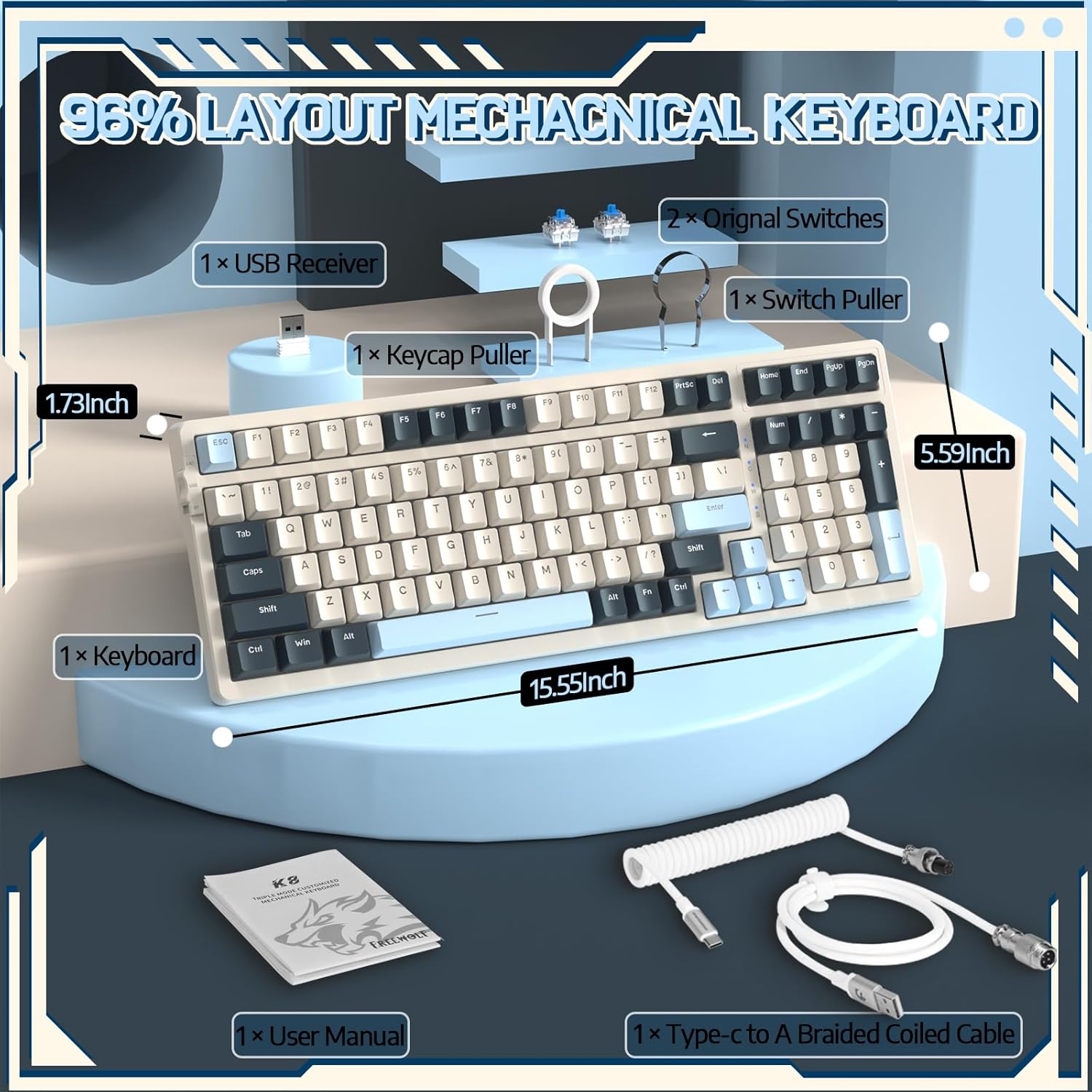
Image 4.1: The RK-K8 keyboard displaying various customizable rainbow backlight patterns.
4.2 Mgbanwe ọkụ-Swappable
The keyboard is equipped with a hot-swappable PCB, allowing you to change switches without soldering. It is compatible with most 3-pin mechanical switches (e.g., Cherry MX, Gateron, Kailh Box, AKKO, Epomaker, Glorious switches).
- Use the provided switch puller to carefully remove the existing switch. Grip the switch firmly and pull straight up.
- Align the pins of the new 3-pin switch with the holes on the PCB.
- Gently press the new switch into place until it clicks. Ensure the switch is seated properly and the pins are not bent.
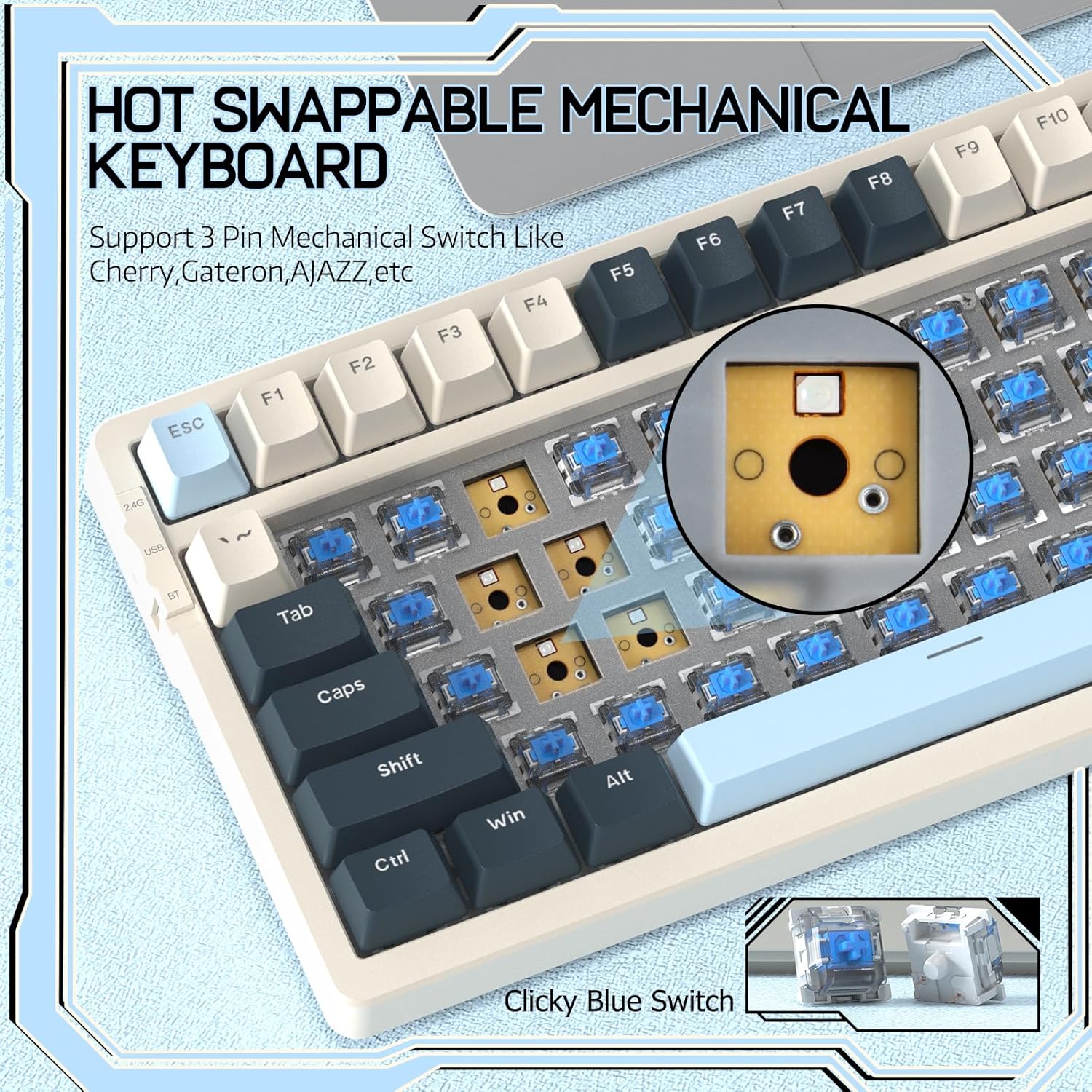
Image 4.2: Demonstrating the hot-swappable feature, showing a switch being removed from the keyboard.
4.3 Gasket Mounted Structure
The keyboard features a gasket-mounted design with sound-dampening materials between the plate and the housing. This construction reduces hollow sounds and provides a more consistent and comfortable typing experience.

Image 4.3: Diagram illustrating the internal layers of the gasket-mounted keyboard structure, designed for improved acoustics and feel.
4.4 Ọrụ na Nhazi Isi
The RK-K8 utilizes a 96% layout with 100 keys, retaining essential modifiers, arrow keys, a separate numpad, and function row while maintaining a compact form factor.
Refer to the keyboard layout for specific key placements. Many keys have secondary functions accessible via the FN igodo.
- FN + F1-F12: Multimedia and system control functions (e.g., volume, play/pause).
- FN + Mmeri: Lock/unlock Windows key.
- FN + A: Switch to Windows layout.
- FN + S: Switch to Mac layout.
5. Nlekọta
5.1 Nhicha
Iji nọgide na-enwe ọdịdị na ọrụ nke keyboard ahụ:
- Kwụpụ kiiboodu na kọmputa gị tupu ihicha.
- Jiri akwa dị nro na-enweghị ntụpọ dampejiri mmiri tinye ma ọ bụ ihe ngwọta dị nro iji hichaa igodo igodo na chassis.
- For dust and debris between keycaps, use compressed air or the provided keycap puller to remove keycaps and clean underneath.
- Zere iji kemịkalụ siri ike, abrasives, ma ọ bụ ihe mgbaze.
5.2 Mgbanwe igodo na mgbanwe
The provided keycap and switch pullers facilitate easy replacement of keycaps and switches. Refer to section 4.2 for switch replacement instructions.
6. Nchọpụta nsogbu
If you encounter issues with your FREEWOLF RK-K8 keyboard, please refer to the following common solutions:
- Ahụigodo anaghị aza:
- Gbaa mbọ hụ na agbagoro ahụigodo.
- Check the connection mode switch (Wired, 2.4G, BT) matches your intended connection.
- For wired mode, ensure the cable is securely connected to both the keyboard and the computer.
- For 2.4G wireless, ensure the USB receiver is plugged in and the keyboard is in 2.4G mode.
- For Bluetooth, re-pair the device if necessary (see section 3.2.3).
- Keys repeating or not registering:
- This can sometimes occur with wireless connections. Try switching to wired mode to see if the issue persists.
- Ensure the switches are properly seated. If a switch is loose, carefully remove and re-insert it.
- Hichaa irighiri ihe ọ bụla n'akụkụ igodo emetụtara.
- Ọkụ azụ anaghị arụ ọrụ ma ọ bụ rachie:
- Ensure the backlight is not turned off (press FN + X).
- Gbanwee nchapụta site na iji FN + ↑ / ↓.
- Try cycling through backlight effects with FN + |.
- Nsogbu njikọ Bluetooth:
- Ensure the keyboard is in Bluetooth mode and sufficient battery.
- Forget the device on your computer/phone and re-pair it.
- Ensure your device's Bluetooth is enabled and working correctly.
7. Nkọwapụta
| Njirimara | Nkọwa |
|---|---|
| Ụdị | FREEWOLF |
| Nlereanya | RK-K8 |
| Teknụzụ Njikọta | Bluetooth 5.0 / 2.4GHz Wireless / Wired (Type-C) |
| Nkọwa ahụigodo | Mechanical |
| Ngbanwe Ụdị | Tactile Blue Switch (Hot-Swappable 3-pin) |
| Ike batrị | 4000mAh |
| Ìhè azụ | Rainbow Backlit (18 effects) |
| Nhazi | 96% (igodo 100) |
| Ngwa dakọtara | PC, Mac, PS4 (via USB) |
| Ihe onwunwe | Acrylonitrile Butadiene Styrene (ABS) |
| Ibu Ibu | 2.25 pound (ihe dị ka 1.02 n'arọ) |
| Akụkụ ngwugwu | 16.14 x 6.69 x 2.01 sentimita asatọ |
8. Akwụkwọ ikike na nkwado
For warranty information or technical support, please refer to the contact details provided with your purchase or visit the official FREEWOLF websaịtị. Debe akwụkwọ nnata ịzụrụ maka akwụkwọ ikike.


