1. Okwu mmalite
This manual provides comprehensive instructions for the Symcode 1D 2D Hands-Free Barcode Scanner. Designed for efficiency and versatility, this omnidirectional scanner is an ideal solution for various environments including retail, supermarkets, and offices. It supports both 1D and 2D barcodes, offering automatic sensing and reliable data capture.
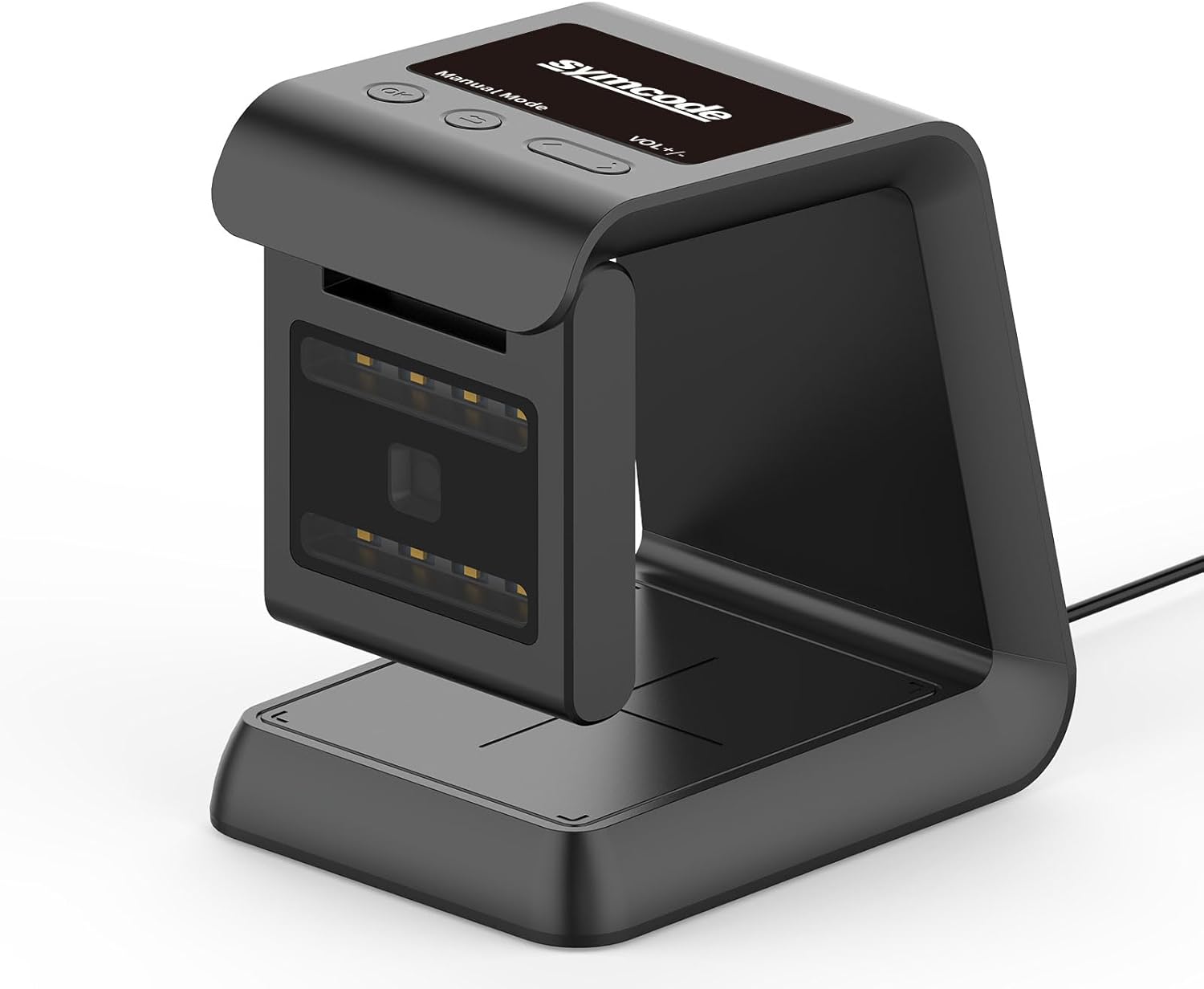
Nyocha 1.1: N'eluview of the Symcode Hands-Free Barcode Scanner.
2. Atụmatụ igodo
- Efficient Hands-Free Operation: Provides convenient and efficient scanning, especially in busy retail or POS environments, without manual handling.
- Nyocha n'akụkụ niile: Captures barcodes from various angles, offering flexibility in item presentation.
- Automatic Sensing Technology: Initiates scanning automatically when a barcode is presented, eliminating the need for manual triggers. The scanner enters sleep mode when idle and wakes up automatically when a barcode is detected.
- Fast and Reliable USB Connection: Ensures a seamless plug-and-play experience with POS systems and computers.
- Versatile Screen Scanning: Capable of scanning barcodes from digital displays, including mobile phones and computer screens, supporting mobile payments and other transactions.
- Strong Decoding Ability: Decodes common 1D and 2D QR barcodes, even if they are blurred or incomplete.
- Anti-shock Design: Engineered to withstand multiple drops from a height of 5 feet (1.5 meters) onto concrete.
3. Ntuziaka Nhazi
The Symcode Barcode Scanner is designed for simple plug-and-play operation, requiring no driver installation for most systems.
3.1 Njikọ mbụ
- Place the scanner on a stable, flat surface near your computer or POS system.
- Connect the USB cable from the scanner to an available USB port on your computer or POS system.
- The scanner will automatically power on and be ready for use. No additional drivers are typically required.

Figure 3.1: Connecting the scanner via USB for plug-and-play functionality.
Video 3.1: Demonstration of the Symcode scanner's automatic sensing and omnidirectional capabilities.
4. Ntuziaka ọrụ
4.1 Basic Scanning
The scanner utilizes automatic sensing technology. Simply present the barcode to the scanning window, and the scanner will automatically detect and decode it.

Ọgụgụ 4.1: Ọpụamples of scanning items in a retail store and an airport ticket gate.
4.2 Omnidirectional Scanning
The omnidirectional design allows for flexible scanning from various angles. The scan window can also rotate 90 degrees to accommodate different scanning needs.
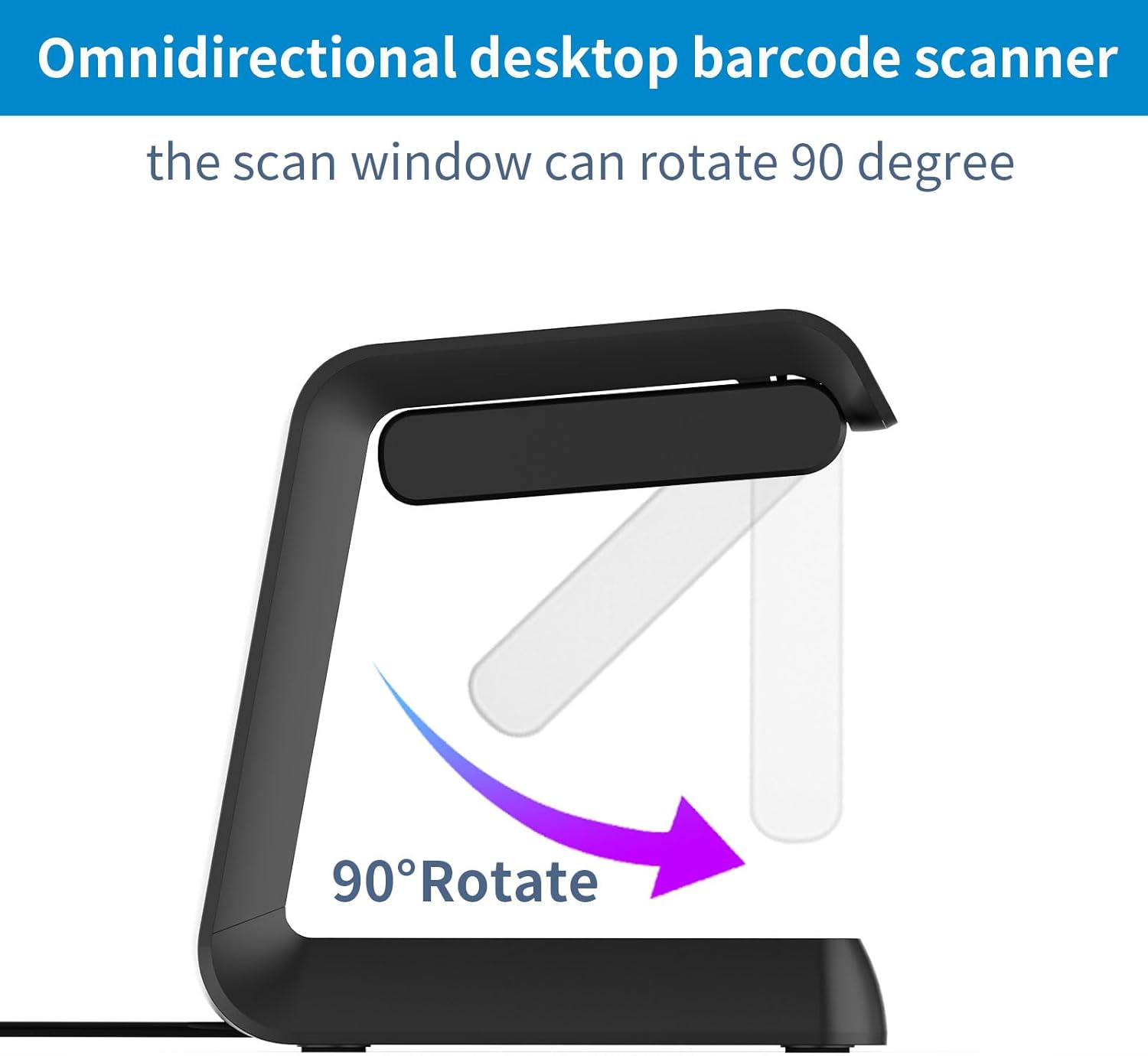
Figure 4.2: The scanner's window can rotate 90 degrees for optimal scanning angles.
Vidiyo 4.1: Agafeeview of the 2D QR Omnidirectional USB Barcode Scanner in operation.
4.3 Automatic Sleep and Wake-Up
The scanner intelligently conserves power by entering a sleep mode when not in use. It automatically wakes up when a barcode is presented to the scanning window.

Figure 4.3: The scanner's automatic sleep and wake-up function.
Video 4.2: Demonstrating the automatic sensing and scanning capabilities of the desktop barcode reader.
4.4 Decoding Ability
The scanner is equipped with a high-resolution scan engine capable of decoding various 1D and 2D barcodes, including those that are blurred or incomplete.

Figure 4.4: The scanner's ability to decode various 1D and 2D barcodes, even from screens.
Video 4.3: Demonstrating the wired barcode reader's screen scanning capability for POS and supermarket use.
4.5 Supported Connections
The scanner supports multiple transport connections, including USB, Serial, and TTL transmission, ensuring compatibility with various systems.
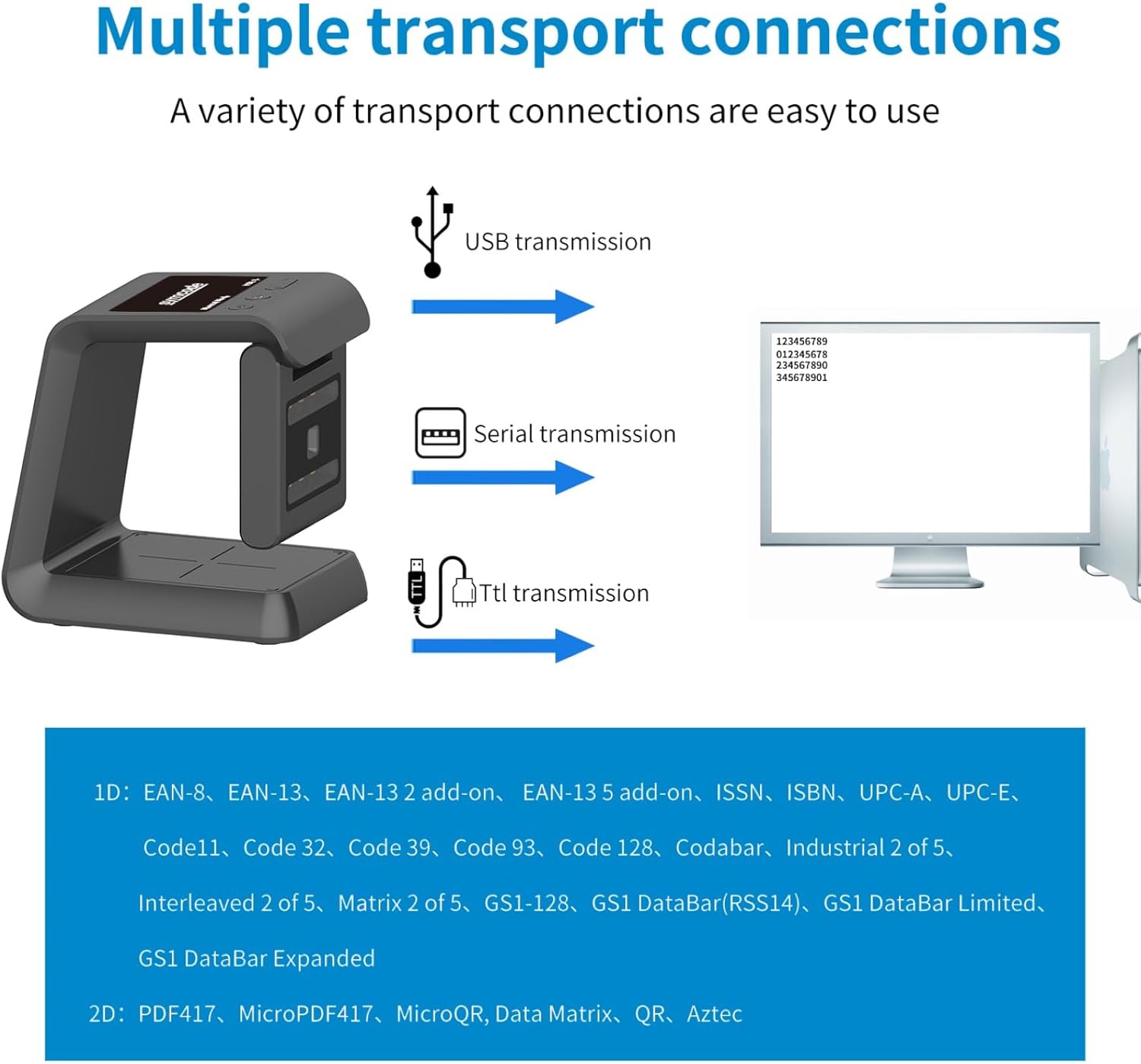
Figure 4.5: The scanner's compatibility with USB, Serial, and TTL connections.
5. Nlekọta
5.1 ịdịte aka na nhicha
The Symcode scanner features an anti-shock design, allowing it to remain functional even after drops from up to 5 feet (1.5 meters). To maintain optimal performance, regularly clean the scanning window with a soft, dry cloth. Avoid using abrasive cleaners or solvents.
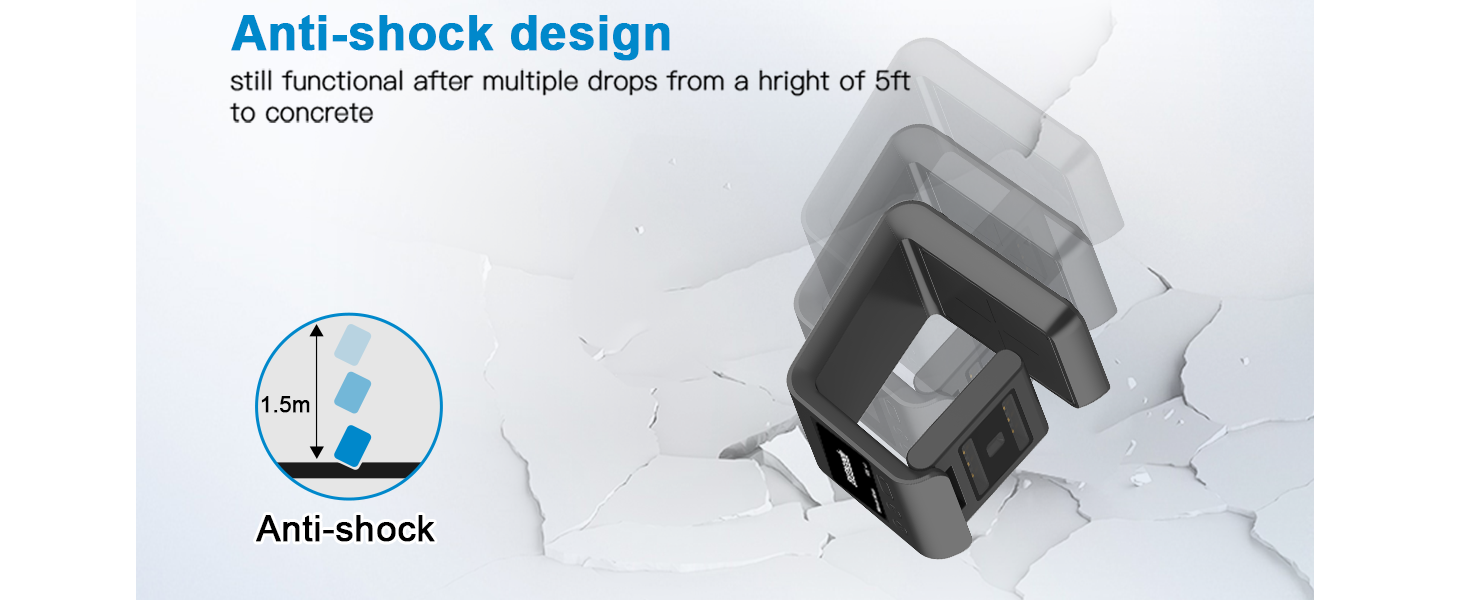
Figure 5.1: The scanner's robust anti-shock design.
6. Nchọpụta nsogbu
6.1 Okwu nkịtị na Ngwọta
- Scanner not responding: Ensure the USB cable is securely connected to both the scanner and the computer. Try connecting to a different USB port.
- Difficulty programming suffixes/prefixes: The instruction manual for advanced programming (like adding suffixes or prefixes) may require careful attention to specific barcode sequences. Refer to the dedicated programming section in the full product manual or contact customer support for detailed guidance.
- Inconsistent scanning: Ensure the barcode is clean and flat. Position the barcode directly in front of the scanning window. Check for any obstructions on the scanning window and clean if necessary.
- No data output: Verify that the scanner is properly connected and recognized by your computer. Ensure the application you are using is ready to receive input (e.g., a text editor or spreadsheet program).
7. Nkọwapụta ngwaahịa
| Njirimara | Nkọwa |
|---|---|
| Akụkụ ngwaahịa | 3.25"D x 3.25"W x 5.5"H (8.25 cm D x 8.25 cm W x 13.97 cm H) |
| Ibu Ibu | 14.1 ounce (400 grams) |
| Teknụzụ Njikọta | eriri USB |
| Isi Iyi Ike | USB Barcode Reader |
| Ngwa dakọtara | Laptọọpụ, Desktọpụ, Smartphone |
| Onye nrụpụta | akara ngosi |
| Ụbọchị mbụ dị | Ọnwa Isii 28, 2021 |

Figure 7.1: Detailed dimensions of the Symcode Barcode Scanner.
8. Akwụkwọ ikike na nkwado
E tinyeghị nkọwa akwụkwọ ikike kpọmkwem na ozi kọntaktị nkwado ozugbo n'akwụkwọ ntuziaka a. Maka nkwupụta akwụkwọ ikike, enyemaka teknụzụ, ma ọ bụ ajụjụ ndị ọzọ, biko lee nkwakọ ngwaahịa ahụ, nke onye na-ere ya. website, or your purchase documentation. You may also visit the official Symcode store on Amazon for additional resources and contact options.
Symcode Store Link: Visit the Symcode Store


