Okwu mmalite
This manual provides detailed instructions for the setup, operation, and maintenance of your SSK Powered USB 3.2 Hub (Model SC221). Please read this manual thoroughly before using the device to ensure proper functionality and to prevent damage.
Njirimara ngwaahịa
- 7-Port Connectivity: Equipped with two 10Gbps USB-A ports, two 10Gbps USB-C ports, dual 4K HDMI ports, and one 100W PD 3.0 charging port.
- Super-Fast Data Transfer: Four data ports (2x USB-A, 2x USB-C) support up to 10Gbps, allowing rapid transfer of large files.
- Nnyefe ike 100W: The dedicated USB-C PD 3.0 port provides efficient charging for compatible laptops and devices.
- Ngosipụta HDMI abụọ 4K: Supports dual monitor output at 4K@30Hz simultaneously, or a single monitor at up to 4K@60Hz.
- Ndakọrịta sara mbara: Compatible with various operating systems including Windows, Mac OS, Linux, Android, and Chromebook, and devices such as MacBook Pro/Air, Dell XPS, ASUS laptops, HUAWEI MateBook, HP Spectre Notebook, LENOVO ThinkPad, iPad, iPhone 15, and more.

Foto: Ofeview of the SSK 7-in-1 USB 3.2 Hub, highlighting its various ports including USB 3.2 Gen 2 Type-C, USB 3.2 Gen 2 Type-A, HDMI 1 (4K@60Hz), HDMI 2 (4K@30Hz), and Type-C PD (100W).
Ihe ngwugwu
- SSK Powered USB 3.2 Hub (Model SC221)
- Akwụkwọ ntuziaka onye ọrụ
Ntuziaka nhazi
- Jikọọ na ngwaọrụ nnabata: Plug the integrated USB-C cable from the SSK Hub into a full-function USB-C port on your laptop, tablet, or smartphone. Ensure the host device's USB-C port supports Power Delivery, DisplayPort Alternate Mode, and Data transfer.
- Connect Power Adapter (Optional but Recommended): For optimal performance, especially when using multiple peripherals or charging your host device, connect a USB-C PD power adapter (not included) to the hub's 100W PD charging port.
- Ngwa njikọ: Connect your USB devices (flash drives, external hard drives, keyboards, mice, etc.) to the available USB-A and USB-C data ports.
- Ngosipụta Njikọ: Connect your HDMI monitors to the HDMI 1 and HDMI 2 ports on the hub.
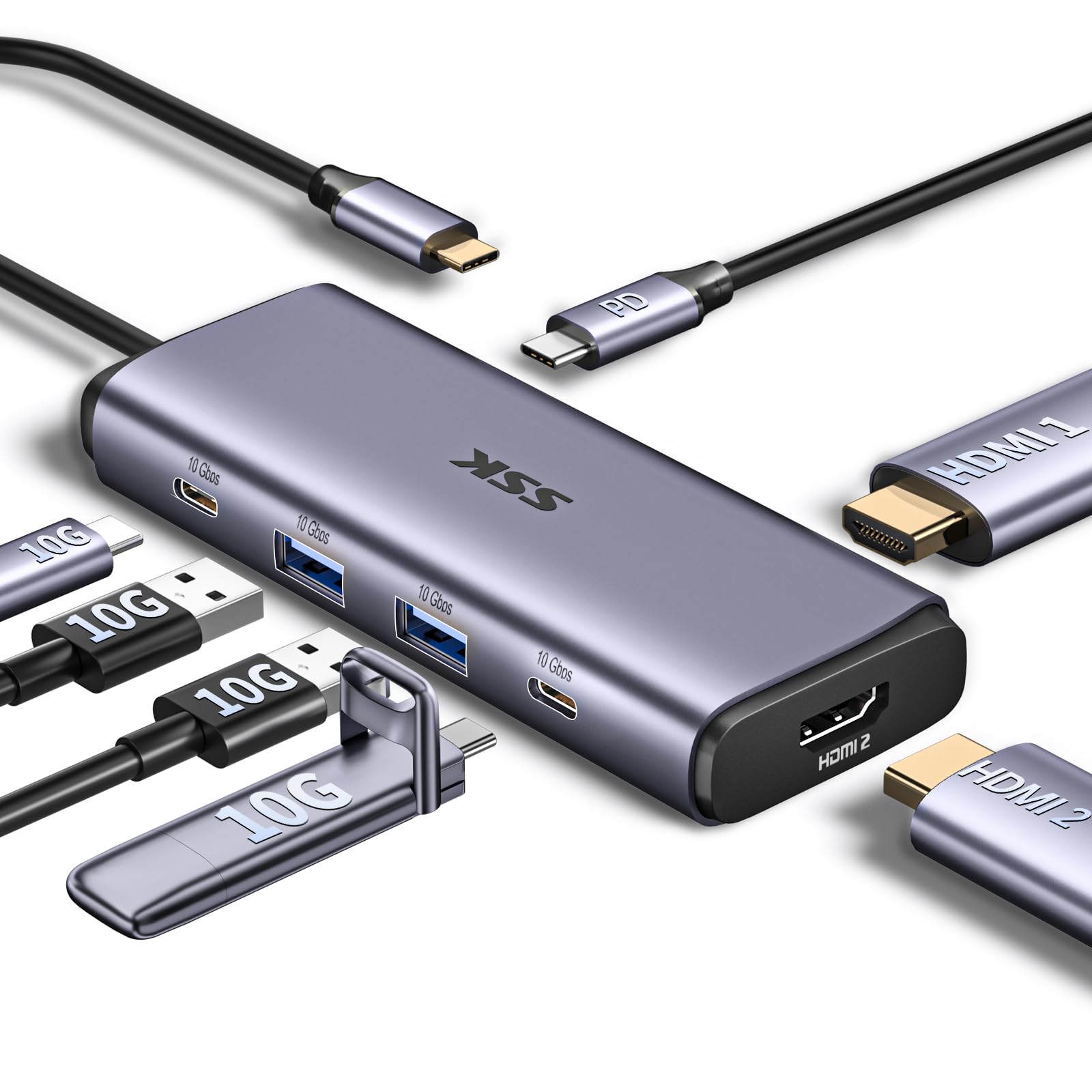
Image: The SSK USB 3.2 Hub connected to a laptop, demonstrating its compact size and how various cables can be attached.

Image: A diagram illustrating various USB-C port types on laptops, indicating which support full functionality (Power Delivery, DisplayPort, Data) and which only support data, charging, or data+charging. Ensure your laptop's USB-C port is full-function for optimal hub performance.
Ntuziaka ọrụ
Nyefee data
The hub features two USB-A 3.2 Gen 2 ports and two USB-C 3.2 Gen 2 ports, each capable of data transfer speeds up to 10Gbps. Simply connect your compatible storage devices (e.g., flash drives, external SSDs) to these ports for high-speed data access.

Image: Illustration of the four 10Gbps USB-C and USB-A data ports, emphasizing their high-speed data transfer capabilities.
Nnyefe ike (PD)
The dedicated USB-C PD port supports up to 100W power input. When a compatible USB-C PD charger is connected to this port, the hub can pass through power to charge your host laptop or device, while also powering connected peripherals. Note that a portion of the power is used by the hub itself.

Image: A visual representation of the 100W USB-C PD3.0 charging feature, showing power input to the hub and output to a MacBook Pro.
Nhazi nhazi
The hub supports connecting up to two external monitors via its dual HDMI ports. The HDMI 1 port supports up to 4K@60Hz when used alone, while both HDMI 1 and HDMI 2 ports support up to 4K@30Hz when used simultaneously.
Windows OS:
- Gbatịkwuo ọnọdụ: Allows for an extended desktop across your laptop screen and two external monitors (A+B+C).
- Ụdị enyo: Displays the same content on all connected screens (A+A+A).
MacOS:
- Gbatịkwuo ọnọdụ: Due to macOS limitations, extended monitors will display the same content (A+AA or A+BB). True MST (Multi-Stream Transport) for independent extended displays is not supported on macOS.
- Ụdị enyo: Displays the same content on all connected screens (A+A+A).

Image: A workstation setup demonstrating a laptop connected to two external monitors via the SSK Hub, enabling dual 4K HDMI high-definition display for multitasking.

Image: A detailed diagram showing the differences in multi-display modes (Extend and Mirror) between Mac OS and Windows when using the hub, specifically noting macOS limitations regarding MST.
Ndakọrịta
The SSK USB 3.2 Hub is designed for broad compatibility with devices featuring a full-function USB-C port. This includes:
- Laptọọpụ: MacBook Pro, MacBook Air, Dell XPS, ASUS laptops, HUAWEI MateBook, HP Spectre Notebook, LENOVO ThinkPad, and other laptops with USB-C.
- Mbadamba ụrọ: iPad Pro, iPad Air, and other tablets with USB-C.
- Ekwentị mkpanaaka: iPhone 15 series, HUAWEI P20/30, LG G5, HTC 10, and other smartphones with USB-C.
- Sistemu eji arụ ọrụ: Windows, Mac OS, Linux, Android, Chromebook.
Note: Before purchasing, please verify that your laptop's USB-C interface supports Power Delivery, DisplayPort Alternate Mode, and Data transfer for full functionality.

Image: A visual guide to the universal compatibility of the SSK Hub, showing various devices (USB flash drives, laptops, tablets, smartphones, HDDs, TVs) and operating systems (Windows, Mac OS, iPad OS, Android) it supports.
Nlekọta
- Debe ebe a na-edebe ihe ọcha ma ghara ịta uzuzu. Jiri ákwà dị nro ma kpọọ nkụ hichaa ya.
- Zere ikpughe ebe ahụ na okpomọkụ dị oke njọ, iru mmiri, ma ọ bụ ìhè anyanwụ kpọmkwem.
- Agbalịla ịkwatu ma ọ bụ rụzie ngwaọrụ ahụ n'onwe gị. Nke a ga-eme ka akwụkwọ ikike ahụ ghara ịdị irè.
- Disconnect the hub from your host device and power source when not in use for extended periods.
Nchọpụta nsogbu
| Okwu | Ngwọta enwere ike |
|---|---|
| No display output / Display flickering |
|
| USB devices not recognized or slow transfer speeds |
|
| Host device not charging via PD port |
|
| Hub feels warm during operation |
|
Nkọwapụta
| Njirimara | Nkọwa |
|---|---|
| Nọmba nlereanya | SC221 |
| Mgbakọta ọdụ ụgbọ mmiri USB | 7 |
| Ọdụ data USB | 2 x USB-A 3.2 Gen 2 (10Gbps), 2 x USB-C 3.2 Gen 2 (10Gbps) |
| ọdụ ụgbọ mmiri HDMI | 2 x HDMI (HDMI 1: up to 4K@60Hz single, HDMI 2: up to 4K@30Hz dual) |
| Port nnyefe ike | 1 x USB-C PD 3.0 (up to 100W input) |
| Ngwaọrụ Akụrụngwa | USB |
| Ibu Ibu | 4.6 ounce (130 grams) |
| Akụkụ ngwugwu | 7.91 x 3.98 x 0.94 sentimita asatọ |
| Ngwa dakọtara | MacBook Pro, Dell XPS, ASUS laptops, HUAWEI MateBook, HP Spectre Notebook, LENOVO ThinkPad, HUAWEI P20/30, LG G5, HTC 10, etc. |
| Sistemu eji arụ ọrụ | Windows, Mac OS, Linux, Android, Chromebook |
Akwụkwọ ikike na nkwado
SSK products are designed for reliability and performance. For warranty information or technical support, please refer to the official SSK websaịtị ma ọ bụ kpọtụrụ ndị ahịa ha ozugbo. Debe akwụkwọ nnata ịzụrụ maka akwụkwọ ikike.


