Okwu mmalite
The Linksys 5G AX1800 Mobile Hotspot is a portable device designed to provide high-speed 5G and WiFi 6 connectivity for multiple devices. With its ultra-thin design and long battery capacity, it allows you to stay connected on the go. This manual provides essential information for the proper setup, operation, maintenance, and troubleshooting of your mobile hotspot.
Atụmatụ gụnyere:
- Portable 5G supersonic speed and bandwidth.
- WiFi 6 speeds up to 1.8 Gbps (AX1800).
- Supports connection for 15+ devices simultaneously.
- Ultra-thin and lightweight design for maximum convenience.
- Batrị na-adịte aka maka iji ogologo oge.
- Powered by leading-edge 5G technology by Qualcomm.
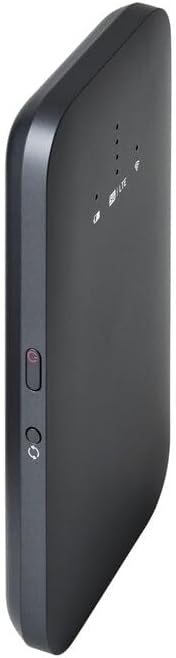
Foto 1: N'ihu view of the Linksys 5G AX1800 Mobile Hotspot, showing LED indicators for battery, 5G/LTE, and Wi-Fi status.
Melite
1. Wụnye kaadị SIM
The Linksys 5G AX1800 Mobile Hotspot requires a Nano-SIM card for 5G/LTE connectivity. Ensure the device is powered off before inserting the SIM card.
- Locate the SIM card slot cover on the side of the device.
- Gently open the cover.
- Insert the Nano-SIM card into the slot with the gold contacts facing down and the notched corner aligned correctly.
- Mechie mkpuchi oghere kaadị SIM nke ọma.

Foto 2: Akụkụ view of the mobile hotspot, highlighting the SIM card slot cover.
2. Chajịa ngwaọrụ
Before first use, fully charge the mobile hotspot. Use the provided charging cable and a compatible USB power adapter.
- Connect one end of the USB cable to the charging port on the device.
- Connect the other end to a USB power adapter or a computer's USB port.
- The battery indicator LED will show charging status. Allow several hours for a full charge.

Onyonyo 3: N'okpuru view of the mobile hotspot, showing the USB-C charging port.
3. Gbanyụọ / gbanyụọ
To power on the device, press and hold the power button located on the side until the LED indicators light up. To power off, press and hold the power button again until the indicators turn off.

Foto 4: Akụkụ view of the mobile hotspot, indicating the location of the power button.
Ntuziaka ọrụ
1. Ijikọ ngwaọrụ na Wi-Fi
Once powered on, the mobile hotspot will broadcast a Wi-Fi network. You can connect up to 15+ devices simultaneously.
- Na ngwaọrụ gị (ama, laptọọpụ, mbadamba), mepee ntọala Wi-Fi.
- Chọọ maka netwọk Wi-Fi dị.
- Select the network name (SSID) of your Linksys Mobile Hotspot. The default SSID and password are usually found on a sticker inside the device or on its packaging.
- Tinye Wi-Fi paswọọdụ mgbe kpaliri.
- Your device should now be connected to the internet via the mobile hotspot.
2. Understanding LED Indicators
The LED indicators on the front of the device provide important status information:
- Ihe ngosi batrị: Na-egosi ọkwa batrị dị ugbu a yana ọkwa nchaji.
- 5G/LTE Indicator: Indicates the mobile network connection status (e.g., solid blue for 5G, solid green for LTE, blinking for searching).
- Ihe ngosi Wi-Fi: Shows if the Wi-Fi network is active and broadcasting.
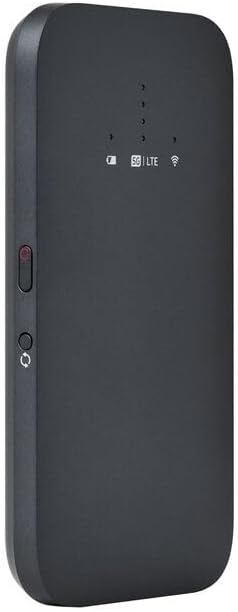
Ọgụgụ 5: N'ihu akụkụ view of the mobile hotspot, clearly showing the LED indicators for battery, 5G/LTE, and Wi-Fi.
3. Ịnweta na Web Njikwa Njikwa
For advanced settings, such as changing the Wi-Fi name or password, managing connected devices, or checking data usage, you can access the device's web njikwa interface.
- Ensure your device is connected to the mobile hotspot's Wi-Fi network.
- Mepee a web ihe nchọgharị (dịka, Chrome, Firefox, Safari).
- Enter the default IP address for the hotspot (usually
192.168.1.1or192.168.0.1, refer to the device's documentation or sticker for the exact address) into the address bar and press Enter. - Log in using the default username and password (also found on the device sticker or documentation). It is highly recommended to change the default password for security.
Nlekọta
1. Nlekọta batrị
- Zere ikpughe ngwaọrụ na oke okpomọkụ.
- Ekwela ka ngwaọrụ ahụ gbapụ kpamkpam ruo ogologo oge.
- Use only the original or certified compatible charging accessories.
2. Nhicha
Wipe the device with a soft, dry, lint-free cloth. Do not use liquid cleaners or aerosols directly on the device.
3. Mmelite firmware
Lelee mmelite firmware mgbe niile site na iji usoro nlele web management interface. Keeping the firmware updated ensures optimal performance and security.
Nchọpụta nsogbu
Enweghị njikọ ịntanetị
- Hụ na etinyere kaadị SIM ahụ nke ọma ma rụọ ọrụ ya site na iji atụmatụ data.
- Check the 5G/LTE indicator on the device. If it's blinking or off, the device may be searching for a network or have no signal.
- Restart the mobile hotspot and your connected device.
- Verify that your data plan has not been exhausted.
Ọsọ Wi-Fi dị nwayọ
- Move closer to the mobile hotspot to improve signal strength.
- Reduce the number of connected devices or data-intensive activities.
- Lelee maka mkpọchi netwọkụ na mpaghara gị.
Device Not Connecting to Hotspot
- Ensure the Wi-Fi indicator on the hotspot is active.
- Lelee paswọọdụ Wi-Fi ugboro abụọ.
- Restart both the hotspot and the device you are trying to connect.
Ntọgharị ụlọ nrụpụta
If issues persist, you may perform a factory reset. This will revert all settings to their default values, including Wi-Fi name and password. Refer to the device's specific instructions for the reset procedure, usually involving a small reset button.
Nkọwapụta
| Njirimara | Nkọwa |
|---|---|
| Ụdị | Linksys |
| Aha Nlereanya | FGHSAX1800 |
| Nọmba Nlereanya ihe | FGHSAX1800-AH |
| Teknụzụ Njikọta | 5G |
| -Kpụrụ Wi-Fi | WiFi 6 (AX1800) |
| Ọnụego mbufe data | Up to 1.8 Gigabits Per Second |
| Klaasị ugboro ugboro | Abụọ-Band |
| Ụdị antenna | Ime |
| Atụmatụ pụrụ iche | Ọnọdụ Access Point |
| Ngwa gụnyere | Oghere SIM kaadị |
| Voltage | 12 volts |
| Akụkụ ngwugwu | 14 x 7.5 x 1.55 cm |
| Ibu Ibu | 185 g |
Akwụkwọ ikike na nkwado
For warranty information and technical support, please refer to the warranty card included with your product or visit the official Linksys support website. You can typically find FAQs, driver downloads, and contact information for customer service there.
Linksys Official Support: https://www.linksys.com/support


