1. Okwu mmalite
This manual provides detailed instructions for the setup, operation, and maintenance of your TECURS 2.4G Wireless Gaming Keyboard. This keyboard is designed for versatile use across various operating systems and devices, featuring a comfortable ergonomic design, adjustable backlighting, and a built-in phone/tablet holder.

Figure 1: TECURS 2.4G Wireless Gaming Keyboard with integrated phone/tablet holder.
2. Ihe ngwugwu
Biko chọpụta na ihe niile dị na ngwugwu gị:
- 1 x TECURS 2.4G Wireless Gaming Keyboard
- 1 x USB-A/Type-C 2.4G Wireless Dongle (with Type-C adapter)
- 1 x USB Ụdị-C eriri USB
- Akwụkwọ ntuziaka onye ọrụ 1 x (akwụkwọ a)
3. Nhazi
3.1. Ịchaji ahụigodo
Before first use, fully charge the keyboard using the provided USB Type-C charging cable. Connect the Type-C end of the cable to the keyboard's charging port and the USB-A end to a compatible USB power source (e.g., computer USB port, USB wall adapter). The battery indicator light will show charging status.
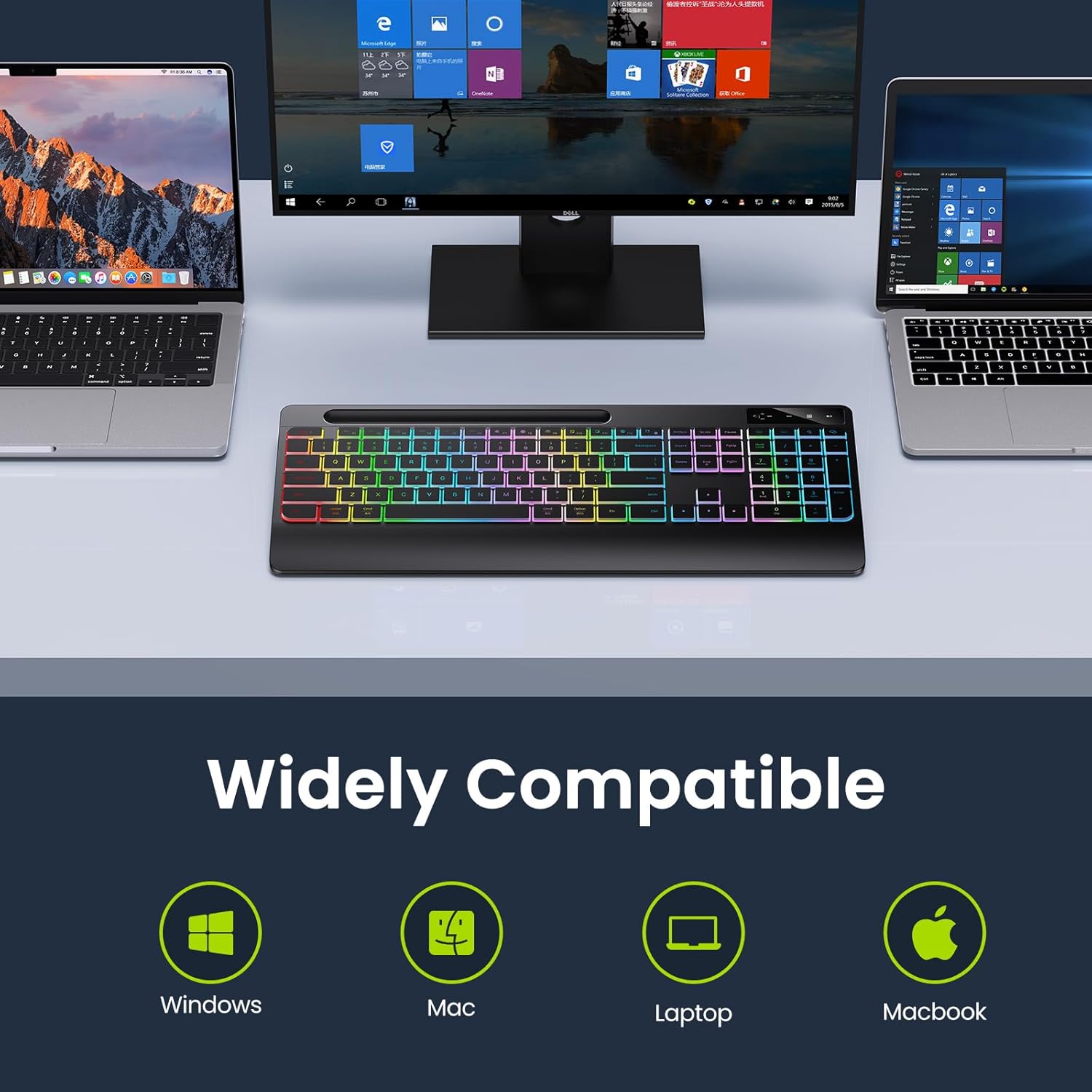
Figure 2: Connecting the USB Type-C charging cable to the keyboard.
3.2. Ijikọ na ngwaọrụ gị
The keyboard connects wirelessly via a 2.4 GHz USB dongle. No drivers are required for installation.
- Locate the 2.4 GHz USB dongle, typically stored in a compartment on the underside of the keyboard.
- If your device has a USB-A port, plug the dongle directly into it.
- If your device has a USB-C port, attach the included Type-C adapter to the USB-A dongle, then plug the assembly into the USB-C port.
- Turn on the keyboard using the ON/OFF switch located on the top right side of the keyboard.
- The keyboard should automatically connect to your device.

Figure 3: Wireless dongle and compatibility with USB-A and Type-C ports.
Vidiyo 1: Agafeeview of the TECURS Wireless Keyboard features, including connectivity and ergonomic design.
4. Ntuziaka ọrụ
4.1. Njikwa ọkụ azụ
The keyboard features adjustable LED backlighting with multiple brightness levels.
- Iji turn on/off the backlight or adjust brightness: Pịa Fn + Ọgwụgwụ repeatedly to cycle through brightness levels (Low, Medium, High, Off).
- Iji mee ka Mgbe niile na ọkụ azụ: Pịa Fn + Esc.

Figure 4: Backlight brightness adjustment controls.
4.2. Phone/Tablet Holder
The integrated slot at the top of the keyboard serves as a convenient holder for your smartphone or tablet, allowing for easy viewna-ede ihe mgbe ị na-ede ihe.

Figure 5: Using the integrated phone/tablet holder.
4.3. Mgbanwe Sistemụ
The keyboard supports both Windows and Mac operating systems. Use the dedicated system indicator buttons to switch between modes:
- Pịa meri button to activate Windows mode.
- Pịa MAC button to activate Mac mode.
4.4. Ergonomic Design
The keyboard features an 8-degree tilt angle and a wrist rest to promote a more comfortable typing posture and reduce strain during extended use.

Figure 6: Ergonomic design with 8-degree tilt.
4.5. Silent Flat Keys
The keyboard is equipped with responsive low-profile keys designed to minimize typing noise, providing a quiet and comfortable input experience.

Figure 7: Silent flat keys for quiet operation.
5. Nlekọta
Iji hụ na ogologo ndụ na ezigbo arụmọrụ nke ahụigodo gị, soro ntuziaka mmezi ndị a:
- Nhicha: Jiri akwa dị nro, kpọrọ nkụ, akwa na-enweghị lint, hichapụ elu nke ahụigodo. Maka unyi isi ike, ntakịrị dampen akwa na mmiri ma ọ bụ dị nwayọọ, na-adịghị abrasive Cleaner. Zere oke mmiri mmiri.
- Mwepụ uzuzu: Jiri ikuku abịakọrọ wepụ uzuzu na irighiri ihe n'etiti igodo.
- Nchekwa: Mgbe ọ naghị eji ya ogologo oge, chekwaa ahụigodo ahụ n'ebe dị jụụ, kpọrọ nkụ na-adịghị na ìhè anyanwụ kpọmkwem na oke okpomọkụ.
- Nlekọta batrị: Avoid fully discharging the battery frequently. Recharge the keyboard when the low battery indicator appears.
6. Nchọpụta nsogbu
If you encounter issues with your keyboard, please refer to the following common problems and solutions:
| Nsogbu | Ihe nwere ike ime | Ngwọta |
|---|---|---|
| Ahụigodo anaghị aza | Low battery; Dongle not properly connected; Keyboard OFF. | Charge the keyboard; Re-insert the USB dongle; Ensure keyboard is ON. |
| Ìhè azụ anaghị arụ ọrụ | Agbanyụrụ ọkụ azụ; Batrị dị ala. | Press Fn + End to cycle backlight modes; Charge the keyboard. |
| Input lag or intermittent connection | Interference; Dongle too far from keyboard. | Move closer to the dongle (within 33 feet); Avoid placing near other wireless devices. |
| Keys rubbing off | Nkịtị na-eyi na akwa ka oge na-aga. | This is a cosmetic issue and does not affect functionality. Consider keycap stickers if desired. |
7. Nkọwapụta
- Nọmba nlereanya: TCK-2.4G-WRIST-PHONE-HLDR
- Teknụzụ Njikọta: 2.4 GHz Wireless (USB-A, USB-C compatible dongle)
- Nkọwa ahụigodo: Membrane
- Ọnụọgụ nke igodo: 109
- Atụmatụ pụrụ iche: Backlit, Rechargeable, Wrist Rest, Phone Holder
- Nkwado Agba azụ kiiboodu: Single Color (Rainbow effect)
- Isi mmalite ike: 1 batrị lithium ion (gụnyere)
- Ike batrị: 1000 mAh (approximate, based on typical usage)
- Ndụ batrị: Up to 15 days (no backlight), Up to 10 hours (with backlight)
- Ngwa dakọtara: Laptop, PC, iPad, Smart TV, Tablet, Smartphone
- Sistemu eji arụ ọrụ: Windows, Mac
- Agba: Nwa
- Ibu ihe: 1.83 pound (ihe dị ka 0.83 n'arọ)
- Akụkụ ngwugwu: 17.32 x 8.7 x 1.3 sentimita (ihe dịka 44 x 22.1 x 3.3 cm)
8. Akwụkwọ ikike na nkwado
For warranty information and customer support, please refer to the documentation included with your product packaging or visit the official TECURS website. You can also visit the TECURS store on Amazon for more product details and support resources: