Okwu mmalite
Thank you for choosing the TECURS WK013 Wireless Backlit Keyboard. This manual provides detailed instructions for setting up, operating, and maintaining your keyboard to ensure optimal performance and longevity. Please read this manual thoroughly before use.
Ihe ngwugwu
Chọpụta na ihe niile dị na ngwugwu gị:
- TECURS WK013 Wireless Backlit Keyboard
- 2.4G USB nnata
- USB-C eriri USB
- Akwụkwọ ntuziaka onye ọrụ

Foto: N'ihu view of the TECURS WK013 Wireless Keyboard packaging, showing the product name and brand.
Ngwaahịa gafereview
The TECURS WK013 keyboard features an ergonomic design, integrated phone holder, and adjustable backlighting for enhanced user experience.

Foto: The TECURS WK013 Wireless Backlit Keyboard with a tablet placed in its integrated holder, showcasing the full FR layout and the 2.4G USB receiver.

Foto: Agara nso view illustrating the ergonomic 8-degree tilt of the keyboard and the integrated wrist rest for comfortable typing. Also highlights key durability.
Melite
1. Ịchaji ahụigodo
Before first use, fully charge the keyboard. Connect the supplied USB-C charging cable to the keyboard's charging port (located on the front edge) and the other end to a USB power source (e.g., computer USB port, USB wall adapter).
- The keyboard has a 1000mAh Lithium Ion battery.
- A full charge provides approximately 15 days of use without backlight, or 10 hours with continuous backlight.

Foto: Illustration of the keyboard being charged via its USB-C port, highlighting its rechargeable nature and 1000mAh battery capacity.
2. Connecting via 2.4G USB Receiver
- Locate the 2.4G USB receiver, typically stored in a compartment on the underside of the keyboard.
- Plug the USB receiver into an available USB 2.0 port on your computer (PC, Mac, Laptop).
- Turn on the keyboard using the power switch, usually located on the right side.
- The keyboard should automatically connect to your device. No additional drivers are typically required.
3. Ndakọrịta
The TECURS WK013 keyboard is compatible with a wide range of operating systems and devices:
- Sistemụ arụmọrụ Windows
- Mac operating systems
- Laptọọpụ
- PC Desktop
- Tablets (when connected via USB OTG adapter, if supported)
- Smartphones (when connected via USB OTG adapter, if supported)

Foto: Visual representation of the keyboard's broad compatibility with Windows, Mac, Laptops, and Macbooks.
Ntuziaka ọrụ
1. Gbanyụọ / gbanyụọ
Use the power switch located on the right side of the keyboard to turn it on or off. Turning off the keyboard when not in use conserves battery life.
2. Njikwa ọkụ azụ
The keyboard features adjustable backlighting:
- To turn the backlight on/off or adjust brightness: Press Fn + Ọgwụgwụ. Repeated presses cycle through brightness levels and off.
- To keep the backlight continuously on: Press Fn + Esc.

Foto: Instructions on how to adjust the keyboard backlight brightness and toggle it using the Fn + End and Fn + Esc key combinations.

Foto: Comparison showing the keyboard with backlight off (up to 15 days battery life) and with backlight on (up to 10 hours battery life).
3. Integrated Phone Holder
The keyboard includes a convenient slot at the top to hold your smartphone or small tablet, allowing for easy viewna-ede ihe mgbe ị na-ede ihe.

Foto: A user typing on the keyboard with a smartphone securely placed in the integrated holder, demonstrating its practical use.
4. Silent Keys
The keyboard is designed with soft membrane keys for a quiet and smooth typing experience, minimizing noise in shared environments.
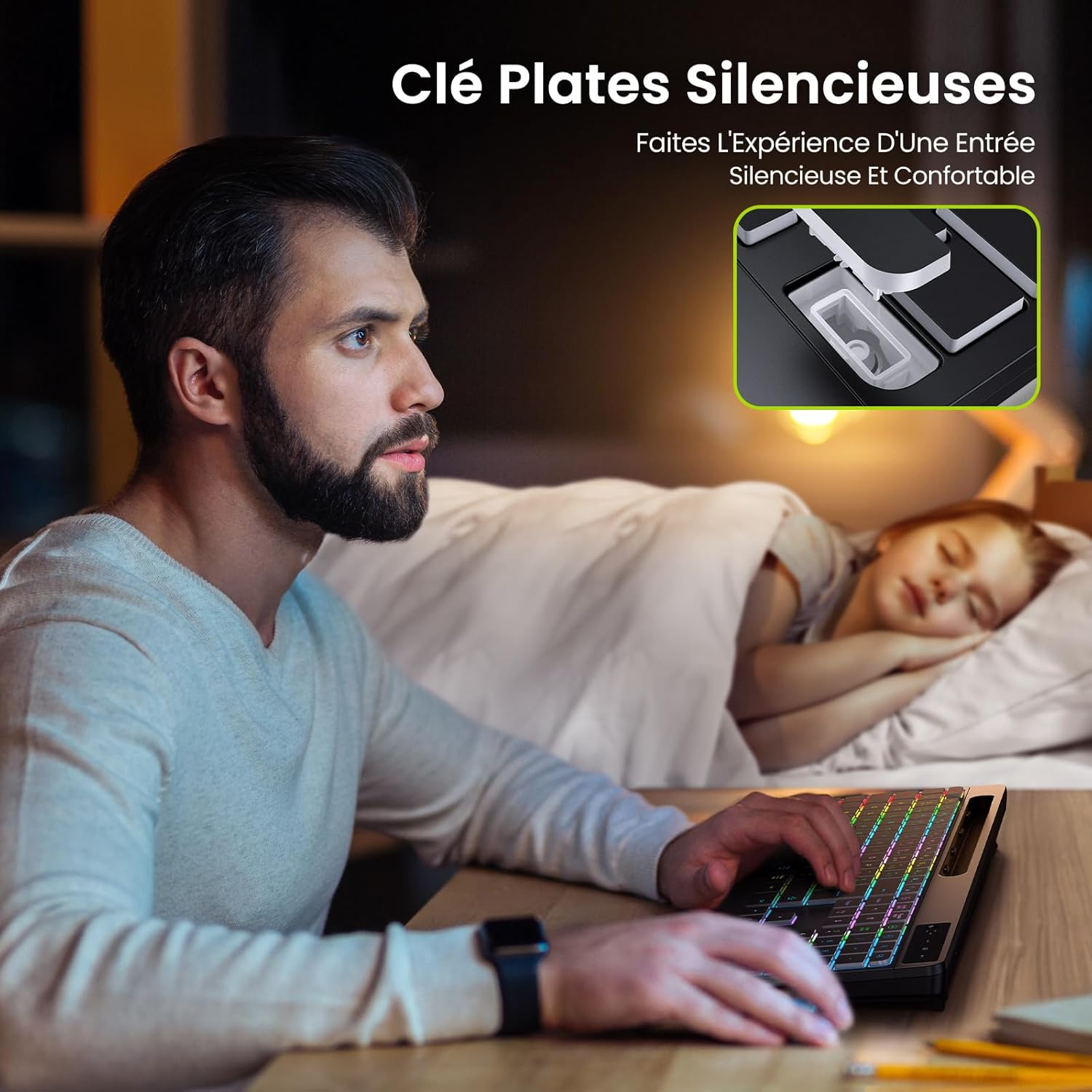
Foto: Illustrates the quiet operation of the keyboard, showing a user typing without disturbing a sleeping person nearby.
5. Wrist Rest
The integrated wrist rest provides ergonomic support, reducing strain during extended typing sessions.
Nlekọta
- Nhicha: Jiri akwa dị nro dị nro hichaa elu ahụigodo. Maka unyi isi ike, ntakịrị dampen akwa na mmiri ma ọ bụ a nwayọọ ihicha ngwọta. Zere kemịkalụ siri ike.
- Nlekọta batrị: Iji mee ka batrị dị ogologo, zere iwepụ ike niile na kiiboodu ahụ mgbe niile. Chajie ya mgbe niile, ọkachasị ma ọ bụrụ na echekwara ya ruo ogologo oge.
- Nchekwa: Chekwaa ahụigodo ahụ n'ebe dị jụụ, kpọrọ nkụ pụọ na ìhè anyanwụ kpọmkwem na oke okpomọkụ.
Nchọpụta nsogbu
- Ahụigodo anaghị aza:
- Gbaa mbọ hụ na agbanyere ahụigodo.
- Check if the 2.4G USB receiver is securely plugged into a working USB port.
- Tinyegharịa ahụigodo ma ọ bụrụ na batrị dị ala.
- Gbalịa itinye ihe nnata USB n'ọdụ ụgbọ mmiri USB dị iche.
- Ìhè azụ anaghị arụ ọrụ:
- Pịa Fn + Ọgwụgwụ to cycle through brightness levels and turn the backlight on.
- Gbaa mbọ hụ na ahụigodo nwere ụgwọ batrị zuru oke.
- Njikọ nkwụsịtụ ma ọ bụ nke na-adịghị arụ ọrụ:
- Ensure the keyboard is within range of the USB receiver (typically up to 10 meters).
- Avoid placing the receiver near strong interference sources (e.g., Wi-Fi routers, other wireless devices).
- Tinyegharịa ahụigodo.
Nkọwapụta
| Ụdị | TECURS |
| Nlereanya | WK013 |
| Teknụzụ Njikọta | 2.4 GHz Ikuku |
| Ọnụọgụ igodo | 110 |
| Atụmatụ pụrụ iche | Backlit, Wrist Rest, Phone Holder |
| Ụdị batrị | 1 Lithium Ion battery (contained in equipment) |
| Ike batrị | 1000 mAh |
| Isi Iyi Ike | Batrị kwadoro (USB-C nwere ike ịchaji) |
| Mmepụta Voltage/Ugbu a | DC 3.7V / 100mA |
| Agba | Nwa |
| Ihe onwunwe | Plastic |
| Ibu Ibu | 840 g |
| Akụkụ ngwugwu | 44 x 22.2 x 3.3 cm |
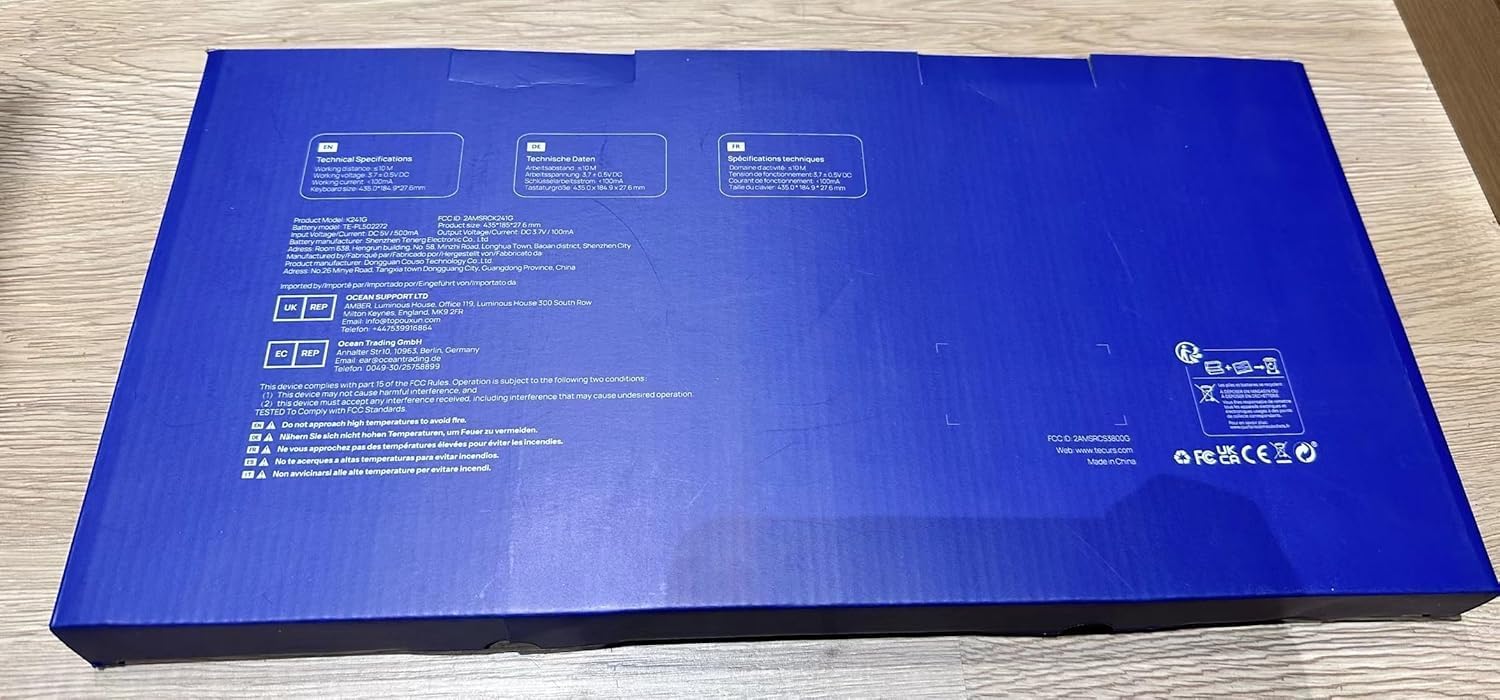
Foto: Close-up of the product label, confirming model WK013, FCC ID, and electrical specifications.
Akwụkwọ ikike na nkwado
TECURS products are designed for reliability and performance. For warranty information or technical support, please refer to the warranty card included in your package or visit the official TECURS websaịtị. Debe nnata nzụta gị ka ihe akaebe nke ịzụrụ.


