Okwu mmalite
This manual provides comprehensive instructions for the installation, operation, and maintenance of the Cradlepoint R920 4G LTE Cat 7 Router. The R920 is a ruggedized cellular networking solution designed for vehicles and IoT deployments, offering flexible connectivity options and integration with NetCloud service plans.
Kedu ihe dị na Igbe ahụ
Chọpụta na ihe niile dị na ngwugwu gị:
- Cradlepoint R920 Cat 7 (300 Mbps Modem) with Wi-Fi Router
- 1-year NetCloud Mobile Essentials Plan activation code
- GPIO 2x2 Cable, 3 Meters, 20 AWG
- Antennas (if included in specific bundle, typically external antennas are separate or pre-attached for some models)
Ngwaahịa gafereview
The Cradlepoint R920 is engineered for robust performance in demanding environments. It features Cat 7 LTE for reliable cellular connectivity and supports Wi-Fi 6 for local network access.
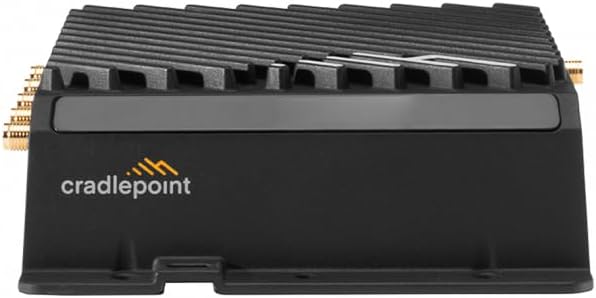
Foto 1: N'ihu view of the Cradlepoint R920 router, showing the Cradlepoint logo and heat sink fins. This image displays the overall rugged design of the device.

Foto 2: N'azụ view of the Cradlepoint R920 router, illustrating the various ports and antenna connectors. This includes Ethernet ports, USB port, and cellular antenna connections.

Foto 3: Akụkụ view of the Cradlepoint R920 router with an attached antenna. This perspective highlights the compact form factor and antenna orientation.
Melite
1. Ntinye kaadi SIM
- Gbaa mbọ hụ na agbanyụrụ rawụta.
- Locate the SIM card slot(s) on the device.
- Insert your activated 4G LTE SIM card(s) into the slot(s) until it clicks into place.
- Close the SIM card slot cover securely (if applicable).
2. Njikọ antenna
- Connect the cellular antennas to the designated cellular antenna ports on the router. Ensure they are finger-tight.
- If using Wi-Fi, connect the Wi-Fi antennas to the Wi-Fi antenna ports.
- Position antennas for optimal signal reception.
3. Njikọ ike
- Connect the provided power cable to the router's power input.
- Connect the other end of the power cable to a suitable power source (e.g., vehicle ignition, DC power supply). The R920 supports ignition sensing.
- The router will power on automatically or can be powered on via its power button (if present).
4. NetCloud Activation
The Cradlepoint R920 requires activation with a NetCloud service plan. Follow the instructions provided with your NetCloud Essentials Plan to register your device and begin managing it through the NetCloud Manager portal. This typically involves:
- Creating a NetCloud account or logging into an existing one.
- Registering your device using its serial number.
- Assigning the device to a group and applying a configuration.
Operating the R920 Router
Njikọta ekwentị
Once powered on and activated with NetCloud, the R920 will attempt to establish a cellular connection using the installed SIM card. The router's LED indicators (refer to the device's quick start guide for specific LED behavior) will show the status of the cellular connection.
Neti Wi-Fi
The R920 supports Wi-Fi 6 (802.11ax) for local wireless connectivity. Default Wi-Fi network names (SSIDs) and passwords are typically found on a label on the device or can be configured via NetCloud Manager.
Njikwa NetCloud
The primary method for managing and monitoring your R920 router is through the Cradlepoint NetCloud Manager portal. This cloud-based platform allows you to:
- Monitor device status and connectivity.
- Configure network settings, Wi-Fi, and security policies.
- Jikwaa mmelite firmware.
- Access advanced features like GNSS/GPS tracking, web filtering, and application visibility (with Advanced Mobile plan).
Nlekọta
Firmware mmelite
Regular firmware updates are crucial for security and performance. Firmware updates are managed and deployed through the NetCloud Manager. Ensure your device is connected to a stable power source and has an active internet connection during updates.
Nhicha
Clean the exterior of the router with a soft, dry cloth. Do not use liquid cleaners or aerosols directly on the device. Ensure ventilation openings are free from dust and debris.
Ihe gbasara gburugburu ebe obibi
The R920 is designed for rugged environments. However, avoid exposing it to extreme temperatures outside its operating range, direct water immersion, or excessive physical shock.
Nchọpụta nsogbu
No Cellular Connectivity
- Lelee kaadị SIM: Ensure the SIM card is correctly inserted and activated with your cellular provider.
- Mpi: Verify all cellular antennas are securely connected and properly positioned.
- Ike mgbaama: Check cellular signal strength via NetCloud Manager. Move the router to an area with better coverage if necessary.
- NetCloud Status: Confirm the device is active and configured correctly in NetCloud Manager.
Okwu njikọ Wi-Fi
- Antenna Wi-Fi: Ensure Wi-Fi antennas are connected (if external).
- SSID/Paswọdu: Verify you are connecting to the correct Wi-Fi network (SSID) and using the correct password.
- Device Proximity: Ensure client devices are within range of the router's Wi-Fi signal.
- NetCloud Configuration: Check Wi-Fi settings in NetCloud Manager.
Router Not Powering On
- Isi mmalite ike: Verify the power cable is securely connected to both the router and a functional power source.
- Nchọpụta Mgbanye Ọkụ: If connected to a vehicle, ensure the ignition is on or the power source is active.
Ntọgharị ụlọ nrụpụta
A factory reset will revert all settings to their default state. This should only be performed as a last resort and typically under guidance from support, as it will require re-configuration via NetCloud. Refer to the device's quick start guide or NetCloud documentation for the specific factory reset procedure.
Nkọwapụta
| Njirimara | Nkọwa |
|---|---|
| Ụdị | Oghere |
| Aha Nlereanya | Cradlepoint R920 |
| Nọmba Nlereanya ihe | MA01-0920-C7A-NA |
| Teknụzụ Njikọta | Wireless (4G LTE Cat 7, Wi-Fi 6) |
| Ikuku Communication Standard | 802.11ax (Wi-Fi 6) |
| Klaasị ugboro ugboro | Abụọ-Band |
| Njirimara Pụrụ Iche | Mmetụta ọkụ |
| Eji akwadoro | Outdoor, Vehicle, IoT Deployments |
| Akụkụ ngwugwu | 5.26 x 4.78 x 1.61 sentimita asatọ |
| Ibu Ibu | 1.5 pound |
| Agba | Nwa |
Akwụkwọ ikike na nkwado
NetCloud Service Plan
The Cradlepoint R920 includes a 1-year NetCloud Mobile Essentials Plan. This plan provides access to the NetCloud Manager for device management, firmware updates, and technical support. For details regarding your specific service plan and its terms, please refer to the documentation provided with your NetCloud subscription or visit the official Cradlepoint websaịtị.
Nkwado ndị teknuzu
For technical assistance, please contact Cradlepoint support through your NetCloud account or refer to the support resources available on the official Cradlepoint website. Ensure you have your device's serial number and NetCloud account details ready.
Akwụkwọ ikike ngwaahịa
Warranty terms and conditions are typically covered under your NetCloud service agreement and Cradlepoint's standard product warranty. For the most current and detailed warranty information, please visit the official Cradlepoint website or consult your purchase documentation.


