1. Okwu mmalite
The Inseego MiFi X Pro 5G M3000 is a powerful and secure mobile hotspot designed to provide high-speed internet connectivity. It leverages 5G and Wi-Fi 6 technologies to support up to 32 Wi-Fi enabled devices, including laptops and tablets. This manual provides essential information for setting up, operating, maintaining, and troubleshooting your device.
2. Ngwaọrụ gafereview
Familiarize yourself with the physical components and display of your Inseego MiFi X Pro 5G M3000 mobile hotspot.

Foto 2.1: N'ihu view of the Inseego MiFi X Pro 5G M3000 Mobile Hotspot, showing the display with network information and menu options.

Ọgụgụ 2.2: N'elu-ala view highlighting the power button and the interactive touchscreen display.
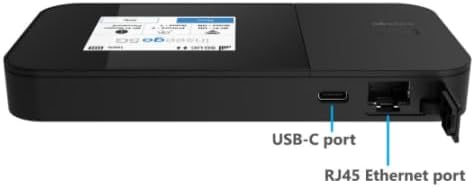
Foto 2.3: Akụkụ view illustrating the USB-C port for charging and tethering, and the RJ45 Ethernet port for wired connections.
Isi ihe:
- Bọtịnụ ike: Located on the side, used to turn the device on/off and wake the screen.
- Ngosipụta ihuenyo mmetụ: Provides access to device status, settings, Wi-Fi name, and password.
- Ọdụ USB-C: For charging the device, USB tethering, and universal charging of external devices.
- Ọdụ ụgbọ mmiri RJ45: For wired network connections, supporting up to 1 Gbps.
- Oghere kaadi SIM: Located internally, for inserting the 5G 4FF Nano SIM card.
3. Nhazi
3.1. Ịtinye kaadị SIM
- Gbaa mbọ hụ na agbanyụrụ ngwaọrụ ahụ.
- Locate the SIM card slot, typically under the battery cover or on the side with a tray.
- Fanye a 5G 4FF Nano SIM card into the slot with the gold contacts facing down and the notched corner aligned correctly.
- Secure the SIM card if necessary (e.g., close the tray or replace the battery cover).
3.2. Nchaji mbụ na ịgbanwuo
- Connect the provided USB-C cable to the device's USB-C port and the other end to a compatible power adapter or computer.
- Allow the device to charge until the battery indicator shows a sufficient charge (e.g., 50% or more).
- Press and hold the power button until the Inseego logo appears on the screen.
- Follow any on-screen prompts for initial setup, such as language selection or basic network configuration.
4. Ijikwa ngwaọrụ
4.1. Ijikọ Ngwaọrụ site na Wi-Fi
The MiFi X Pro 5G M3000 supports Wi-Fi 6 (802.11 a/b/g/n/ac/ax) on both 2.4GHz and 5GHz bands, allowing up to 32 devices to connect simultaneously.
- On the MiFi device's touchscreen, navigate to view the Wi-Fi name (SSID) and password.
- On your Wi-Fi enabled device (laptop, tablet, smartphone), open the Wi-Fi settings.
- Select the MiFi's Wi-Fi network name from the list of available networks.
- Tinye Wi-Fi paswọọdụ mgbe kpaliri.
- Your device should now be connected to the internet through the MiFi hotspot.
4.2. Connecting Devices via Ethernet
The device features a 1 Gbps RJ45 Ethernet port for wired connections.
- Connect one end of an Ethernet cable to the RJ45 port on the MiFi device.
- Connect the other end of the Ethernet cable to the Ethernet port on your computer or network device.
- The connected device should automatically obtain an IP address and gain internet access.
4.3. Ntugharị Ihuenyo Mmetụ Aka
The intuitive touchscreen allows you to monitor connections, view Wi-Fi details, and access settings.
- Ihuenyo ụlọ: Displays network status (5G signal strength), battery level, Wi-Fi status, and number of connected devices.
- Bọtịnụ menu: Accesses advanced settings and information.
- Wi-Fi Name/Password: Ngwa ngwa view your network credentials.
- Enyemaka: Provides on-device assistance and tips.
4.4. Inseego Mobile App
For convenient management, download the Inseego Mobile app from your device's app store. The app allows for easy setup and centralized management of your MiFi device.
5. Nlekọta
5.1. Batrị na Nchaji
- The device is equipped with a 5050 mAh Li-ion battery.
- Charge the device using the provided USB 3.1 Gen 1, Type A to C cable and a compatible power adapter.
- For 24/7 operation, the proprietary battery preservation mode can be enabled when connected to AC power.
- Avoid exposing the device to extreme temperatures to prolong battery life.
5.2. Mmelite firmware
Periodically check for firmware updates to ensure optimal performance, security, and access to new features. Updates can typically be initiated through the device's web administration portal or the Inseego Mobile app when connected to the internet.
5.3. Nhicha
Use a soft, dry, lint-free cloth to clean the device's exterior and touchscreen. Avoid using harsh chemicals or abrasive materials.
6. Nchọpụta nsogbu
This section addresses common issues you might encounter with your MiFi X Pro 5G M3000.
6.1. Enweghị njikọ ịntanetị
- Lelee kaadị SIM: Ensure the 5G Nano SIM card is correctly inserted and activated with your service provider (T-Mobile).
- Ike mgbaama: Verify that the device shows adequate 5G signal strength on the display. Move to an area with better reception if needed.
- Atụmatụ data: Confirm your data plan is active and has available data.
- Malitegharịa ngwaọrụ: Power off the MiFi device, wait a few seconds, and then power it back on.
- Ngwa ejikọrọ: Ensure your connected device (laptop, phone) is properly connected to the MiFi's Wi-Fi network or Ethernet port.
6.2. Device Not Powering On or Charging
- Lelee chaja: Ensure the USB-C cable and power adapter are functioning correctly and securely connected. Try a different charger if available.
- Ọkwa batrị: If the battery is completely depleted, it may take a few minutes of charging before the device responds.
- Bọtịnụ ike: Jide n'aka na ị na-pịa ma jide bọtịnụ ike maka oge achọrọ (ọ na-abụkarị sekọnd 3-5).
6.3. Slow Speeds or Intermittent Connection
- Ebe: Move the MiFi to a location with better 5G signal reception.
- Ntinye aka: Keep the MiFi away from other electronic devices that might cause interference.
- Ngwa ejikọrọ: Too many devices connected simultaneously can impact performance. Disconnect some devices to test.
- Njikọ Wi-Fi: If possible, connect to the 5GHz Wi-Fi band for potentially faster speeds, especially in crowded areas.
7. Nkọwapụta
| Njirimara | Nkọwa |
|---|---|
| Aha Nlereanya | MiFi X Pro 5G M3000 |
| Akụkụ (H x W x D) | 5.9 x 2.91 x 0.74 sentimita (150 x 74 x 18.9 mm) |
| Ibu | 8.60 oz (245g) |
| Chipset | Qualcomm Snapdragon X62 / X65 |
| Ụdị SIM | 5G 4FF Nano SIM |
| Teknụzụ Ntanetị | 5G sub-6GHz NSA, SA, NR-CA, DSS; 4x4 MIMO 5G sub-6 GHz; 4G LTE Cat 20 4X4 MIMO; 3G HSPA+/UMTS |
| Batrị | 5050 mAh Li-ion (Included) |
| Nchaji ọdụ ụgbọ mmiri | USB 3.1 Gen 1, Type A to C |
| -Kpụrụ Wi-Fi | Wi-Fi 6: a/b/g/n/ac/ax (2.4GHz & 5GHz) |
| Ngwa ejikọrọ kacha | Ruo 32 |
| Ọdụ ụgbọ mmiri Ethernet | 1 Gbps RJ45 |
| Okpomọkụ na-arụ ọrụ | 14 °F ruo 131 °F (-10 °C ruo 55 Celsius) |
| Atụmatụ nchekwa | WPA/WPA2/WPA3, Wi-Fi privacy separation, AES encryption, Administration portal, Security-hardened web interface, Password hash, Session timeout, Incorrect password lockout, Anti-CSRF, Open VPN, VPN passthrough, Static IP support |
8. Akwụkwọ ikike na nkwado
As an Amazon Renewed product, specific warranty details are typically provided by the seller or through the Amazon Renewed program. Please refer to your purchase documentation or contact the seller directly for information regarding warranty coverage and support.
For device management and additional support resources, utilize the Inseego Mobile app or visit the official Inseego support websaịtị.


