Okwu mmalite
This manual provides detailed instructions for the TECURS KB566 Wireless Keyboard and Mouse Set. Designed for wide compatibility, this set offers a seamless and efficient experience across various operating systems and devices.

Image: The TECURS KB566 wireless keyboard with blue backlighting and the accompanying wireless mouse, showcasing the sleek design of the set.
Ntuziaka nhazi
1. Ịchaji ngwaọrụ
Before first use, ensure both the keyboard and mouse are fully charged. Use the provided USB Type-C cable to connect them to a power source.
- Ahụigodo: Connect the Type-C cable to the charging port located on the top edge of the keyboard.
- Òké: Connect the Type-C cable to the charging port on the front of the mouse.
- A full charge typically takes approximately 3 hours for the keyboard and 25 hours for the mouse (with backlight off).
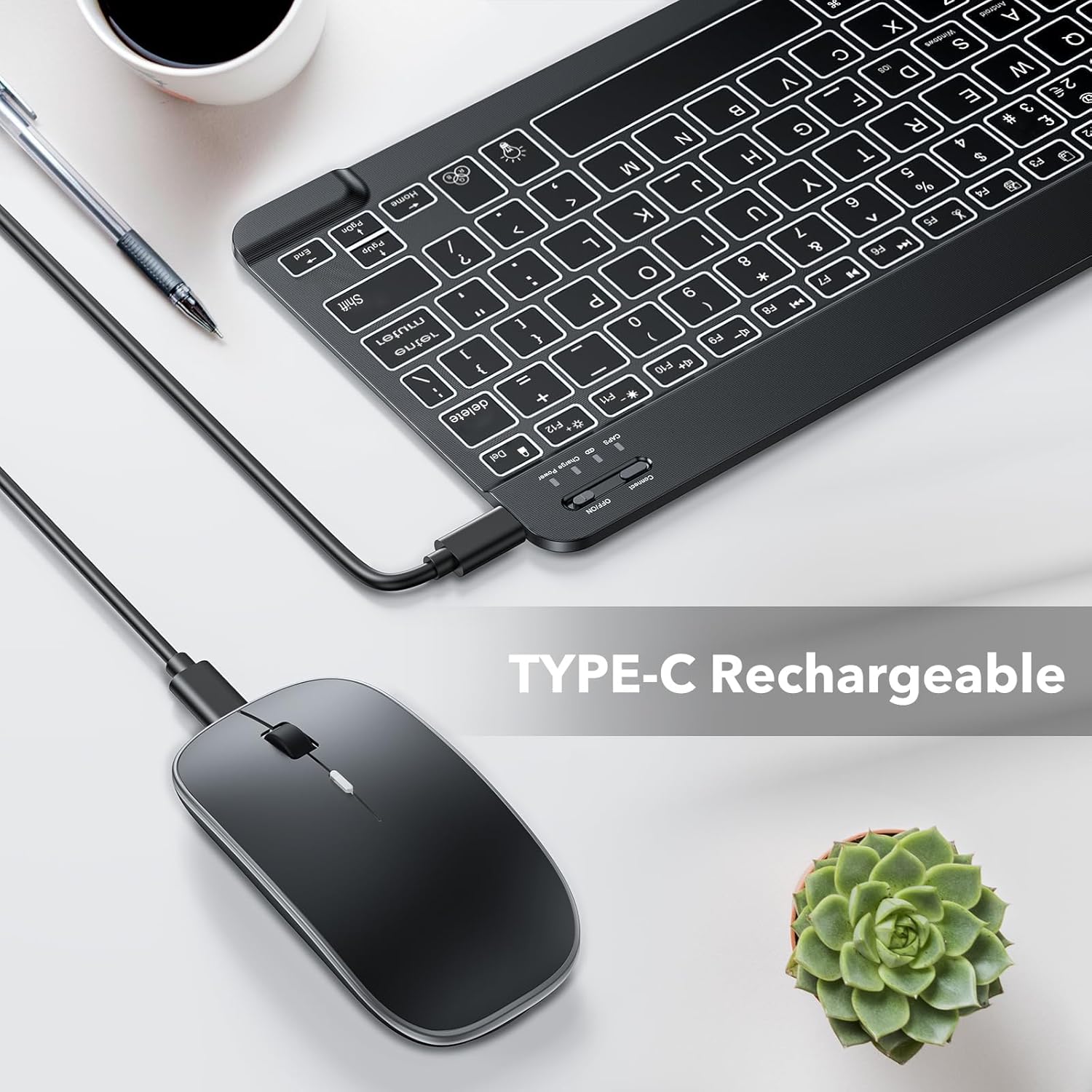
Image: The TECURS KB566 keyboard and mouse connected via USB-C cables for charging, highlighting the Type-C rechargeable feature.
2. Ijikọ na ngwaọrụ gị
The TECURS KB566 set utilizes Bluetooth connectivity for wireless operation. Follow these steps to pair your keyboard and mouse with your device:
- Gbanwuo: Slide the "ON/OFF" switch on the keyboard and mouse to the "ON" position.
- Mee ka Bluetooth rụọ ọrụ: On the keyboard, press the "Connect" button (usually near the ON/OFF switch) to enter pairing mode. The Bluetooth indicator light will flash.
- Kwado Bluetooth na ngwaọrụ gị: Go to the Bluetooth settings on your computer, tablet, or smartphone.
- Chọọ maka Ngwaọrụ: Your device will scan for available Bluetooth devices. Look for "TECURS KB566 Keyboard" and "TECURS KB566 Mouse" in the list.
- Select and Pair: Select each device from the list to initiate the pairing process. Follow any on-screen prompts.
- Kwenye njikọ: Once paired, the Bluetooth indicator light on the keyboard will stop flashing and remain solid or turn off, indicating a successful connection.
The keyboard is compatible with Windows, Android, and iOS operating systems, making it suitable for a wide range of devices including iPads, iPhones, laptops, and PCs.

Image: A visual representation of the TECURS KB566 keyboard and mouse being compatible with various devices such as phones, tablets, and laptops, along with icons for iOS, Android, and Windows operating systems.
Ntuziaka ọrụ
1. Keyboard Backlight Control
The keyboard features 7 colored backlights to enhance visibility and aesthetics.
- Gbanwuo/ Gbanyụọ ọkụ: Pịa light bulb icon key (usually near the Home key) to toggle the backlight on or off.
- Gbanwee Agba ọkụ: Pịa RGB icon key (usually next to the light bulb icon) to cycle through the available backlight colors.

Image: Multiple TECURS KB566 keyboards displaying different backlight colors, along with icons indicating how to turn the light on/off and switch colors.
2. Mouse DPI Adjustment
The wireless mouse offers adjustable DPI settings for precise cursor control.
- The mouse supports 3 DPI levels: 800, 1200, and 1600.
- To change the DPI, press the DPI button (often located behind the scroll wheel) to cycle through the settings. Each press will change the sensitivity.

Image: The TECURS KB566 silent wireless mouse with icons highlighting its features: quiet click, 3-level DPI (800/1200/1600), ergonomic shape, and 7 color options for its lighting.
3. Ọrụ Dị Nwayọọ
Both the keyboard and mouse are designed for quiet operation, minimizing noise during use. The mouse features quiet click buttons, making it ideal for shared workspaces or late-night use without disturbing others.
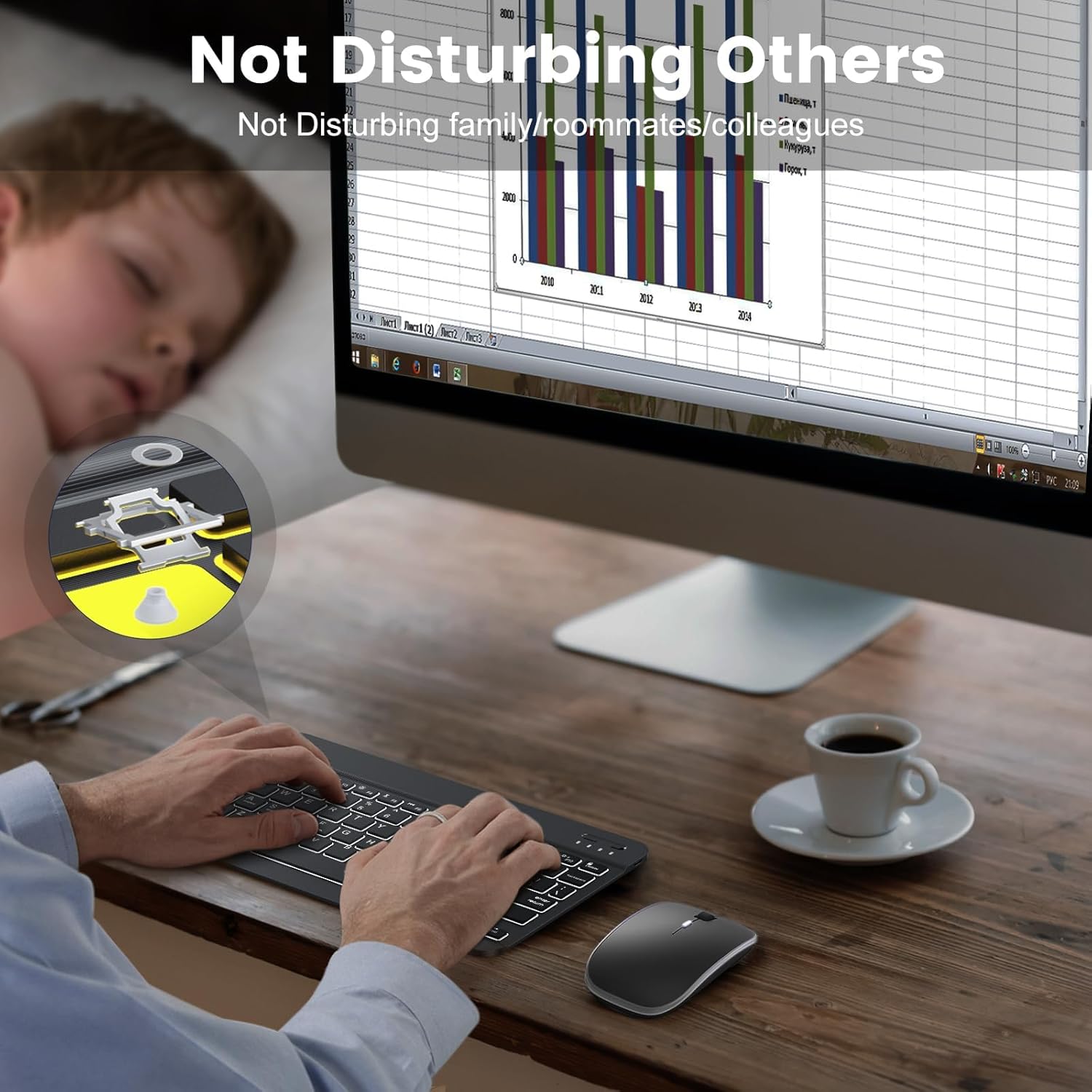
Image: A person using the TECURS KB566 keyboard and mouse quietly at a desk, with an inset showing a sleeping person, emphasizing the
Akwụkwọ ndị emetụtara - KB566
 |
TECURS MK203 Mechanical Keyboard User Guide User guide for the TECURS MK203 mechanical keyboard, detailing its functions, backlighting controls, and safety precautions. Includes specifications and system compatibility. |
 |
KC005 Bluetooth Keyboard User Manual User guide for the TECURS KC005 Bluetooth Keyboard, detailing setup, pairing, and advanced features like multi-touch gestures for iPad and other devices. |
 |
TECURS MK205 Mechanical Gaming Keyboard User Manual - Features, Specs, and Safety Comprehensive user manual for the TECURS MK205 mechanical gaming keyboard. Learn about its features, specifications, key functions, macro definition, and important safety precautions. Includes LED modes, multimedia controls, and compatibility information. |
 |
TECURS GM001 Wireless Mouse User Manual & Specifications Comprehensive guide to the TECURS GM001 wireless mouse, covering specifications, setup, product overview, power saving, safety precautions, troubleshooting, and DPI settings. |
 |
TECURS MR04 USB Microphone User Manual and Specifications Official user manual for the TECURS MR04 USB condenser microphone. Learn about its features, setup for Windows and Mac OS, technical specifications, and important safety precautions. |
 |
TECURS KB510 Mechanical Keyboard User Manual and Features Comprehensive guide to the TECURS KB510 wireless mechanical keyboard, covering specifications, package contents, compatible systems, product overview, function descriptions, backlight operations, connection modes (Wired, Bluetooth, 2.4G), troubleshooting, power management, and important safety precautions. |