1. Okwu mmalite
Welcome to the user manual for your HEANTTV X6 Computer Speakers. This guide provides detailed instructions on setting up, operating, and maintaining your speakers to ensure optimal performance and an enhanced audio experience. Please read this manual thoroughly before using the product.
2. Ngwaahịa gafereview
2.1 Atụmatụ
- HiFi Audio: Equipped with 5W*2 dual drive units and dual-channel output for clear, immersive sound.
- Ọkụ RGB dị ike: Features multiple colorful lighting modes, with an option to turn off the illumination.
- Njikwa kensinammuo: Includes a rotary knob for volume adjustment and touch-sensitive buttons for managing lighting effects and switching connection modes.
- Njikọ na-agbanwe agbanwe: Supports both wired (3.5mm AUX) and wireless (Bluetooth 5.0) connections, along with a microphone connector for communication.
- Ndakọrịta sara mbara: Compatible with a wide range of devices including laptops, desktop computers, smartphones, tablets, projectors, and gaming consoles.
Ihe ngwugwu 2.2
- HEANTTV X6 Main Speaker Unit (with controls)
- HEANTTV X6 Secondary Speaker Unit
- USB Power USB
- 3.5mm Audio USB
- Akwụkwọ ntuziaka (akwụkwọ a)
2.3 njirimara akụrụngwa
Familiarize yourself with the various parts of your HEANTTV X6 speakers:

- Mpịakọta Mpịakọta: Located on the main speaker unit, used to adjust the audio volume and power the speakers on/off.
- bọtịnụ njikwa aka: Positioned near the volume knob, used to toggle RGB lighting effects and switch between connection modes (Bluetooth/AUX).
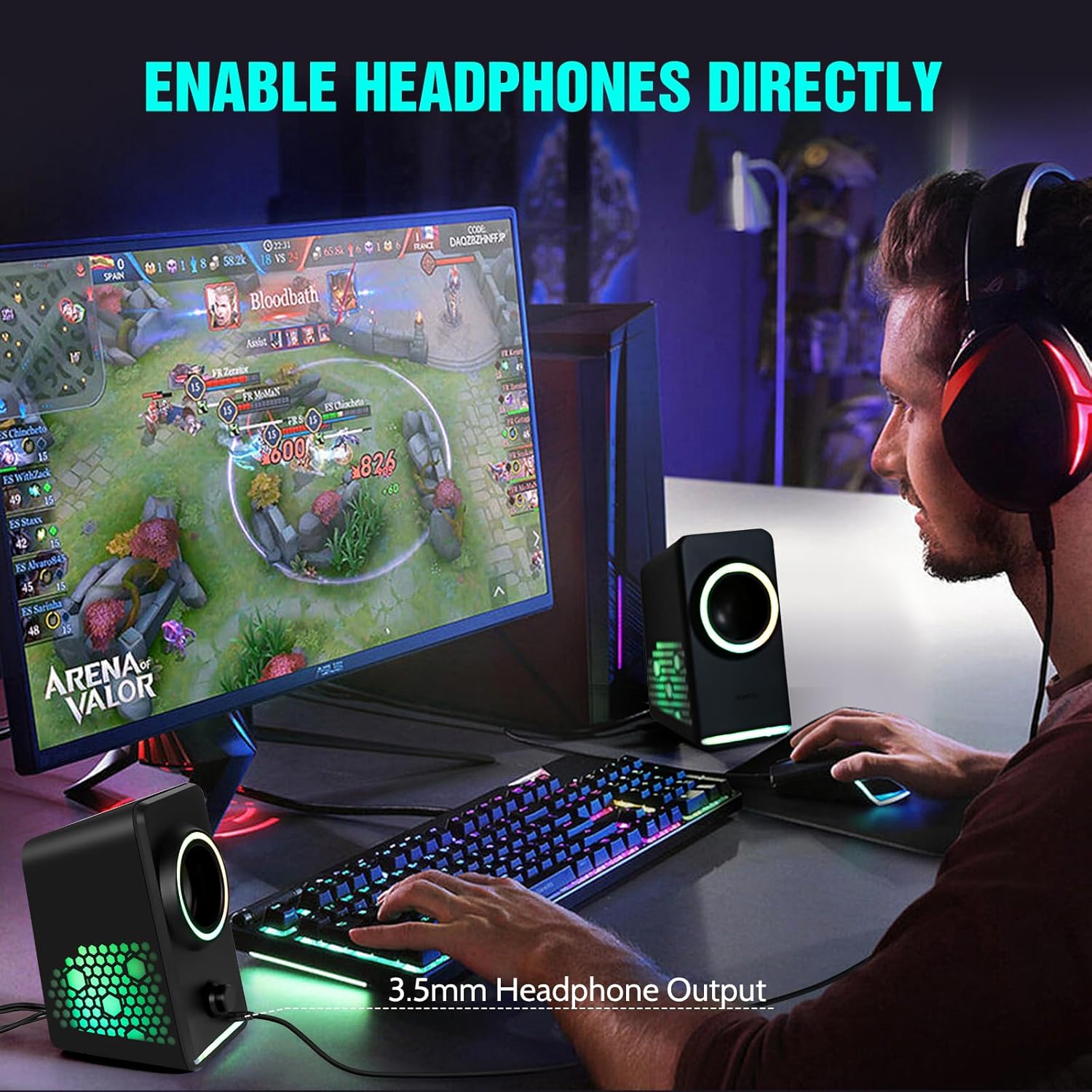
- Jack ekweisi 3.5mm: Allows direct connection of headphones for private listening.
- Ntinye ike USB: Connects to a USB power source for speaker operation.
- Ntinye ọdịyo 3.5mm: For wired audio connection to devices.
3. Nhazi ntuziaka
Follow these steps to set up your HEANTTV X6 Computer Speakers:
3.1 Ijikọ Ndị Ọkà Okwu
- Connect Secondary Speaker: Connect the cable from the secondary speaker unit to the designated port on the main speaker unit.
- Njikọ ike: Insert the USB power cable into the USB power input port on the main speaker unit, then connect the other end to a USB power source (e.g., computer USB port, USB wall adapter).
- Audio Connection (Wired): For a wired connection, plug the 3.5mm audio cable into the 3.5mm audio input port on the main speaker unit and the audio output jack of your device (e.g., computer, laptop, smartphone).
- Audio Connection (Bluetooth): To use Bluetooth, ensure the speakers are powered on. Press the touch control button to switch to Bluetooth mode (indicated by a specific light pattern or audio cue). On your device, search for "HEANTTV X6" in the Bluetooth settings and pair.

4. Ntuziaka ọrụ
4.1 Gbanyụọ/ Gbanyụọ na njikwa olu
- Ike Na: Rotate the volume knob clockwise until you hear a click and the speakers power on.
- Gbanyụọ: Rotate the volume knob counter-clockwise until you hear a click and the speakers power off.
- Gbanwee olu: Rotate the volume knob clockwise to increase volume and counter-clockwise to decrease volume.
4.2 Ụdị Njikọ Ịgbanwe
Press the touch control button on the main speaker unit to cycle between available input modes (Bluetooth and 3.5mm AUX). The speakers will provide an audio cue or a change in lighting to indicate the active mode.
4.3 RGB njikwa ọkụ
Press and hold the touch control button to change the RGB lighting effects. A quick tap may also cycle through different static colors or turn the lights off, depending on the current mode.
4.4 Using the Headphone Output
To use headphones, plug your 3.5mm headphones into the headphone jack located on the main speaker unit. This will typically mute the speakers and route audio to your headphones.
5. Nlekọta
To ensure the longevity and optimal performance of your HEANTTV X6 speakers, follow these maintenance guidelines:
- Nhicha: Use a soft, dry cloth to wipe the speaker surfaces. Avoid using abrasive cleaners, solvents, or sprays that could damage the finish or internal components.
- Nchekwa: Mgbe a naghị eji ya ogologo oge, chekwaa ndị ọkà okwu n'ebe dị jụụ, kpọrọ nkụ na-adịghị na ìhè anyanwụ kpọmkwem na oke okpomọkụ.
- Ijikwa: Handle the speakers with care. Avoid dropping them or subjecting them to strong impacts.
- Igwe ikuku: Ensure the speakers have adequate ventilation and do not block any vents, if present, to prevent overheating.
6. Nchọpụta nsogbu
If you encounter issues with your HEANTTV X6 speakers, refer to the following common problems and solutions:
| Nsogbu | Ihe nwere ike ime | Ngwọta |
|---|---|---|
| Enweghị ụda sitere na ndị ọkà okwu | Speakers not powered on; Volume too low; Incorrect input mode; Loose cable connection; Device volume low. | Ensure speakers are powered on and volume is up. Check that the correct input mode (Bluetooth/AUX) is selected. Verify all cables are securely connected. Increase volume on your connected device. |
| Njikọ Bluetooth ada ada | Speakers not in pairing mode; Device Bluetooth off; Speakers too far from device; Interference. | Ensure speakers are in Bluetooth pairing mode. Turn Bluetooth on your device. Move speakers closer to the device. Restart both speakers and device. |
| Igwe ọkụ RGB anaghị arụ ọrụ | Lights turned off; Malfunction. | Press the touch control button to cycle through lighting modes or turn them on. If the issue persists, contact support. |
| Mgbagwoju anya ụda | Olu dị oke elu; Ọdịmma isi iyi ọdịyo adịghị mma; Njikọ siri ike. | Reduce the volume. Test with a different audio source. Check cable connections. |
7. Nkọwapụta
The following are the technical specifications for the HEANTTV X6 Computer Speakers:
| Njirimara | Nkọwapụta |
|---|---|
| Aha Nlereanya | X6 |
| Ụdị | HEANTTV |
| Ụdị Ọkà Okwu | Multimedia Speakers with Subwoofer (2.0 Channel) |
| Mpụta ike | 5W x 2 |
| Teknụzụ Njikọta | Bluetooth 5.0, 3.5mm AUX, USB (for power) |
| Usoro njikwa | Aka, Rotary Knob |
| Akụkụ ngwaahịa | 7.98 x 15.49 x 9.3 cm |
| Ibu Ibu | 750 g |
| Ngwa dakọtara | Desktop, Laptop, Personal, Smartphone, Tablet |
| Njirimara Pụrụ Iche | USB Port, RGB Lighting |
8. Akwụkwọ ikike na nkwado
For warranty information and customer support, please refer to the documentation provided at the time of purchase or contact HEANTTV customer service directly. Keep your proof of purchase for any warranty claims.


