1. Okwu mmalite
This manual provides detailed instructions for the safe and efficient operation of your NexiGo Aurora Pro Ultra Short Throw 4K Tri-Color Laser Projector. Please read this manual thoroughly before using the product and retain it for future reference.
The NexiGo Aurora Pro is designed to deliver a high-quality home cinema experience with its 4K resolution, tri-color laser technology, and ultra-short throw capabilities.
2. Ozi nchekwa
Ntuziaka nchekwa dị mkpa:
- Do not look directly into the projector lens when the projector is on. The laser light source is powerful and can cause eye damage.
- Ensure proper ventilation around the projector. Do not block ventilation openings.
- Jiri naanị ihe nkwụnye ike enyere na ihe ngosi ahụ.
- Ewepụla ihe nrụpụta mmiri ozuzo ma ọ bụ mmiri iji gbochie ọkụ ma ọ bụ ujo eletrik.
- Keep the projector away from heat sources such as radiators, heat registers, stoves, or other apparatus that produce heat.
- Wepụ ihe mkpuchi projektọ ahụ n'oge oké ifufe ma ọ bụ mgbe ejiri ya ruo ogologo oge.
- Tụtụ aka n'aka ndị ọrụ ruru eru.
3. Ihe ngwugwu
Chọpụta na ihe niile dị na ngwugwu gị:
- NexiGo Aurora Pro Projector
- Njikwa anya
- Igwe ọkụ ọkụ
- Akwụkwọ ntuziaka (akwụkwọ a)
- Nhọrọ: 100/120 Fresnel Screen (if purchased as a bundle)
- Nhọrọ: 3D Glasses (if purchased as a bundle)
4. Ngwaahịa gafereview
4.1 Ihe Ndị Na-egosi Ihe Nlereanya
Familiarize yourself with the main components of your NexiGo Aurora Pro projector.

Foto nke 1: N'ihu view of the NexiGo Aurora Pro projector, showcasing its sleek design and front speaker grille.

Foto nke 2: N'azụ view of the NexiGo Aurora Pro projector, highlighting the various input and output ports for connectivity.
The projector features multiple connectivity options including HDMI ports, USB ports, and an Ethernet port for network connectivity. One HDMI port supports eARC.
4.2 Ime Remote
The included remote control allows for easy navigation and control of the projector's functions. It features backlit keys for use in dark environments.
5. Nhazi
5.1 Ntinye
The Aurora Pro is an Ultra Short Throw (UST) projector, designed to project a large image from a very short distance to the screen or wall. Proper placement is crucial for optimal image quality.

Foto nke 3: Diagram illustrating the recommended placement distances for various screen sizes (80-150 inches) for the NexiGo Aurora Pro projector.
Refer to the table below for recommended distances from the screen based on desired image size:
| Ogo ihuenyo (Diagonal) | A: Screen to Front | B: Screen to Rear | C: Screen to Top | D: Screen to Foot | E: Y+D |
|---|---|---|---|---|---|
| 80" | 20.00 | 3.96 | 6.95 | 11.76 | 50.98 |
| 90" | 21.92 | 5.88 | 7.91 | 12.72 | 56.71 |
| 100" | 23.84 | 7.80 | 8.87 | 13.68 | 62.66 |
| 110" | 25.76 | 9.72 | 9.83 | 14.64 | 68.57 |
| 120" | 27.56 | 11.52 | 10.91 | 15.72 | 74.54 |
| 135" | 30.44 | 14.40 | 12.35 | 17.16 | 83.35 |
| 150" | 33.32 | 17.28 | 13.79 | 18.60 | 92.10 |
Note: The unit for values in the table is inches. Measurements do not include the screen border size.
5.2 Ijikọ ike
- Jikọọ eriri ọkụ na ọdụ ụgbọ mmiri ntinye ike nke projector.
- Tinye nsọtụ nke ọzọ nke eriri ọkụ n'ime oghere eletrik gbadoro ụkwụ.
5.3 Ngwa jikọọ
The Aurora Pro offers various ports for connecting external devices:
- HDMI: Connect Blu-ray players, gaming consoles, streaming devices, or computers. HDMI 1 supports eARC.
- USB: Connect USB drives for media playback or external accessories.
- Audio ngwa anya: Jikọọ na sistemụ ọdịyo mpụga.
- Ethernet: Maka njikọ netwọk ikuku.
Ensure all cables are securely connected before powering on the projector.
6. Ntuziaka ọrụ
6.1 Gbanyụọ/ gbanyụọ
- To power on, press the power button on the projector or the remote control.
- To power off, press the power button again. A confirmation prompt may appear.
6.2 Ọkachamara Mbido Mbido
Upon first power-on, the projector will guide you through an initial setup wizard to configure language, network settings, and image adjustments.
6.3 Ndozi onyonyo
The Aurora Pro features automatic screen adoption and dynamic dimming. Manual adjustments can be made via the settings menu.
- Gbado anya: Adjust the focus using the remote control or on-screen menu to achieve a sharp image.
- Ndozi isi okwu: If the image is not perfectly rectangular, use keystone correction to adjust. Note that excessive keystone correction can reduce image quality.
- Ndozi ihuenyo: Fine-tune the image position to fit your screen perfectly.
6.4 Nhọrọ Isi mmalite ntinye
Press the "Input" button on the remote control to select between connected HDMI devices, USB media, or internal smart TV applications.
6.5 Ntọala ọdịyo
The projector includes built-in 60W stereo speakers with Dolby Atmos support. You can adjust volume and audio modes through the settings menu. For external audio systems, connect via HDMI eARC or optical audio output.

Foto nke 4: Visual representation of the immersive sound experience provided by the projector's 60W speakers, supporting Dolby Atmos and DTS HD.
6.6 Smart atụmatụ na ngwa
The projector includes a smart TV interface. Navigate using the remote control to access pre-installed applications or download new ones from the app store.
Mara: Some streaming applications may require specific external devices for 4K content or may have compatibility limitations.
6.7 Ụdị egwuregwu
For an optimized gaming experience, enable Gaming Mode in the settings. This mode reduces input lag to 8ms (tested at 1080p 240Hz) and supports 4K@120Hz input, providing smoother motion.
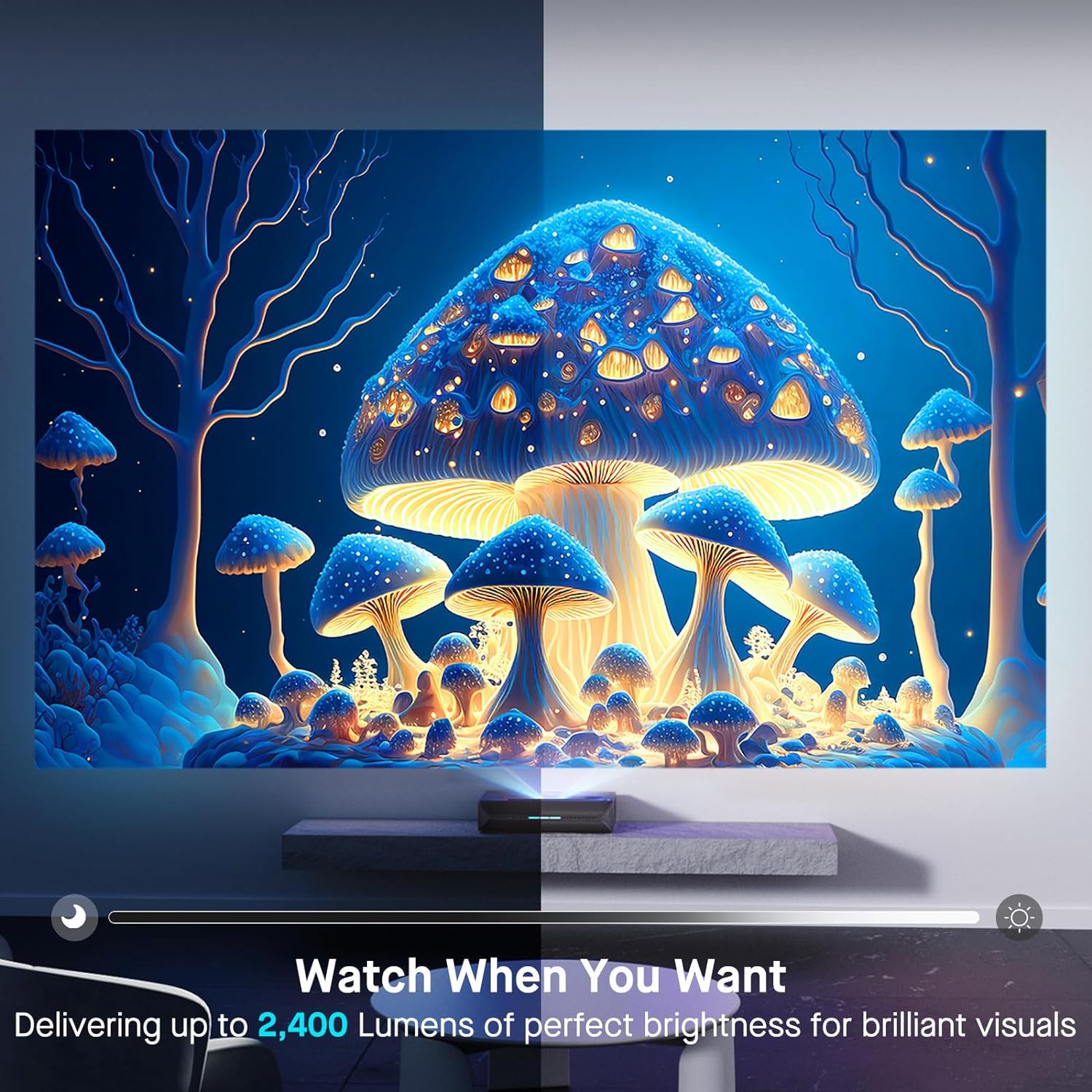
Foto nke 5: A user engaged in gaming on a large projected screen, demonstrating the projector's low latency and 4K 120Hz input capabilities for a smooth gaming experience.
7. Nlekọta
7.1 Na-ehicha ihe nrụpụta
- Mputa: Use a soft, dry cloth to wipe the projector's exterior. Do not use abrasive cleaners or solvents.
- oghere: Gently clean the projector lens with a lens cleaning cloth specifically designed for optical surfaces. Avoid touching the lens directly with your fingers.
7.2 Air Filter (if applicable)
Check the user manual for specific instructions regarding air filter cleaning or replacement, if your model is equipped with one. Regular cleaning ensures optimal performance and prevents overheating.
7.3 Mmelite firmware
Periodically check for firmware updates through the projector's settings menu. Updates can improve performance, add features, and resolve issues.
8. Nchọpụta nsogbu
Ọ bụrụ na ị na-enwe nsogbu na projector gị, rụtụ aka na nsogbu na azịza ndị a na-ahụkarị:
| Nsogbu | Ihe nwere ike ime | Ngwọta |
|---|---|---|
| Ọnweghị onyonyo egosiri | Power cable loose, incorrect input source, device not connected. | Check power connections. Select correct input source. Ensure source device is on and connected. |
| Onyonyo na-agba agba | Out of focus, dirty lens, incorrect placement. | Adjust focus. Clean the lens. Verify projector placement according to guidelines. |
| Enweghị ụda | Volume too low, incorrect audio output setting, external audio system issue. | Increase volume. Check audio output settings on projector and source. Verify external audio system connections. |
| Njikwa anya anaghị arụ ọrụ | Batrị dị ala, ihe mgbochi, ebe a na-anaghị ejikọta ya na remote. | Replace batteries. Remove obstructions. Re-pair remote if necessary (refer to remote control section in full manual). |
| Smart apps not working or slow | Network connectivity issues, outdated app, insufficient memory. | Check Wi-Fi/Ethernet connection. Update the app. Restart the projector. |
For further assistance, please contact NexiGo customer support.
9. Nkọwapụta
| Njirimara | Nkọwa |
|---|---|
| Nọmba nlereanya | PJ92 |
| Ngosipụta mkpebi | 3840 x 2160 (4K UHD) |
| Icha ọkụ | 2400 Lumen |
| Isi Iyi Ìhè | Tri-Color Laser (ALPD 4.0 RGB+) |
| Ọnụọgụ Ntugharị ala ala | 3000:1 |
| Ratio dị iche iche na-agbanwe agbanwe | >6000:1 (with dynamic laser dimming) |
| Agba Gamut | 107% Mk.2020 |
| Nkwado HDR | Dolby Vision, HDR10+, HLG |
| 3D Nkwado | 3D na-arụ ọrụ |
| Ntinye ntinye | 8ms (tested at 1080p 240Hz) |
| Max Input Resolution/Refresh Rate | 4K@120Hz |
| MEMC | Yes (120Hz) |
| Mmepụta ọdịyo | 60W Stereo Speakers (2x15W Woofers, 2x15W Tweeters), Dolby Atmos, eARC |
| Njikọta | HDMI (3, one with eARC), USB, Optical Audio, Ethernet |
| Akụkụ ngwaahịa | 21.54 x 16.04 x 4.81 sentimita asatọ |
| Ibu Ibu | 22 pound |
| Ogologo ihuenyo a na-ahụ anya | 80" - 150" (381 cm max) |
| Laser Lifespan | awa 25,000 |
10. Akwụkwọ ikike na nkwado
NexiGo provides customer support and warranty services for its products. For specific warranty terms and conditions, please refer to the warranty card included with your product or visit the official NexiGo websaịtị.
Nkwado ndị ahịa:
- For technical assistance, troubleshooting, or product inquiries, please contact NexiGo customer support.
- Contact information can typically be found on the NexiGo websaịtị ma ọ bụ na nkwakọ ngwaahịa.
- NexiGo offers 24-hour customer support and lifetime technical support.
Nlaghachi na Mgbanwe:
- Refer to your purchase agreement or retailer's policy for details on returns and exchanges. NexiGo typically offers a 30-day return or exchange period.