1. Okwu mmalite
The Dayton Audio Matrix88 is an advanced 8-source, 8-zone matrix audio switcher designed to provide flexible audio distribution and control throughout your home or commercial space. This device allows you to assign any audio input to any output zone, adjust volume, bass, and treble, and manage power, all through an intuitive mobile application. It integrates seamlessly with existing audio amplification systems and offers various connectivity options including analog, digital, 12V triggers, and RS232 for comprehensive control.
2. Ntuziaka nchekwa dị mkpa
Please read and follow all safety instructions before operating the Dayton Audio Matrix88. Retain this manual for future reference.
- Isi mmalite ike: Connect the unit only to the specified power supply as indicated in this manual and on the product label.
- Igwe ikuku: Ensure adequate ventilation. Do not block any ventilation openings. Install in accordance with the manufacturer's instructions.
- Mmiri na mmiri: Do not expose this apparatus to rain or moisture. Do not use near water or in wet locations.
- Okpomọkụ: Awụnyela n'akụkụ ebe okpomọkụ ọ bụla dị ka radiators, ndekọ okpomọkụ, stovu, ma ọ bụ ngwa ndị ọzọ (gụnyere amplifiers) nke na-emepụta okpomọkụ.
- Nhicha: Jiri akwa kpọrọ nkụ hichaa naanị.
- Ije ozi: Anwala ịnye ngwaahịa a n'onwe gị. Tụtụ aka n'aka ndị ọrụ ruru eru.
- Gịnị: Protect power cords from being walked on or pinched, particularly at plugs, convenience receptacles, and the point where they exit from the apparatus.
3. Ngwaahịa gafereview
3.1 Ogwe ihu
The front panel of the Matrix88 provides essential indicators and controls for quick status checks and basic power management.

Foto 1: N'ihu View of Dayton Audio Matrix88
- Zone Signal LED Indicators: These LEDs illuminate to indicate active audio signals in each of the 8 zones.
- Ihe ngosi ọkụ ọkụ: Shows the power status of the unit.
- Mgbanwu ma ọ bụ gbanyụọ ọkụ: Controls the main power to the Matrix88.
3.2 Ogwe azụ
The rear panel houses all input and output connections, along with control ports for integration into various audio systems.
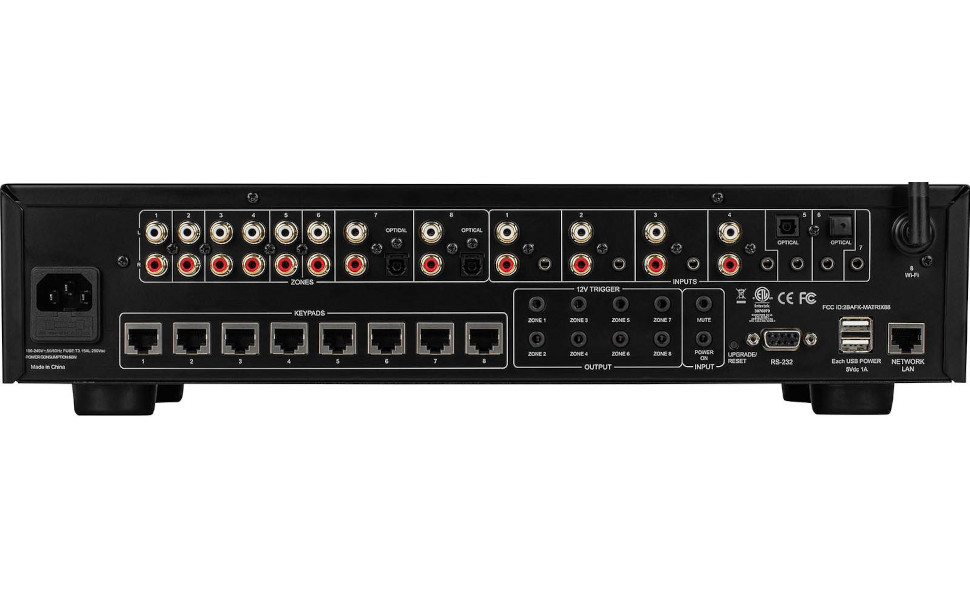
Foto 2: N'azụ View of Dayton Audio Matrix88
- Ntinye AC: Njikọ ike maka nkeji ahụ.
- Mpaghara Preamp Nsonaazụ 1-8: RCA outputs for connecting to external amplifiers for each zone.
- Ntinye RCA stereo: Analog audio inputs for various sources.
- Stereo 3.5mm Inputs: Auxiliary analog audio inputs.
- Optical Toslink Inputs: Digital audio inputs.
- Antenna Wi-Fi: For wireless network connectivity.
- Keypad Connections: Ports for optional in-wall keypads.
- 12VDC Trigger Inputs: For external control via 12V trigger signals.
- 12VDC Trigger Outputs: To trigger other devices based on Matrix88 status.
- RS232 Oghere Usoro: For integration with third-party control systems.
- USB Power Outputs: For powering small external devices.
- Network LAN Port: Maka njikọ netwọk ikuku.
4. Ntuziaka Nhazi
4.1 Mwepu na ntinye
Carefully remove the Matrix88 from its packaging. Place the unit on a stable, flat surface or mount it in an equipment rack. Ensure there is sufficient space around the unit for proper ventilation.
4.2 Ijikọ isi iyi ọdịyo
The Matrix88 supports a variety of audio input types:
- Analog RCA: Connect your audio sources (e.g., CD player, streamer, TV audio out) to the Stereo RCA Inputs on the rear panel using appropriate RCA cables.
- Analog 3.5mm: Use the Stereo 3.5mm Inputs for devices with a 3.5mm audio output.
- Digital Optical (Toslink): Connect digital audio sources (e.g., TV, game console) to the Optical Toslink Inputs.
4.3 Njikọ Amplifiers na ọkà okwu
The Matrix88 provides pre-amplified outputs for each zone. These outputs must be connected to external power amplifiers, which then drive your speakers.
- Jikọọ Mpaghara Preamp Mpụta 1-8 (RCA) to the corresponding input of your external power amplifiers for each zone.
- Gbaa mbọ hụ na gị amplifiers are correctly connected to your speakers in each zone.
4.4 Njikọ netwọkụ
Network connectivity is essential for app control.
- Njikọ waya: Connect an Ethernet cable from your network router or switch to the Ọdụ ụgbọ mmiri LAN n'azụ panel.
- Njikọ ikuku: Attach the provided Wi-Fi antenna to the Antenna Wi-Fi connector on the rear panel. The unit will automatically attempt to connect to an available Wi-Fi network. Configuration may be required via the Matrio app.
4.5 12V Trigger Connections (Optional)
The 12V trigger ports allow for automated control of other devices or to be controlled by external systems.
- 12VDC Trigger Inputs: Connect a 12V trigger source to these inputs to control specific functions of the Matrix88.
- 12VDC Trigger Outputs: Connect these outputs to devices that can be triggered by a 12V signal (e.g., power amplifiers) to turn them on/off in sync with the Matrix88 zones.
4.6 RS232 Control (Optional)
For advanced integration with home automation systems, use the RS232 serial port.
- Connect an RS232 cable from your control system to the Ọdụ ụgbọ mmiri RS232. Refer to the detailed RS232 protocol documentation for specific commands.
4.7 Na-agbanye ike
Once all connections are made, connect the AC power cord to the Ntinye AC and then to a wall outlet. Flip the Gbanyụọ ma ọ bụ gbanyụọ ọkụ on the front panel to the 'On' position. The Power LED Indicator will illuminate.
5. Ntuziaka ọrụ
5.1 Matrio App Installation and Pairing
The primary control interface for the Matrix88 is the Matrio mobile application.
- Download the Matrio app from your device's app store (iOS or Android).
- Ensure your mobile device is connected to the same network as the Matrix88.
- Open the Matrio app. It will automatically search for and discover the Matrix88 on your network.
- Follow the on-screen prompts to pair your device with the Matrix88. You may need to name your zones and inputs during the initial setup.

Foto 3: Matrio App Interface for Zone and Source Control
Njikwa mpaghara 5.2
The Matrio app provides comprehensive control over each audio zone.
- Assigning Inputs: Select any available audio input source to play in any desired zone.
- Ndozi olu: Independently control the volume level for each zone.
- Njikwa ụda: Adjust bass and treble settings for individual zones to optimize sound quality.
- Gbanyụọ/ Gbanyụọ: Turn zones on or off as needed.
- Mechie: Temporarily mute audio in a specific zone.
5.3 Otu njikwa
The app allows for grouping multiple zones to play the same source at synchronized volumes.
- Select the 'Group Control' option within the app.
- Choose the zones you wish to group together.
- Select a common input source and adjust the master volume for the group.
Vidio 1: Demonstrating App Control for Dayton Audio Matrix88
6. Nlekọta
6.1 Nhicha
To maintain the appearance and functionality of your Matrix88, periodically wipe the exterior with a soft, dry cloth. Do not use harsh chemicals or abrasive cleaners.
6.2 Mmelite firmware
Dayton Audio may release firmware updates to improve performance or add new features. Check the Matrio app or the Dayton Audio website for information on available updates and instructions on how to apply them.
7. Nchọpụta nsogbu
If you encounter issues with your Matrix88, refer to the following common problems and solutions:
| Nsogbu | Ihe nwere ike ime | Ngwọta |
|---|---|---|
| Enweghị ike na unit. | Power cord disconnected; Power switch off; Faulty outlet. | Check power cord connection; Ensure power switch is ON; Test outlet with another device. |
| No sound in a zone. | Incorrect input selected; Zone volume too low; Amplifier off/disconnected; Speaker wiring issue. | Verify input selection in app; Increase zone volume; Check amplifier power and connections; Inspect speaker wiring. |
| App cannot find the Matrix88. | Network connection issue; Device not powered on; App/firmware outdated. | Ensure Matrix88 is powered on and connected to the network (wired or Wi-Fi); Restart app and Matrix88; Check for app/firmware updates. |
| ọdịyo agbagọ. | Input signal too high; Volume too high; Faulty cables. | Reduce input source volume; Lower zone volume; Replace audio cables. |
If the problem persists after trying these solutions, please contact Dayton Audio customer support.
8. Nkọwapụta
- Akụkụ ngwaahịa: 21.5 x 13.75 x 8.75 sentimita asatọ
- Ibu ihe: 14 pound
- Nọmba nlereanya: Matrix88
- Akara: Dayton Audio
- Agba: Nwa
- Ụdị njikọ: 3.5mm Jack, RCA, Optical Toslink, RS232, LAN
- Ngwa dakọtara: DVD Player, Projector, Monitor, Television, Gaming Console, Blu-ray Player, Satellite Receiver, DVR, various audio sources and ampndị na -enye ndụ.
- Ụdị eriri: RCA, 3.5mm Jack, Optical, Ethernet, RS232
- Nke mbụ dị: Septemba 5, 2023
9. Akwụkwọ ikike na nkwado
For warranty information, technical support, or service inquiries, please refer to the official Dayton Audio websaịtị ma ọ bụ kpọtụrụ ngalaba ọrụ ndị ahịa ha. Debe nnata nzụta gị dị ka ihe akaebe nke ịzụrụ maka nkwupụta ikike.
Dayton Audio Websaịtị: www.daytonaudio.com


