Okwu mmalite
This manual provides essential information for the safe and efficient use of your Strex 3-in-1 Wireless Charging Station. This device allows you to simultaneously charge a smartphone, an Apple Watch, and AirPods wirelessly. Please read this manual thoroughly before using the product and retain it for future reference.

Image: The Strex 3-in-1 Wireless Charger in use, showing a smartphone, Apple Watch, and AirPods being charged simultaneously.
Ozi nchekwa
- Ewepụla, gbanwee, ma ọ bụ rụkwaa ngwaọrụ n'onwe gị.
- Debe chaja ahụ ka ọ ghara iru mmiri, mmiri, na okpomọkụ dị elu.
- Zere idobe ma ọ bụ idobe chaja na mmetụta siri ike.
- Use only a compatible power adapter (Quick Charge 3.0, at least 18W) to ensure optimal performance and safety.
- Do not place metal objects or magnetic cards on the charging surface, as this may interfere with charging or damage the device.
- Gbaa mbọ hụ na ikuku ikuku dị na gburugburu chaja n'oge eji.
Ihe ngwugwu
Biko lelee ngwungwu maka ihe ndị a:
- Strex 3-in-1 Wireless Charging Station (Model SP288)
- USB-C USB
- Akwụkwọ ntuziaka onye ọrụ
Note: A Quick Charge 3.0 (18W or higher) power adapter is required for fast charging all devices simultaneously and is etinyeghị ya.
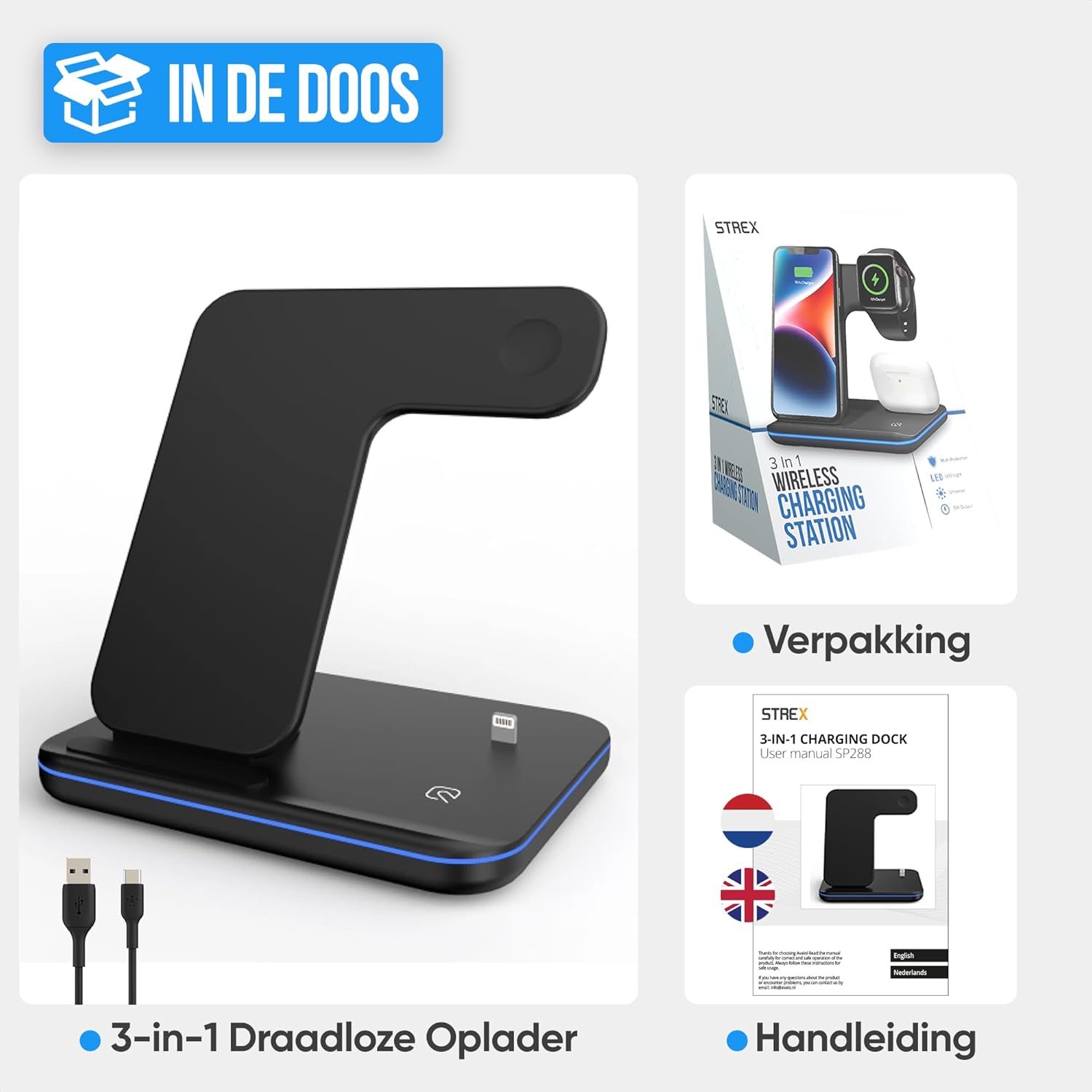
Image: The Strex 3-in-1 Wireless Charger, a USB-C cable, and the user manual, as typically found in the product packaging.
Ngwaahịa gafereview
Familiarize yourself with the components of your Strex 3-in-1 Wireless Charger:
- Smartphone Charging Pad: Vertical stand for wireless smartphone charging.
- Apple Watch Charging Module: Magnetic charging area for Apple Watch.
- AirPods Charging Area: Flat pad for wireless AirPods charging.
- Ìhè ihe ngosi LED: Na-egosiputa ọkwa nchaji.
- Ọdụ ụgbọ mmiri USB-C: Maka ijikọ eriri ọkụ.
- Ihe mgbochi mmepụ: Located on the base for stability.
- Grille ikuku ikuku: Maka mkpofu okpomọkụ.

Foto: nkọwa zuru ezu view of the Strex 3-in-1 Wireless Charger, highlighting its various components such as the phone charging area, watch charging area, AirPods charging area, LED indicator, USB port, ventilation grille, and anti-slip feet.
Ntuziaka nhazi
- Njikọ Ike: Insert the provided USB-C cable into the USB-C input port on the back of the charging station.
- Connect to Adapter: Connect the other end of the USB-C cable to a Quick Charge 3.0 (18W or higher) power adapter (not included).
- Tinye: Plug the power adapter into a wall outlet. The LED indicator light will briefly illuminate, indicating the charger is ready for use.
- Nkwanye: Place the charging station on a flat, stable surface.

Image: A visual comparison demonstrating how the Strex 3-in-1 Wireless Charger helps reduce cable clutter, showing a tidy setup on the right compared to a disorganized one on the left.
Ntuziaka ọrụ
Ịchaji ngwaọrụ gị
- Ekwentị mkpanaaka: Place your wireless charging-compatible smartphone on the vertical charging stand. It can be placed horizontally or vertically. Ensure the phone is centered on the charging area for optimal connection.
- Apple Watch: Attach your Apple Watch to the magnetic charging module. The watch will snap into place and begin charging.
- AirPods: Place your wireless charging-compatible AirPods case on the flat charging pad at the base of the station.
The charger supports fast wireless charging up to 15W for compatible smartphones. All three devices can be charged simultaneously.
Ọnọdụ ihe ngosi LED
The LED indicator light provides visual feedback on the charging status:
- Ọkụ ndụ ndụ: The charging station is in standby mode or no device is currently charging.
- Ìhè na-acha anụnụ anụnụ: Devices are actively charging.
- Flashing Green and/or Blue Light: Indicates an improper placement of a device or detection of a foreign object. Re-position the device or remove any obstructions.
To turn the LED light on or off, gently tap the touch-sensitive area on the base of the charger.
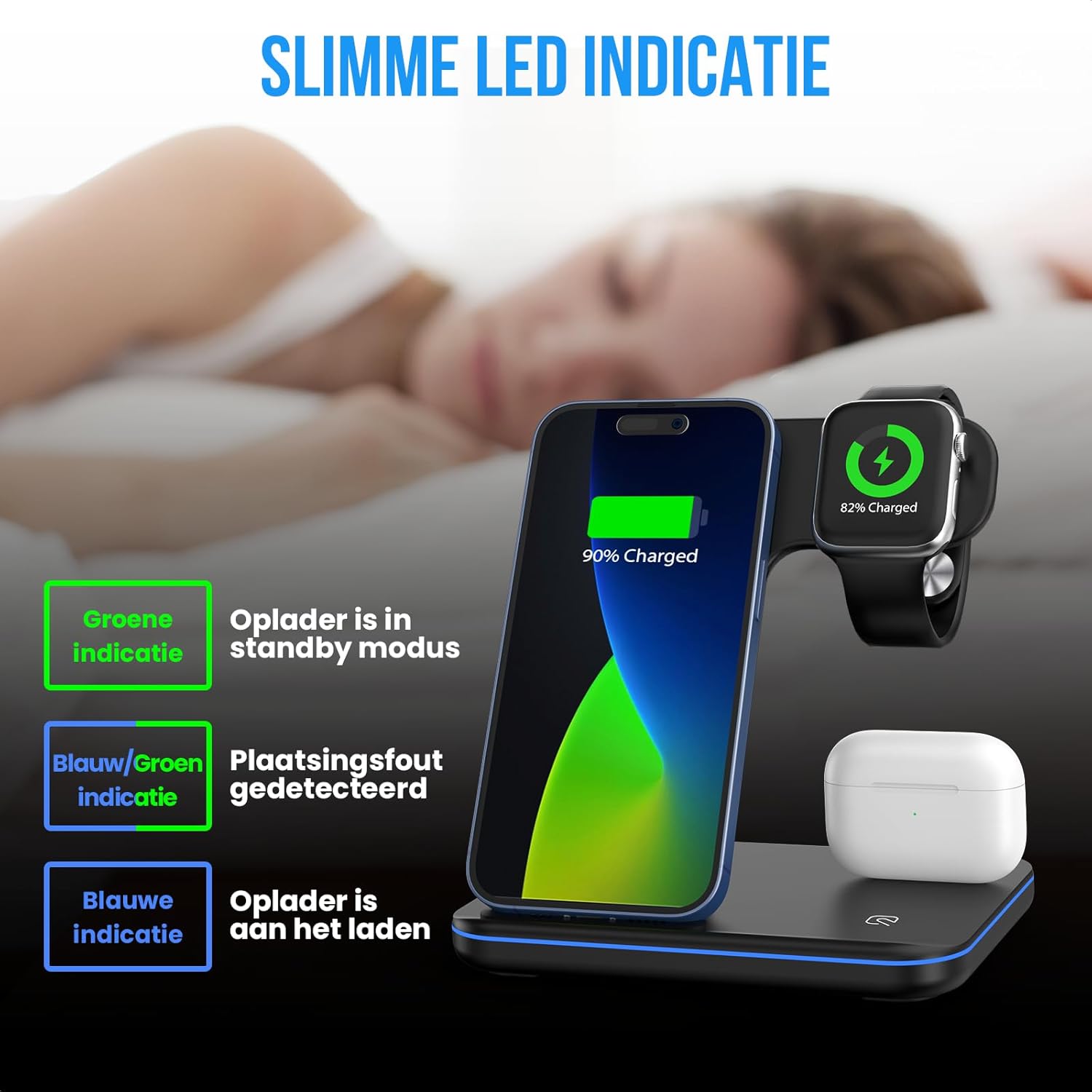
Image: An illustration detailing the meaning of the LED indicator lights: green for standby, blue for active charging, and flashing green/blue for incorrect device placement.
Ndakọrịta
The Strex 3-in-1 Wireless Charger is compatible with most wireless charging-enabled devices, including:
- Apple iPhone (iPhone 8 series and newer)
- Apple Watch (Series 2 and newer, excluding Series 1 and original)
- Apple AirPods (with wireless charging case, e.g., AirPods 2, AirPods Pro, AirPods 3)
- Android smartphones with wireless charging functionality (e.g., Samsung Galaxy S series, Huawei, Google Pixel, etc.)

Image: A comprehensive compatibility chart illustrating which models of Apple Watch, AirPods, iPhones, and other Android smartphones are supported by the Strex 3-in-1 Wireless Charger.

Image: The Strex 3-in-1 Wireless Charger demonstrating flexible charging orientations, with a phone charging vertically for communication and horizontally for media consumption.
Nlekọta
- Nhicha: Disconnect the charger from the power source before cleaning. Use a soft, dry cloth to wipe the surface. Do not use abrasive cleaners or solvents.
- Nchekwa: When not in use for extended periods, store the charger in a cool, dry place away from direct sunlight.
- Nlekọta USB: Avoid bending or twisting the USB-C cable excessively to prevent damage.
Nchọpụta nsogbu
| Nsogbu | Ihe nwere ike ime | Ngwọta |
|---|---|---|
| Ngwaọrụ anaghị akwụ ụgwọ. |
|
|
| LED light flashing green/blue. |
|
|
| Nchaji nwayọ. |
|
|
Nkọwapụta
| Nọmba nlereanya | SP288 |
| Ụdị | Strex |
| Ụdị ngwaahịa | 3-in-1 Ikuku Nchaji Ikuku |
| Ntinye Voltage | 12V DC |
| Ike mmepụta (Max) | 15W (Smartphone), 5W (Apple Watch), 5W (AirPods) |
| Required Power Adapter | Quick Charge 3.0 (18W or higher) - Agụnyeghị |
| Ụdị njikọ | USB Ụdị-C |
| Akụrụngwa | Heat-resistant ABS and PC |
| Agba | Black (Note: Product specification listed "vert une" but product images show black) |
| Ibu Ibu | 296 grams |
| Akụkụ ngwaahịa | 13.6 x 10.1 x 13.6 cm |
Akwụkwọ ikike na nkwado
For warranty information or technical support, please refer to the contact details provided with your purchase or visit the official Strex websaịtị. Debe ihe akaebe nke ịzụrụ ihe maka akwụkwọ ikike ọ bụla.
For further assistance, please contact Strex customer service.


