Okwu mmalite
This manual provides instructions for the installation, operation, and maintenance of the Jebao Smart Marine LED Light ML-60. This advanced lighting system is designed for reef aquariums and fish tanks, offering customizable light spectrums and smart control via the Syna-G App.
Ozi nchekwa
Gụọ ntuziaka niile:
Before operating the device, read and understand all safety and operating instructions.Water and Electricity:
This is an electrical device designed for use near water. Always exercise extreme caution. Do not immerse the light fixture or power adapter in water.Ịnye ọkụ:
Jiri naanị ihe nkwụnye ike enyere. Hụ na vol ahụ dị.tage dakọtara ọkụ ọkụ mpaghara gị.Nwụnye:
Ensure the light is securely mounted to prevent it from falling into the aquarium.Nlekọta:
Kwupu ike tupu ime mmezi ma ọ bụ ihicha ọ bụla.Ụmụaka:
Debe ngwaọrụ a ka ụmụaka ghara iru.Mmebi:
Do not operate the device if any part is damaged. Contact customer support for assistance.
Melite
Ihe ngwugwu
Nyochaa na ihe niile dị na ngwugwu ahụ tupu ịga n'ihu na ntinye.

Image: All components included in the Jebao ML-60 LED Light package. This includes the main light unit, power supply, adjustable mounting arm, and various screws for assembly.
Ngwungwu ahụ kwesịrị ịnwe:
- Jebao ML-60 LED Light Fixture
- Ihe nkwụnye ọkụ
- Kemeghi arịọnụ Ogwe aka
- Ngwa mgbanaka (skru, brackets)
- Akwụkwọ ntuziaka (akwụkwọ a)
Ịkwanye ihe ndozi ọkụ
The ML-60 comes with an adjustable mounting arm for secure attachment to your aquarium.
Assemble the Mounting Arm:
Attach the various sections of the mounting arm using the provided screws. Ensure all connections are tight and secure.Attach Light to Arm:
Secure the main ML-60 light fixture to the mounting arm using the designated screws.Position on Aquarium:
Place the mounting arm onto the rim of your aquarium. Adjust the arm's length and angle to position the light over your tank at the desired height and coverage.Chekwaa Ugwu ahụ:
Tighten any adjustment screws on the mounting arm to firmly secure the light in place. Ensure it is stable and cannot accidentally fall.Nkwadebe ikpeazụ:
Adjust the light head to direct illumination as needed.
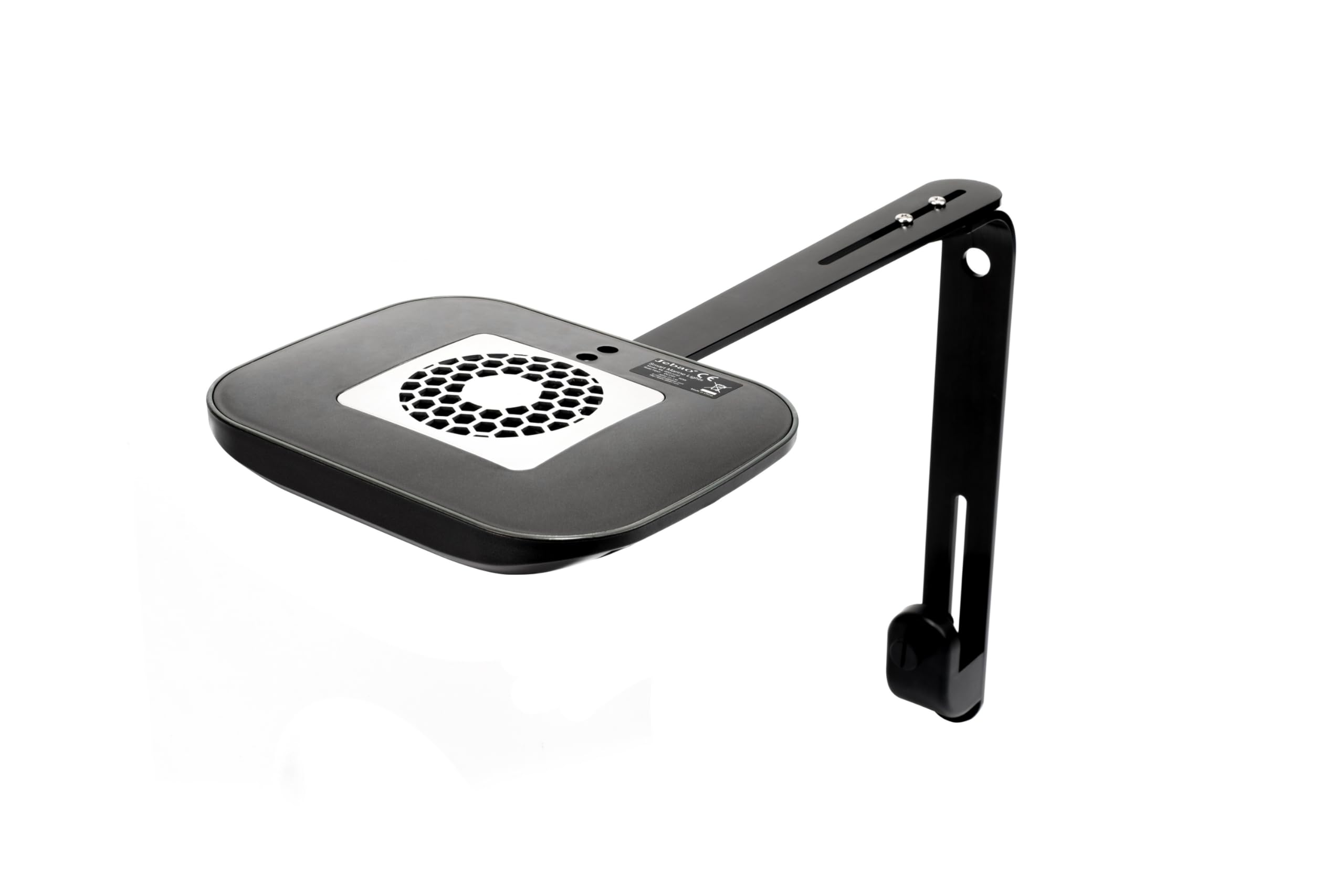
Image: Top-down perspective of the Jebao ML-60 LED light, showing the main unit and the fully assembled mounting arm extending from it.
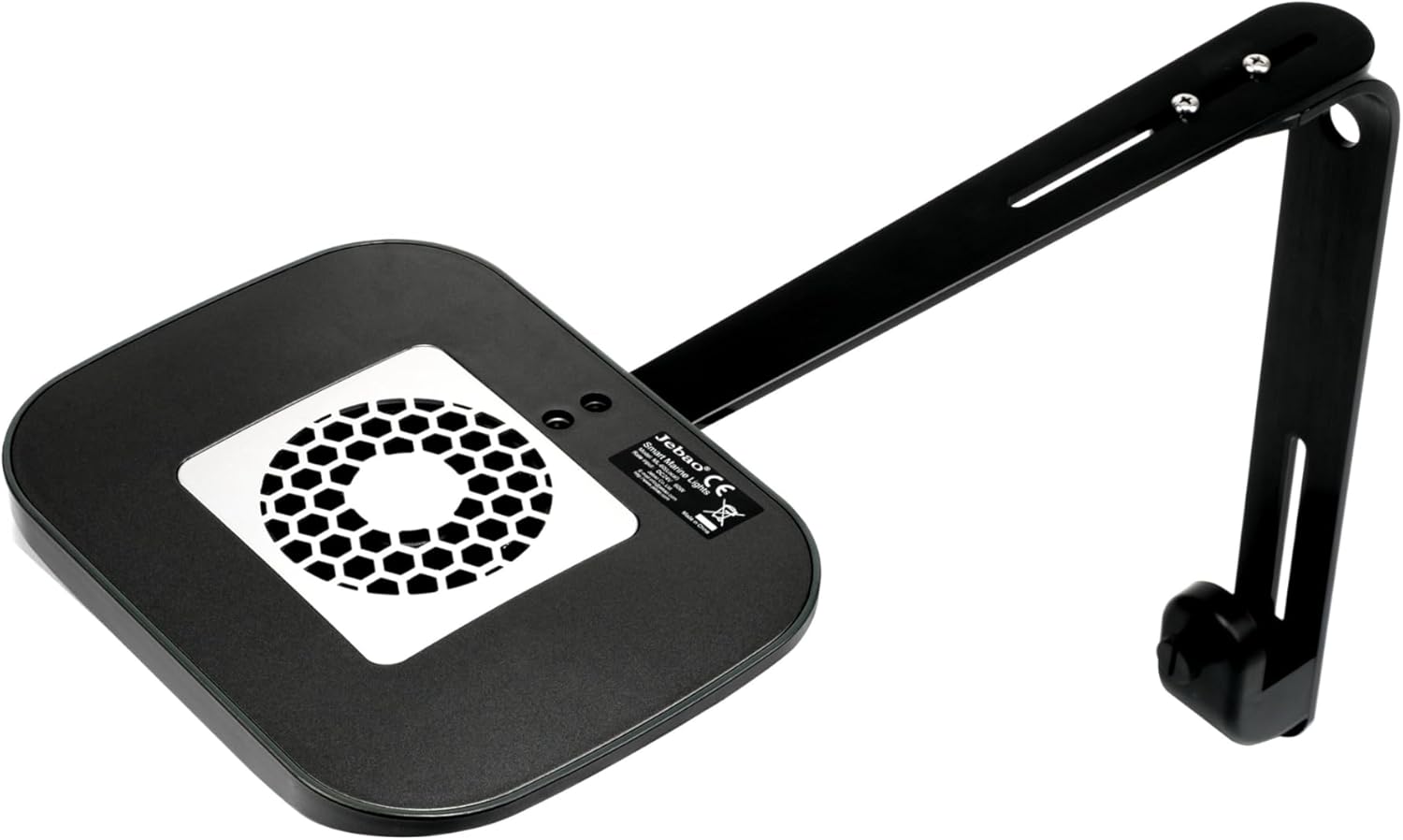
Oyiyi: Otu akụkụ view of the Jebao ML-60 LED light, highlighting the top surface of the light fixture with its cooling fan, and the attached mounting arm.

Foto: Akụkụ profile of the Jebao ML-60 LED light, demonstrating how the mounting arm positions the light fixture above an aquarium, providing illumination.

Image: A different angled view of the Jebao ML-60 LED light and its mounting arm, focusing on the secure attachment mechanisms that hold the light in its desired position.

Foto: N'ihu view of the Jebao ML-60 LED light, clearly displaying the array of individual LEDs and the overall sleek design of the fixture.
Njikọ Ike
- Connect the power adapter cable to the light fixture's power input port.
- Tinye ihe nkwụnye ọkụ n'ime oghere eletrik ọkọlọtọ.
- The light should briefly illuminate or show an indicator light, confirming power connection.
Syna-G App Installation and Wi-Fi Pairing
The Jebao ML-60 is controlled via the Syna-G App, available for iOS and Android devices.
Budata ngwa:
Chọọ maka "Syna-G" in the Apple App Store (for iOS) or Google Play Store (for Android) and install the application.Mepụta akaụntụ:
Open the Syna-G App and follow the on-screen prompts to create a new user account. Note: Some users have reported issues with account setup. Ensure you accept all terms and conditions.Tinye ngwaọrụ:
Within the app, select the option to add a new device. Follow the app's instructions to connect your ML-60 light to your home Wi-Fi network. This typically involves putting the light into pairing mode (refer to the light's indicator lights for status) and selecting your Wi-Fi network within the app.nkwenye:
Once successfully paired, the app will confirm the connection, and you will be able to control your ML-60 light.
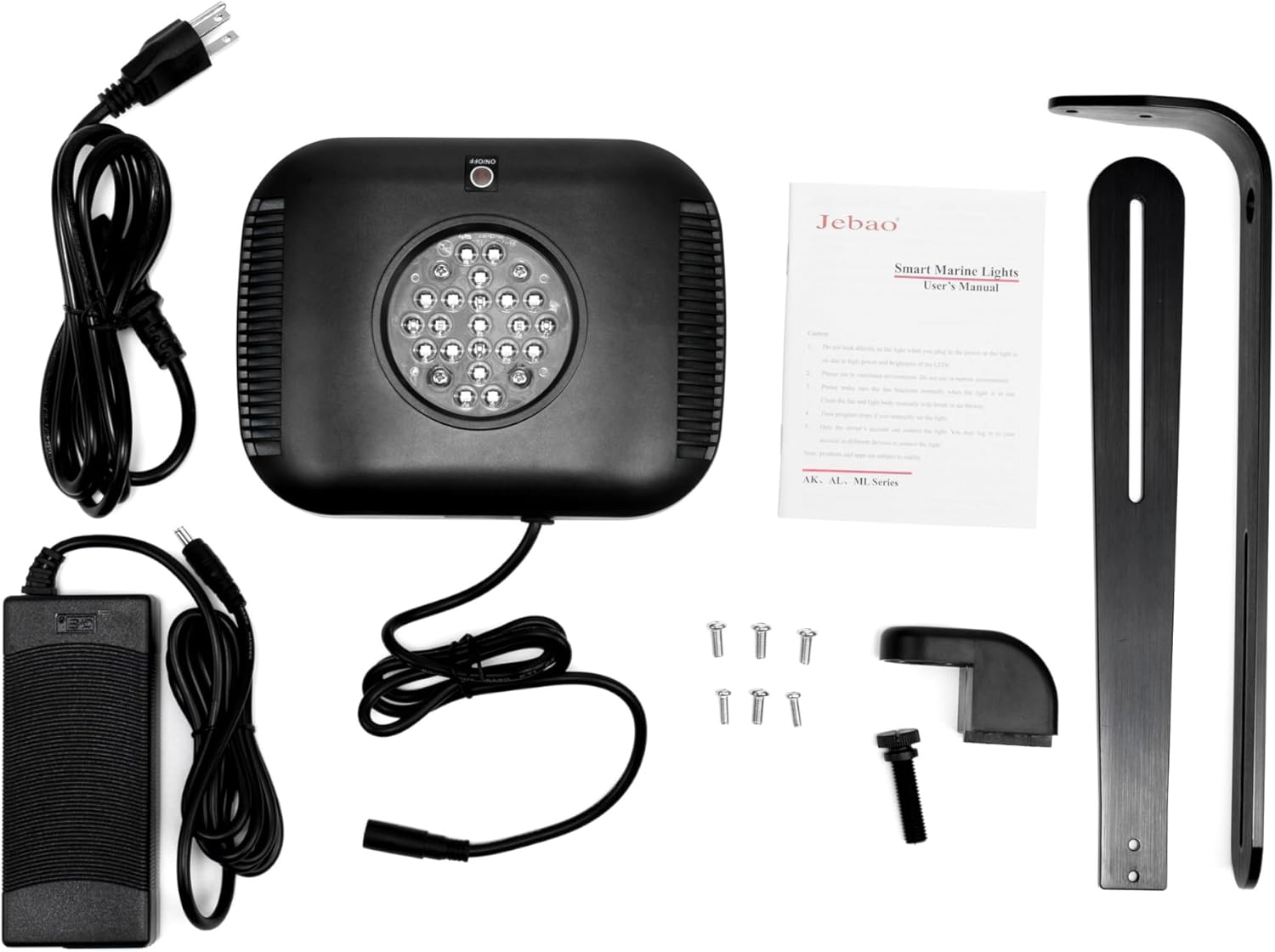
Image: The product packaging for Jebao Smart Marine Lights, featuring logos for downloading the Syna-G app from both the Apple App Store and Google Play Store.
Ntuziaka ọrụ
Isi ọrụ
After successful setup and pairing with the Syna-G App, you can control your ML-60 light.
Gbanyụọ/ Gbanyụọ akwụkwọ ntuziaka:
Use the main power button within the Syna-G App to turn the light on or off instantly.Ndozi ihie:
Adjust the overall intensity of the light using the brightness slider in the app.
Njirimara ngwa dị elu
The Syna-G App offers comprehensive control over your ML-60 light:
Agba Profile and Intensity:
Customize the color spectrum by adjusting individual LED channels (Cool White, Royal Blue, Blue, Violet, UV, Green, Red) and their intensities. The ML-60 maintains high efficiency across all color profiles.Lighting Schedules:
Create daily or weekly lighting schedules to automate on/off times, intensity changes, and color shifts throughout the day.Automated Lunar Cycles:
Program lunar cycles to simulate natural moonlight conditions for your aquarium.Acclimation Schedule:
Utilize the acclimation schedule feature to gradually increase light intensity and duration, allowing corals and other inhabitants to adapt to new lighting conditions without stress.Njikwa otu:
If you have multiple Jebao Smart Marine LED fixtures, you can group them within the app for synchronized control.Ịnweta ikekọrịta:
Share control access and lighting settings with family members or other authorized users.
Nlekọta
Regular maintenance ensures optimal performance and longevity of your Jebao ML-60 LED Light.
Cleaning the Fixture:
Periodically wipe the exterior of the light fixture with a soft, damp cloth to remove dust, salt creep, or water spots. Gbaa mbọ hụ na agbapụrụ ike tupu ihicha. Ejila ihe nchacha abrasive ma ọ bụ ihe mgbaze.LED Lens Cleaning:
Gently clean the LED lenses with a soft, lint-free cloth to maintain light output. Avoid scratching the lenses.Nlekọta ndị fan:
The ML-60 features passing cooling for silent operation. Ensure the fan vents are clear of dust and debris to maintain proper airflow and prevent overheating. Use a soft brush or compressed air to gently clear any blockages.Nyocha eriri ike:
Regularly inspect the power cord and adapter for any signs of damage, fraying, or wear. Replace immediately if damage is found.
Nchọpụta nsogbu
If you encounter issues with your Jebao ML-60 LED Light, refer to the following common solutions:
| Nsogbu | Ihe nwere ike ime | Ngwọta |
|---|---|---|
| Ìhè anaghị agbanwuo. | Enweghị ike, njikọ na-adịghị mma, ihe nkwụnye nwere nsogbu. | Check power outlet, ensure all cables are securely connected. Verify power adapter is functioning. |
| Cannot connect to Wi-Fi / App issues. | Incorrect Wi-Fi password, router issues, app account setup problems, light not in pairing mode. | Ensure correct Wi-Fi password. Restart your router and the light. Reinstall the Syna-G App. Ensure the light is in pairing mode as per app instructions. Verify all terms and conditions are accepted during account setup. |
| Ìhè na-amagharị ma ọ bụ na-akụda na mberede. | Unstable power supply, loose connection, overheating. | Check power connections. Ensure adequate ventilation around the light fixture and clear fan vents. Try plugging into a different outlet. |
| Light settings not saving. | App synchronization issue, network instability. | Ensure your device has a stable internet connection. Close and reopen the Syna-G App. Re-save settings. |
Nkọwapụta
| Nlereanya | ML-60 |
| Max Watts | 60 Watt |
| Ọwa | 6 |
| LED Composition | Cool White: 4, Royal Blue: 5, Blue: 4, Violet: 2, UV: 2, Green: 2, Red: 2 |
| Agba ahụ | Nwa |
| Usoro njikwa | WI-FI + AP (Syna-G App) |
| Dimensions (Main Light) | 8 x 6 x 1.2 sentimita (20.32 x 15.24 x 3.05 cm) |
| Ibu | 1.71 n'arọ (ihe dị ka 3.77 lbs) |
| Onye nrụpụta | Jebao |
Akwụkwọ ikike na nkwado
For warranty information and technical support, please refer to the official Jebao webma ọ bụ kpọtụrụ onye na-ere ahịa gị ikike. Debe risit ịzụrụ ihe gị dị ka ihe akaebe nke ịzụrụ ihe maka nkwupụta nkwa.
Maka enyemaka ọzọ, gaa na Jebao official websaịtị or consult the Syna-G App for support resources.


