1. Ngwaahịa gafereview
The SOLAKAKA SM800 is an ultra-lightweight, tri-mode wireless gaming mouse designed for high-performance gaming and versatile connectivity. It features a high-precision optical sensor, durable microswitches, and programmable buttons.

Figure 1: SOLAKAKA SM800 Wireless Gaming Mouse highlighting the PAW3395 Optical Sensor with specifications including 26000 DPI, 650 IPS, 50G ACC, and 1MM/2MM LOD.
Akụkụ ndị bụ isi:
- PAW3395 Optical Sensor: High precision, low power consumption, low delay, up to 26,000 DPI.
- Njikọta ụdị atọ: Supports Type-C wired, Bluetooth 5.1, and 2.4GHz wireless connections.
- Nhazi dị fechaa: Weighs approximately 58g for comfortable, extended use.
- Kailh GM8.0 Microswitches: Durable switches with 80 million click lifespan and quick response.
- Bọtịnụ enwere ike ime: Customize button functions, DPI settings, lighting, polling rate, and macros via dedicated software.
- Ụdị ergonomic: Streamlined design for a comfortable grip across various hand positions.
Ọdịnaya ngwugwu:
- SOLAKAKA SM800 Wireless Gaming Mouse
- USB-C USB
- 2.4GHz USB nnata
- Akwụkwọ ntuziaka onye ọrụ
- DIY Anti-slip Stickers
2. Nhazi
2.1 Ịchaji òké
Connect the provided USB-C cable to the mouse's Type-C port and the other end to a USB power source (e.g., computer, wall adapter). The mouse features a Type-C fast charging port.

Ọgụgụ 2: nso nso view of the SOLAKAKA SM800 mouse showing the Type-C fast charging port, anti-slip wheels, and the storage slot for the 2.4GHz receiver.
2.2 Ijikọ òké
The SM800 offers three connection modes: 2.4GHz wireless, Bluetooth 5.1, and Type-C wired.

Figure 3: The SM800 mouse illustrating its tri-mode connectivity, allowing quick switching and saving up to 4 devices.
- Gbanyụọ/ Gbanyụọ: Locate the toggle switch on the bottom of the mouse. Slide it to the 'ON' position to power on the mouse.
- Ụdị mgbanwe: Press the mode switch button on the bottom of the mouse to cycle between 2.4GHz wireless (red indicator), Bluetooth 1 (blue indicator), and Bluetooth 2 (green indicator).
- Njikọ ikuku 2.4GHz:
- Remove the 2.4GHz USB receiver from its storage slot on the bottom of the mouse.
- Tinye ihe nnata n'ọdụ ụgbọ mmiri USB dị na kọmputa gị.
- Switch the mouse to 2.4GHz mode (red indicator). The mouse should connect automatically.
- Njikọ Bluetooth:
- Switch the mouse to Bluetooth 1 (blue indicator) or Bluetooth 2 (green indicator) mode.
- On your device, search for Bluetooth devices and select 'SOLAKAKA SM800' to pair.
- Njikọ waya ụdị-C:
- Connect the USB-C cable directly from the mouse to your computer. The mouse will automatically switch to wired mode and begin charging.
3. Ntuziaka ọrụ
3.1 bọtịnụ Ọrụ
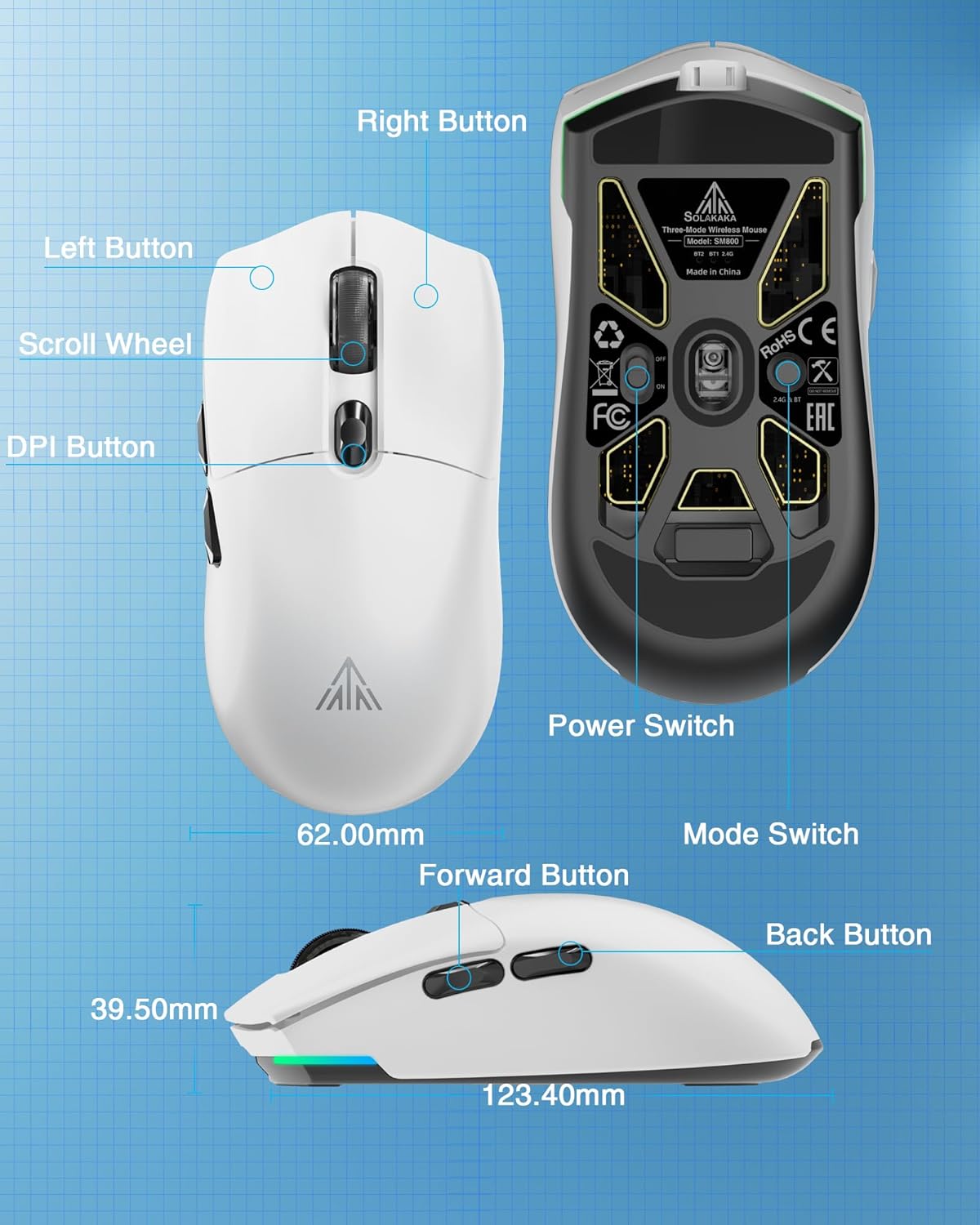
Ọgụgụ 4: Zuru ezu view of the SM800 mouse, indicating the Left Button, Right Button, Scroll Wheel, DPI Button, Forward Button, Back Button, Power Switch, and Mode Switch, along with its dimensions.
- Bọtịnụ aka ekpe: Ọrụ ịpị nke mbụ.
- Bọtịnụ aka nri: Ọrụ pịa nke abụọ.
- Mpempe akwụkwọ mpịakọta: Scroll up/down, Middle Button click.
- Bọtịnụ DPI: Na-agafe ọkwa DPI edobere.
- Bọtịnụ mbugharị: Na-aga n'ihu web ihe nchọgharị ma ọ bụ ngwa.
- Bọtịnụ azụ: Na-agagharị azụ n'ime web ihe nchọgharị ma ọ bụ ngwa.
3.2 DPI mmezi
The mouse supports 6 levels of adjustable DPI. Press the DPI button (located behind the scroll wheel) to cycle through the preset DPI settings. The default DPI levels are 800, 1600, 3200, 4800, 8000, and 26000. The 26,000 DPI setting requires the SOLAKAKA software for activation and customization.

Figure 5: Illustration of the SM800's 6 adjustable DPI levels, ranging from 800 to 26000, with a note that 26000 DPI requires SOLAKAKA software.
3.3 Nhazi Ngwanrọ
For advanced customization, including button remapping, macro programming, DPI fine-tuning, polling rate adjustment, and RGB lighting effects, download and install the official SOLAKAKA SM800 software.

Figure 6: The SM800 mouse displayed with its programmable software interface, allowing users to customize buttons, DPI, lighting, polling rate, and macros.
Software Installation Steps:
- Tinye URL: bit.ly/m/solakaka
- Click on "SM800" and download the zip file.
- Unzip the SM800 software zip file.
- Click the icon to install the SM800 software.
- Double-click the icon to enter the software settings.
4. Nlekọta
4.1 Nhicha
To maintain optimal performance, regularly clean your mouse with a soft, dry cloth. Avoid using harsh chemicals or abrasive materials.
4.2 Applying Anti-slip Stickers
The package includes DIY anti-slip stickers for enhanced grip and personalization. Carefully peel the stickers and apply them to the desired areas on the mouse surface.
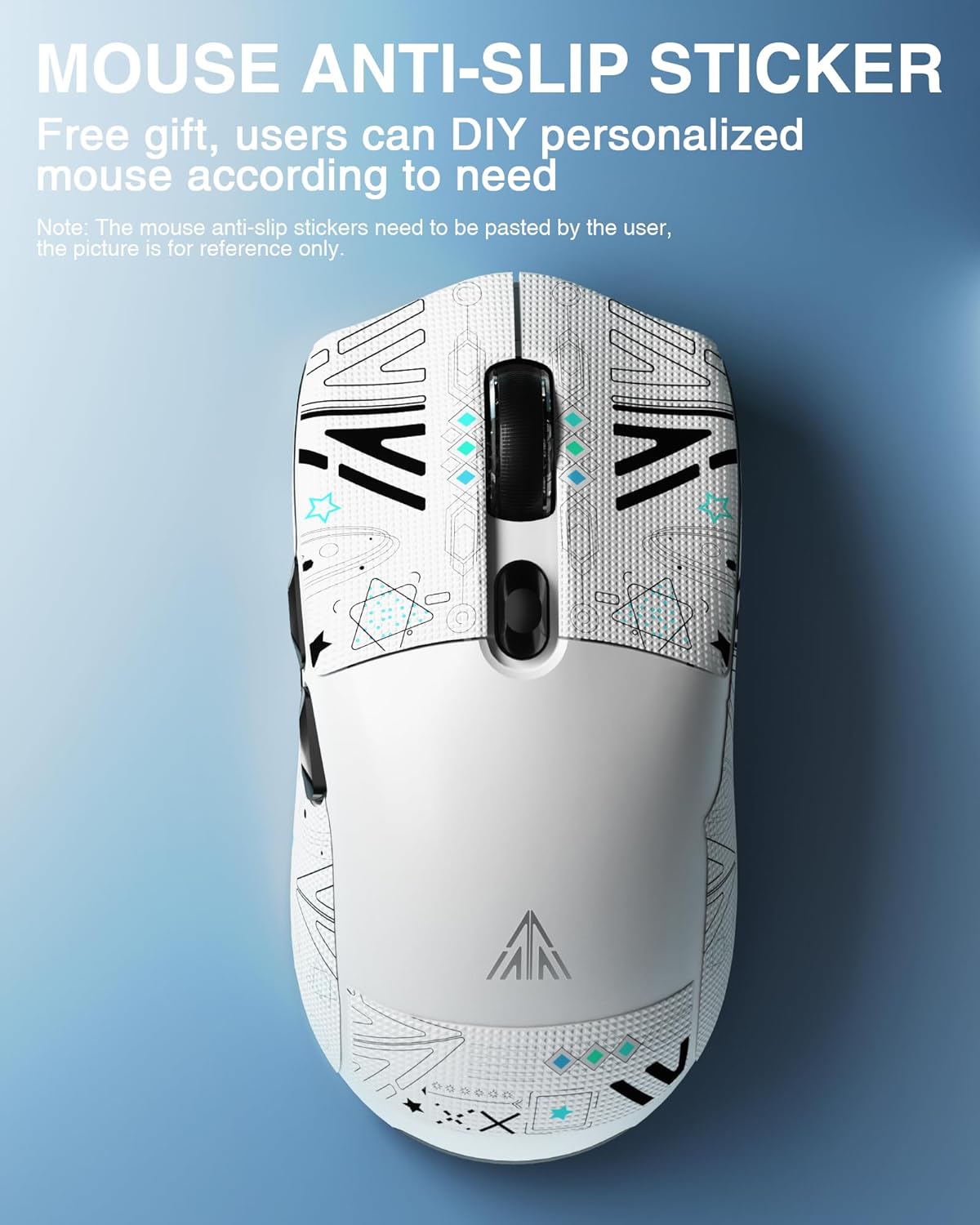
Figure 7: The SM800 mouse showcasing applied anti-slip stickers, which can be customized by the user.
5. Nchọpụta nsogbu
- Òké anaghị aza: Ensure the mouse is powered on and correctly connected via wired, 2.4GHz, or Bluetooth mode. Check battery level.
- Nsogbu njikọ 2.4GHz: Ensure the USB receiver is securely plugged in and the mouse is in 2.4GHz mode. Try a different USB port.
- Nsogbu njikọ Bluetooth: Ensure the mouse is in Bluetooth pairing mode (flashing blue/green indicator) and your device's Bluetooth is enabled. Try re-pairing.
- DPI not changing to 26,000: The highest DPI setting requires the official SOLAKAKA software to be installed and configured.
- Software not installing/working: Ensure your operating system meets the software requirements. Temporarily disable antivirus/firewall if encountering installation issues.
6. Nkọwapụta
| Njirimara | Nkọwapụta |
|---|---|
| Akụkụ ngwaahịa | 4.8 x 2.56 x 1.54 sentimita asatọ |
| Ibu Ibu | 2.05 ounces (ihe dị ka 58g) |
| Teknụzụ Njikọta | Bluetooth 5.1, 2.4GHz Wireless, Type-C Wired |
| Teknụzụ nchọpụta ngagharị | Ngwa anya (PAW3395 sensọ) |
| Ọnụahịa kasị elu nke DPI | 26,000 DPI |
| Ọnụọgụ bọtịnụ | 6 |
| Microswitches | Kailh GM8.0 (80 million clicks) |
| Batrị | 1 Lithium Ion battery (included, 300mAh) |
| Agba | Ọcha |
7. Official Product Videos
Watch these official videos for a visual guide to the SOLAKAKA SM800 Wireless Gaming Mouse's features and functionality.
SOLAKAKA SM800 Ultra-lightweight 58g Tri-mode Gaming Mouse
Vidiyo a na-enye nkọwa zuru ezuview of the SOLAKAKA SM800's ultra-lightweight design, tri-mode connectivity, and key gaming features.
SOLAKAKA SM800 26K DPI Tri-Mode Wireless Gaming Mouse
This video highlights the 26,000 DPI optical sensor and the versatile tri-mode wireless connectivity of the SM800 gaming mouse.
8. Akwụkwọ ikike na nkwado
For warranty information and customer support, please refer to the official SOLAKAKA websaịtị ma ọ bụ kpọtụrụ ndị ahịa ha ozugbo. Debe akwụkwọ nnata ịzụrụ maka akwụkwọ ikike.


