Okwu mmalite
The ATTACK SHARK M71 is a compact 75% TKL mechanical keyboard designed for versatility and performance. Featuring a full aluminum CNC body, tri-mode connectivity (Bluetooth 5.0/3.0, 2.4G wireless, and USB-C wired), hot-swappable pre-lubed linear switches, RGB LED lighting, and a custom gasket mount, it offers a premium typing and gaming experience. This manual provides essential information for setting up, operating, and maintaining your keyboard.

Image: The ATTACK SHARK M71 keyboard showcasing ya kọmpat okirikiri nhọrọ ukwuu na RGB ọkụ.
Ihe ngwugwu
Gbaa mbọ hụ na ihe niile dị na ngwugwu:
- ATTACK SHARK M71 Mechanical Keyboard
- USB-C na eriri USB-A
- 2.4G ikuku ikuku
- Onye na-adọkpụ igodo
- Extra Keycaps (61 PBT OEM keycaps with GMK characters)
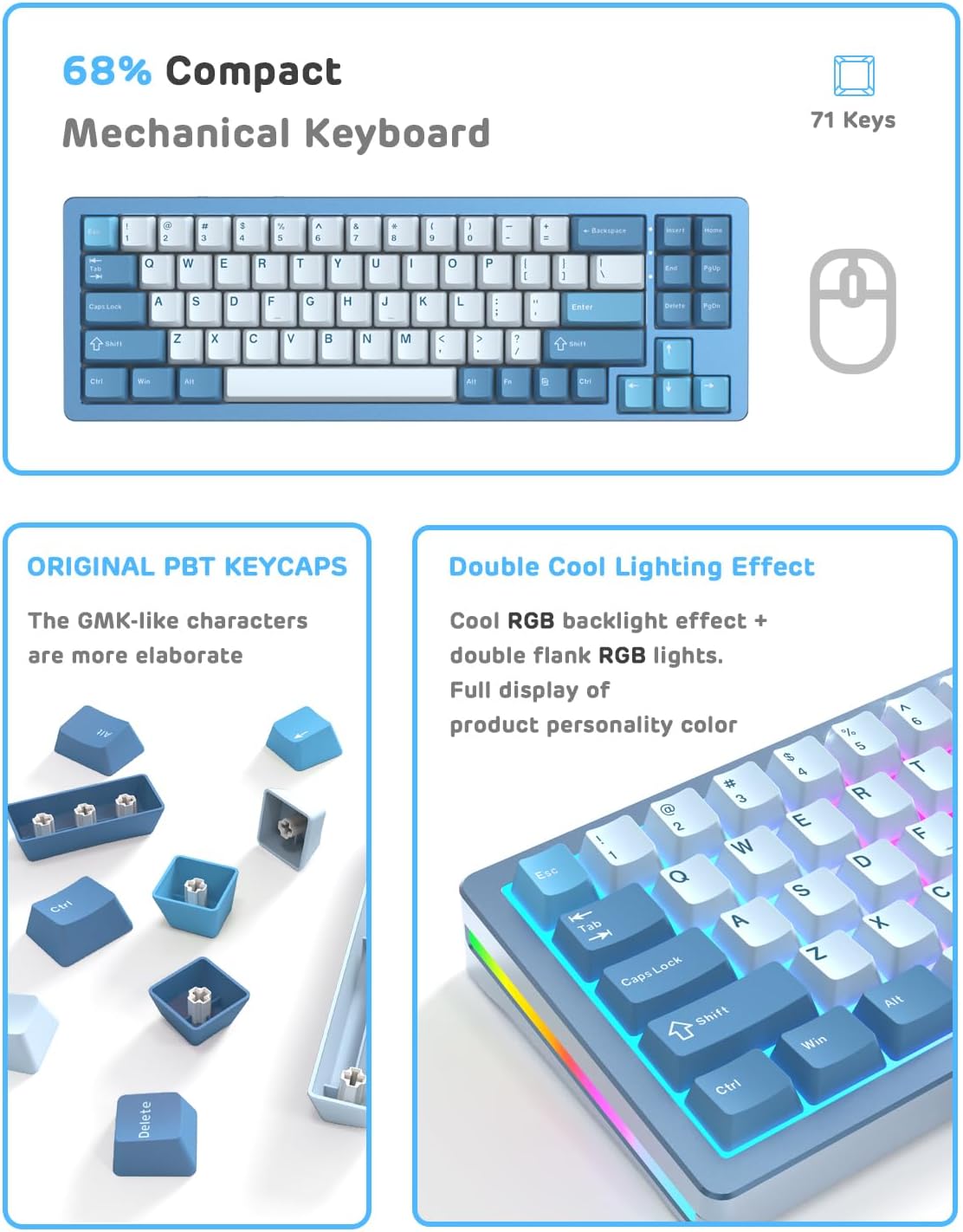
Image: Contents of the ATTACK SHARK M71 keyboard package, including the keyboard, cables, and accessories.
Melite
Ụdị njikọ
The M71 keyboard supports three connection modes: Bluetooth, 2.4G Wireless, and Wired USB-C. You can switch between these modes using the toggle switches located on the back of the keyboard.
- Ọnọdụ Bluetooth: Connects to up to 3 devices (BT 5.0 and BT 3.0). Ideal for mobile devices and general use.
- Ọnọdụ ikuku 2.4G: Utilizes a dedicated 2.4G receiver for quick, stable connection. Suitable for gaming with low latency.
- Wired USB-C Mode: Connects directly via the included USB-C cable. Provides the lowest latency and charges the keyboard.

Foto: N'azụ view of the ATTACK SHARK M71 keyboard showing the USB-C port, mode switches, and 2.4G receiver storage.
Ndakọrịta sistemụ arụmọrụ
The keyboard is widely compatible with various operating systems, including Windows 2000/XP/Vista/7/8/10/11, Android, and iOS. It also supports Mac devices.
Ntuziaka ọrụ
Multimedia Igodo
The M71 features 12 multimedia keys accessible via the Fn key for quick control:
- Adjust volume (raise/lower)
- Pause/play songs
- Access calculator, email
- Control screen brightness (Fn+1/2)
Njikwa ọkụ RGB
The keyboard includes RGB backlighting and a side LED light strip:
- Side LED Light Strip: Pịa Fn + Ctrl (R) to switch side LED light strip modes.
- Ọkụ azụ RGB: Customize various RGB effects through the programmable software.

Image: The ATTACK SHARK M71 keyboard displaying its vibrant RGB backlighting and side light strip.
Ngwa ngwa mmemme
Download the official driver software from the ATTACK SHARK website to customize lighting effects, key assignments, and macros. This allows for personalized control over your keyboard's functionality.
Atụmatụ gafereview
Hot-Swap Linear Switches
The M71 keyboard is hot-swappable, supporting both 3-pin and 5-pin switches. This allows for easy customization of keycaps and switches from various brands. The pre-lubed linear White Jade switches offer a quick, silent, and ultra-light keystroke, ideal for gaming, typing, and content creation.

Image: Close-up of the ATTACK SHARK M71 keyboard showing the hot-swappable switches.
Gasket Mount Structure & Upgraded Chip
The custom gasket mount structure incorporates anti-static IPEX switch pads, two layers of Rogers PORON sound-absorbing cotton, and two layers of PET acoustic switch pads. This design significantly reduces spring noise and hollow sounds, providing a superior typing experience. An upgraded chip optimizes latency, achieving less than 3ms in wired mode, ensuring responsive performance for gaming.

Foto: gbawara view illustrating the multi-layered gasket mount structure of the ATTACK SHARK M71 keyboard.
CNC Aluminum Alloy Base
The keyboard features an international standard 6063 aluminum alloy shell and base with CGS certification. Utilizing CNC technology and refined polishing, it boasts a metallic luster and durable quality. The anodic oxidation technology creates a corrosion-resistant, wear-resistant, and aesthetically pleasing oxide film, ensuring long-term use.
4600mAh Battery & Power Management
Equipped with a 4600mAh large-capacity battery, the keyboard offers extended usage. In light mode, it can last 1-2 weeks, and in no-light mode, approximately 4 weeks. Check the real-time power level by pressing Fn + ALT (R) in wireless mode.

Image: Diagram showing the battery level indicator on the ATTACK SHARK M71 keyboard.
PBT OEM Keycaps
The keyboard comes with durable PBT OEM keycaps featuring GMK characters, which are more resistant to wear and oil compared to ABS materials. An additional set of 61 PBT OEM keycaps is also provided for customization.

Image: Various PBT keycaps included with the ATTACK SHARK M71 keyboard.
Nlekọta
To ensure the longevity and optimal performance of your ATTACK SHARK M71 keyboard, follow these maintenance guidelines:
- Nhicha: Regularly clean the keycaps and keyboard surface with a soft, dry cloth. For deeper cleaning, use the provided keycap puller to remove keycaps and clean underneath with compressed air or a small brush.
- Ngbanwe Nlekọta: As the switches are hot-swappable, you can remove and clean them individually if needed. Avoid excessive force when removing or inserting switches.
- Njikwa USB: Keep the USB-C cable organized to prevent damage.
- Nchekwa: When not in use, store the keyboard in a dry, dust-free environment. The transparent dust cover can be used for protection.
Nchọpụta nsogbu
If you encounter issues with your ATTACK SHARK M71 keyboard, refer to the following common solutions:
- Ahụigodo anaghị aza: Ensure the keyboard is charged and properly connected in the selected mode (wired, 2.4G, or Bluetooth). Try restarting the keyboard or your computer.
- Nsogbu njikọta: For 2.4G wireless, ensure the receiver is securely plugged into a USB port. For Bluetooth, ensure the keyboard is in pairing mode and visible to your device.
- RGB ọkụ anaghị arụ ọrụ: Check the keyboard's settings via the programmable software. Ensure the lighting is not turned off or set to a very low brightness.
- Igodo anaghị edebanye aha: Ọ bụrụ na igodo nke ọ bụla anaghị arụ ọrụ, gbalịa wepụ ma tinyegharịa swiichi ahụ site na iji ihe ndọpụta swiichi ahụ. Ọ bụrụ na nsogbu ahụ anọgide, swiichi ahụ nwere ike ịchọ nnọchi.
- Batrị anaghị akwụ ụgwọ: Ensure the USB-C cable is properly connected to a power source and the keyboard. The charging indicator light should flash quickly when charging.
Nkọwapụta
| Njirimara | Nkọwa |
|---|---|
| Akụkụ ngwaahịa | 13.78 x 4.53 x 1.22 sentimita asatọ |
| Ibu Ibu | 2.86 pound |
| Teknụzụ Njikọta | USB/Bluetooth/2.4G/Wired |
| Nkọwa ahụigodo | Mechanical |
| Ngwa dakọtara | PC/Mac/Laptop/iPad |
| Njirimara Pụrụ Iche | Backlit, Ergonomic |
| Nkwado agba azụ azụ kiiboodu | RGB |
| Ike batrị | 4600mAh |
| Ngbanwe Ụdị | Pre-lubed Linear White Jade Switch |
Vidiyo ngwaahịa ngwaahịa
M71 Summer Typing Sound
Video: A demonstration of the typing sound produced by the M71 keyboard with Summer/Linear White Jade Switches.
M71 Blueberry Gasket Mount Product Disassembly
Video: A detailed video showing the disassembly of the M71 keyboard, highlighting its gasket mount structure.
Blueberry Package List and Typing Sound
Video: An unboxing and typing sound test for the M71 keyboard in Blueberry color.
M71 Lavender Typing Sound
Video: A typing sound demonstration of the M71 keyboard in Lavender color.
Akwụkwọ ikike na nkwado
For warranty information and customer support, please refer to the documentation included with your product or visit the official ATTACK SHARK websaịtị. Debe akwụkwọ nnata ịzụrụ maka akwụkwọ ikike.