Okwu mmalite
This manual provides detailed instructions for the setup, operation, and maintenance of your ATTACK SHARK M71 75% TKL Wireless Mechanical Keyboard. Please read this guide thoroughly to ensure proper use and to maximize your keyboard's performance and lifespan.

Image: The ATTACK SHARK M71 keyboard showcasing its 68% layout and key features like aluminum alloy body, three-mode connection, and RGB backlight.
Ihe ngwugwu
Chọpụta na ihe niile dị na ngwugwu:
- ATTACK SHARK M71 Wireless Mechanical Keyboard
- Ụdị-C USB
- 2.4G ikuku ikuku
- Keycap Puller / Switch Puller (Two-in-one tool)
- Complimentary 61 additional PBT OEM keycaps (different color layout)
- Akwụkwọ ntuziaka onye ọrụ

Image: A visual representation of the items included in the ATTACK SHARK M71 keyboard package, including the keyboard, cables, and extra keycaps.
Video: Unboxing the Blueberry version of the M71 keyboard, showing the package contents and a demonstration of its typing sound.
Ngwaahịa gafereview
The ATTACK SHARK M71 is a 75% TKL wireless mechanical keyboard featuring a full aluminum CNC chassis, multi-mode connectivity, hot-swappable switches, and RGB lighting. Its compact design and robust construction are engineered for both gaming and productivity.
Akụkụ ndị bụ isi:
- Full Aluminum CNC Body: Constructed from international standard 6063 aluminum alloy for durability and a premium feel.
- Three-Mode Connectivity: Supports Bluetooth 5.0/3.0, 2.4G wireless, and wired USB-C connections.
- Mgbanwe na-ekpo ọkụ nwere ike ịgbanwe: Compatible with 3/5-pin switches, allowing for easy customization without soldering.
- Gasket Mount Structure: Incorporates anti-static IPEX switch pads, PORON sound-absorbing cotton, and PET acoustic switch pads to enhance typing feel and reduce noise.
- RGB LED ọkụ: Features customizable RGB backlighting and a side LED light strip.
- Batrị 4600mAh: Provides extended wireless usage.
- PBT OEM Keycaps: Durable keycaps with GMK-like characters.
Ngwa:
Familiarize yourself with the main components of your keyboard:
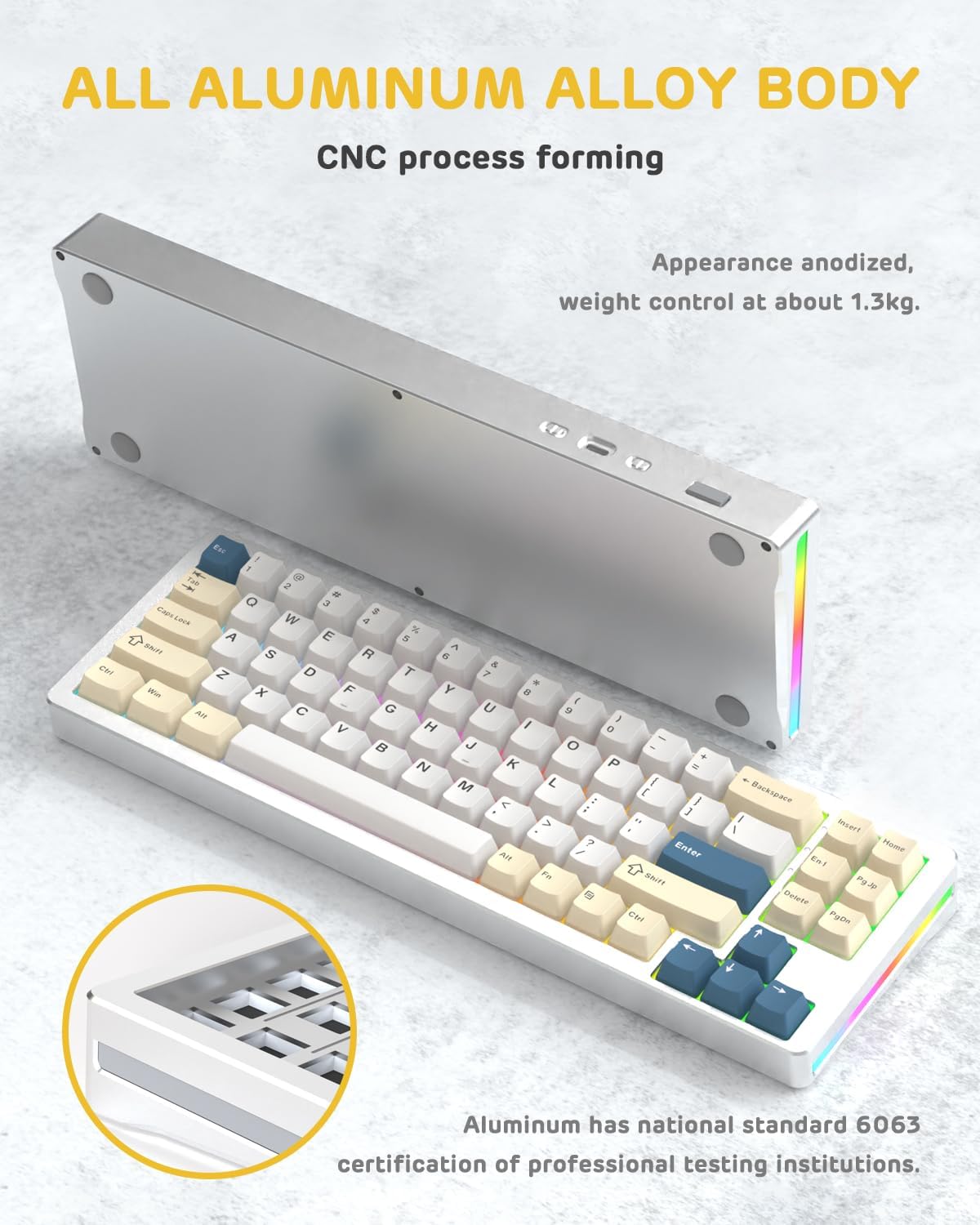
Foto: Akụkụ view of the M71 keyboard highlighting its full aluminum alloy body and CNC process forming.

Foto: Ihe gbawara view illustrating the multi-layered gasket mount structure, including the PBT keycaps, aluminum alloy upper cover, customized switch body, PC positioning board, PORON filled cotton, anti-static IPEX switch underpad, PET singing pad, PCB board, PORON shaft seat cushion, PET sound backing pad, wing light strip, and aluminum alloy base.
Melite
1. Connectivity Modes:
The M71 keyboard supports three connection modes: Bluetooth, 2.4G wireless, and wired USB-C.
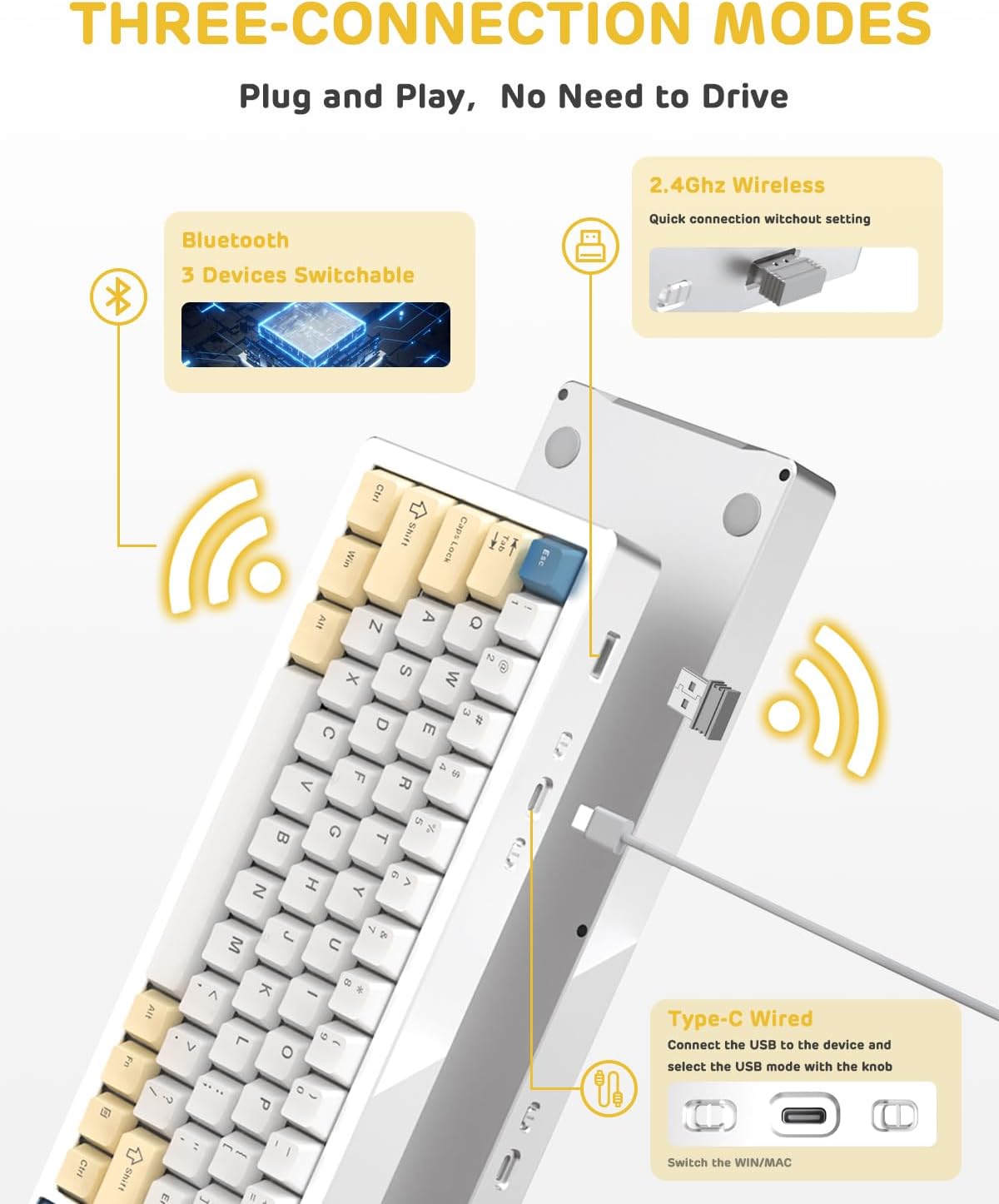
Image: A visual guide to the three connectivity options: Bluetooth for up to 3 devices, 2.4GHz wireless with a receiver, and wired Type-C connection.
Njikọ waya:
- Connect the provided Type-C cable to the keyboard's USB-C port and to your computer's USB port.
- Ensure the mode switch on the keyboard is set to the wired (USB-C) position.
- Sistemụ gị ga-amata ahụigodo ahụ na akpaghị aka.
Njikọ ikuku 2.4G:
- Locate the 2.4G wireless receiver (dongle) in the package.
- Tinye ihe nnata 2.4G n'ọdụ ụgbọ mmiri USB dị na kọmputa gị.
- Set the mode switch on the keyboard to the 2.4G wireless position.
- Ahụigodo kwesịrị jikọọ na akpaghị aka.
Njikọ Bluetooth:
- Set the mode switch on the keyboard to the Bluetooth position.
- Na kọmputa ma ọ bụ ngwaọrụ gị, mepee ntọala Bluetooth wee chọọ ngwaọrụ ọhụrụ.
- The keyboard should appear as "ATTACK SHARK M71" or similar. Select it to pair.
- The keyboard can connect to up to 3 Bluetooth devices. Use Fn + 1/2/3 ka ịgbanwee n'etiti ngwaọrụ ejikọtara.
2. Battery Charging and Status:
The M71 keyboard is equipped with a 4600mAh battery. To charge, connect the keyboard via the USB-C cable to a power source (e.g., computer USB port, USB wall adapter).

Image: A diagram showing how to check the battery level using Fn+ALT(R) and the visual indicators on the keyboard's side LED strip.
- To check the battery level in wireless mode, press Fn + ALT (Right). The side LED strip will indicate the charge level.
- Battery life is approximately 1-2 weeks with lighting enabled and up to 4 weeks with lighting disabled.
Ntuziaka ọrụ
1. Multimedia Keys:
The keyboard features 12 multimedia keys accessible via the Fn nchịkọta isi:
- Fn + F1-F12: Access various multimedia functions (e.g., volume control, play/pause, calculator, email).
- Fn + 1/2: Control screen brightness.
2. Njikwa ọkụ RGB:
Customize the keyboard's RGB backlight and side LED strip:

Image: The M71 keyboard displaying its RGB backlight and side LED strip, along with a close-up of the PBT keycaps.
- Fn + Ctrl (Right): Switch between different side LED light strip modes.
- Fn + Tab: Toggle white light mode.
- Refer to the full user manual for additional lighting effect controls and customization options via the programmable software.
3. Programmable Software:
The keyboard supports a dedicated driver program for advanced customization. You can download the software from the official ATTACK SHARK website to personalize lighting effects, key assignments, and macros. The keyboard is compatible with Windows 2000/XP/Vista/7/8/10/11, Android, and iOS.
Nlekọta
1. Nhicha:
- Use a soft, dry cloth to wipe the keyboard surface.
- For deeper cleaning, remove keycaps using the provided keycap puller and use compressed air to clear debris from between switches.
- Zere iji kemịkalụ siri ike ma ọ bụ ihe na-emebi emebi.
2. Hot-Swapping Switches:
The M71 keyboard features hot-swappable sockets, allowing you to change switches without soldering.

Foto: A nso nso view of the hot-swappable White Jade linear switches on the M71 keyboard, demonstrating how they can be easily removed and replaced.
- Power off the keyboard or disconnect it from your device.
- Jiri ngwa ndọpụta mgbanwe ahụ jidesie aka ike ma dọpụta ya elu nke ọma.
- Align the pins of the new switch with the holes on the PCB and press down gently until it clicks into place. Ensure pins are not bent.
- The PCB supports both 3-pin and 5-pin switches.
Video: A demonstration of the disassembly process for the M71 keyboard, showing how to remove keycaps and switches, revealing the gasket mount structure.
Nchọpụta nsogbu
| Okwu | Ngwọta enwere ike |
|---|---|
| Ahụigodo anaghị aza ozi na ọnọdụ ikuku. |
|
| Igodo anaghị edebanye aha ma ọ bụ na-ede ihe ugboro abụọ. |
|
| Ọkụ RGB anaghị arụ ọrụ ma ọ bụ na-ezighi ezi. |
|
| Nsogbu njikọta Bluetooth. |
|
Nkọwapụta
| Njirimara | Nkọwa |
|---|---|
| Nlereanya | M71 |
| Nhazi | 75% TKL (71 keys) |
| Njikọta | Bluetooth 5.0/3.0, 2.4G Wireless, USB-C Wired |
| Mgbanwe | Hot-swappable (3/5-pin compatible), Pre-lubed Linear White Jade Switch |
| Isi okwu | PBT OEM Keycaps |
| Ịrị elu Style | Ugwu Gasket |
| Ihe onwunwe chassis | Full Aluminum CNC (6063 alloy) |
| Ike batrị | 4600mAh |
| Ọkụ | RGB Backlight, RGB LED Side Light Strip |
| Ndakọrịta | Windows 2000/XP/Vista/7/8/10/11, Android, iOS, Mac |
| Akụkụ ngwaahịa | 13.78"L x 4.53"W x 1.22"H |
| Ibu Ibu | 2.86 pound |
Akwụkwọ ikike na nkwado
For warranty information and technical support, please refer to the official ATTACK SHARK websaịtị ma ọ bụ kpọtụrụ ndị ahịa ha ozugbo. Debe nnata nzụta gị dị ka ihe akaebe nke ịzụrụ ihe maka akwụkwọ ikike ọ bụla.
Onye nrụpụta: Mwakpo Shark
Onye na-ere ahịa: Ajazz US
Ụbọchị mbụ dị: Ọgọst 4, 2023


