Okwu mmalite
This manual provides comprehensive instructions for the setup, operation, maintenance, and troubleshooting of your Chainway C72 Wireless Android RFID Scanner. Please read this manual thoroughly before using the device to ensure proper functionality and to prevent damage.

Figure 1: Chainway C72 RFID Scanner with pistol grip, held in hand, displaying the Android 11 interface.
Ngwaahịa gafereview
The Chainway C72 is a robust and versatile handheld device designed for efficient inventory management and data capture. It integrates an Impinj E710 RFID Tag Reader and a Zebra SE4710 2D/1D/QR Barcode Reader, operating on Android 11. Its features include:
- Impinj E710 RFID Tag Onye na-agụ: Supports UHF GS1 EPC GEN2 standard, 865MHz to 928MHz, for rapid and accurate RFID tag ịgụ akwụkwọ.
- Zebra SE4710 Barcode Reader: Capable of scanning 1D, 2D, and QR codes, including small, poorly printed, or plastic-covered barcodes.
- Sistemụ arụmọrụ Android 11: Provides a user-friendly interface and access to productivity applications via Google Play Store.
- Njikọta: Built-in Wi-Fi, Bluetooth 5.0, and GPS for seamless data synchronization and location tracking.
- Ogologo oge: IP65 rated, designed to withstand temperatures from -20°C to +50°C, features Corning Gorilla Glass, and can endure 4.9 ft drops.
- Batrị: 8000 mAh battery providing up to 12 hours of use with fast charge capability.
- Ihe nhazi: Cortex A53 Octa Core 2.3GHz for optimized performance.

Figure 2: Key features of the Chainway C72, highlighting broad connectivity (Bluetooth 5.0, GPS, Wi-Fi 2.4G/5G), Zebra SE4710 scanner, 13 MP camera, 1200+ tags/sec RFID read rate, 4dBi support, and 25-meter RFID range.
Melite
1. Unboxing na mbido nyocha
Carefully remove all components from the packaging. Verify that all items listed in the packing slip are present and inspect the device for any visible damage. If any items are missing or damaged, contact customer support immediately.
2. Ntinye batrị na Nchaji
- Chọta ebe batrị dị na ngwaọrụ ahụ.
- Insert the 8000 mAh battery, ensuring proper alignment of the contacts.
- Mechie oghere batrị ahụ nke ọma.
- Connect the provided charging cable to the device's charging port and plug the adapter into a power outlet.
- Allow the device to fully charge before first use. The charging indicator will show the battery status.

Figure 3: The Chainway C72 features an 8000 mAh battery, providing up to 12 hours of use and supporting fast charging.
3. Initial Power On and Android Setup
- Press and hold the power button until the device vibrates and the screen turns on.
- Follow the on-screen prompts to complete the initial Android 11 setup, including language selection, Wi-Fi connection, and Google account login (optional).
- Ensure the device is connected to a stable Wi-Fi network for updates and application downloads.
Ntuziaka ọrụ
1. Nsoro ụzọ
The Chainway C72 operates like a standard Android smartphone. Use touch gestures (tap, swipe, pinch) to navigate the interface. The physical buttons include:
- Bọtịnụ ike: Na-agbanyụ/gbanyụọ ngwaọrụ ahụ, na-akpọchi/na-emepe ihuenyo ahụ.
- Bọtịnụ olu: Na-edozi olu ọdịyo.
- Scan Button (Orange): Activates the barcode or RFID scanner.

Foto 4: Akụkụ view of the Chainway C72, highlighting the orange scan button and other physical controls.
2. RFID Scanning (Impinj E710)
- Open the RFID scanning application on the device.
- Point the RFID antenna (located at the top of the pistol grip attachment) towards the RFID tags.
- Press and hold the orange Scan button to initiate RFID tag reading. The device will emit a sound or vibration upon successful tag nchọpụta.
- Release the Scan button to stop reading.
- The scanned tag data will be displayed in the application.
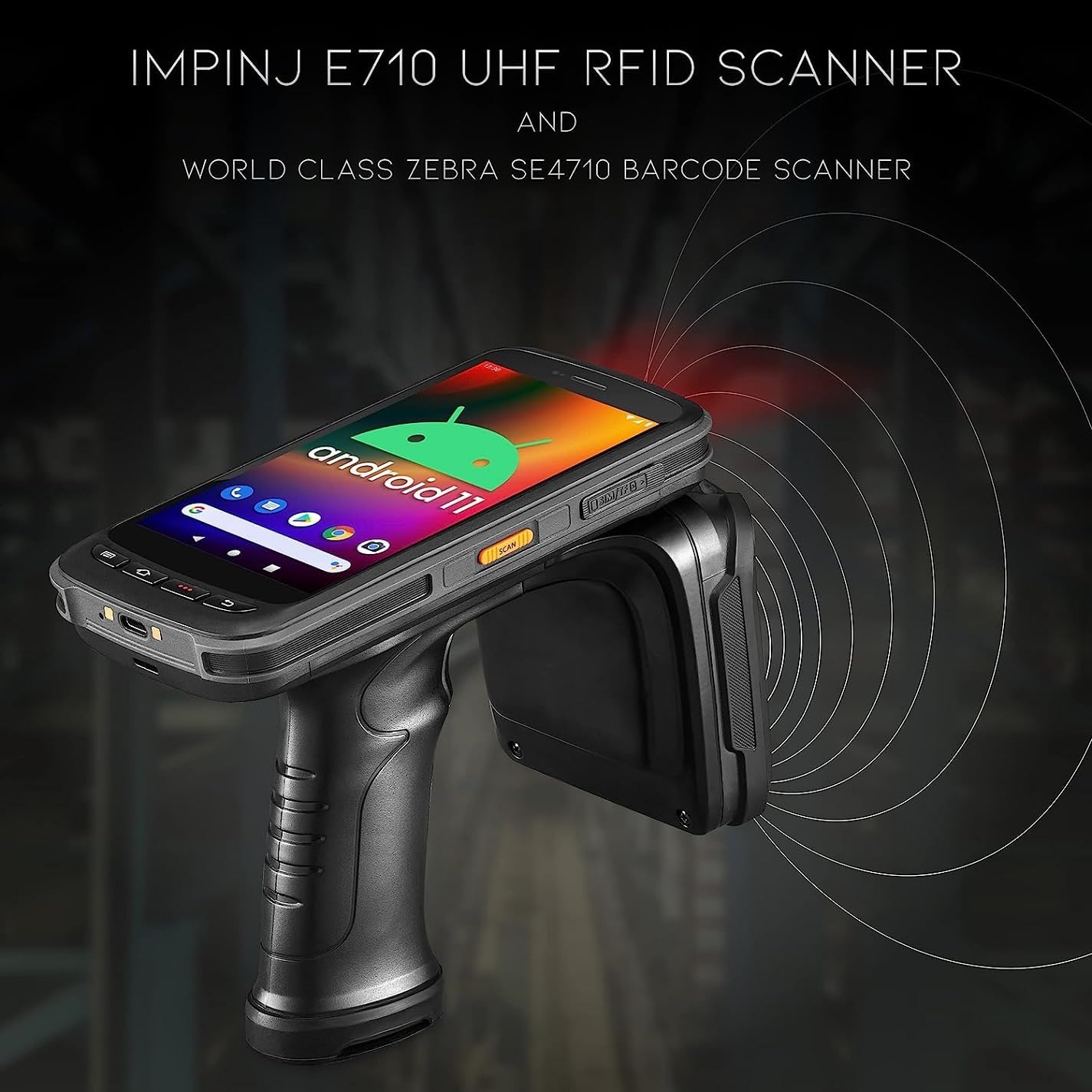
Figure 5: The Chainway C72 actively scanning RFID tags using its Impinj E710 UHF RFID scanner, depicted with radiating waves.
3. Barcode Scanning (Zebra SE4710)
- Open the barcode scanning application or position the cursor in a text field where barcode data should be entered.
- Aim the barcode scanner window (located near the top of the device) at the barcode.
- Press the orange Scan button. A red aiming laser will appear.
- Ensure the entire barcode is within the aiming pattern. The device will beep or vibrate upon successful scan.
- The scanned barcode data will be automatically entered or displayed.
Nlekọta
1. Na-ehicha ngwaọrụ
- Gbanyụọ ngwaọrụ tupu ihicha.
- Jiri akwa dị nro na-enweghị ntụpọ dampejiri mmiri ma ọ bụ ihe nhicha dị nro hichaa mpụta ahụ.
- For the screen and scanner window, use a screen-specific cleaner and a microfiber cloth.
- Do not use abrasive cleaners, solvents, or immerse the device in liquid.
2. Nlekọta batrị
- Chajie batrị ahụ mgbe niile, na-ezere ịpụpụ kpamkpam.
- Chekwaa ngwaọrụ ahụ n'ebe dị jụụ, kpọrọ nkụ mgbe ọ naghị eji ya ogologo oge.
- If the battery performance significantly degrades, consider replacing it with an official Chainway battery.
3. Mmelite ngwanrọ
Regularly check for and install software updates to ensure optimal performance, security, and access to new features. Updates can typically be found in the device's Settings menu under "System" or "About phone".
Nchọpụta nsogbu
| Nsogbu | Ihe nwere ike ime | Ngwọta |
|---|---|---|
| Ngwaọrụ anaghị agbanwu ọkụ. | Batrị dị ala ma ọ bụ mebie. | Charge the device for at least 30 minutes. Ensure the charger is properly connected. |
| RFID/Barcode scanner not working. | Application error; Scanner module disabled; Damaged module. | Restart the scanning application. Restart the device. Check device settings to ensure scanner is enabled. If problem persists, contact support. |
| Poor RFID read performance. | Interference; Tag orientation; Distance. | Ensure no metallic objects are obstructing the antenna. Adjust the angle and distance to the tags. Reduce environmental interference. |
| Ngwaọrụ ahụ adịghị nwayọ ma ọ bụ na-anaghị anabata ya. | Too many applications running; Low memory. | Close unnecessary applications. Clear cache. Restart the device. |
| Nsogbu njikọ Wi-Fi. | Paswọọdụ na-ezighi ezi; Enweghị ike ịchọta ya; Nsogbu rawụta. | Verify Wi-Fi password. Move closer to the access point. Restart the Wi-Fi router. |
Nkọwapụta
- Ụdị: C72
- Sistemụ nrụọrụ: Android 11
- Onye na-agụ RFID: Impinj E710 (UHF GS1 EPC GEN2, 865MHz-928MHz)
- Ihe nyocha Barcode: Zebra SE4710 (2D/1D/QR)
- Ihe nhazi: Cortex A53 Octa Core 2.3GHz
- Batrị: 8000 mAh (up to 12 hours use, fast charge)
- Njikọta: Wi-Fi (2.4G/5G), Bluetooth 5.0, GPS
- Ogologo oge: IP65 rated, Corning Gorilla Glass, 4.9 ft drop resistance, operating temperature -20°C to +50°C
- Ngwa dakọtara: Mbadamba ụrọ, Smartphone
- Onye nrụpụta: Chainway
- UPC: 611393757138
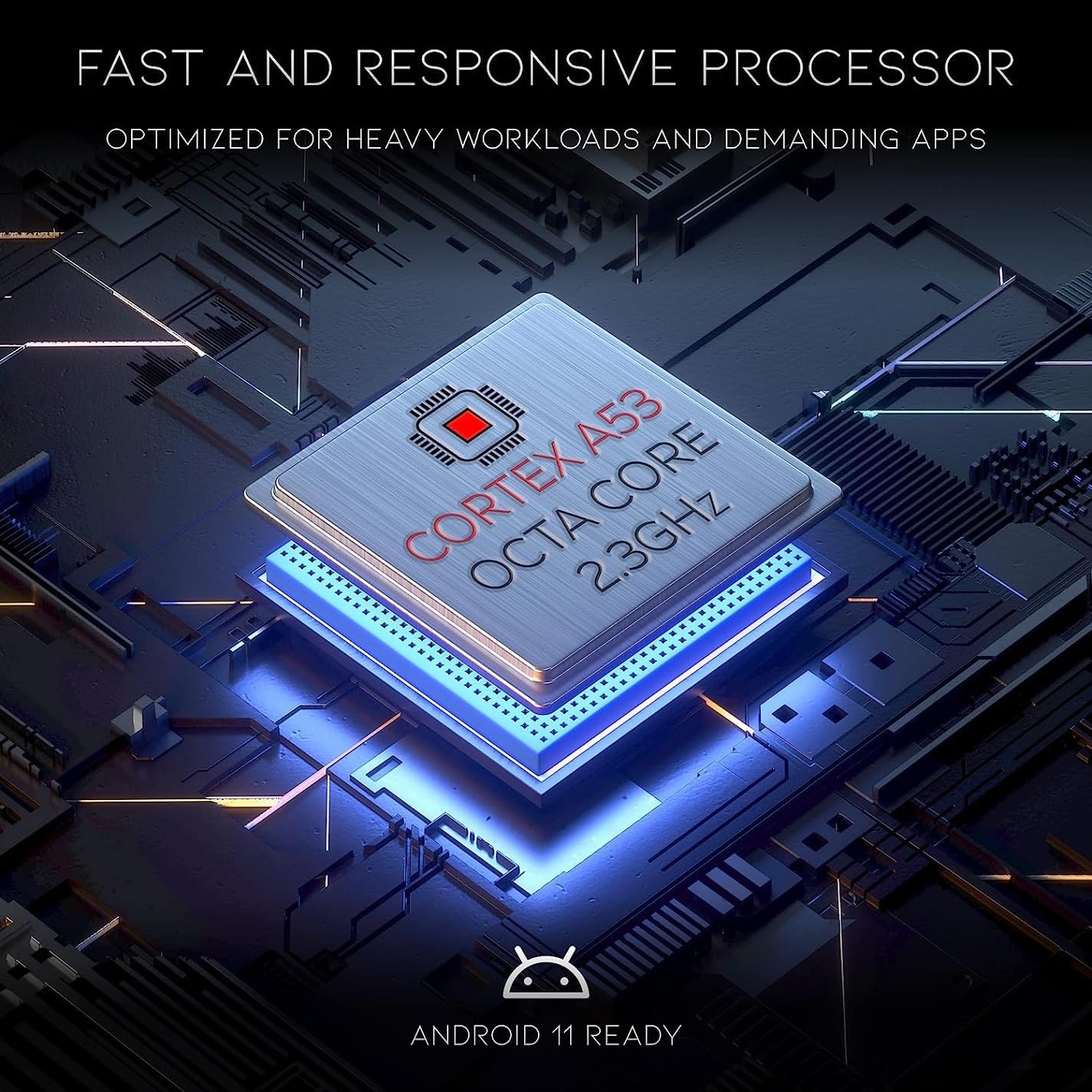
Figure 6: The Chainway C72 is powered by a Cortex A53 Octa Core 2.3GHz processor, optimized for heavy workloads and demanding applications, and is Android 11 ready.

Figure 7: The Chainway C72 boasts ultra-rugged durability with IP65 rating, operational range from -20°C to +50°C, Corning Gorilla Glass, and 4.9 ft drop resistance.
Akwụkwọ ikike na nkwado
For warranty information, please refer to the warranty card included with your product or visit the official Chainway website. For technical support, software updates, or service inquiries, please contact your vendor or Chainway customer service directly.
Onye nrụpụta: Chainway
Ụdị: C72
ASIN: B0CCPR58B3
UPC: 611393757138


