Okwu mmalite
The PlayStation Access Controller 5 is a highly customizable controller kit designed to enhance the gaming experience for users with diverse needs on PS5 consoles. Its adaptable design allows for comfortable and extended gameplay, operable from any 360-degree orientation, and can be used on flat surfaces or mounted.
Ntuziaka nhazi
1. Unboxing na akụrụngwa gafereview
Upon opening the package, you will find the main Access Controller unit, a joystick module, various swappable button caps, and stick caps. Ensure all components are present before proceeding.

Image: All components of the PlayStation Access Controller, including the main circular unit, joystick, and various button and stick caps, laid out on a flat surface.
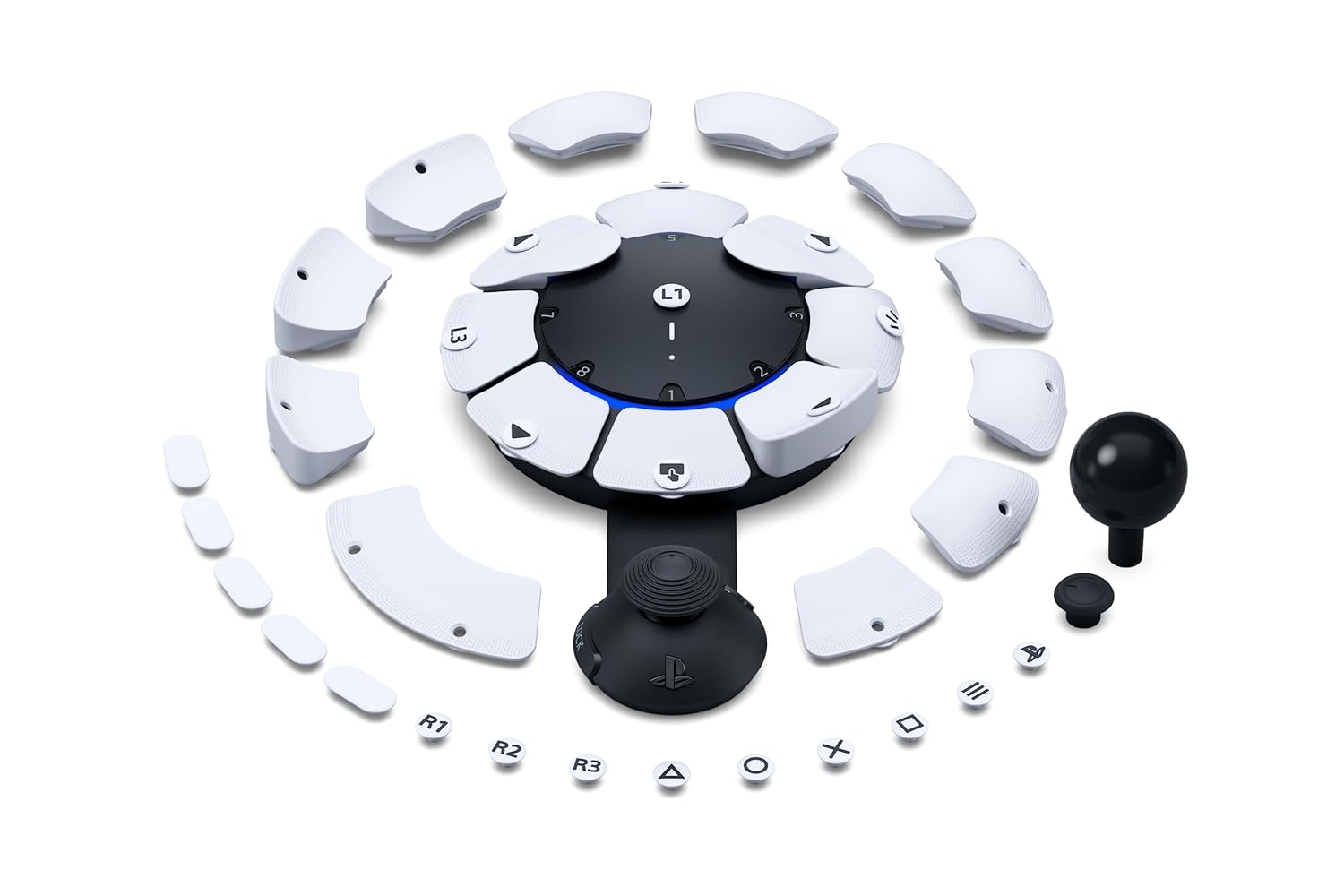
Foto: A n'elu-ala view of the PlayStation Access Controller with its modular button and stick caps arranged around it, showcasing the customization options.
2. Ijikọ njikwa
Connect the Access Controller to your PlayStation 5 console using the provided USB-C cable. The controller can be operated from any 360-degree orientation, allowing for flexible placement on flat surfaces, wheelchair trays, or AMPS pattern mounts.
3. Customizing Buttons and Joystick
The Access Controller features swappable button and stick caps. Configure the button layout to match your mobility range and switch between included stick caps to find the optimal shape and texture. The control stick's extension arm can be adjusted for length and then locked into your preferred position for comfort.
Each button cap is easily interchangeable, secured by magnets and a clipping mechanism, ensuring they remain in place during gameplay. A variety of shapes and blank options are provided for labeling and personalizing your setup.
Ntuziaka ọrụ
1. Njikwa ntọala
The Access Controller features 10 programmable buttons and a joystick. The central area of the controller also functions as a button, and the joystick itself can be pressed for additional input. The controller is designed for intuitive use, allowing for a wide range of play styles.

Image: The main view of the PlayStation Access Controller, showing its circular design with multiple large, customizable buttons and an attached joystick.
2. Custom Profiles
You can configure up to 30 individual control profiles directly from your PS5 console settings. Three profiles can be stored on the Access Controller itself, allowing for quick switching via a dedicated button. This enables seamless adaptation to different games or control schemes.
3. Expandable Inputs
The controller supports expandable inputs. You can use up to two Access Controllers together as a single virtual controller, or combine one or two Access Controllers with a DualSense or DualSense Edge wireless controller to integrate features like haptic feedback, adaptive triggers, motion sensors, and touchpad swipe into your setup.
Additionally, the controller includes four industry-standard 3.5mm expansion ports (E1, E2, E3, E4) for connecting external buttons, specialty trigger switches, and other compatible accessories. Inputs from these ports can be configured via your PS5 console settings.
Nlekọta
To ensure the longevity and optimal performance of your PlayStation Access Controller, follow these maintenance guidelines:
- Nhicha: Jiri ákwà dị nro ma kpọọ nkụ hichaa ihe njikwa ahụ. Maka unyi siri ike, jiri obere d hichaa ya.ampen akwa na mmiri. Zere iji kemịkalụ siri ike ma ọ bụ ihe na-emebi emebi.
- Nchekwa: Store the controller in a cool, dry place away from direct sunlight and extreme temperatures. The included storage box for button and stick caps helps keep components organized and protected.
- Nlekọta batrị: The controller uses a Lithium Ion battery. To maximize battery life, avoid fully discharging the battery frequently. Charge the controller regularly, especially if it will be stored for an extended period.
Nchọpụta nsogbu
If you encounter issues with your PlayStation Access Controller, consider the following troubleshooting steps:
- Okwu njikọ: Ensure the USB-C cable is securely connected to both the controller and the PS5 console. Try a different USB port or cable.
- Button/Joystick Unresponsiveness: Verify that button caps and stick caps are correctly attached and seated. Check your PS5 console settings to ensure the controller profile is active and button assignments are correct.
- Profile Ịgbanwe: Ọ bụrụ profiles are not switching correctly, ensure you are pressing the dedicated 'PROFILE' button on the joystick module.
- Mmelite ngwanrọ: Ensure your PS5 console software and controller firmware are up to date. Connect the controller to your PS5 and check for updates in the system settings.
- Ngwa mpụga: If external accessories are not working, ensure they are properly connected to the 3.5mm expansion ports and configured in the PS5 settings.
For persistent issues, refer to the official PlayStation support websaịtị ma ọ bụ kpọtụrụ ndị ahịa.
Nkọwapụta
| Njirimara | Nkọwa |
|---|---|
| ASIN | B0CCGYBSW8 |
| Ụbọchị mwepụta | Disemba 6, 2023 |
| Akụkụ ngwaahịa | 14.88 x 3.13 x 7.49 sentimita asatọ |
| Ibu Ibu | 2.22 pound |
| Asụsụ | Bekee |
| Onye nrụpụta | Sony Interactive Entertainment |
| Batrị | 1 batrị lithium ion achọrọ (gụnyere) |
Akwụkwọ ikike na nkwado
The PlayStation Access Controller 5 is manufactured by Sony Interactive Entertainment. For detailed warranty information, product support, and service inquiries, please refer to the official documentation included with your product or visit the official PlayStation support websaịtị. Debe ihe akaebe nke ịzụrụ maka akwụkwọ ikike.


