Okwu mmalite
This manual provides instructions for the setup, operation, and maintenance of your OttLite Wake Up Light with White Noise Sound Machine. This device combines a sunrise simulation alarm clock, a white noise sound machine, and a versatile color-changing light to enhance your daily routine.
Ozi nchekwa
- Gụọ ntuziaka niile tupu ojiji.
- Emebere ngwaahịa a maka naanị ime ụlọ.
- Jiri naanị ihe nkwụnye ọkụ enyere.
- Ewepụla ngwaọrụ ahụ na mmiri ma ọ bụ oke mmiri.
- Debe ebe ụmụaka na-apụghị iru.
- Agbalịla ịkwatu ma ọ bụ rụzie ihe ahụ n'onwe gị. Kpọtụrụ ndị ọrụ ruru eru.
Ihe ngwugwu
- OttLite Wake Up Light with White Noise Sound Machine
- USB Power USB
- Akwụkwọ ntuziaka onye ọrụ
Ngwaahịa gafereview
Familiarize yourself with the components of your OttLite Wake Up Light.

Foto: N'ihu view of the OttLite Wake Up Light, displaying the time and connected to a USB charging pad.

Foto: Akụkụ view of the OttLite Wake Up Light, showing the various control buttons and the USB port.
Njikwa Isi:
- Ngosipụta oge: Ngosipụta elekere dijitalụ.
- Ogwe ọkụ: Provides white and color-changing illumination.
- bọtịnụ njikwa: Located on the side for setting time, alarms, light modes, and sounds.
- USB Nchaji Port: Maka ịchaji ngwaọrụ mpụga.
Melite
- Ịkwapu: Jiri nlezianya wepụ ihe niile dị na nkwakọ ngwaahịa.
- Njikọ ike: Connect the provided USB power cable to the device and plug the adapter into a standard wall outlet. The device will power on and the time display will activate.
- Nkwanye: Place the Wake Up Light on a stable, flat surface, such as a bedside table, ensuring it is within reach of a power outlet.
Ntuziaka ọrụ
1. Ịtọ elekere
- Press the 'Time Set' button (often indicated by a clock icon).
- Use the '+' and '-' buttons to adjust the hour and minute.
- Press 'Time Set' again to confirm each setting.
- Toggle between 12-hour and 24-hour format using the dedicated button or by cycling through time settings.
2. Wake-Up Light & Alarm Function
The sunrise simulation gradually increases light intensity before your set alarm time.

Image: A user interacting with the Wake Up Light as it emits a warm, sunrise-like glow.
- Tọọ mkpu: Press the 'Alarm Set' button (bell icon). Use '+' and '-' to set the desired wake-up time.
- Simulation nke ọwụwa anyanwụ: The light will begin to brighten 30 minutes before the set alarm time, gradually increasing to full brightness.
- Ụda edemede: Choose from 7 pre-set sounds (nature sounds, FM radio, traditional alarm) by pressing the 'Sound' button. Adjust volume with '+' and '-'.
- Ọrụ Sooze: Press the 'Snooze' button (often a large button on top or front) to temporarily pause the alarm for a few minutes.
3. Sleep Aid & Sunset Simulation
Utilize the white noise and sunset simulation for a calming environment.
- Ụda Ọcha: Activate the white noise sound machine by pressing the 'White Noise' button. Adjust volume as needed.
- Simulation nke ọdịda anyanwụ: Set the light to gradually dim over 15, 30, or 60 minutes. Refer to the specific button for 'Sunset' or 'Sleep Timer' and cycle through options.
4. Lighting Functions
The device offers various lighting options for ambiance and utility.
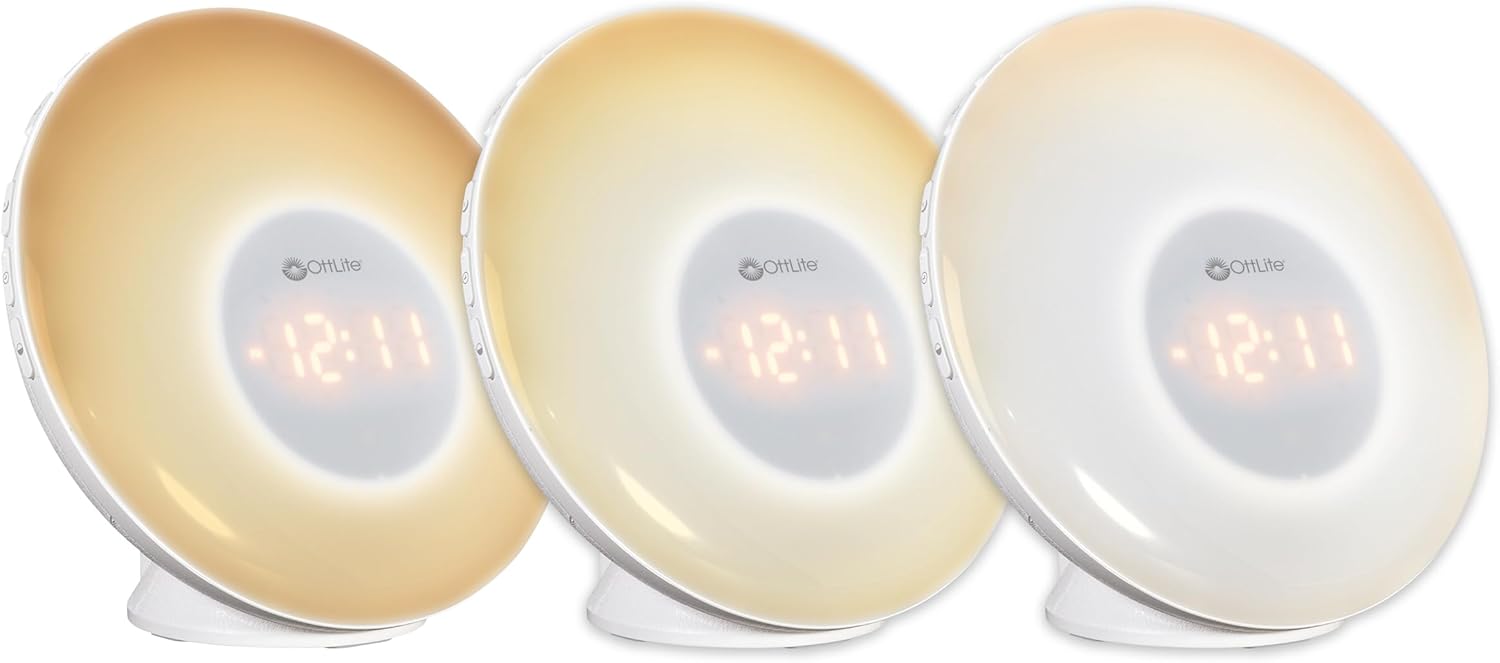
Image: Three units demonstrating the adjustable white light temperatures.

Image: Multiple units showcasing the range of color-changing options.
- Ìhè ọcha: Press the 'Light' button to activate soft white light. Adjust brightness using '+' and '-' buttons (three brightness levels available).
- Na-agbanwe agba: Press the 'RGB' button to cycle through a spectrum of colors.
- Fixed Color: While in color-changing mode, press the 'RGB' button again to pause on your desired color.
5. USB Nchaji Port
A convenient USB port is integrated for charging your devices.

Image: A smartphone being charged via the USB port on the Wake Up Light.
- Locate the USB port (5V, 1A output) on the side or back of the unit.
- Connect your device's USB charging cable to this port.
- Ensure the Wake Up Light is powered on for the USB port to function.
Nlekọta
- Nhicha: Disconnect the power before cleaning. Wipe the device with a soft, dry cloth. Do not use abrasive cleaners or solvents.
- Nchekwa: Mgbe ọ naghị eji ya ogologo oge, chekwaa ngwaọrụ ahụ n'ebe dị jụụ, kpọrọ nkụ na-adịghị na ìhè anyanwụ.
Nchọpụta nsogbu
| Nsogbu | Ihe nwere ike ime | Ngwọta |
|---|---|---|
| Ngwaọrụ anaghị agbanwu ọkụ. | Power cable not connected properly or power outlet is not active. | Ensure the power cable is securely connected to the device and the wall outlet. Test the outlet with another device. |
| Alarm does not sound or light does not activate. | Alarm not set or volume too low. | Verify alarm settings and ensure the alarm is activated. Increase alarm volume. |
| High-pitched buzzing sound when light is on. | Potential internal component noise at certain brightness levels. | Try adjusting the brightness level. If the issue persists and is disruptive, contact customer support. |
| Difficulty setting the alarm or other functions. | Unfamiliarity with button layout or sequence. | Refer to the 'Operating Instructions' section carefully. Practice setting functions when not under time pressure. |
| USB charging port not working. | Device not powered on or cable issue. | Ensure the Wake Up Light is powered on. Try a different USB cable or device to rule out cable/device issues. |
Nkọwapụta
| Njirimara | Nkọwa |
|---|---|
| Nọmba nlereanya | WU300Z-SHPR |
| Akụkụ ngwaahịa | 4"D x 6.75"W x 6.7"H |
| Ibu Ibu | 1.23 pound |
| Isi Iyi Ike | Igwe ọkụ eletrik (120V AC) |
| Ụdị isi iyi ọkụ | Ikanam |
| Atụmatụ pụrụ iche | Color Changing, Dimmable, Sunrise Simulation, Sunset Simulation, White Noise, USB Charging Port |
| USB mmepụta | 5V, 1A |
| Ihe onwunwe | Plastic |
| Ojiji ime ime/n'èzí | Iji ime ụlọ naanị |
Akwụkwọ ikike na nkwado
OttLite products are designed for quality and durability. For warranty information or technical support, please refer to the warranty card included with your purchase or visit the official OttLite websaịtị. Debe akwụkwọ nnata ịzụrụ maka akwụkwọ ikike.
For further assistance, please contact OttLite customer service.


