1. Ngwaahịa gafereview
The ENDORFY Spartan 5 MAX ARGB is a high-performance CPU air cooler designed for efficient heat dissipation and vibrant ARGB lighting. It combines compact dimensions with powerful cooling capabilities, making it suitable for most PC cases. This manual provides essential information for installation, operation, maintenance, and troubleshooting.
Atụmatụ igodo
- Small Dimensions, Large Capacity: With a height of 5.75 inches (146 mm), it offers excellent performance in most PC cases, balancing size with cooling power.
- High-Quality Fluctus 120 PWM ARGB Fan: Ensures constant airflow with specially designed serrated fan blades that reduce noise levels while maximizing air pressure through the heatsink.
- Ịjụ oyi nke ọma: Features a heatsink with dense fins and four direct-touch heatpipes, providing premium CPU cooling for optimal performance.
- Bright ARGB Lighting: The built-in backlit fan offers extensive customization possibilities, allowing you to choose any color and effect, such as a shimmering rainbow or a pulsating wave.
- Lowest Heat Resistance with Pactum PT-3: The cooler's base plate comes with pre-applied Pactum PT-3 thermal compound, ensuring high performance and quick installation.
- Ọ dị mfe ịgbakọta: Equipped with a newly developed mounting system, the Spartan 5 MAX ARGB is designed for straightforward installation, compatible with current and future CPU sockets.

Image: The Spartan 5 MAX ARGB CPU Air Cooler, showcasing its illuminated fan.

Image: The cooler installed on a motherboard, demonstrating its small form factor and large capacity.

Foto: Zuru ezu view of the Fluctus 120 PWM ARGB fan, emphasizing its serrated edges for quiet operation.
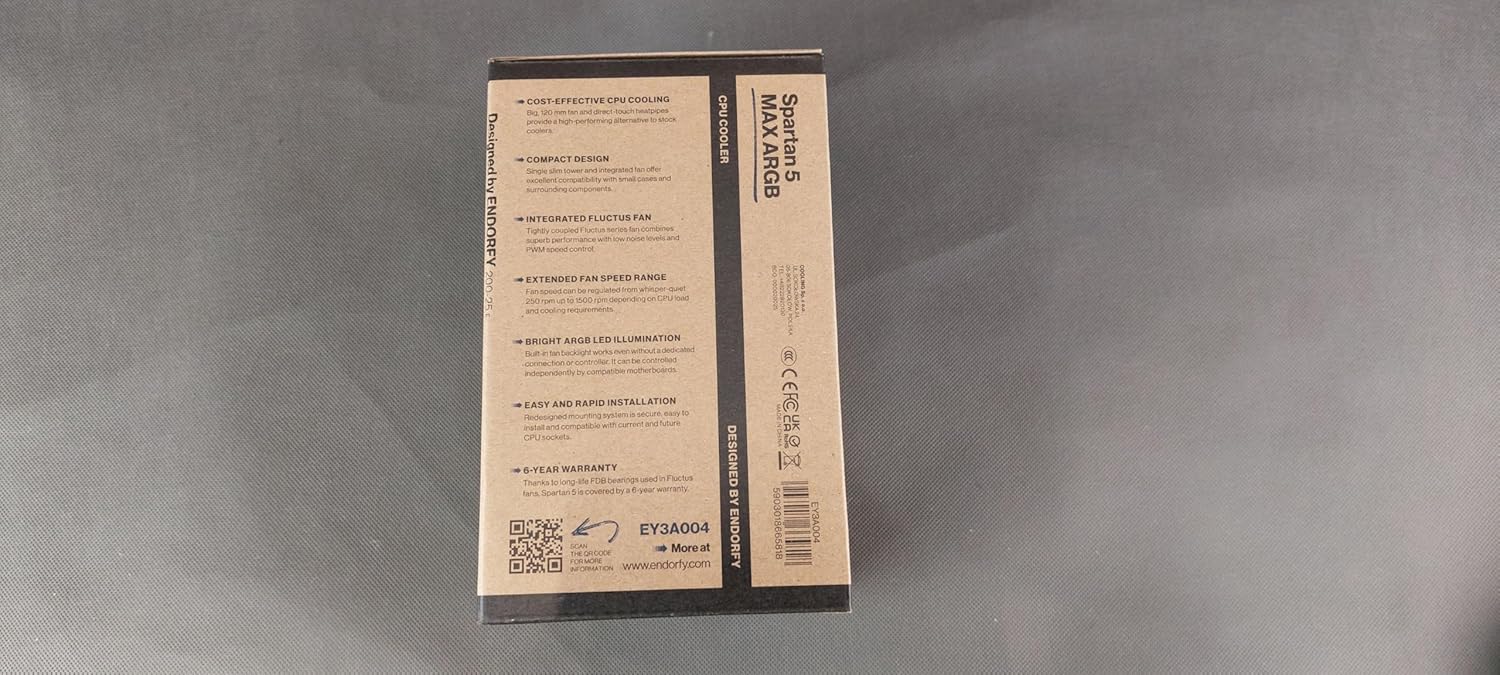
Image: The cooler's direct-touch heatpipes, designed for extreme cooling efficiency.
2. Ihe ngwugwu
Biko chọpụta na ihe niile edepụtara n'okpuru dị na ngwugwu gị:
- Spartan 5 MAX ARGB CPU Cooler
- Mounting accessories (for Intel and AMD sockets)
- Akwụkwọ ntuziaka (akwụkwọ a)
3. Nka na ụzụ nkọwa
| Njirimara | Nkọwapụta |
|---|---|
| Akụkụ ngwaahịa (L x W x H) | 4.92 x 2.56 x 5.75 sentimita (125 x 65 x 146 mm) |
| Nọmba Nlereanya ihe | EY3A004 |
| Ụdị | NKWUKWU |
| Ike njikọ .dị | 4-PWM nkwụnye |
| Voltage | 12 volts |
| Wattage | 12 watt |
| Usoro jụrụ oyi | Ikuku |
| Ngwa dakọtara | Desktop PCs (various Intel and AMD sockets) |
| Ọkwa mkpọtụ | 20 dB (kachasị) |
| Ihe onwunwe | Aluminum heatsink, Copper heatpipes |
| Ọsọ ntụgharị kacha | 2500 RPM |
| Ụdị Fans | Fluctus 120 PWM ARGB |
| Heatpipes | 4 Direct-Touch Heatpipes |
| Onodu Kwesiri | Pre-applied Pactum PT-3 |
4. Ntuziaka nwụnye
Tupu Ị Malite
- Gbaa mbọ hụ na agbanyụrụ sistemụ kọmputa gị kpamkpam wee wepụ ya na oghere mgbidi.
- Gather all included mounting accessories and tools (e.g., screwdriver).
- Refer to your motherboard's manual to identify your CPU socket type and ensure adequate clearance for the cooler.
Nwụnye nzọụkwụ site na nzọụkwụ
- Prepare the CPU Socket: Identify your CPU socket type (Intel or AMD) and select the appropriate mounting brackets and backplate from the included accessories. Follow the specific instructions in the physical manual for your socket type to attach the backplate and standoffs to the motherboard.
- Apply Thermal Compound: The Spartan 5 MAX ARGB comes with pre-applied Pactum PT-3 thermal compound on its base. Ensure the protective film is removed before installation. If you are reapplying thermal compound, clean the CPU surface and cooler base thoroughly with isopropyl alcohol before applying a new, thin, and even layer of high-quality thermal paste.
- Attach Mounting Brackets to Cooler: Secure the correct mounting arms or clips to the cooler base according to the instructions provided in the physical manual for your specific CPU socket.
- Tinye ihe mkpuchi ahụ: Carefully align the cooler with the CPU and the mounting holes or standoffs on the motherboard. Ensure the cooler is oriented correctly within your PC case for optimal airflow.
- Chekwaa ihe mkpuchi oyi ahụ: Gently press down on the cooler to make firm contact with the CPU. Secure the cooler using the provided screws or retention clips. If using screws, tighten them in a diagonal pattern (e.g., top-left, bottom-right, top-right, bottom-left) to ensure even pressure distribution. Do not overtighten.
- Connect Fan Cables: Connect the 4-pin PWM fan cable from the cooler to the CPU_FAN header on your motherboard. Connect the 3-pin 5V ARGB cable to a compatible 3-pin 5V ARGB header on your motherboard or a dedicated ARGB controller. Note: Do not connect to a 4-pin 12V RGB header, as this can damage the ARGB LEDs.
- Njikwa USB: Route all cables neatly to prevent them from interfering with the fan blades or obstructing airflow within your PC case.
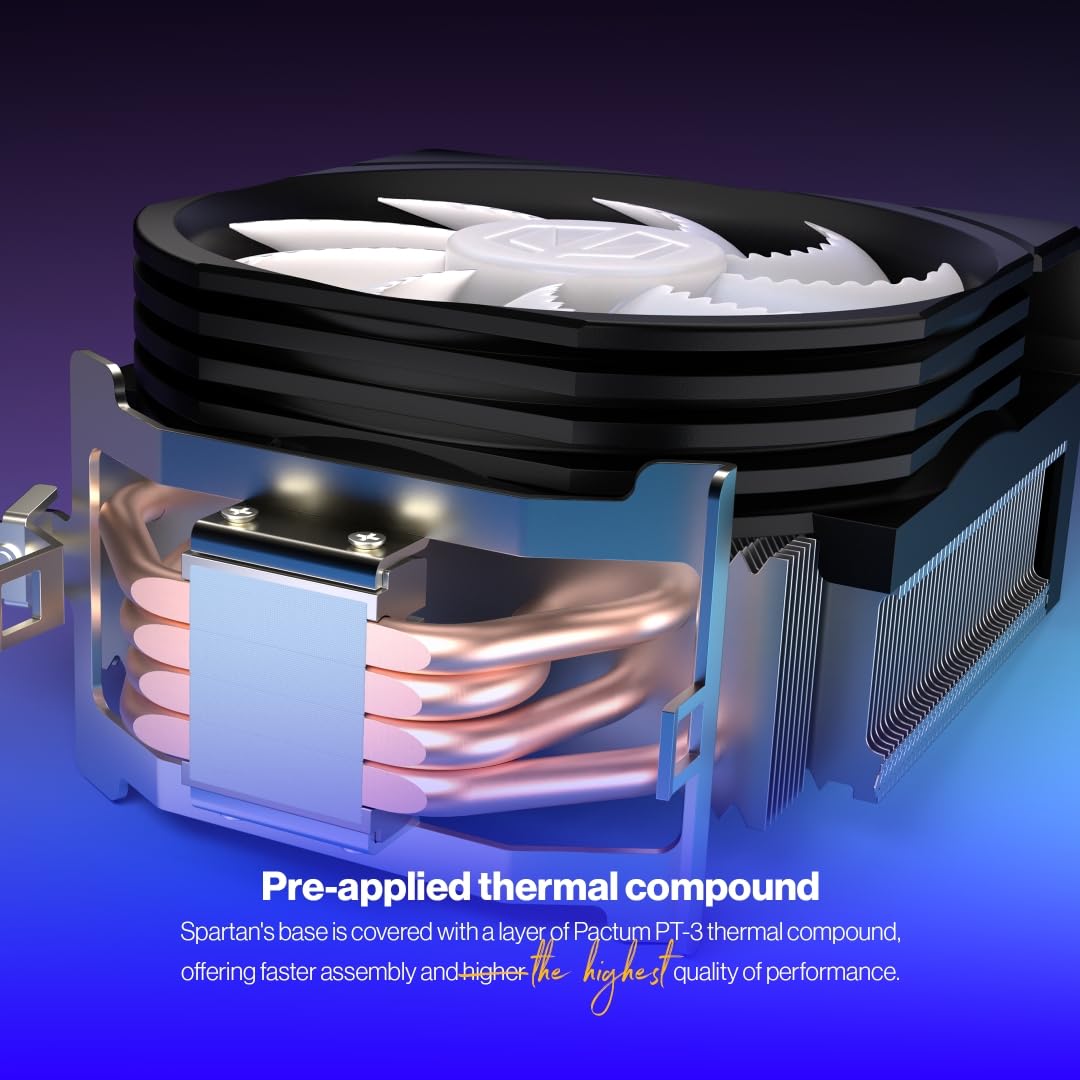
Image: The cooler's base with pre-applied Pactum PT-3 thermal compound for easy setup.

Image: The cooler installed in a PC case, highlighting its user-friendly mounting system.
5. Operation and ARGB Control
Ọrụ Fan
The Fluctus 120 PWM ARGB fan automatically adjusts its rotational speed based on your CPU's temperature. This is controlled by the Pulse Width Modulation (PWM) signal from your motherboard's CPU_FAN header. This intelligent control ensures optimal cooling performance during high loads and quiet operation during low loads.
Njikwa ọkụ ARGB
The integrated Addressable RGB (ARGB) lighting of the Spartan 5 MAX ARGB fan offers extensive customization. To control the lighting effects, colors, and synchronization, you will typically use your motherboard's ARGB software. Common motherboard ARGB software includes:
- Mmekọrịta Aura ASUS
- Mmekọrịta MSI Mystic Light
- GIGABYTE RGB Fusion
- Mmekọrịta ASRock Polychrome
If your motherboard does not have an ARGB header or compatible software, you may need a separate ARGB controller (not included) to manage the lighting effects. Refer to your motherboard's manual or the ARGB controller's instructions for detailed steps on customizing your lighting.

Image: The Spartan 5 MAX ARGB cooler illuminating a PC interior with customizable ARGB effects.
6. Nlekọta na nlekọta
Na-ehicha ihe nju oyi
Regular maintenance helps ensure optimal cooling performance and extends the lifespan of your cooler:
- Mwepụ uzuzu: Periodically (every 3-6 months, or more frequently in dusty environments) clean dust from the heatsink fins and fan blades. Use compressed air to blow dust out of the fins, or a soft brush to gently remove it. When using compressed air, hold the fan blades to prevent them from spinning rapidly, which can damage the bearings.
- Fan Removal (for thorough cleaning): The fan can be carefully detached from the heatsink for more thorough cleaning. Ensure it is securely reattached after cleaning.
- Ngwakọta okpomọkụ: It is generally not necessary to reapply thermal compound unless the cooler is removed from the CPU. If you do remove it, clean off the old thermal compound from both the CPU and cooler base using isopropyl alcohol and a lint-free cloth. Apply new thermal compound before reinstallation.
Nlekọta izugbe
- Ensure proper airflow within your PC case by maintaining clean dust filters and organized cables. This maximizes cooling efficiency and reduces overall dust buildup.
- Avoid touching the heatsink fins directly as they can be sharp.
7. Nchọpụta nsogbu
Okwu na ngwọta nkịtị
- Fans anaghị agba ọsọ:
- Check if the 4-pin PWM fan cable is securely connected to the CPU_FAN header on your motherboard.
- Verify fan control settings in your motherboard's BIOS/UEFI to ensure the fan header is enabled and configured correctly.
- Ensure your power supply unit (PSU) is providing adequate power to the system.
- Okpomọkụ CPU dị elu:
- Confirm the cooler is properly seated and making full, even contact with the CPU. Re-seat if necessary.
- Check if the thermal compound was applied correctly and is not dried out (if reapplied).
- Ensure adequate airflow within your PC case. Check for obstructions and clean dust filters.
- Verify that the fan is spinning at appropriate speeds under load.
- ARGB Lighting Not Working or Incorrect:
- Check if the 3-pin 5V ARGB cable is securely connected to the correct ARGB header on your motherboard or controller.
- Ensure your motherboard's ARGB software is installed, up-to-date, and configured correctly.
- Verify that the ARGB header is enabled in your motherboard's BIOS/UEFI, if applicable.
- Confirm compatibility between the cooler's ARGB and your motherboard's ARGB system.
- Mkpọtụ na-adịghị ahụkebe:
- Check for loose cables or other components inside the PC case that might be touching the fan blades.
- Ensure the fan is securely mounted to the heatsink.
- If the noise persists and sounds like grinding or rattling, the fan bearing might be faulty. Contact customer support.
8. Akwụkwọ ikike na nkwado ndị ahịa
Ozi akwụkwọ ikike
The ENDORFY Spartan 5 MAX ARGB CPU Cooler comes with a 6-afọ akwụkwọ ikike, ensuring long-term performance and reliability. Please retain your proof of purchase for all warranty claims.
Nkwado ndị teknuzu
For further assistance, technical inquiries, or warranty claims, please visit the official ENDORFY knowledge base or contact their support team:
- Ntọala Ọmụma: http://endorfy.com/kb/EY3A004
- Nkwado kọntaktị: http://endorfy.com/contact


