1. Okwu mmalite
Ndị Desview TP170 is a professional teleprompter designed for use with DSLR cameras, mirrorless cameras, camcorders, and tablets up to 17 inches. It features a high-definition beamsplitter glass, durable aluminum alloy construction, and remote control capabilities, making it suitable for various video production scenarios.
2. Atụmatụ igodo
- 17-inch High-Definition Beamsplitter Glass: Features 70/30 visible light transmission and 7H hardness for clear text display without ghosting, even in bright conditions.
- Ndakọrịta sara mbara: Supports DSLR/mirrorless cameras, camcorders, and tablets up to 17 inches.
- Bluetooth Remote Control & App: Control prompting text with the dedicated "Desview" app (iOS/Android) and included Bluetooth remote.
- Wider Angle Shooting: Designed to prevent vignetting with lenses wider than 24mm (horizontal) and 35mm (vertical). Includes a detachable sun hood.
- Premium Aluminum Alloy Construction: Durable and robust design with a high-quality feel.
- Akpa ibu ibu: Comes with a protective aluminum case for convenient storage and transport.
3. Ihe ngwugwu
Mgbe imepechara ngwugwu ahụ, chọpụta na akụrụngwa niile dị:
- Teleprompter Base
- Beamsplitter Glass + Sunshade Hood
- PTZ (Pan-Tilt-Zoom) Unit
- Prompting Device Clip
- Njikwa anya
- Convenient Aluminum Storage Suitcase
- Other accessories (e.g., screws, cables)
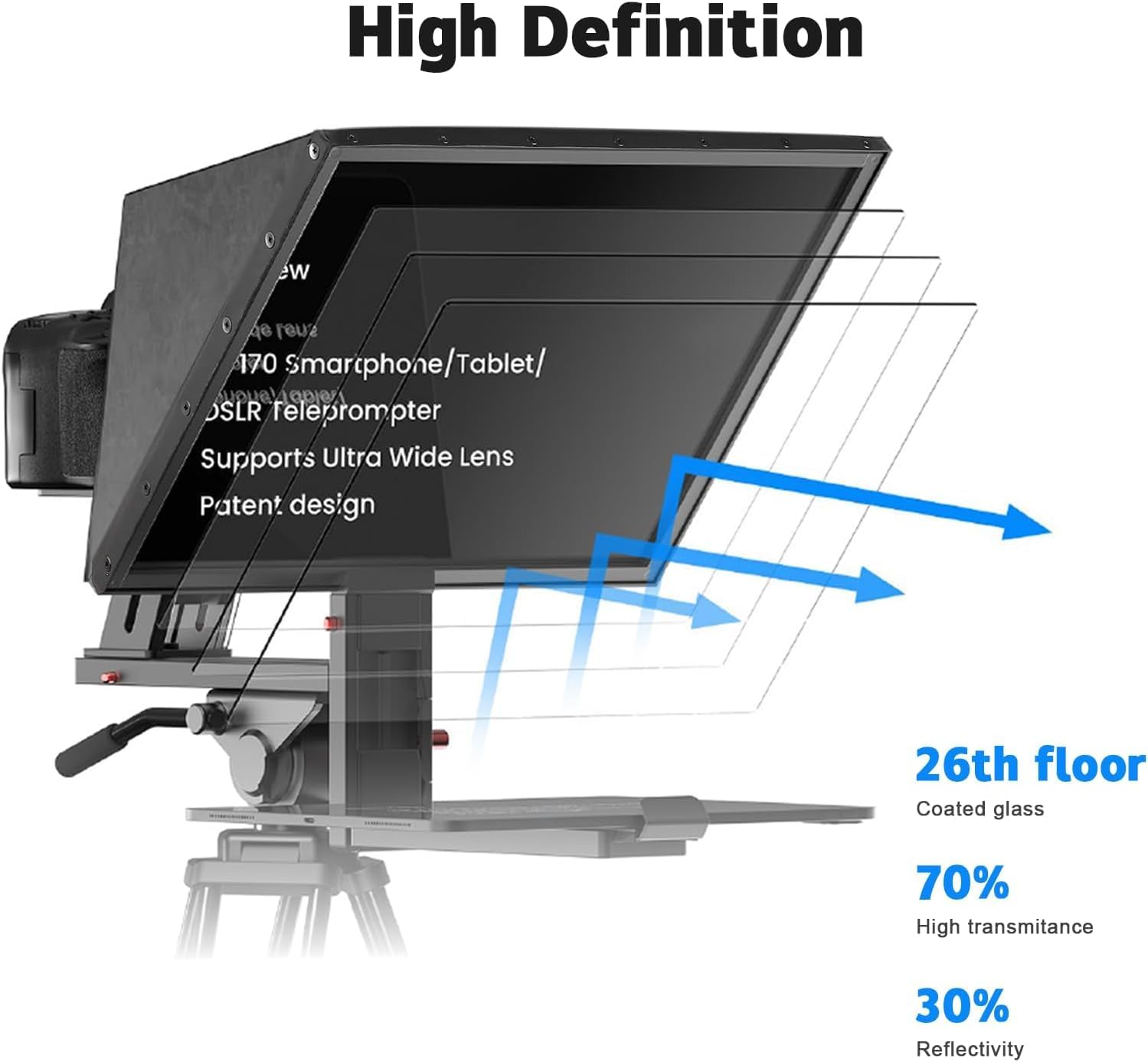
Figure 3.1: Desview TP170 Teleprompter components.
4. Ntuziaka Nhazi
Follow these steps for proper assembly and setup of your Desview TP170 Teleprompter.
4.1. Video Guide: Teleprompter TP170 Use Techniques
Video 4.1: A detailed video demonstrating the assembly and usage of the Desview TP170 Teleprompter. This video covers unboxing, component identification, assembly steps, camera mounting, and prompting device setup.
4.2. Mgbakọ nzọụkwụ site na nzọụkwụ
- Attach Teleprompter Base to Tripod: Secure the teleprompter base to your camera tripod using the appropriate mounting screws. Ensure it is stable.
Figure 4.2.1: Securing the teleprompter base to a tripod quick release plate.
- Mount the PTZ Unit: Attach the PTZ unit to the teleprompter base. This unit allows for vertical adjustment of the camera.

Figure 4.2.2: The PTZ unit attached to the base, illustrating adjustable stroke (50mm) and extension height (60-95mm).
- Install Beamsplitter Glass and Sunshade Hood: Carefully insert the beamsplitter glass into the teleprompter hood. Then, attach the magnetic sunshade hood to the front of the teleprompter.

Figure 4.2.3: Beamsplitter glass specifications.

Figure 4.2.4: Camera mounted with sunshade hood.
- Ugwu igwefoto: Attach your DSLR, mirrorless camera, or camcorder to the camera plate on the PTZ unit. Adjust its position to ensure the lens is centered with the beamsplitter glass.

Figure 4.2.5: DSLR camera mounted on the teleprompter.
- Attach Prompting Device Clip and Device: Slide the prompting device clip onto the base. Place your tablet or smartphone (up to 17 inches) onto the clip.

Figure 4.2.6: Horizontal and vertical prompting setup with a tablet.
5. Ọrụ
5.1. Using the Desview App and Bluetooth Remote
Ndị Desview TP170 teleprompter is controlled via a dedicated mobile application and a Bluetooth remote control.
- Budata ngwa: Chọọ maka "Desview" on the App Store (iOS) or Google Play (Android) and install the application on your prompting device (tablet or smartphone).
- Connect Bluetooth Remote: Pair the included Bluetooth remote control with your prompting device.
- Load Script: Open the Desview app and load your script.
- Control Prompting: Use the Bluetooth remote to control functions such as turning pages, pausing, adjusting scroll speed, and changing text/background colors.

Figure 5.1.1: Desview app and Bluetooth remote control in use.

Figure 5.1.2: Bluetooth remote control functions.
5.2. Connecting External Devices for Prompting
The teleprompter supports various external devices for displaying scripts:
- Smartphone Prompting: Connect your smartphone to the teleprompter's display input (if available) or use it directly on the prompting device clip. Ensure the display is mirrored or extended.
- Laptop Prompting: Connect a laptop to the teleprompter's display input for larger script display. This is useful for longer scripts or complex presentations.
Video 5.2.1: Demonstrates smartphone prompting (0:42 in video) and laptop prompting (0:47 in video) with the Desview TP170 Teleprompter.
5.3. Horizontal and Vertical Prompting
The teleprompter supports both horizontal and vertical orientations for your prompting device. Use the vertical L-bracket as needed to adjust the orientation.
Figure 5.3.1: Teleprompter configured for horizontal and vertical prompting.
6. Nlekọta na nlekọta
- Cleaning the Beamsplitter Glass: Use a soft, lint-free cloth and a specialized glass cleaning solution. Avoid abrasive materials that could scratch the surface.
- Nchacha izugbe: Wipe down the aluminum alloy frame and other components with a dry or slightly damp akwa . Ejila kemịkalụ siri ike.
- Nchekwa: When not in use, store the teleprompter in its provided aluminum carry case to protect it from dust, moisture, and physical damage.
- Ijikwa: Always handle the teleprompter with care, especially the beamsplitter glass, to prevent breakage or misalignment.

Figure 6.1: Storing the teleprompter in its carry case.
7. Nchọpụta nsogbu
| Nsogbu | Ihe nwere ike ime | Ngwọta |
|---|---|---|
| Text appears blurry or ghosted. | Beamsplitter glass is dirty or improperly installed. | Clean the beamsplitter glass with a soft cloth and appropriate cleaner. Ensure the glass is seated correctly in its frame. |
| Njikwa anya anaghị aza. | Low battery, not paired, or out of range. | Replace batteries. Re-pair the remote with your device via Bluetooth. Ensure the remote is within operating range. |
| Vignetting (dark corners) in camera footage. | Camera lens too wide or improperly positioned. | Adjust camera position to center the lens. Ensure your lens is within the recommended focal length (e.g., >24mm horizontal, >35mm vertical). |
| Prompting device not fitting the clip. | Device size exceeds maximum supported. | Ensure your tablet or smartphone is up to 17 inches. Adjust the clip to its maximum extension. |
8. Nkọwapụta
| Njirimara | Nkọwa |
|---|---|
| Nọmba nlereanya | Desview-TP170 |
| Akụkụ ngwaahịa | 7.87 x 14.17 x 11.42 sentimita asatọ |
| Ibu Ibu | 9.5 pound (4.32 Kilogram) |
| Glass Beamsplitter | 17 inch, 7H hardness, 70/30 visible light transmission |
| Ngwa dakọtara | DSLR/Mirrorless Camera, Camcorder, Tablets/iPads up to 17 inches |
| Ihe onwunwe | Aluminom Alloy |
| Agba | Nwa |
| Njikwa | Bluetooth Remote Control, "Desview" App (iOS/Android) |
| UPC | 723884578723 |
9. Akwụkwọ ikike na nkwado
For warranty information and technical support, please refer to the official Desview websaịtị ma ọ bụ kpọtụrụ ndị ahịa ha ozugbo. Debe nnata nzụta gị dị ka ihe akaebe nke ịzụrụ ihe maka akwụkwọ ikike ọ bụla.
Official Desview Websaịtị: www.desview.com


