1. Ngwaahịa gafereview
The GANA HDMI Switch 3 in 1 Out is designed to connect up to three HDMI source devices to a single HDMI display, such as a TV or monitor. This device eliminates the need for frequent plugging and unplugging of HDMI cables, providing a convenient solution for managing multiple media sources. It supports high-resolution video up to 4K@60Hz, including 3D, UHD, and HDCP2.2 signals, ensuring a high-quality visual experience. The switch can be operated via a manual button on the unit or with the included IR remote control.

Image: The GANA HDMI Switch unit shown with its accompanying remote control. The switch is a compact black box with three input ports and one output port, designed for efficient cable management.

Image: A detailed diagram of the GANA HDMI Switch, highlighting its input ports (Input 1, Input 2, Input 3), output port, IR receiver, power indicator, input signal indicators, and Micro USB power port. This visual aid helps in identifying each component of the device.
2. Ihe ngwugwu
Biko chọpụta na ihe niile dị na ngwugwu:
- 1 x GANA HDMI Switch (3 in 1 Out)
- 1 x IR Remote Control (Note: Battery not included)
- 1 x Micro USB eriri USB
- 1 x Ntuziaka onye ọrụ
3. Nkọwapụta
| Njirimara | Nkọwapụta |
|---|---|
| Nọmba nlereanya | 3jin1-hei |
| Ụdị HDMI | HDMI 2.0 |
| Mkpebi Max | 4K@60Hz (Backward compatible with 4K@30Hz, 2560x1440@120Hz, 1920x1080@240Hz) |
| Teknụzụ akwadoro | 3D, UHD, HDCP2.2, HDR |
| Bandwit | 18Gbps |
| Ịnye ọkụ | USB Powered (5V 1A, adapter not included) |
| Ibu Ibu | 6.7 ounces |
| Akụkụ ngwugwu | 6.61 x 4.96 x 0.94 sentimita asatọ |
| Agba | Nwa |
| Ụdị njikọ | HDMI |
4. Ntuziaka Nhazi
4.1 Ijikọ ngwaọrụ gị
Follow these steps to connect your HDMI devices to the GANA HDMI Switch:
- Connect up to three HDMI source devices (e.g., gaming console, TV box, DVD player) to the Input 1, Input 2, na Ntinye 3 ports on the HDMI switch using HDMI cables (not included).
- Connect one HDMI display (e.g., TV, monitor, projector) to the Mpụta port on the HDMI switch using an HDMI cable (not included).

Image: A visual representation of the GANA HDMI Switch connecting three input devices (Apple TV, Xbox, PS5) to a single output display (TV). Blue arrows indicate the flow of signals from input to output.
4.2 Ịkwanye ngwaọrụ
The HDMI switch requires external power for stable operation:
- Connect the provided Micro USB Power Cable to the Ọdụ ụgbọ mmiri Micro USB on the HDMI switch.
- Connect the other end of the Micro USB Power Cable to a 5V 1A USB power adapter (not included) or a USB port on your display device. Ensure the switch is always connected to a power source when in use to guarantee stable video transmission and optimal performance.

Image: The GANA HDMI Switch connected to a power source via its Micro USB port, illustrating the required 5V 1A power input for stable operation. The remote control is also visible in the foreground.
5. Ntuziaka ọrụ
5.1 Ntinye ntinye
You can switch between the connected HDMI source devices using two methods:
- Njikwa anya: Use the included IR remote control to select the desired input (1, 2, or 3) from a distance of up to 33 feet. This allows for convenient switching without needing to approach the switch unit.
- Bọtịnụ akwụkwọ ntuziaka: Press the 'Select' button on the front of the HDMI switch unit to cycle through the inputs (Input 1 → Input 2 → Input 3 → Input 1...).

Image: This image illustrates the two methods for switching inputs: using the IR remote control and pressing the manual button on the HDMI switch. The display shows various gaming and media applications, indicating seamless transitions between sources.

Foto: A n'elu-ala view demonstrating the effective remote sensing distance of up to 33 feet for the GANA HDMI Switch, allowing control from various positions within a room.
5.2 Ịghọta ihe ngosi LED
The front panel of the HDMI switch features LED indicators to provide status information:
- Igwe ọkụ ọkụ: Na-enwu mgbe ngwaọrụ ahụ gbanyere ọkụ.
- Input 1/2/3 LEDs: The corresponding LED will illuminate to indicate which HDMI input port is currently active and selected.
6. Atụmatụ na ike
6.1 4K@60Hz High Resolution Display
The GANA HDMI Switch supports resolutions up to 4K@60Hz, providing a clear and detailed visual experience. It is backward compatible with lower resolutions such as 4K@30Hz, 2560x1440@120Hz, and 1920x1080@240Hz. The switch also supports 3D, UHD, and HDCP2.2 signals, ensuring compatibility with a wide range of modern display technologies.

Image: A side-by-side comparison illustrating the visual difference between 30Hz and 60Hz refresh rates at 4K resolution, emphasizing the clearer and more realistic picture quality achieved with 4K@60Hz.

Image: A visual comparison demonstrating the enhanced color and contrast provided by HDR (High Dynamic Range) technology, supported by the HDMI switch, compared to a non-HDR image.
6.2 Ndakọrịta zuru oke
The GANA HDMI Switch is compatible with most devices that feature a standard HDMI interface. This includes a broad range of input and output devices:
- Ngwa ntinye: PC, Computer, Macbook, Xbox 360, Xbox One, PS4/5, Blu-Ray DVD players, Chromecast, Nintendo Switch, TV Box Stick, and more.
- Ngwa mmepụta: HD-Ready or Full HD TVs, projectors, monitors, and other HDMI-enabled displays.
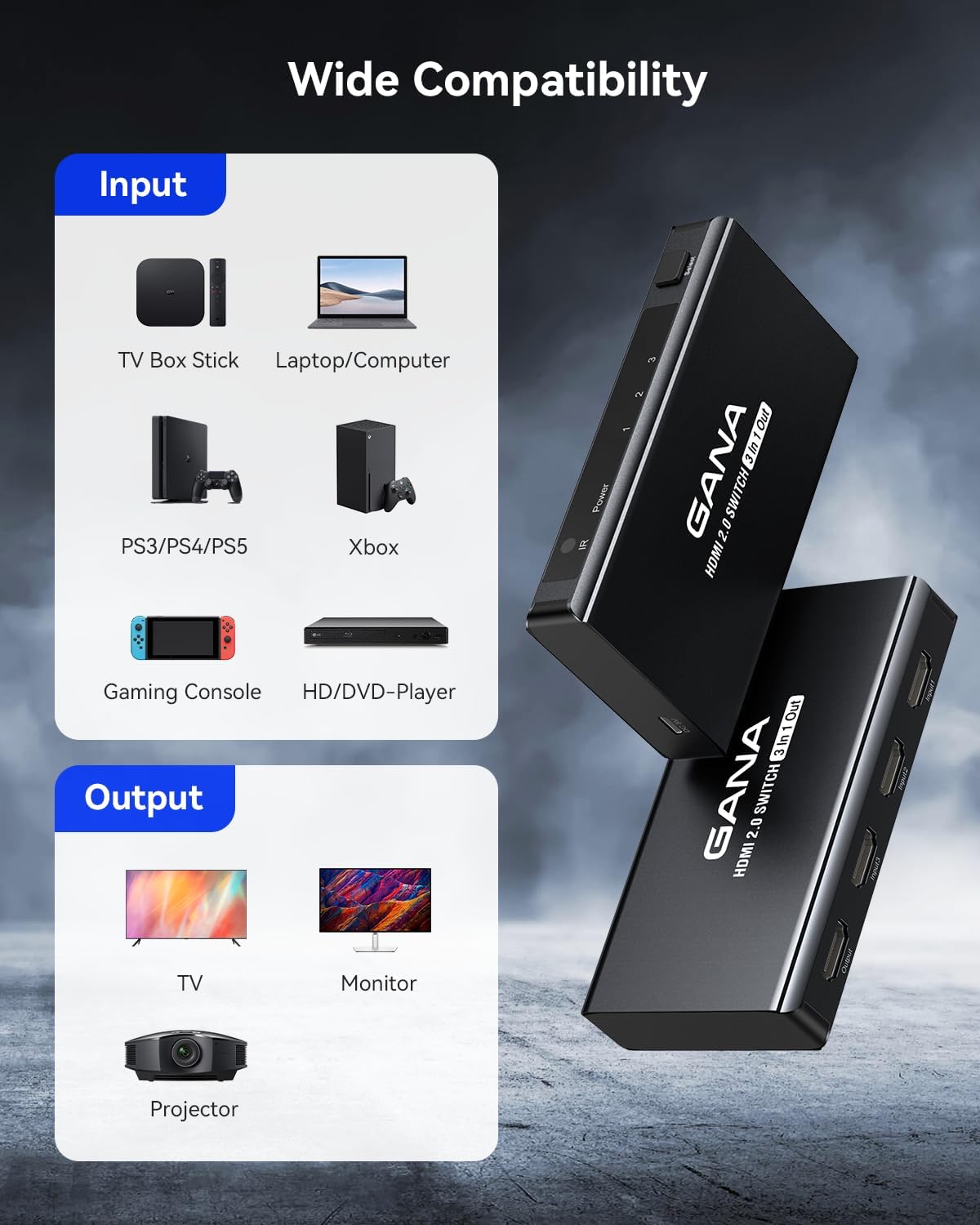
Image: A graphic illustrating the wide range of compatible input devices (TV Box Stick, Laptop/Computer, PS3/PS4/PS5, Xbox, Gaming Console, HD/DVD-Player) and output devices (TV, Monitor, Projector) for the GANA HDMI Switch.
6.3 Fast and Stable Transmission
Equipped with an industry-leading IC chip, the switch provides a high bandwidth of 18Gbps, ensuring fast and stable data transmission. The USB-powered design contributes to consistent video transmission and improved performance, minimizing frame loss or image degradation for a smooth viewing na egwuregwu ahụmahụ.
7. Nlekọta
To ensure the longevity and optimal performance of your GANA HDMI Switch, follow these simple maintenance guidelines:
- Nhicha: Use a soft, dry cloth to gently wipe the exterior of the switch. Avoid using liquid cleaners, aerosols, or abrasive materials, as these can damage the device.
- Nchekwa: Mgbe a naghị eji ya ogologo oge, chekwaa mgba ọkụ ahụ n'ebe dị jụụ, kpọrọ nkụ pụọ na ìhè anyanwụ kpọmkwem na oke okpomọkụ.
- Njikwa USB: Ensure HDMI cables are not excessively bent or strained, as this can lead to signal issues or damage to the cables and ports.
- Ịnye ọkụ: Always use the recommended 5V 1A power supply to prevent damage from incorrect voltage.
8. Nchọpụta nsogbu
If you encounter issues with your GANA HDMI Switch, please refer to the following table for common problems and their solutions:
| Nsogbu | Ihe nwere ike ime | Ngwọta |
|---|---|---|
| No signal or black screen on display. | Njikọ eriri adịghị atọ ụtọ. ahọpụtara ntinye ezighi ezi. Ọkụ ọkụ na-ezughị oke. Mkpebi/ọnụego ume ọhụrụ na-ekwekọghị ekwekọ. | Gbaa mbọ hụ na ejikọrọ eriri HDMI niile nke ọma. Verify the correct input is selected on the switch (check LED indicator). Confirm the switch is powered by a stable 5V 1A source. Try a lower resolution on the source device. |
| Flickering or unstable image. | Poor quality HDMI cables. Long HDMI cable length. Okwu ọkọnọ ike. | Use high-quality HDMI 2.0 certified cables. Try shorter HDMI cables if possible. Ensure stable 5V 1A power supply is connected. Malitegharịa ekwentị niile ejikọrọ. |
| Njikwa anya anaghị arụ ọrụ. | No battery or low battery. Ihe mgbochi n'etiti ime na mgba ọkụ. Remote not pointed at IR receiver. | Insert a new CR2025 battery (not included) into the remote. Remove any objects blocking the line of sight to the switch's IR receiver. Point the remote directly at the IR receiver on the switch. |
| Esemokwu ọdịyo (enweghị ụda ma ọ bụ ụda gbagọrọ agbagọ). | Ntọala ọdịyo na isi mmalite/ngosipụta. HDMI USB nsogbu. | Lelee ntọala mmepụta ọdịyo na ngwaọrụ isi mmalite gị na ntọala ntinye na ngosipụta gị. Ensure HDMI cables are fully inserted and not damaged. Gbalịa eriri HDMI dị iche. |
9. Akwụkwọ ikike na nkwado
GANA offers lifetime technical support and friendly customer service for this product. If you encounter any problems or have questions regarding your HDMI switch, please do not hesitate to contact GANA customer support. They aim to resolve your issues within 24 hours.
For more information or to explore other GANA products, please visit the official GANA Store on Amazon: GANA Store


