1. Ngwaahịa gafereview
This Carplay/Android Auto adapter integrates smartphone functionality into your Mazda's MZD Connect System, allowing access to navigation, communication, and media applications directly on your vehicle's display. It supports both wired Carplay/Android Auto and utilizes original car controls for a seamless user experience.
Akụkụ ndị bụ isi:
- Wired Carplay/Android Auto: Access map navigation, phone contacts, email, notifications, music, and intelligent voice assistant features for safe driving.
- Ndakọrịta sara mbara: Suitable for Mazda MX-5 (2016-2020), CX-3 (2016-2019), CX-5 (2015-2020), CX-9 (2016-2020), Mazda 2 (2016-2019), Mazda 3 (2014-2018), Mazda 6 (2016-2020), and FIAT 124 (2017-2021) with MZD Connect System. Replacement part numbers: TK78-66-9U0C K1414 00008FZ34.
- Nkwado Ọrụ ụgbọ ala izizi: Retains original car knob controls and steering wheel button controls for enhanced safety.
- Firmware Update Requirement: Requires CMU software version v70.00.021 or higher for proper recognition of the USB hub.
- Nkwado Ahịa: Includes a One-Year global warranty and lifetime technical service support.
2. Ihe ngwugwu
Ngwungwu ngwaahịa gụnyere ihe ndị a:
- USB-C Hub Unit
- 2 x eriri USB
- 10 x Kechie Wraps
- 2 x Sponge Tape pieces
- Akwụkwọ ntuziaka ngwaahịa
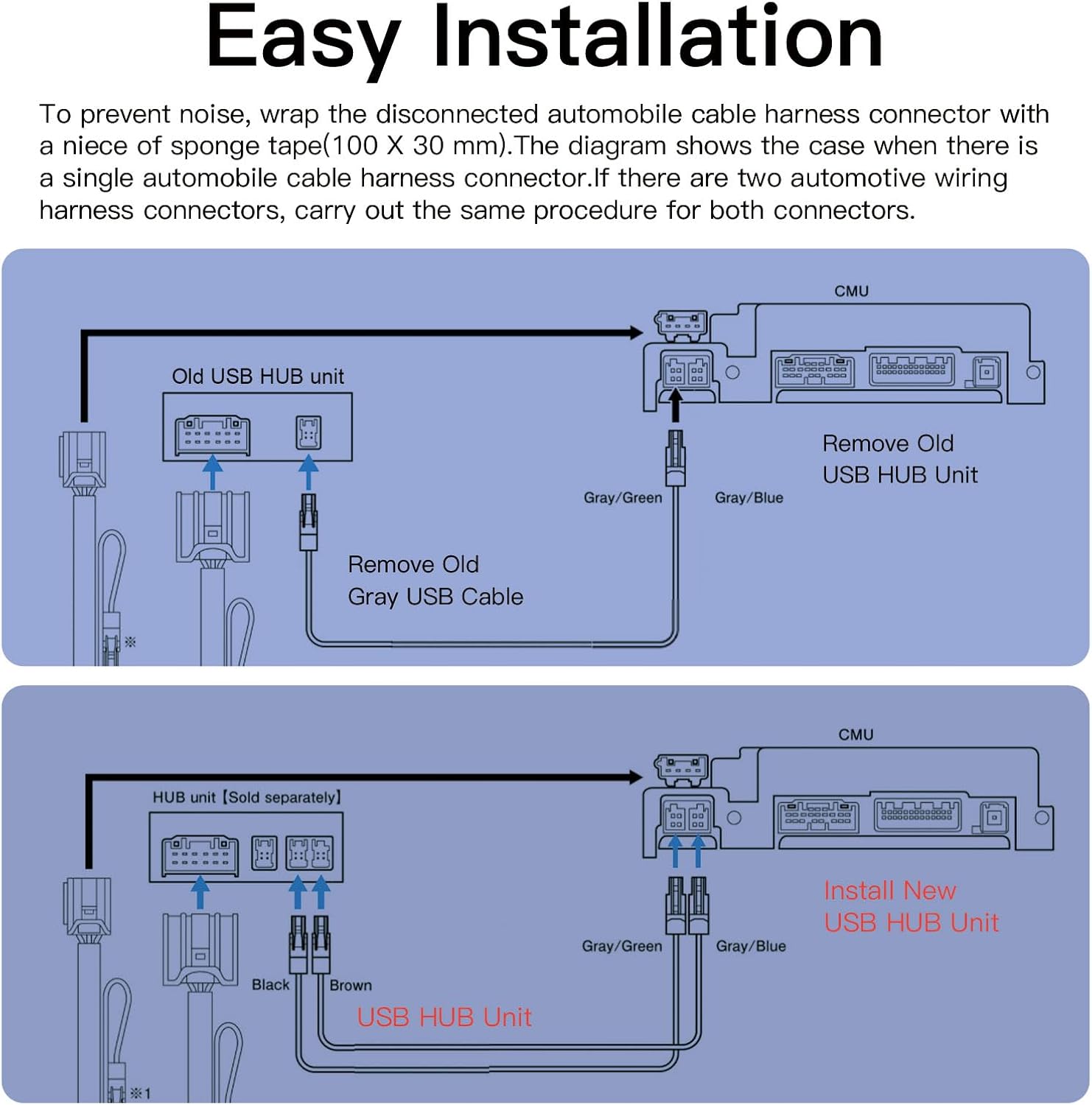
Image: Contents of the autoabc Carplay/Android Auto Adapter package.
3. Ndakọrịta
This adapter is designed for Mazda vehicles equipped with the MZD Connect System. Please verify your vehicle's compatibility before installation.
Ụdị na Afọ Ụgbọala Dakọtara:
- Mazda MX-5: 2016 - 2020
- Mazda CX-3: 2016 - 2019
- Mazda CX-5: 2015 - 2020
- Mazda CX-9: 2016 - 2020
- Mazda 2: 2016 - 2019
- Mazda 3: 2014 - 2018
- Mazda 6: 2016 - 2020
- FIAT 124: 2017 - 2021
Ihe ndetu dị mkpa:
- If your car does not have an MZD Connect device, this adapter will not work.
- The replacement part number is TK78-66-9U0C K1414 00008FZ34.
- If the CMU software is not v70.00.021 or higher, you must upgrade the firmware before installation. An older version may prevent the CarPlay/Android Auto compatible USB hub from being recognized.
- Before upgrading firmware, remove the SD card and reinsert it after the upgrade to ensure GPS or navigation functions correctly.

Image: Detailed compatibility information for various Mazda models and years.
4. Ntọala na nwụnye
Proper installation is crucial for the functionality of your Carplay/Android Auto adapter. Follow these steps carefully. For a visual guide, refer to the installation videos provided.
4.1. Firmware Update (If Required)
As noted in the compatibility section, ensure your CMU software is version v70.00.021 or higher. If not, perform the firmware update before proceeding with hardware installation. Remember to remove the SD card before updating and reinsert it afterward.
Video: Demonstration of checking the firmware version and the need for an upgrade to version 70.00.021 or higher.
4.2. Akụrụngwa nwụnye
The installation involves replacing the old USB hub unit with the new one and connecting the provided cables. It is recommended to consult a professional if you are unsure about any steps.
- Remove Old USB Hub Unit: Carefully disconnect the existing automobile cable harness connector(s) and remove the old USB hub unit.
- Install New USB Hub Unit: Connect the new USB hub unit using the provided cables. Ensure all connections are secure. If there are two automotive wiring harness connectors, follow the same procedure for both.
- Njikọ echekwara To prevent noise, wrap the disconnected automobile cable harness connector with the provided sponge tape (100 x 30 mm). Use tie wraps to secure cables as needed.

Image: Step-by-step diagram for replacing the old USB hub with the new unit.
Video: Visual guide on how to install the Mazda hub retrofit kit.
5. Ntuziaka ọrụ
Once installed, the adapter allows you to use Apple CarPlay and Android Auto. The system supports original car knob controls and steering wheel buttons, as well as touch operation for CarPlay.
5.1. Ijikọ ekwentị gị
Connect your compatible smartphone to the USB-C port on the new hub unit using a USB cable. The system should automatically detect and launch either Apple CarPlay or Android Auto.

Image: Comparison of Apple CarPlay and Android Auto interfaces on the Mazda display.
5.2. Iji Njikwa Olu
Utilize Siri or Google Voice control for hands-free operation. This allows you to make calls, play music, get directions, and more using voice commands.

Image: Voice control functionality for navigation, calls, and music playback.
5.3. Navigation and Media
Access real-time navigation from your phone on the vehicle display. Enjoy music, podcasts, and audiobooks through compatible apps. The system supports original car knob and steering wheel controls for navigation and media playback.

Image: Display of various compatible applications for navigation and entertainment.
6. Nkọwapụta
| Njirimara | Nkọwa |
|---|---|
| Ibu Ibu | 11.7 ounces |
| Akụkụ ngwaahịa | 6.77 x 4.72 x 2.95 sentimita asatọ |
| Nọmba Nlereanya ihe | TK78-66-9U0C |
| Iwu olu | Bọtịnụ |
| Ụdị njikọ | Micro USB or USB Type B |
| Agba | Nwa |
| Ngwa dakọtara | Cell Phone (Apple CarPlay, Android Auto) |
7. Akwụkwọ ikike na nkwado
The autoabc Carplay/Android Auto Adapter comes with comprehensive support to ensure your satisfaction.
- Akwụkwọ ikike: One-Year global warranty.
- Nkwado ndị teknuzu: LIFETIME Technical Service Support.
- Kpọtụrụ: For any questions or issues with your product, please contact us via Amazon Email for reliable ONLINE TECHNICAL SUPPORT.


