Okwu mmalite
This manual provides essential instructions for setting up, operating, maintaining, and troubleshooting your new Tesla 65-inch 4K UHD Smart TV (Model 65E635SUS). Please read this manual thoroughly before using the television to ensure proper operation and to maximize your viewahụmahụ. Debe akwụkwọ ntuziaka a maka ntụnye aka n'ọdịnihu.
Ozi nchekwa dị mkpa: Always follow basic safety precautions when using this product to reduce the risk of fire, electric shock, and injury. Do not attempt to service this product yourself. Refer all servicing to qualified service personnel.
1. Nhazi
1.1 Unpacking and Contents Check
Carefully remove the TV from its packaging. Ensure all components are present:
- Tesla 65-inch 4K UHD Smart TV
- Njikwa anya
- Batrị AAA maka njikwa anya
- Ihe nkwụnye TV (2 iberibe)
- Ihe nkedo maka TV Stand
- Ụdọ ọkụ
- Akwụkwọ ntuziaka (akwụkwọ a)

Foto 1.1: N'ihu view of the Tesla 65-inch Smart TV with its stand.
1.2 Na-agbakwunye ihe nkwụnye TV
- Debe ihu TV ahụ n'elu ala dị nro ma dị larịị iji gbochie mmebi ihuenyo.
- Kwado ibe nkwụnye ọ bụla na oghere kwekọrọ na ala TV.
- Jiri skru ndị enyere kee akụkụ ihe nkwụnye ọ bụla. Hụ na e siri ike nke ọma.

Foto 1.2: N'azụ view of the TV, illustrating the stand attachment points.
Mara: If you plan to wall-mount the TV, refer to the wall-mount kit instructions (sold separately) and skip this step. Ensure proper ventilation when wall-mounting.
1.3 Ijikọ ike
Connect the power cord to the TV's power input and then to a wall outlet. The TV will enter standby mode.
1.4 Ntọala mbụ
Ozugbo agbanyere ya na mbụ, TV ga-eduzi gị site na usoro ntọala mbụ:
- Nhọrọ asụsụ: Họrọ asụsụ nke masịrị gị.
- Njikọ netwọk: Jikọọ na netwọk Wi-Fi gị ma ọ bụ jiri eriri Ethernet maka njikọ waya.
- Nbanye Akaụntụ Google: Sign in with your Google account to access Google Play Store, Google Assistant, and other Android TV features.
- Nyocha ọwa: Scan for available TV channels if you are using an antenna or cable connection.
- Ntọala nzuzo: Review ma gbanwee ntọala nzuzo dịka achọrọ.
2. Ntuziaka ọrụ
2.1 Remote Control Overview
The provided remote control allows you to navigate the TV's features. Insert the AAA batteries into the remote control before use.

Image 2.1: Bluetooth remote control for the Tesla Smart TV.
- Bọtịnụ ike: Turns the TV on or off (standby mode).
- Mpempe igodo nsoroụzọ (elu/ala/ekpe/aka nri/OK): Na-agagharị menus wee họrọ ihe.
- Bọtịnụ azụ: Na-alaghachi na ihuenyo gara aga.
- Bọtịnụ ụlọ: Na-enweta ihuenyo ụlọ Android TV.
- Elu elu/ala: Na-edozi ọkwa olu.
- Oghere bọtịnụ: Mebie ma ọ bụ mebie ụda olu.
- bọtịnụ enyemaka Google: Na-eme ka njikwa olu rụọ ọrụ.
- Ngwa mkpirisi bọtịnụ: Nweta ọrụ mgbasa ozi ama ama (dịka ọmụmaatụ Netflix, YouTube).
2.2 Android TV 11 Interface Navigation
The Android TV 11 interface provides access to apps, settings, and content. Use the navigation pad on your remote to move through the home screen.
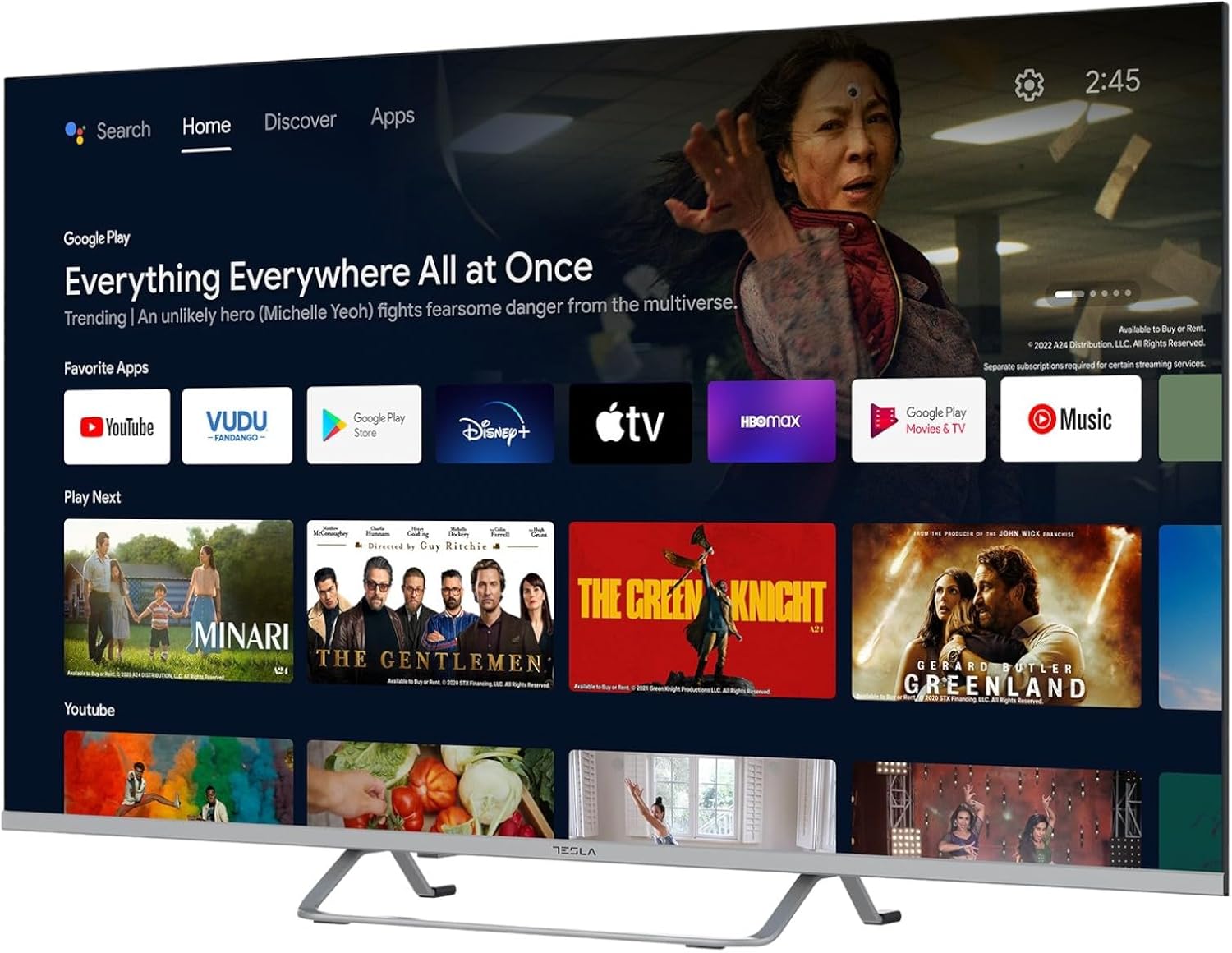
Image 2.2: The Android TV 11 home screen, displaying various applications and content suggestions.
- Ihuenyo ụlọ: Displays recommended content, installed apps, and input sources.
- Ngalaba Ngwa: Nweta ngwa niile arụnyere.
- Ntọala: Configure TV settings, network, accounts, and device preferences.
2.3 Iji Google Assistant
Press the Google Assistant button on your remote and speak into the microphone to control your TV, search for content, get information, and more.
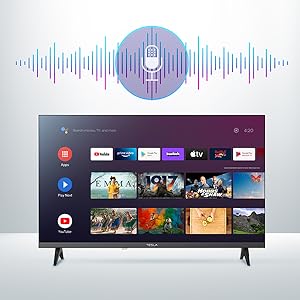
Image 2.3: Visual representation of Google Assistant activation on the TV screen.
Examples of commands:
- "Open Netflix"
- "Chọọ maka action movies"
- "What's the weather like?"
- "Turn up the volume"
2.4 Chromecast arụnyere n'ime ya
Use Chromecast built-in to cast content from your compatible smartphone, tablet, or computer directly to your TV. Ensure your device is connected to the same Wi-Fi network as the TV.

Image 2.4: A smartphone casting content to the TV via Chromecast.
2.5 Ijikọ ngwaọrụ mpụga
TV gị na-enye ọtụtụ nhọrọ njikọ:
- ọdụ ụgbọ mmiri HDMI (x4): Connect Blu-ray players, game consoles, set-top boxes, etc.
- ọdụ ụgbọ mmiri USB (x2): Connect USB drives for media playback or external keyboards/mice.
- Ethernet (LAN): Maka njikọ ịntanetị ejikọrọ.
- Wi-Fi: Maka njikọ ịntanetị ikuku.
- Bluetooth: Jikọọ ekweisi ikuku, igwe okwu, ma ọ bụ ngwaọrụ Bluetooth ndị ọzọ.

Foto 2.5: Akụkụ profile of the TV, highlighting accessible ports.
2.6 Ntọala foto na ụda
Access the TV's settings menu to customize picture and sound options.
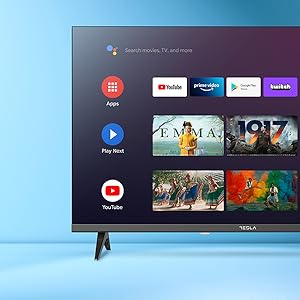
Foto 2.6: Ọpụample of the TV's settings menu for customization.
- Ụdị foto: Select from Standard, Vivid, Sport, Movie, Game, or User (custom) modes. Adjust brightness, contrast, color, and sharpness.
- HDR10: The TV supports HDR10 for enhanced contrast and color with compatible content.
- Ụdị ụda: Choose from Standard, Music, Movie, Sport, or User (custom) modes. Use the equalizer to fine-tune audio frequencies.
- Ndị na-ekwu okwu: The TV features 2 x 12W speakers.
3. Nlekọta
3.1 Ihicha TV
- Ihuenyo: Jiri nwayọ hichaa ihuenyo ahụ site na iji akwa dị nro na-enweghị lint. Maka akara ndị isi ike, dị obere dampen akwa na mmiri ma ọ bụ pụrụ iche ihuenyo Cleaner. Efela ihe nhicha ozugbo na ihuenyo.
- Ahụ: Wipe the TV body with a soft, dry cloth. Avoid using abrasive cleaners or solvents.
- Wepụ TV mgbe niile na ebe ọkụ tupu ihicha ya.
3.2 Mmelite ngwanrọ
Your Tesla Smart TV may receive software updates to improve performance and add new features. Ensure your TV is connected to the internet to receive these updates automatically or check for them manually in the settings menu.
4. Nchọpụta nsogbu
Before contacting support, try the following solutions for common issues:
| Nsogbu | Ngwọta enwere ike |
|---|---|
| Enweghị ike | Check if the power cord is securely connected to the TV and the wall outlet. Ensure the outlet is working. |
| Enweghị foto, mana ụda dị | Hụ na ahọpụtara isi iyi ntinye ziri ezi. Lelee njikọ eriri na ngwaọrụ mpụga. Gbalịa ịmalitegharịa TV ahụ. |
| Enweghị ụda, mana foto dị | Check the volume level and ensure the TV is not muted. Verify audio settings and external speaker connections if applicable. |
| Njikwa anya anaghị arụ ọrụ | Replace the batteries. Ensure there are no obstructions between the remote and the TV. Re-pair the Bluetooth remote if necessary (refer to TV settings). |
| Nsogbu njikọ netwọkụ | Malitegharịa rawụta na modem gị. Lelee paswọọdụ Wi-Fi. Nwaa njikọ Ethernet ejiri waya mee ma ọ bụrụ na o kwere mee. |
| Ngwa na-aga nwayọ ma ọ bụ na-ada ada | Close unused apps. Clear app cache (Settings > Apps > [App Name] > Clear cache). Restart the TV. |
5. Nkọwapụta
| Njirimara | Nkọwa |
|---|---|
| Ụdị | TESLA |
| Nọmba nlereanya | 65E635SUS |
| Nha ihuenyo | 65 sentimita (165 cm) |
| Ngosipụta teknụzụ | Ikanam |
| Mkpebi | 4K (3840 x 2160) |
| Ọnụego ume ọhụrụ | 60 Hz |
| Sistemụ nrụọrụ | Android TV 11 |
| Atụmatụ pụrụ iche | High Dynamic Range (HDR10), Google Play, Chromecast Built-in, Google Assistant, Personalized Surround Sound |
| Njikọta | Wi-Fi, Bluetooth, Ethernet (LAN) |
| ọdụ ụgbọ mmiri HDMI | 4 |
| ọdụ ụgbọ mmiri USB | 2 |
| Mmepụta ọdịyo | 2 x 12W Ndị na-ekwu okwu |
| Akụkụ ngwaahịa (ya na nkwụnye) | 25D x 25W x 144.5H cm (approximate) |
6. Akwụkwọ ikike na nkwado
For warranty information, please refer to the warranty card included with your product or visit the official Tesla websaịtị. Debe ihe akaebe nke ịzụrụ maka akwụkwọ ikike.
For technical support or service inquiries, please contact Tesla customer service through their official channels. Contact details can typically be found on the manufacturer's websaịtị ma ọ bụ na nkwakọ ngwaahịa.


