1. Okwu mmalite
Thank you for choosing the Joyroom JR-X9S Active Capacitive Stylus Pen. This manual provides essential information for the proper setup, operation, and maintenance of your stylus. Please read these instructions carefully before use to ensure optimal performance and longevity of your device.
2. Ngwaahịa gafereview
The Joyroom JR-X9S is an active capacitive stylus designed for precise interaction with smart devices. It features a fine tip for accurate writing, drawing, and navigation. The stylus is lightweight and ergonomically designed for comfortable use.
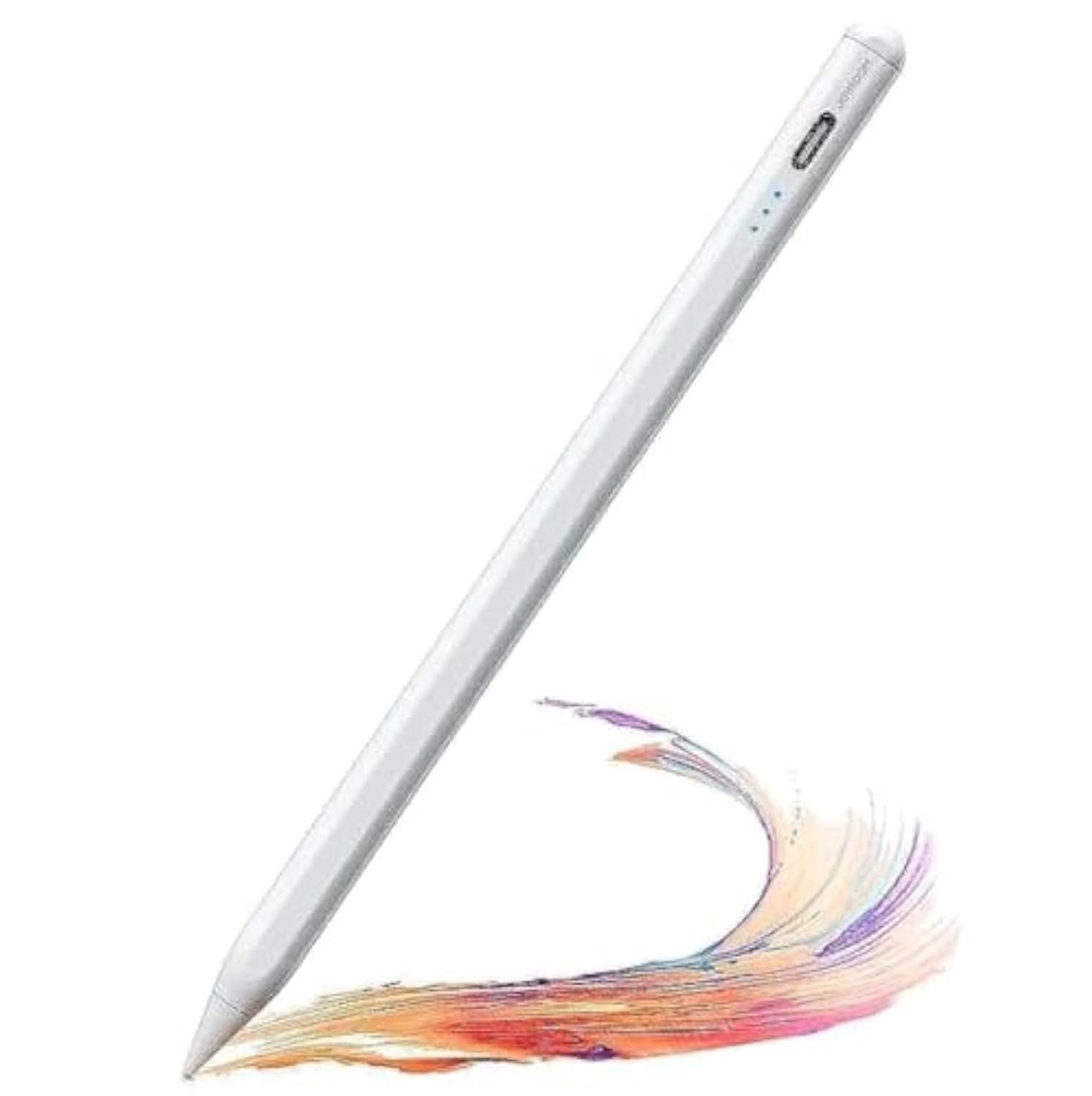
Image 1: Joyroom JR-X9S Active Capacitive Stylus Pen. This image displays the sleek design of the stylus pen, highlighting its fine tip and overall form factor.
Rịba ama na ndakọrịta: This stylus is primarily designed for use with iPads and may not be fully compatible with all Android devices. Please verify your device's compatibility for optimal performance.
3. Nhazi
3.1 Ịchaji Stylus ahụ
- Locate the charging port on the stylus. This is typically a USB-C port.
- Connect the provided charging cable to the stylus and a compatible USB power source (e.g., computer, wall adapter).
- The indicator light on the stylus will illuminate during charging. It will typically change color or turn off once fully charged.
- Ụgwọ zuru ezu na-ewekarị ihe dị ka awa 1-2.
3.2 Gbanyụọ/ gbanyụọ
- Iji gbanye: Press and hold the power button (if present) or gently tap the top of the stylus until the indicator light turns on.
- Iji gbanyụọ: Press and hold the power button again or tap the top of the stylus until the indicator light turns off. The stylus may also power off automatically after a period of inactivity to conserve battery.
4. Ntuziaka ọrụ
4.1 Isi ojiji
- Gbaa mbọ hụ na agbanyere stylus.
- Simply touch the stylus tip to your device's screen to begin writing, drawing, or navigating.
- The stylus is designed to mimic the feel of a traditional pen, offering precise control.
4.2 Iji ya na ngwa
The JR-X9S stylus is compatible with most drawing, note-taking, and productivity applications that support stylus input on compatible devices. No special pairing is typically required; the stylus functions by capacitive touch.
5. Nlekọta
5.1 Nhicha
- Gently wipe the stylus body with a soft, dry, lint-free cloth.
- For the stylus tip, use a slightly damp cloth if necessary, ensuring no moisture enters the device.
- Ejila kemịkalụ siri ike, ihe nhicha ihe na-eme ka ihe dị nro, ma ọ bụ ihe mgbaze.
5.2 Nchekwa
- Store the stylus in a cool, dry place away from direct sunlight and extreme temperatures.
- Avoid placing heavy objects on the stylus.
- Keep the stylus away from strong magnetic fields.
6. Nchọpụta nsogbu
| Nsogbu | Ihe nwere ike ime | Ngwọta |
|---|---|---|
| Stylus does not turn on. | Batrị dị ala. | Charge the stylus fully. |
| Stylus is unresponsive. | Stylus is off or low battery. Device incompatibility. | Ensure stylus is powered on and charged. Verify device compatibility (e.g., iPad). |
| Inaccurate or intermittent input. | Screen protector interference. Stylus tip dirty or damaged. | Ensure screen protector is stylus-friendly. Clean the stylus tip. If damaged, consider replacing the tip (if applicable). |
| Stylus turns off unexpectedly. | Low battery. Automatic power-off feature. | Recharge the stylus. This is normal behavior if the stylus is inactive for a period. |
7. Nkọwapụta
| Njirimara | Nkọwa |
|---|---|
| Ụdị | Ụlọ oriri na ọṅụṅụ |
| Nọmba nlereanya | JR-X9S |
| Ụdị | Active Capacitive Stylus Pen |
| Agba | Ọcha |
| Akụkụ ngwaahịa | 2.2 x 6.8 x 24.2 cm |
| Ibu | 90 grams |
| ASIN | B0C8DXBQRQ |
8. Akwụkwọ ikike na nkwado
For warranty information or technical support, please refer to the documentation included with your purchase or contact Joyroom customer service directly. Keep your proof of purchase for any warranty claims.


