1. Ngwaahịa gafereview
The HIMOJO Zigbee Wireless Smart Scene Switch is designed to enhance your smart home experience by providing convenient control over your Tuya Zigbee smart devices. This wireless switch allows you to create and activate custom scenes with a single touch, integrating seamlessly into your smart home automation system. It operates wirelessly and is powered by batteries, offering flexible placement without complex wiring.

Image 1.1: The HIMOJO Zigbee Wireless Smart Scene Switch, a 4-gang device, shown alongside its product packaging.
2. Ntọala na nwụnye
2.1. Gateway and Battery Requirements
This smart scene switch requires a Tuya ZigBee Hub (sold separately) for operation. It cannot function independently. Additionally, the device is powered by a CR2430 3V batrị, which is not included and must be purchased separately.

Image 2.1: Visual representation highlighting the need for a CR2430 3V battery and a Zigbee gateway for the smart switch to function.
2.2. Nwụnye anụ ahụ
The HIMOJO wireless switch is designed for easy installation without complex wiring. It can be mounted on a wall using the included stickers. Ensure the chosen location is within range of your Zigbee hub for optimal performance.
2.3. Ngwa Njikọ
- Ensure your Tuya ZigBee Hub is set up and connected to the Tuya Smart app.
- Open the Tuya Smart app on your Android or iOS device.
- Follow the app's instructions to add a new Zigbee device.
- Put the HIMOJO Smart Scene Switch into pairing mode (refer to the specific pairing instructions in the included user manual for button press sequences).
- Once detected, complete the pairing process within the app.

Image 2.2: A smartphone screen displaying the Tuya Smart app interface, illustrating the process of adding new scenarios or intelligence to control smart devices.
3. Ntuziaka ọrụ
3.1. Creating Smart Scenes
The HIMOJO Smart Scene Switch allows you to create custom automation scenarios within the Tuya Smart app. Each of the four buttons on the switch can be assigned multiple functions based on different press actions.
- Otu Pịa: A quick press and release.
- Pịa ugboro abụọ: Two quick presses in succession.
- Ogologo Pịa: Pịa ma jide bọtịnụ maka sekọnd ole na ole.
With three pairing modes per button, the 4-gang switch can achieve up to 12 unique scenes. Examples include 'away mode', 'home mode', or 'movie mode'.

Image 3.1: A visual guide demonstrating the three distinct interaction types (single click, double click, long click) available for each button on the multi-functional scene switch.
3.2. Activating Preset Scenes
Once scenes are configured in the Tuya Smart app, simply press the corresponding button on the HIMOJO Smart Scene Switch to activate the desired scenario. For instance, a single click might adjust brightness and color temperature of lights, or close smart curtains.
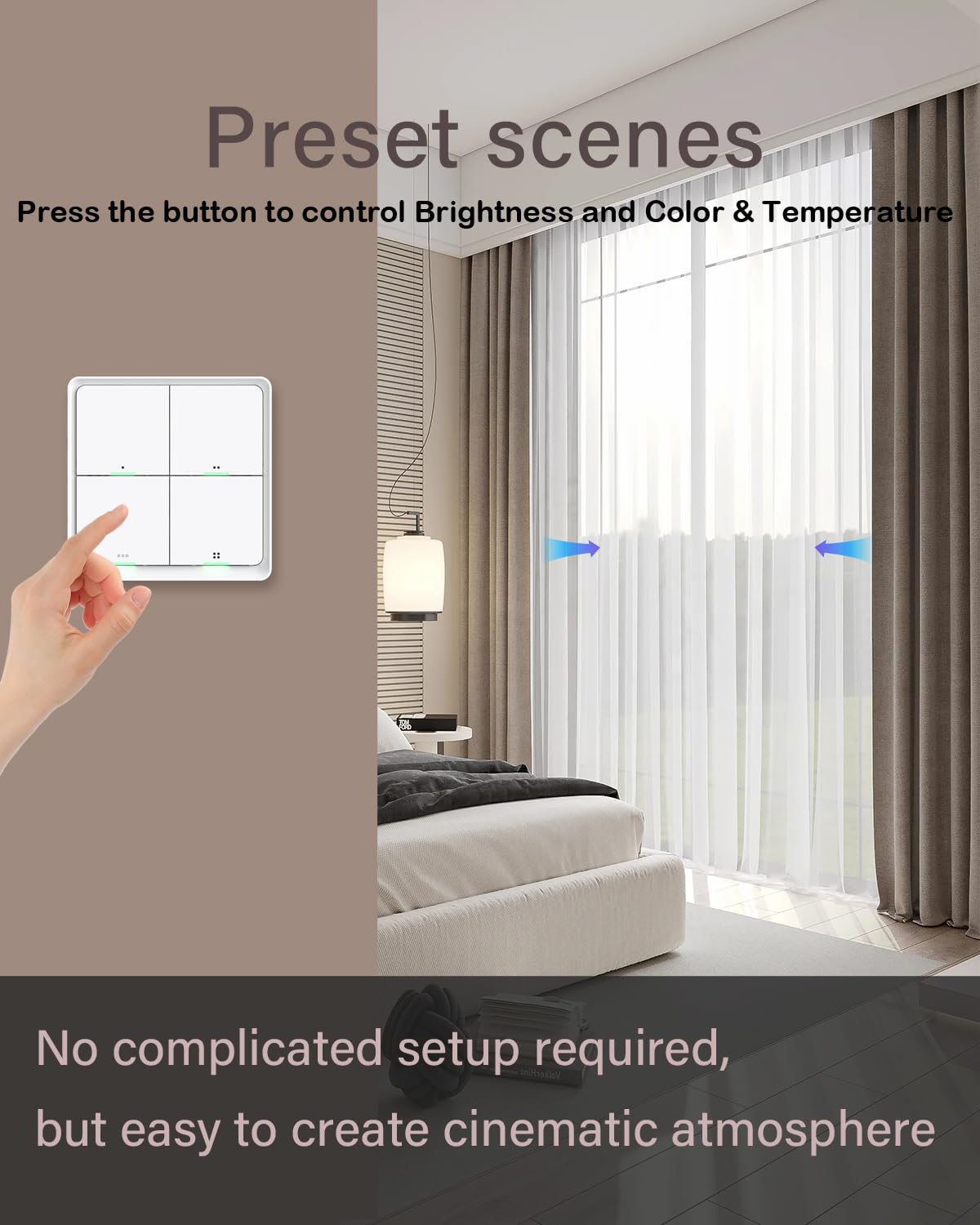
Image 3.2: A hand interacting with the smart scene switch to control preset room conditions, such as adjusting lighting brightness and color, and operating smart curtains.
4. Nlekọta
4.1. Ngbanwe batrị
The HIMOJO Smart Scene Switch is powered by a CR2430 3V battery. When the battery level is low, the device's indicator light may signal this condition (refer to the specific indicator behavior in the included user manual). To replace the battery:
- Gently pry open the back cover of the switch.
- Remove the old CR2430 3V battery.
- Insert a new CR2430 3V battery, ensuring correct polarity.
- Mechie mkpuchi azụ nke ọma.
5. Nchọpụta nsogbu
- Ngwaọrụ anaghị aza: Check battery level and replace if necessary. Ensure the device is within range of the Zigbee hub. Verify the Zigbee hub is powered on and connected to the network.
- Unable to pair with app: Ensure the Zigbee hub is correctly set up in the Tuya Smart app. Confirm the switch is in pairing mode. Try resetting the switch (refer to the included user manual for reset procedure).
- Scenes not activating: Verify that the scenes are correctly configured in the Tuya Smart app. Check the connectivity between the switch, hub, and target smart devices.
6. Nkọwapụta
| Njirimara | Nkọwapụta |
|---|---|
| Ụdị | HIMOJO |
| Nlereanya | B0C7Z6B5LM |
| Ụdị ọrụ | ON-Gbanyụọ |
| Ụdị njikọ | Ikuku |
| Circuit .dị | 4-ụzọ |
| Ụdị nkwụnye | Ugwu mgbidi |
| Ụdị Actuator | Pịa bọtịnụ |
| Ngwa kọntaktị | Copper, Brass, Stainless Steel |
| Ogo nchekwa mba ụwa | IP54 |
| Ọnụọgụ nke ọkwa | 4 |
| Ụdị njikwa | Android, iOS |
| Usoro njikwa | Ngwa, Remote, Voice |
| Protocol Njikọta | ZigBee |
| Agba | Ọcha |
| Akụkụ ngwaahịa (LxWxH) | 8.53 x 8.59 x 1.3 cm |
| Ibu Ibu | 68 g |
| Isi Iyi Ike | CR2430 3V Battery (not included) |
7. Kedu ihe dị na Igbe ahụ
- HIMOJO Smart Switch
- Ihe mmado x 2
- Akwụkwọ ntuziaka onye ọrụ
8. Akwụkwọ ikike na nkwado
HIMOJO provides dedicated customer support. If you have any questions or concerns regarding your Smart Scene Switch, a support team is available to assist you. Please refer to the contact information provided in the included user manual or on the official HIMOJO websaịtị maka nkọwa nkwado.


